Landing pages
Every page of Monst is an ordinary page of the CMS whose content is a stack of "Block" shortcodes. A landing page is just a page that has several blocks one under the other: a hero, some features, a pricing table, a contact form. You can edit, reorder, copy or delete any of them in Admin -> Pages.
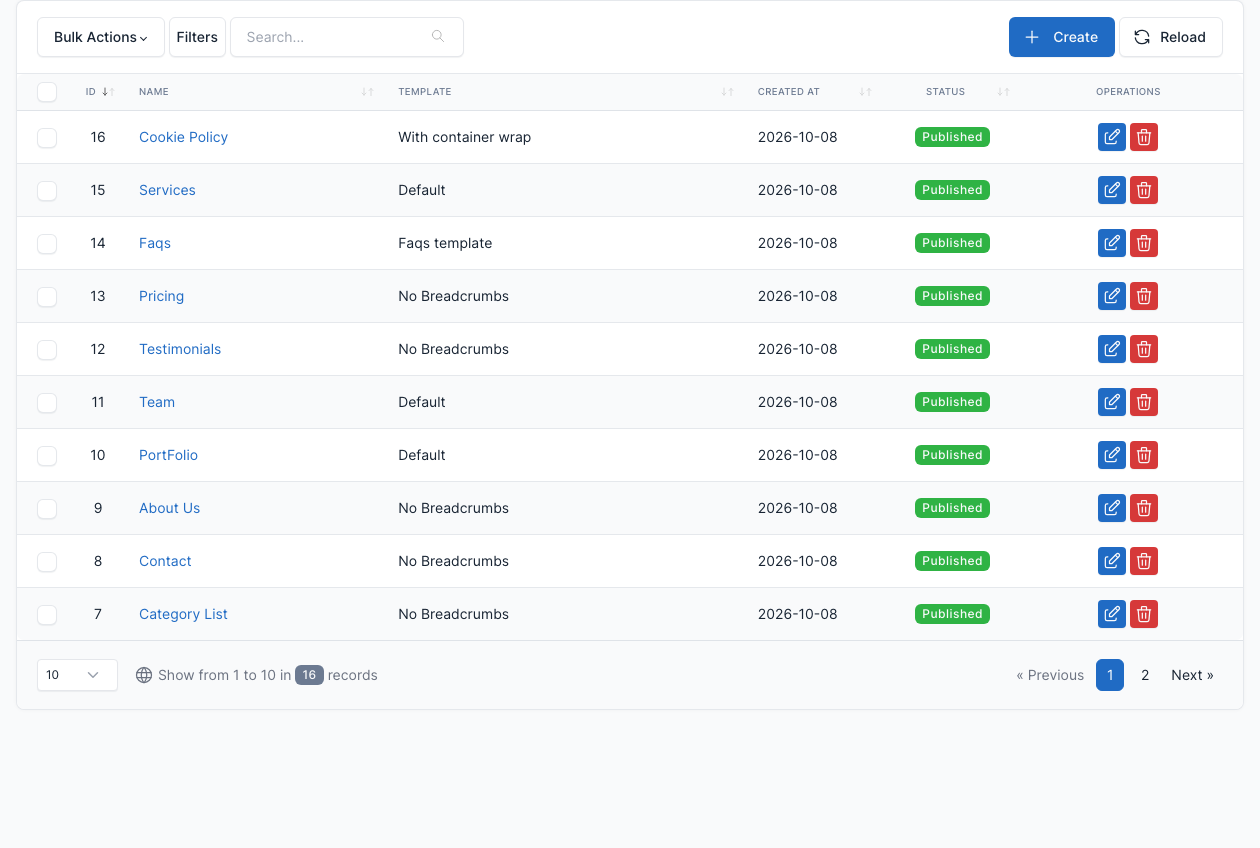
The demo pages
Monst ships with 16 pages. The 5 landing pages show different combinations of the blocks; the other 11 are pages a business site needs. See Short code for every block.
| Page | Template | Blocks, from top to bottom |
|---|---|---|
Landing page 1 (/) | No Breadcrumbs | Hero banner (Full), Statistical & number, 2 columns centered image, Content & multi block item, Text & slider, Subscription, Subscribe |
Landing page 2 (/landing-page-2) | No Breadcrumbs | Hero banner (gray background), Content & multi block item, 2 columns text, Text & slider, Content & multi block item, Subscription, Contact form (Style 2) |
Landing page 3 (/landing-page-3) | No Breadcrumbs | Hero banner (2 columns), Text & slider, Content & multi block item, Subscription, Text & slider, FAQs, Contact form (Style 2) |
Landing page 4 (/landing-page-4) | No Breadcrumbs | Hero banner with partners logo, Content & multi block item (twice), Subscription, Text & slider, Contact form (Style 2) |
Landing page 5 (/landing-page-5) | No Breadcrumbs | Hero banner with partners logo, 2 columns centered image (twice), FAQs, Contact form (Style 2), Specialists/Experts |
| About Us | No Breadcrumbs | Hero banner, Statistical & number, Content & multi block item, Specialists/Experts, Contact form |
| Services | Default | 2 columns centered image, Statistical & number, Content & multi block item, Subscription, Contact form, Subscribe |
| PortFolio | Default | Projects, Contact form |
| Team | Default | Specialists/Experts (twice), Contact form |
| Testimonials | No Breadcrumbs | Testimonial Hero, Testimonials, Contact form |
| Pricing | No Breadcrumbs | Hero banner, Statistical & number, Subscription (twice), Contact form |
| Faqs | Faqs template | Hero banner, FAQs |
| Contact | No Breadcrumbs | Hero banner, Contact form, Google Maps |
| Category List | No Breadcrumbs | Posts listing |
| Blog | Default | The list of posts (no blocks) |
| Cookie Policy | With container wrap | Plain text |
Landing page 1
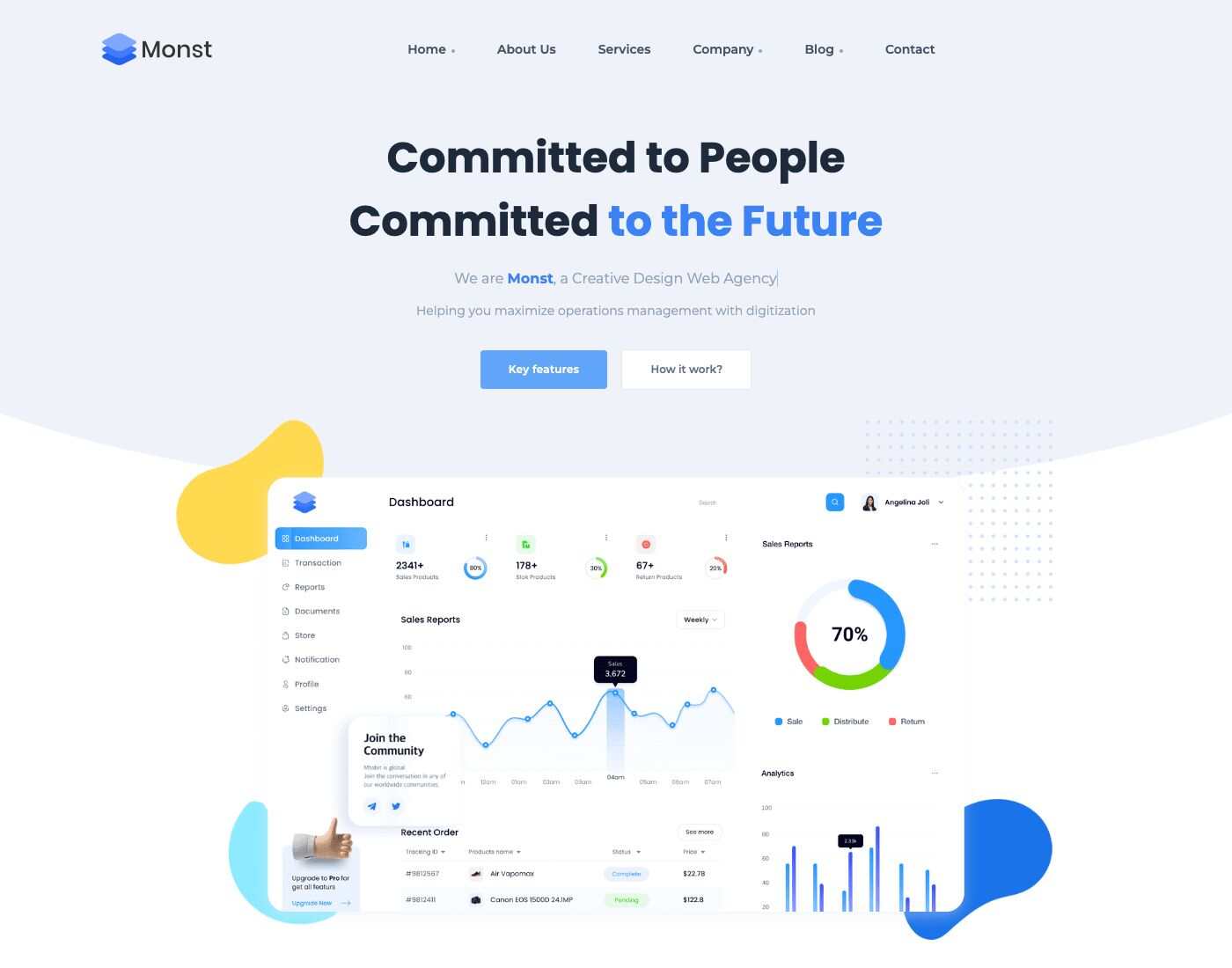
Landing page 2
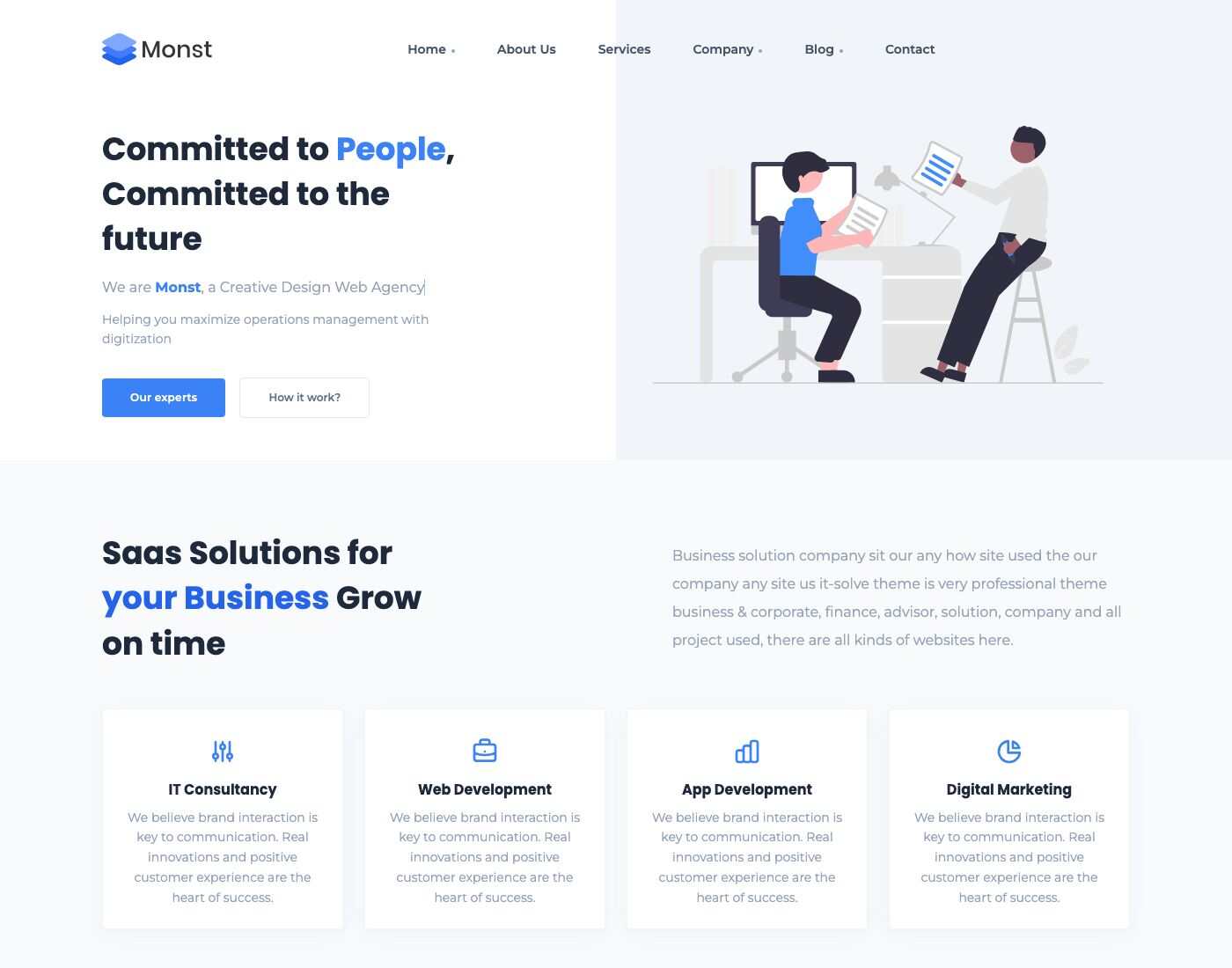
Landing page 3

Landing page 4

Landing page 5
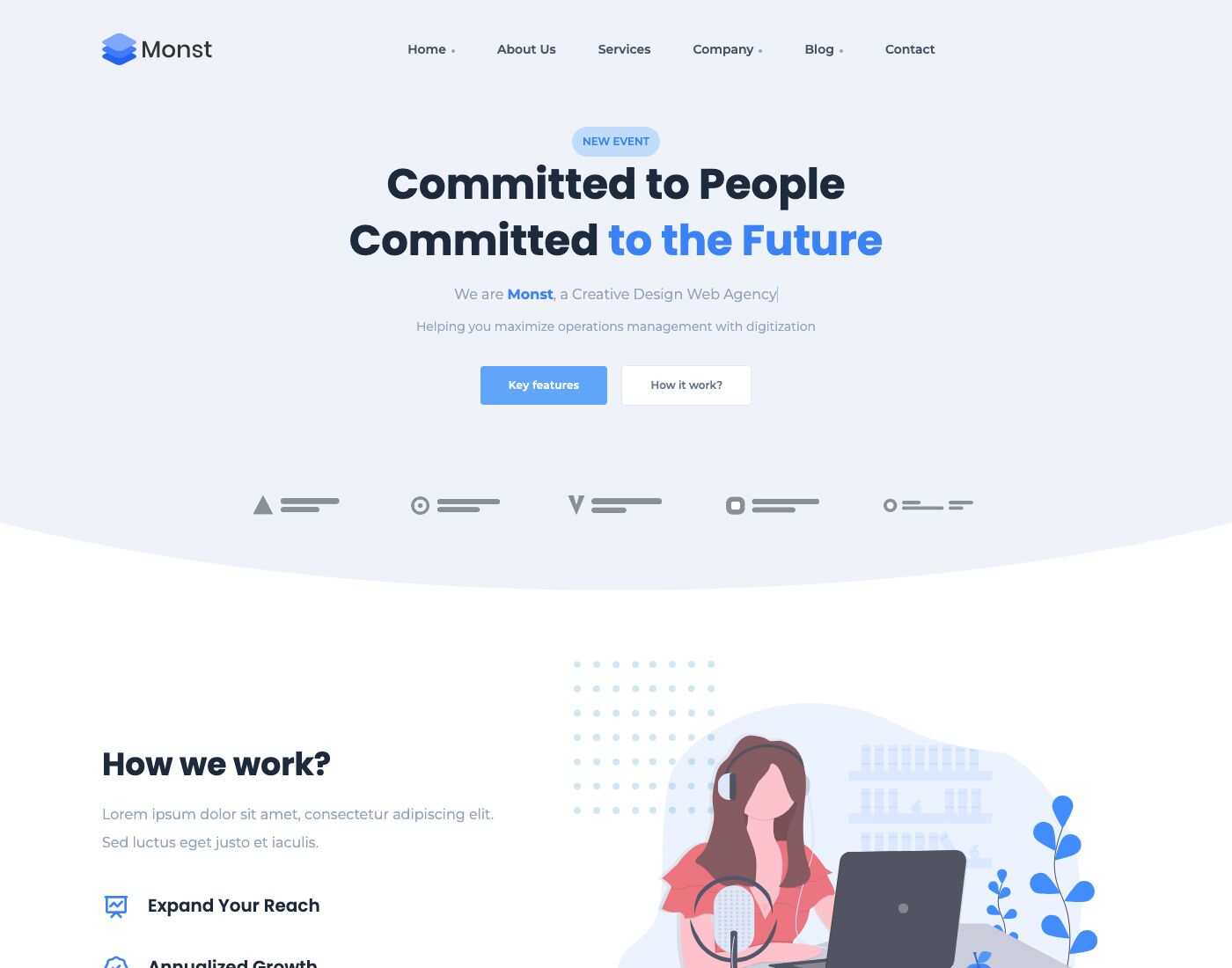
Page templates
The Template box of a page has four choices:
| Template | What it does |
|---|---|
| Default | The page title and the breadcrumb trail in a gray bar under the header, then the content. |
| No Breadcrumbs | No title bar: the content starts right under the header. Used by the landing pages, whose first block is a hero. |
| Faqs template | Adds the FAQ search box and the illustration above the content. The search box filters the questions of the FAQs blocks by the word you type. See FAQs. |
| With container wrap | The content is put inside a centered container. Used by the Cookie Policy page. |
Build a new landing page
- Go to Admin -> Pages and click Create.
- Enter the Name and choose the Template (use No Breadcrumbs if the page starts with a hero).
- In the editor click UI Blocks, pick a "Block" shortcode, click Use, fill in its form and click Add. Repeat for each block; drag the gray blocks in the editor to reorder them.
- Click Save and open the page. Its address is the page permalink.
- To make it the home page, go to Admin -> Appearance -> Theme options -> Page and select it in Your homepage displays.
- To put it in the menu, add it in Admin -> Appearance -> Menus. See Menu.
TIP
The quickest way to start is to open the demo page that is closest to what you want, copy the blocks you need into a new page and change their texts and pictures.