Header
UltraNews has 3 header styles. You choose the style for the whole site in Theme options, and you can preview another style on a single page with a link parameter.
Choose the header style
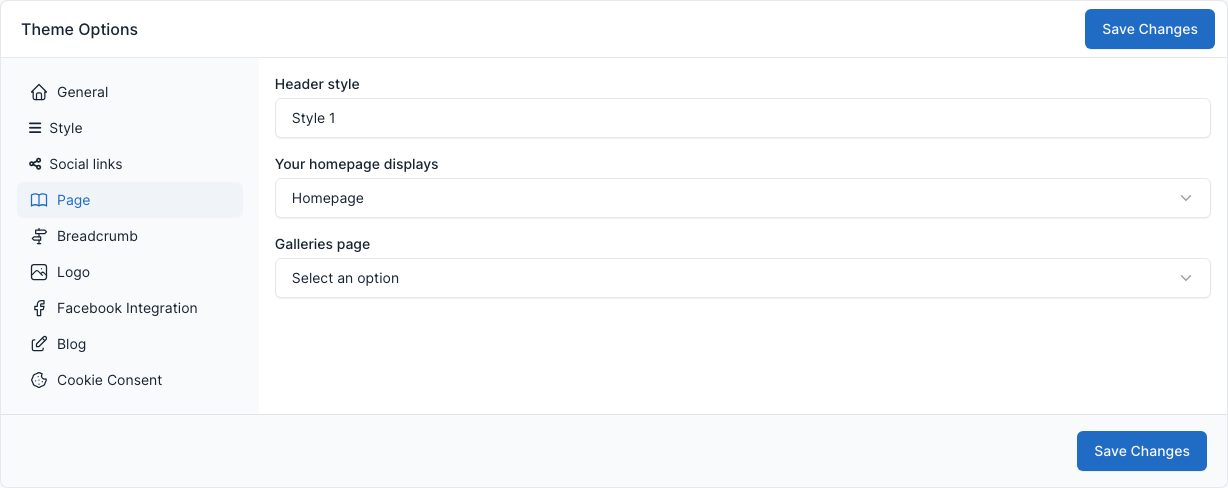
Go to Admin -> Appearance -> Theme options, tab Page.
Select Header style (Style 1, Style 2 or Style 3), then click Save Changes.
Preview a style with a link
Add ?header=style-N to any page address to show that page with another header, for example /?header=style-3. Only style-1, style-2 and style-3 are accepted; any other value is ignored and the header chosen in the theme options is used. The demo menu uses this: its Home 2 and Home 3 links carry ?header=style-2 and ?header=style-3. You can do the same in your own menu, in Admin -> Appearance -> Menus, by adding the parameter to the URL of a menu link.
The 3 header styles
All styles have the same top bar: the date on the left, your social links and the Login link (when Allow user login? is on) on the right. They all have the All Sections button, which opens the side panel, and a magnifier that opens the search box.
Style 1
The logo is centered in its own row, and the main menu sits in a bar below it, with All Sections on the left and the search on the right.

Style 2
A compact header: the logo and the main menu share one row, with All Sections and the search on the right.

Style 3
A colored top bar, then the logo on the left and a banner ad on the right, then the main menu bar. The banner is an ad of the Ads plugin assigned to the Header Ads location (see Ads).

Logo
The logo of the desktop header, and the smaller logos used on tablets and phones, are set in Theme options -> Logo. See Custom Site Identity.
Side panel
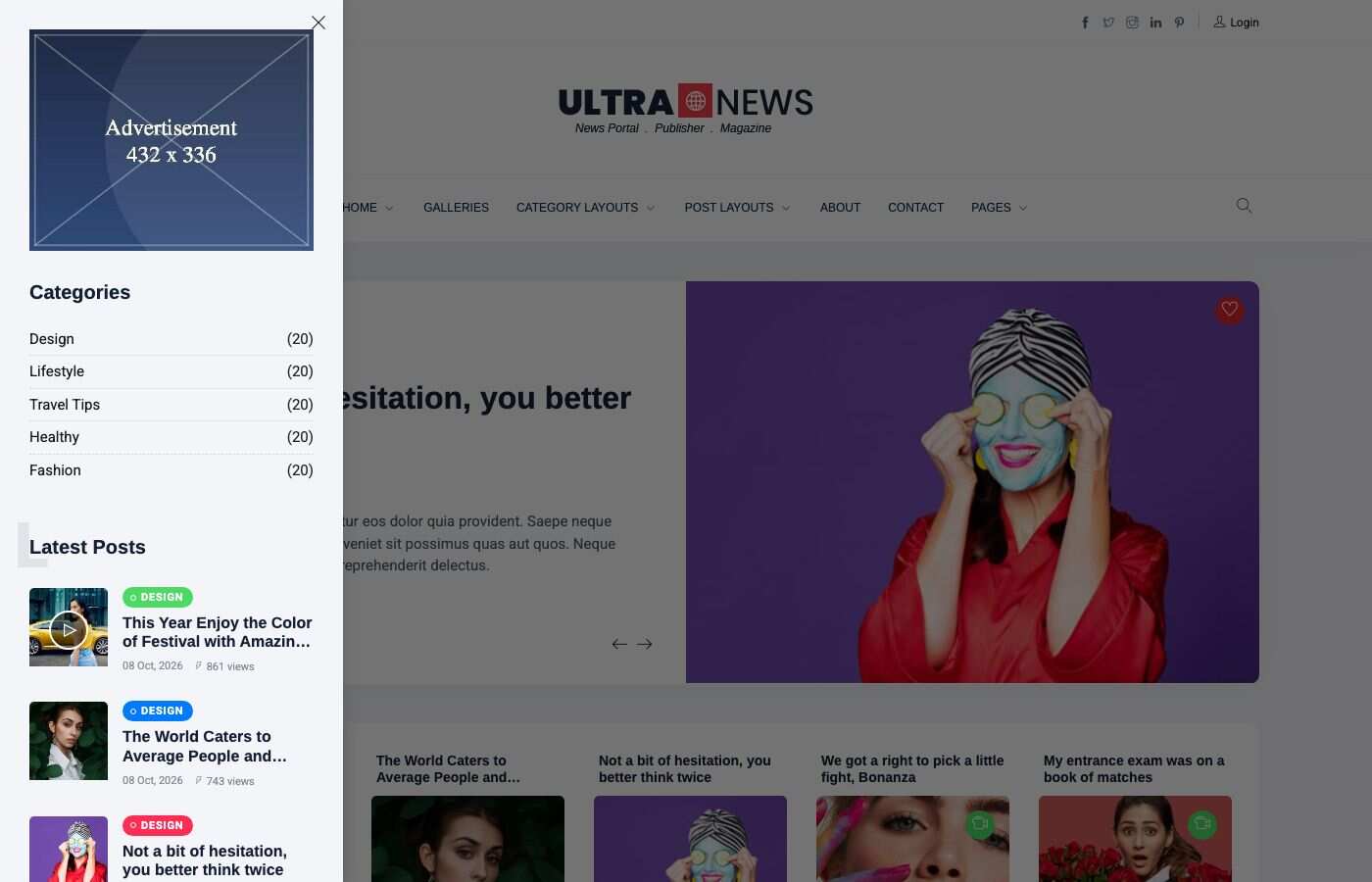
The All Sections button opens a panel on the left that shows the widgets of the Primary sidebar area (the demo has an ad, the categories, the latest posts and the social buttons). Edit them in Admin -> Appearance -> Widgets. See Widgets.
Menu
The main menu links come from the menu assigned to the Main Navigation location. See Menu.