Static Blocks
Static blocks are pieces of content that you write once and show in several places: the call to action above the footer, the store badges, the "How it works" steps on the home pages and the texts of the About us page. Resido uses them so you can change that content without touching the theme files.
Go to Admin -> Static Blocks.
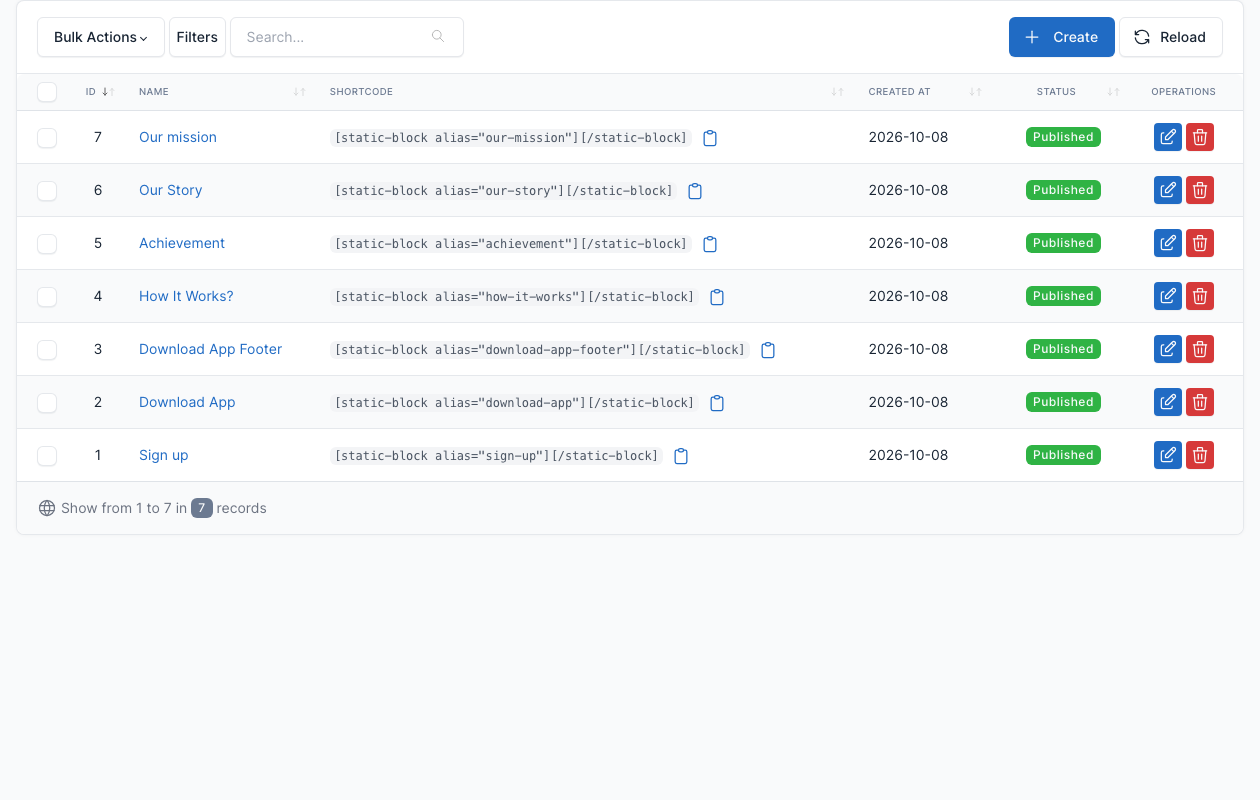
| Static block | Alias | Where it is used |
|---|---|---|
| Sign up | sign-up | The blue call to action above the footer (Footer sidebar 1). |
| Download App Footer | download-app-footer | The "Download Apps" block with the store badges in the footer (Footer sidebar 3). |
| How It Works? | how-it-works | The three "How it works" steps on several home layouts. |
| Achievement | achievement | The counters on several home layouts. |
| Our Story, Our mission | our-story, our-mission | The About us page. |
| Download App | download-app | The app download section of some home layouts. |
Edit a block
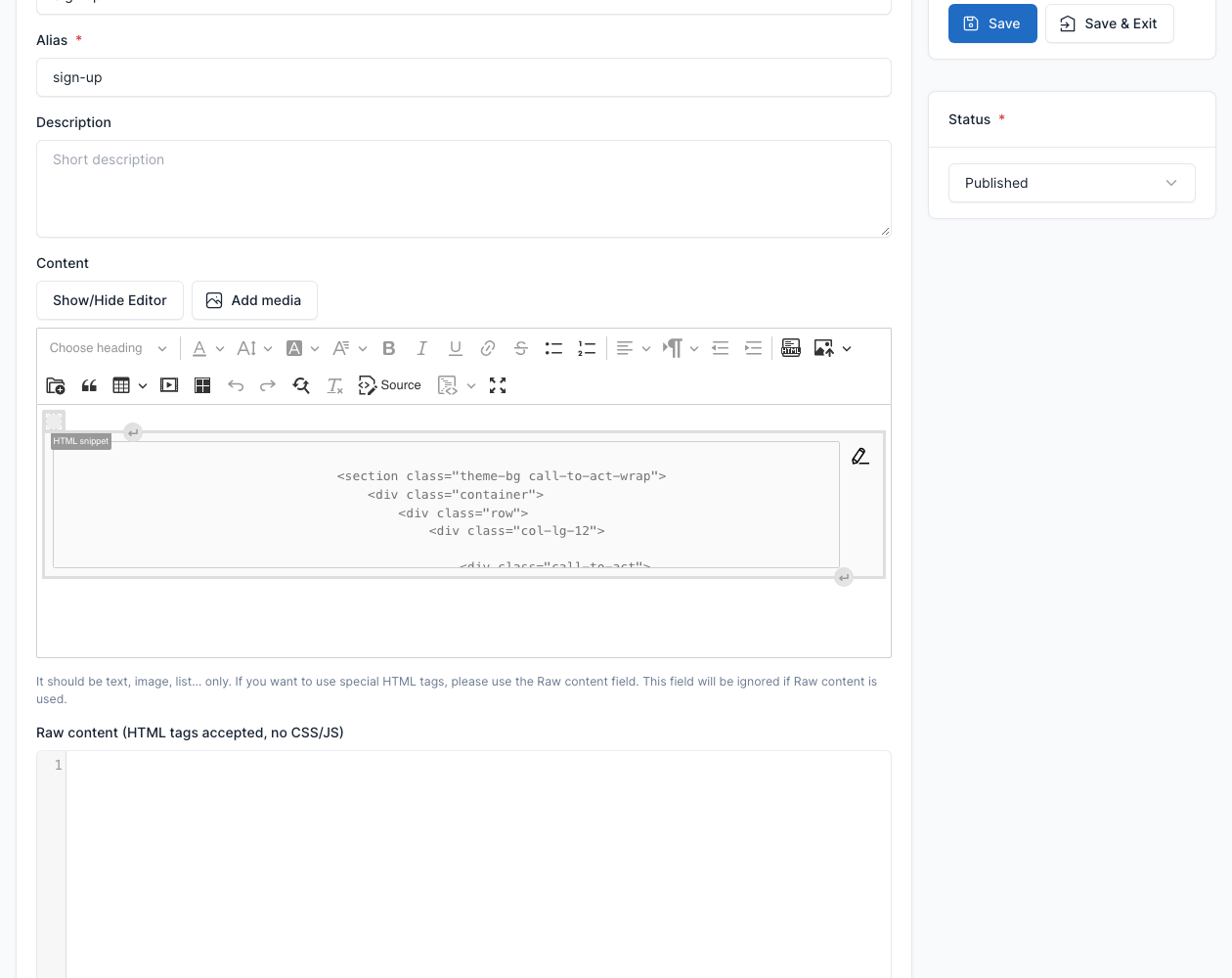
Click Edit on a row. The content is a normal editor: change the text, the pictures and the links (for example the App Store and Google Play links of Download App Footer), then save. The Alias is the name used to show the block, so keep it unchanged.
TIP
Use the Source button of the editor to edit the HTML of a block directly.
Show a block
Add the shortcode to the content of a page, or to a Shortcode widget (see Widgets):
[static-block alias="how-it-works"][/static-block]Or pick Static block in the UI Blocks list of the editor and choose the block. See Short code.
Sliders
The Simple Sliders plugin (Admin -> Simple Sliders) lets you build image sliders and show them with the [simple-slider] shortcode. The demo pages do not use it, so the list is empty after a fresh install.