Menu
Go to Admin -> Appearance -> Menus.
Resido has one menu with a display location (the main menu of the header) and three menus that the footer widgets show. All of them are managed on the same screen.
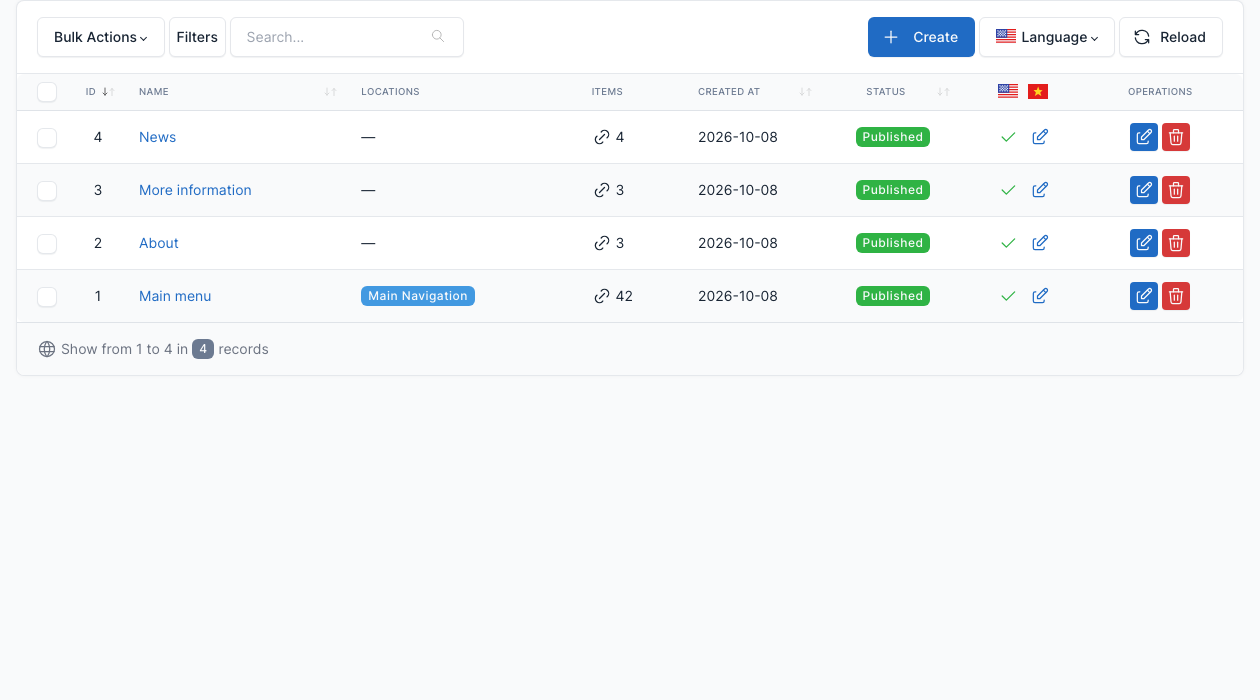
To change a menu, click Edit on its row. Add pages, categories, tags or custom links from the boxes on the left, drag the items to reorder them or to nest them as submenus, then save.
Main menu
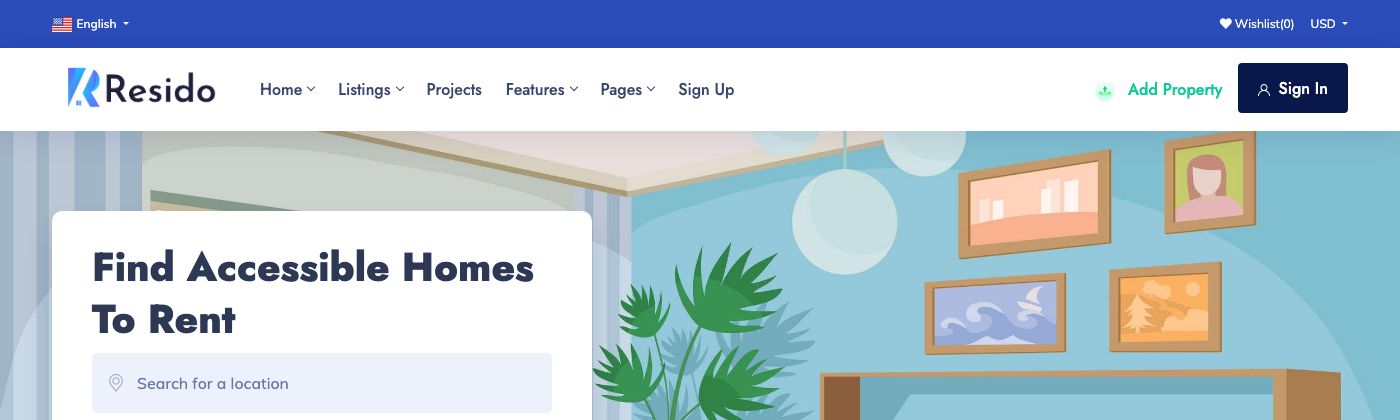
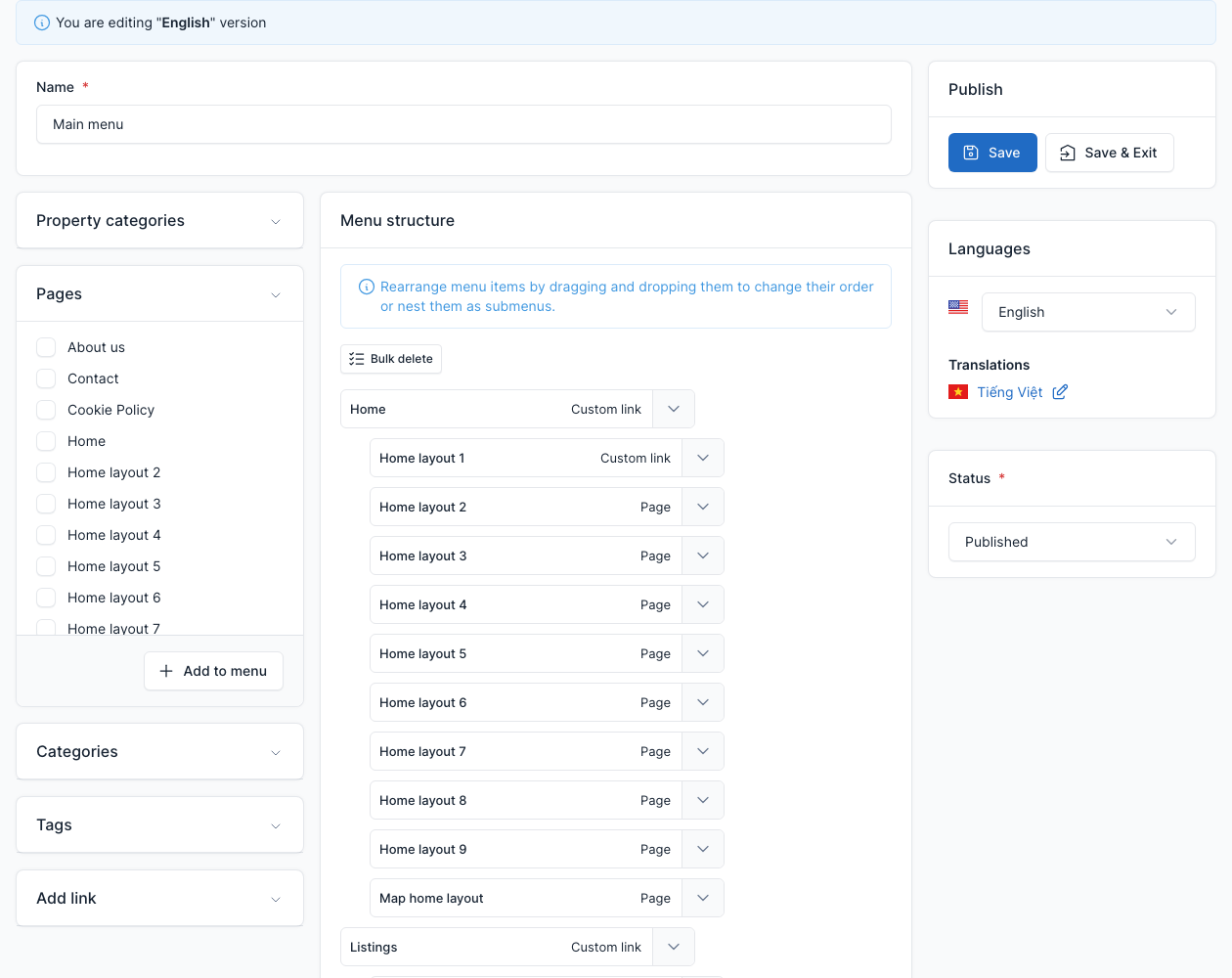
The main navigation of the header. The display location is Main menu (tab Menu settings at the bottom of the menu editor). The demo menu has the 10 home layouts under Home, the listing layouts under Listings, then Projects, Features (single property layouts, agents and the account pages), Pages and Sign Up.

Go to Admin -> Appearance -> Menus and edit "Main menu".
TIP
The account links (/account/dashboard, /account/properties, /account/settings, /account/packages and /account/properties/create) are custom links. They send a visitor who is not signed in to the login page.
TIP
If you turn projects off in Real estate settings, remove the Projects item from this menu too.
Footer menus
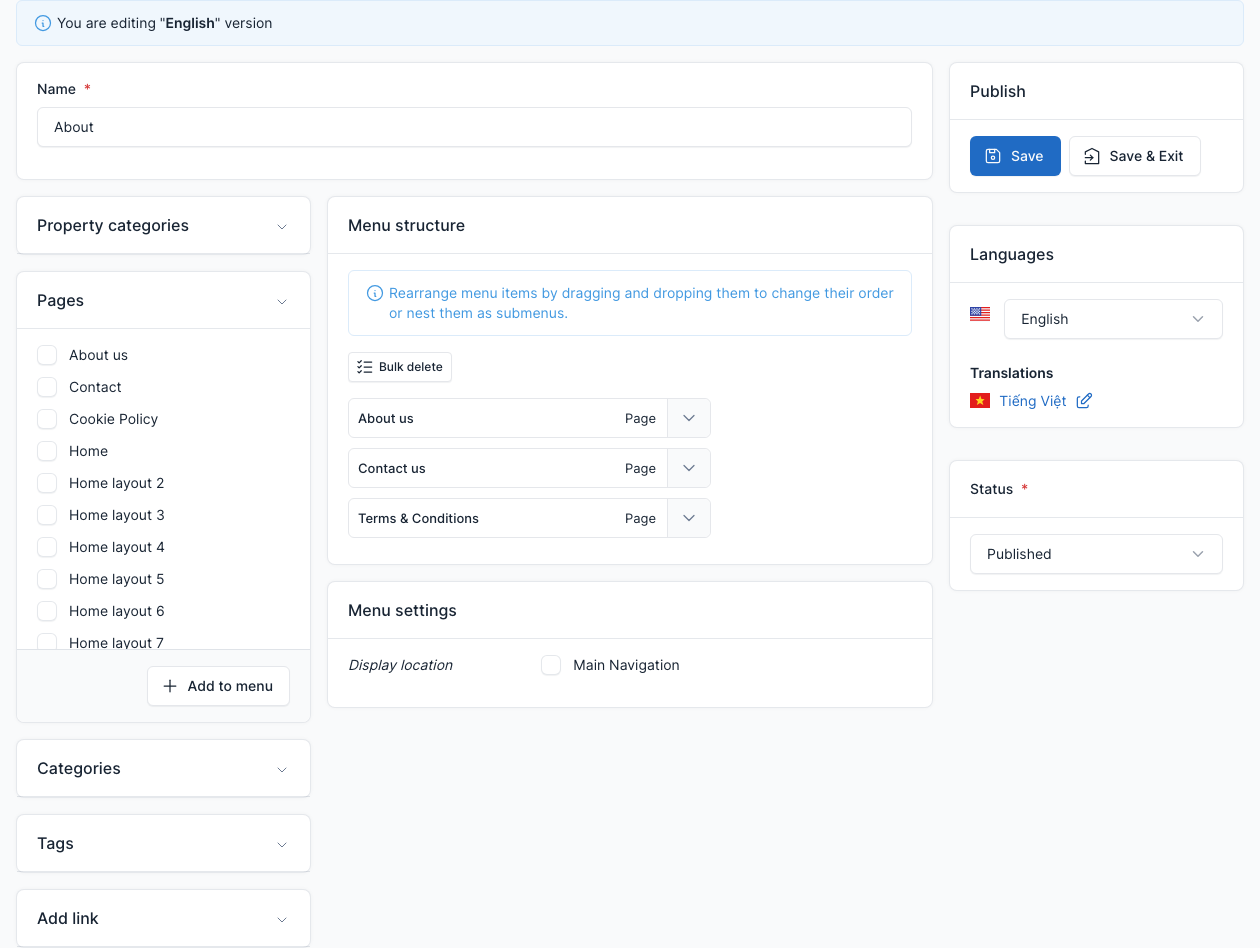
The columns in the middle of the footer are Custom Menu widgets. Each widget shows one menu: About, More information and News.
Go to Admin -> Appearance -> Menus and edit the menu, for example "About".
To change which menu a column shows, or its title, open Admin -> Appearance -> Widgets. See Footer and Widgets.
Menus in another language
Each menu can be translated. Resido ships a main menu and a footer menu in English and in Vietnamese. Open the menu and use the Languages box on the right to switch to the other language and edit its own copy. See Translate.