Short code
Shortcodes are the building blocks of the Resido home pages. You add them to the content of a page (or a post) and set their options in a form.
Go to Admin -> Pages, open a page, and in the editor click the UI Blocks button. Pick a shortcode in the list and click Use. Fill in the form and click Add.
The editor then shows the shortcode as a gray block. Click it to edit the options again. Save the page to publish the change.
The list contains these Resido shortcodes:
| Shortcode | What it does |
|---|---|
| Hero banner | Hero with a search form, 7 styles |
| Hero banner map | Full map with all properties |
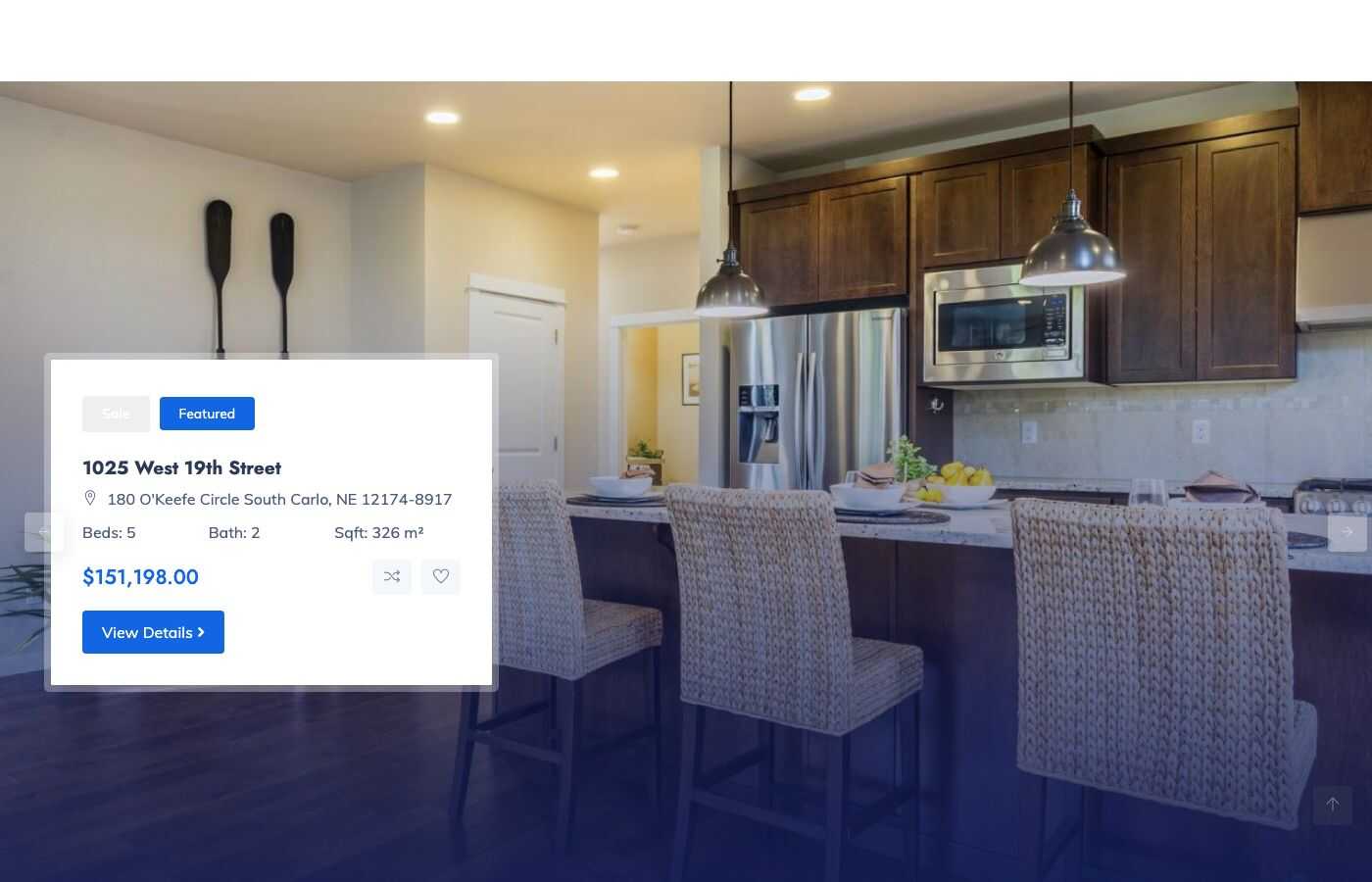
| Properties hero slide | Full width slider of featured properties |
| Cover banner | Banner with a title and a button |
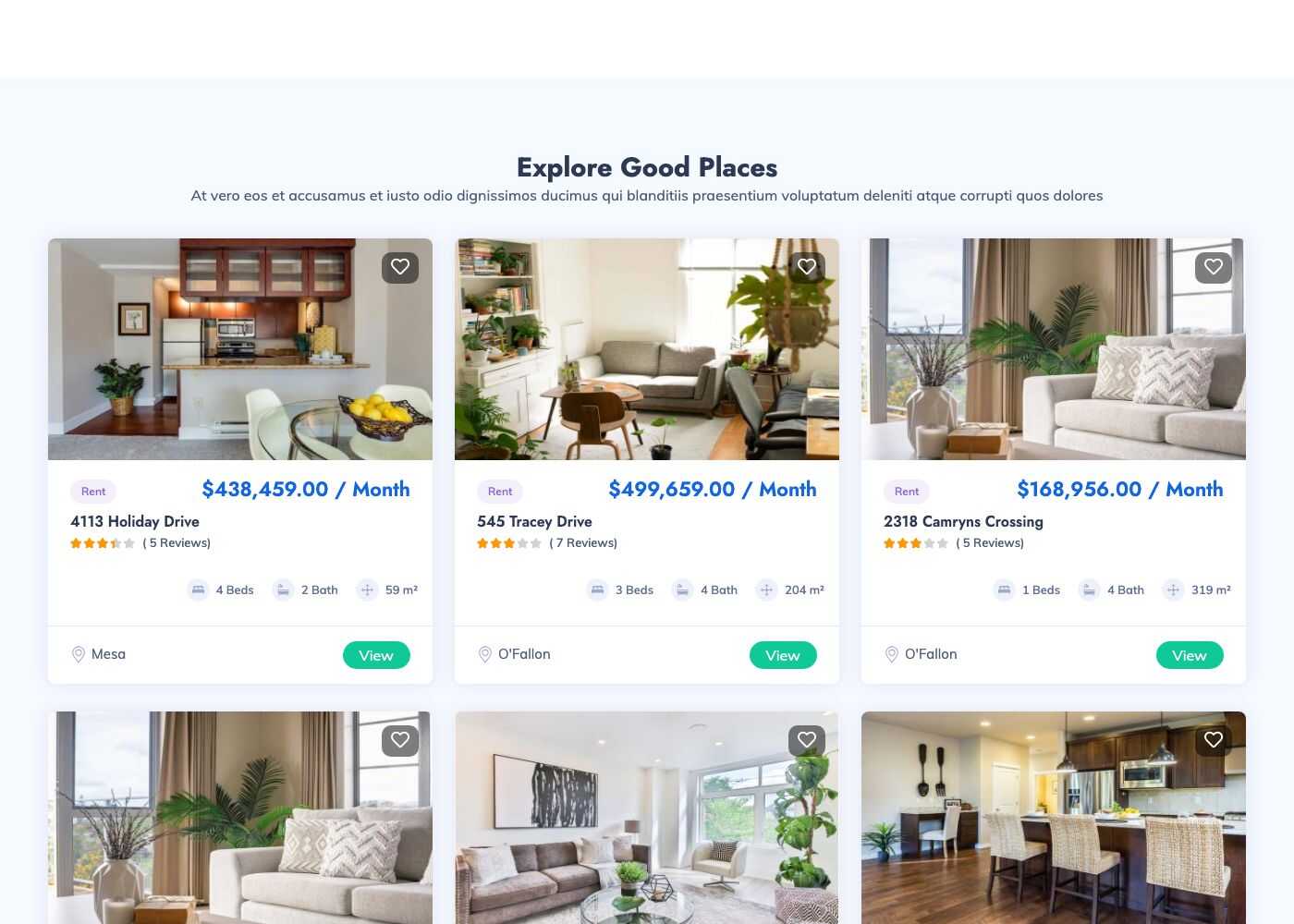
| Featured properties | Grid of properties, 2 styles |
| Featured projects | Grid of featured projects |
| Properties slide | Carousel of properties |
| Find By Locations | Pictures of the featured cities |
| Featured Agents | The featured agents |
| Latest news | The latest blog posts |
| Testimonials | Customer reviews |
| Our Packages | Pricing of the credit packages |
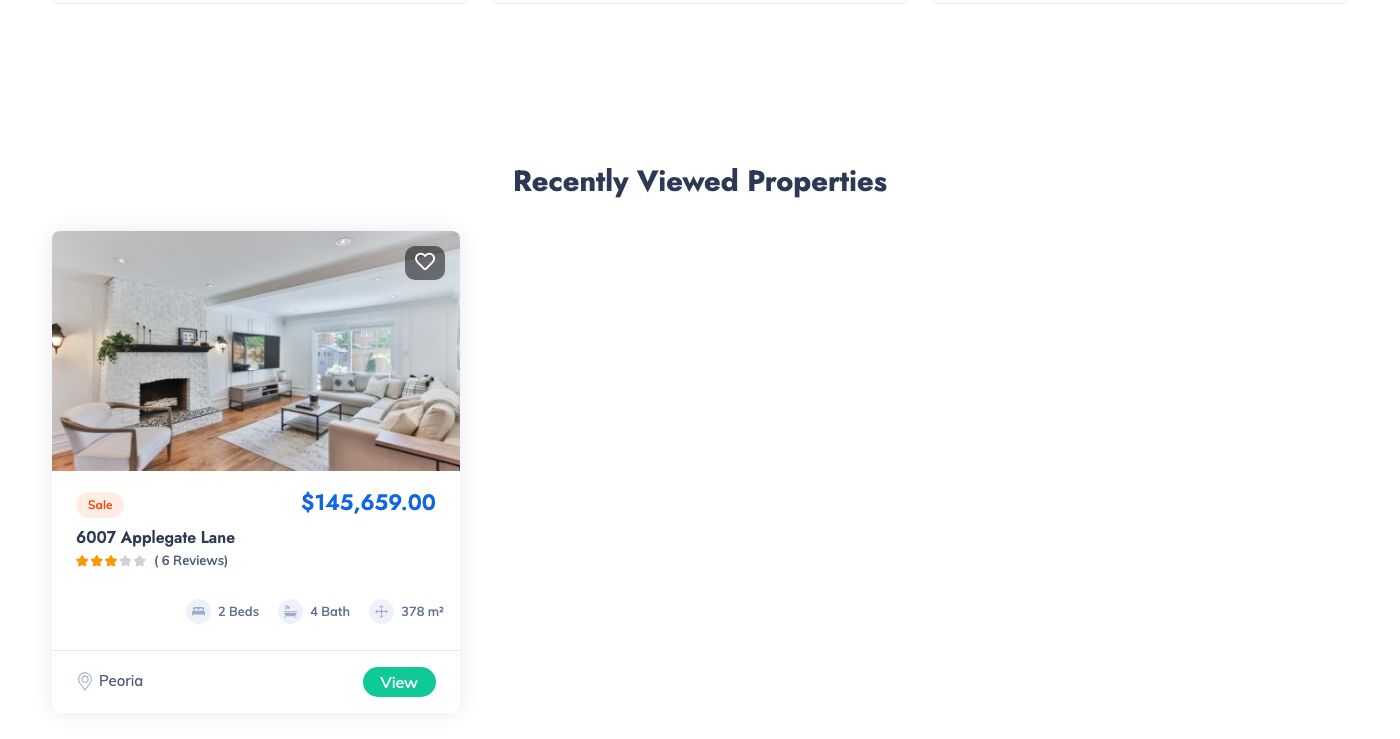
| Recent Viewed Properties | Properties the visitor looked at |
The list also shows Static block, Contact form, YouTube video and Simple slider (from the CMS core and its plugins), and Audio, Blog posts, Custom HTML, Google Maps, Iframe Embed and Media.
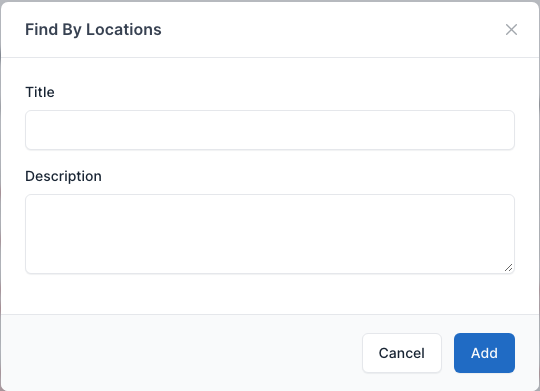
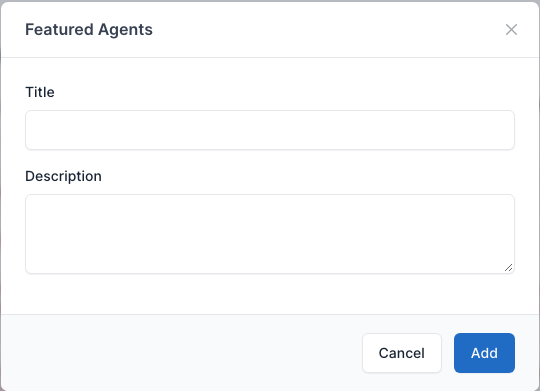
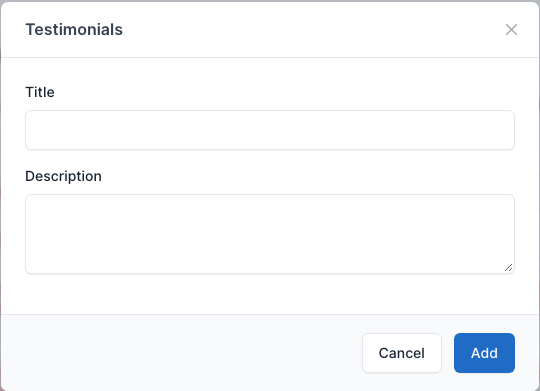
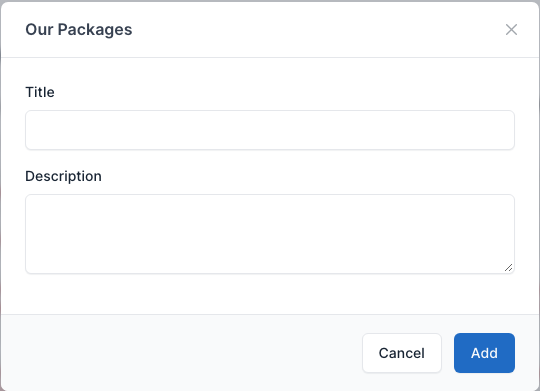
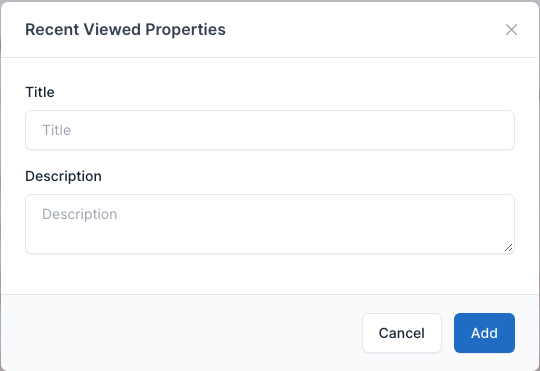
Most Resido shortcodes share two fields: Title and Description, the heading of the section. The demo pages are in Admin -> Pages: Home, Home layout 2 to 9 and Map Home layout. Open one to see how its shortcodes are set.
Hero banner
The first section of a home page: a title, a background picture and a property search form. The Style field has 7 values: 1, 2, 3, 4, 5, 6 and 10.
Setting
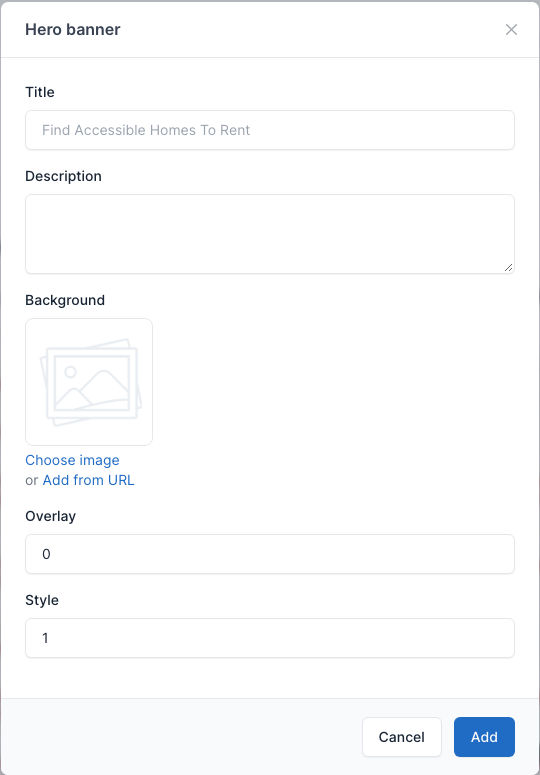
- Title and Description: the heading and the line under it.
- Background: the background picture. On some styles a part of the artwork (the illustration or the skyline) is fixed and the picture shows behind it.
- Overlay: a number that darkens the background picture, used by styles 2, 3, 4 and 6 (style 3 of the demo uses 6).
- Style: see below.
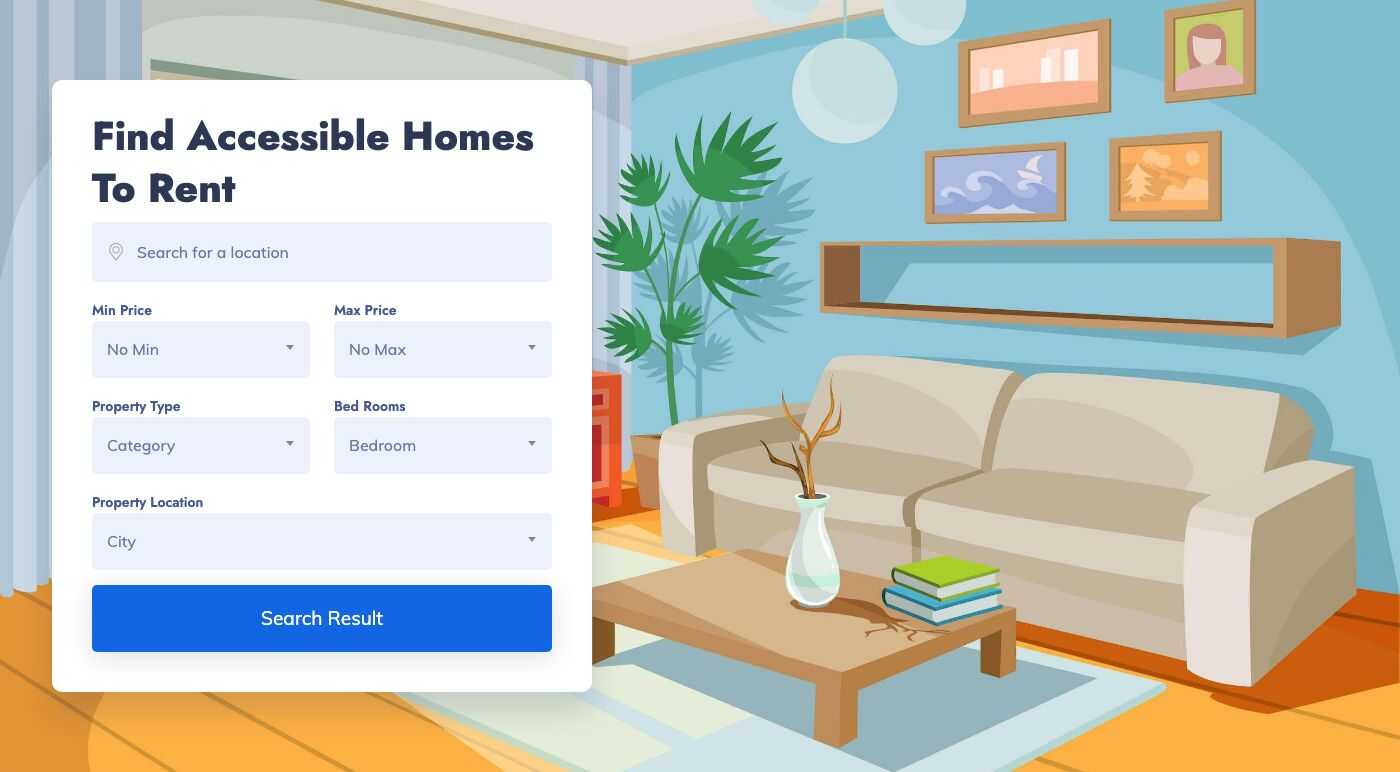
Style 1
Search card on the left of a background picture, with location, price, type, bedrooms and city. Used on Home.
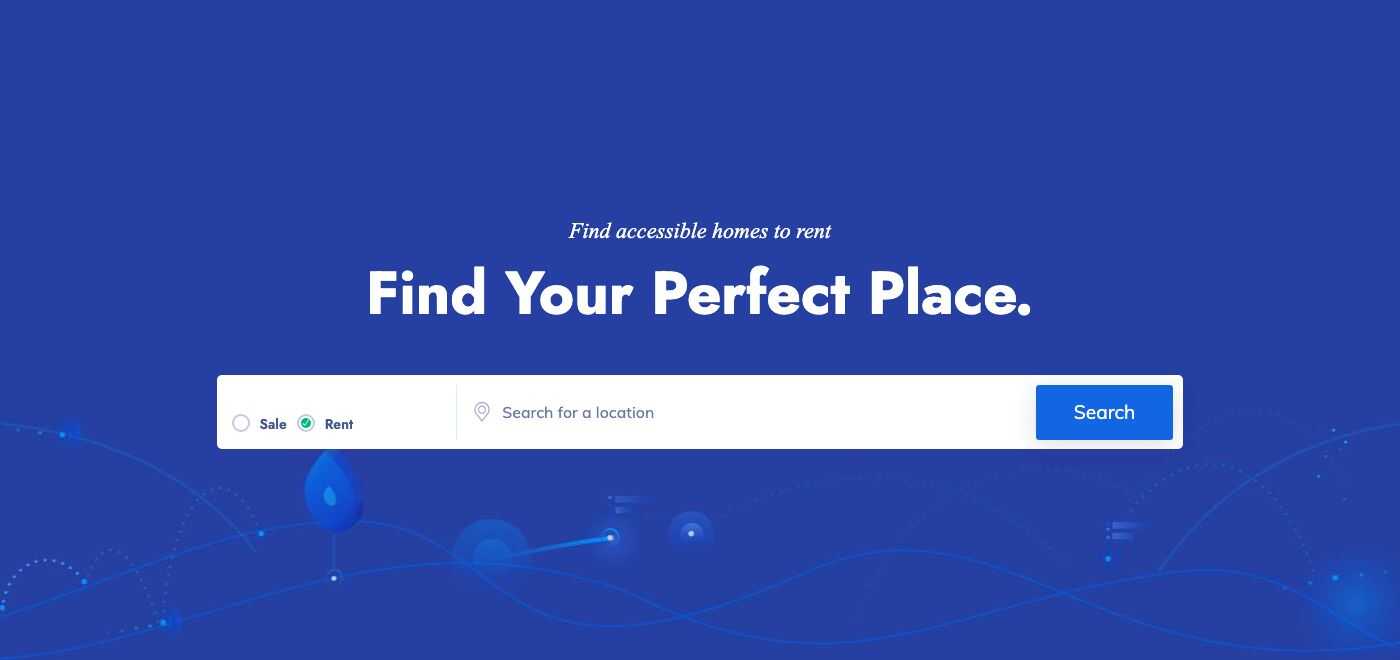
Style 2
Blue background with a centered title and a one-line search bar (Sale or Rent, location). Used on Home layout 2.
Style 3
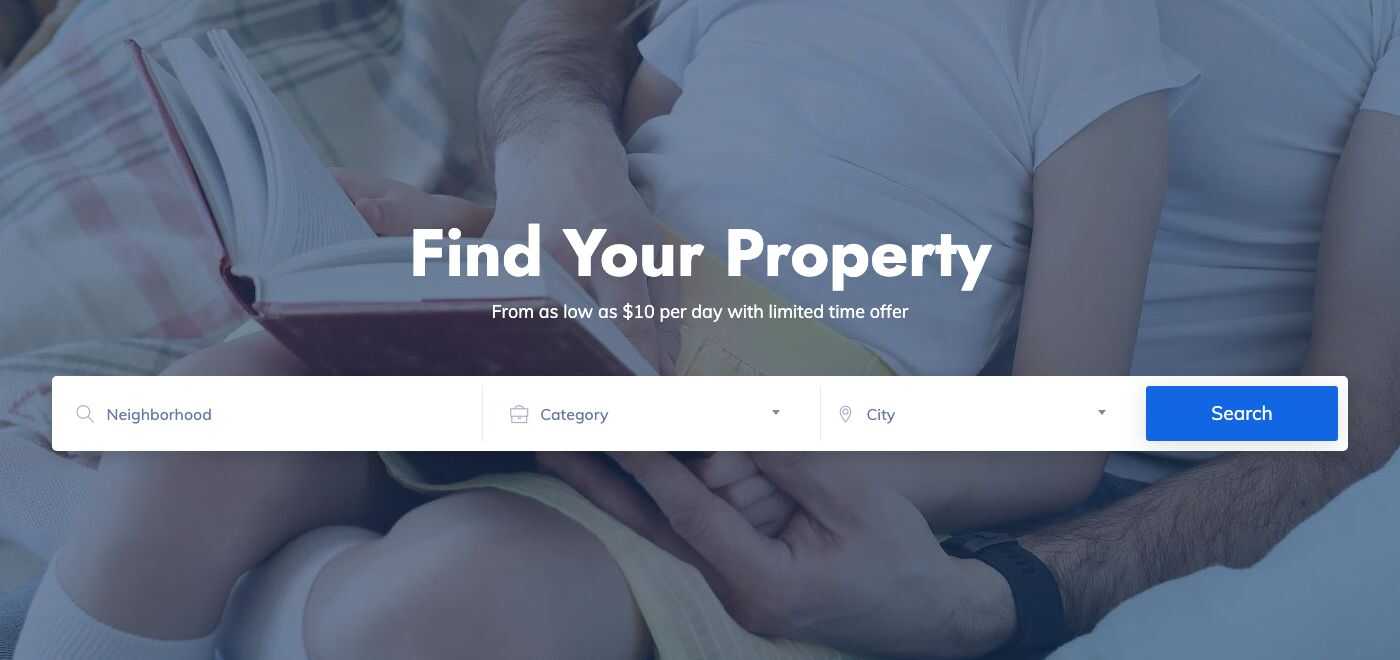
Picture with an overlay, a title and a search bar by neighborhood, category and city. Used on Home layout 3.
Style 4
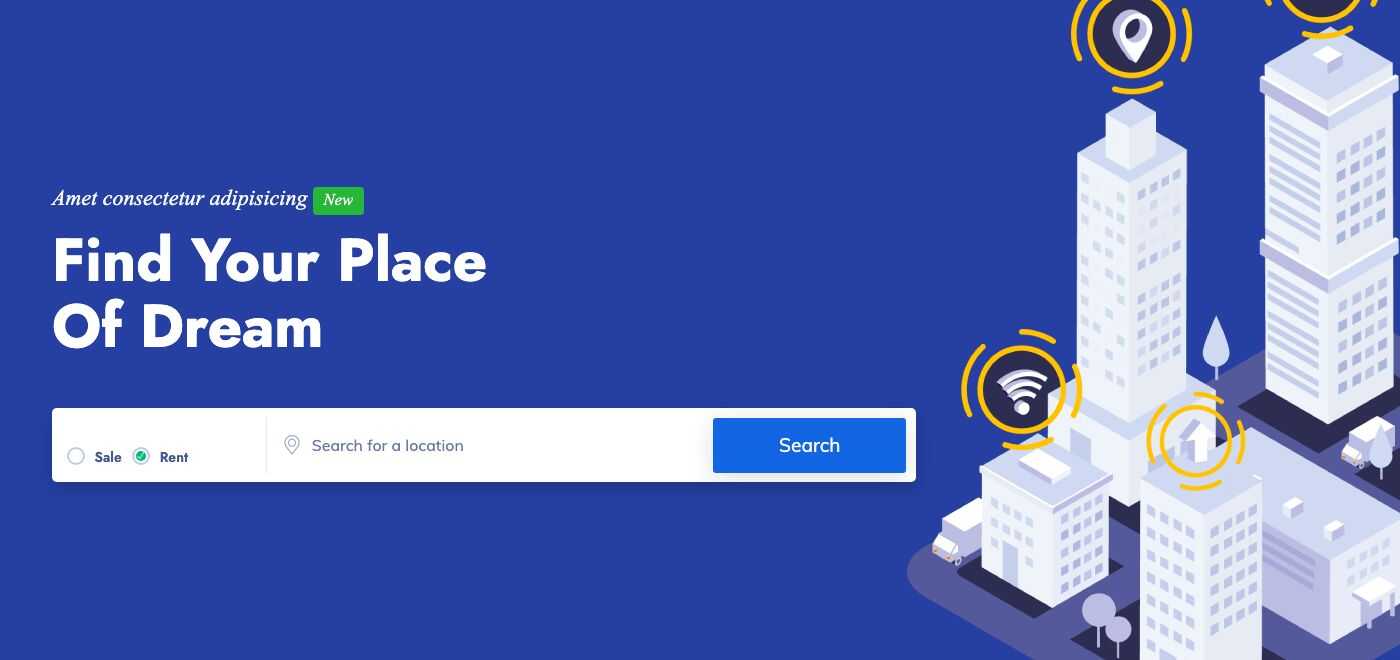
Blue background with an illustration, a title and a search bar. Used on Home layout 4.
Style 5
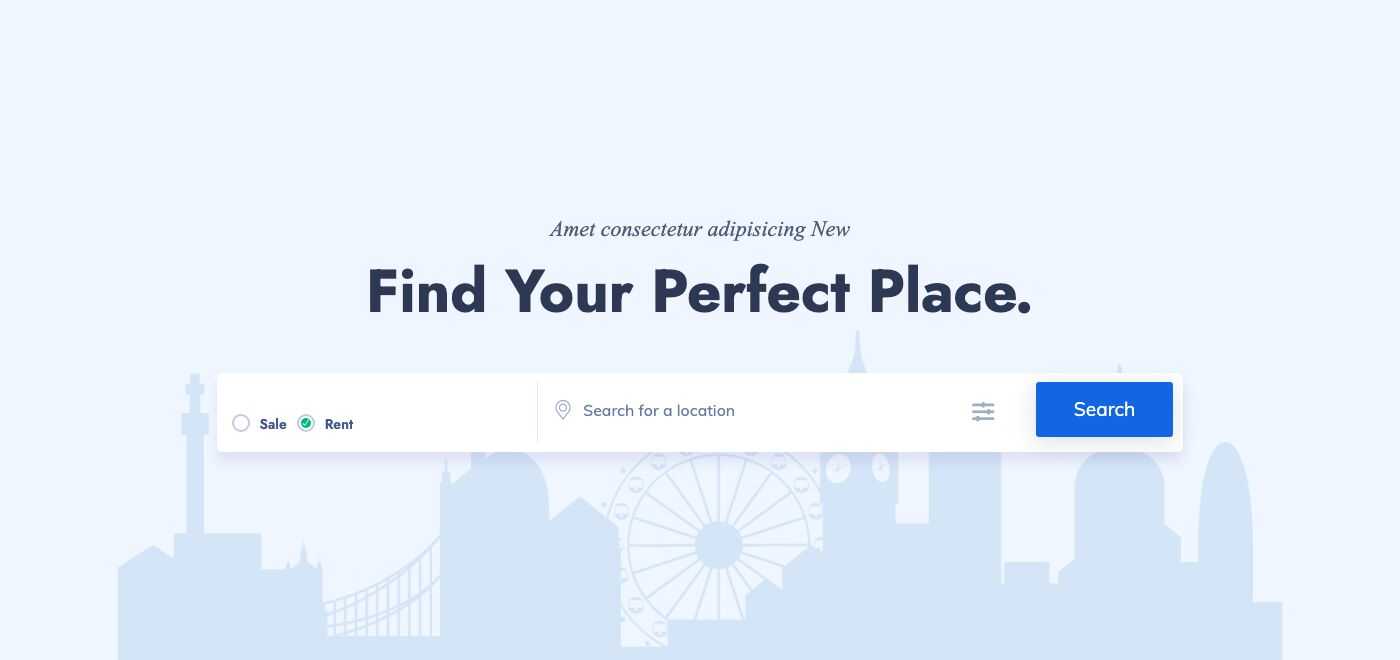
Light background with a skyline and a search bar that opens advanced filters. Used on Home layout 5.
Style 6
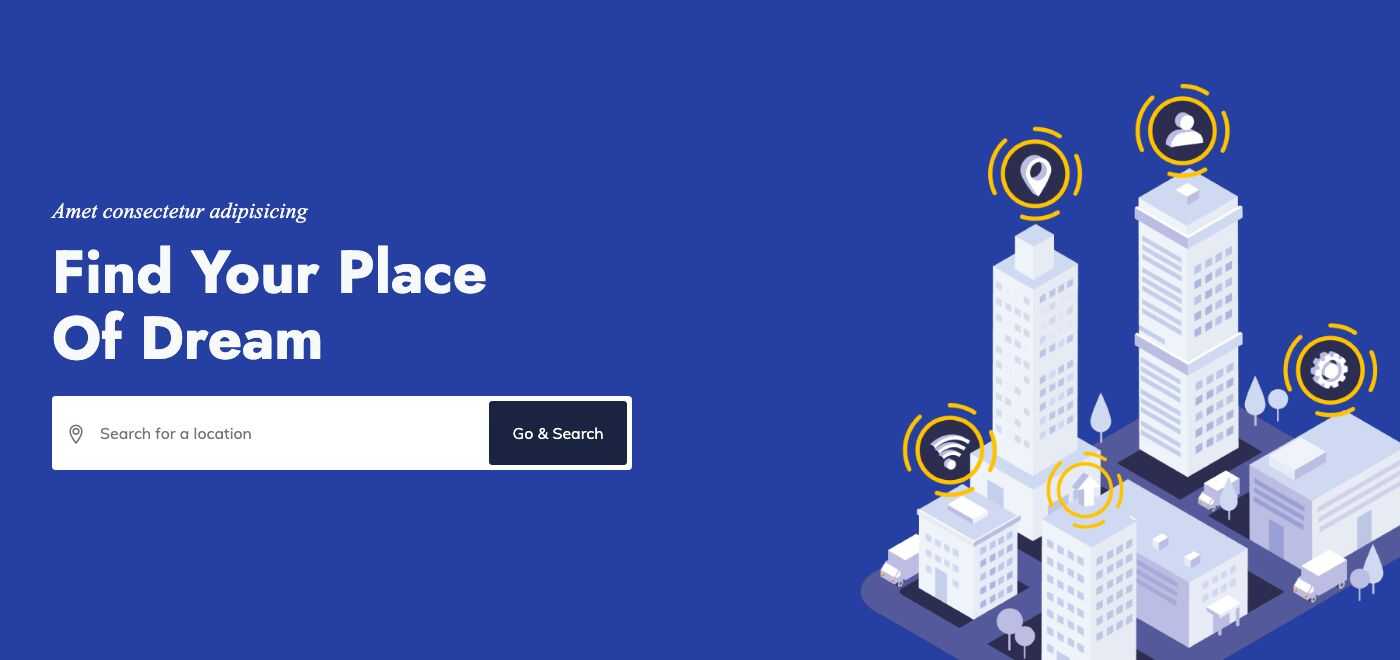
Blue background with an illustration and a search bar with a "Go & Search" button. Used on Home layout 6.
Style 10
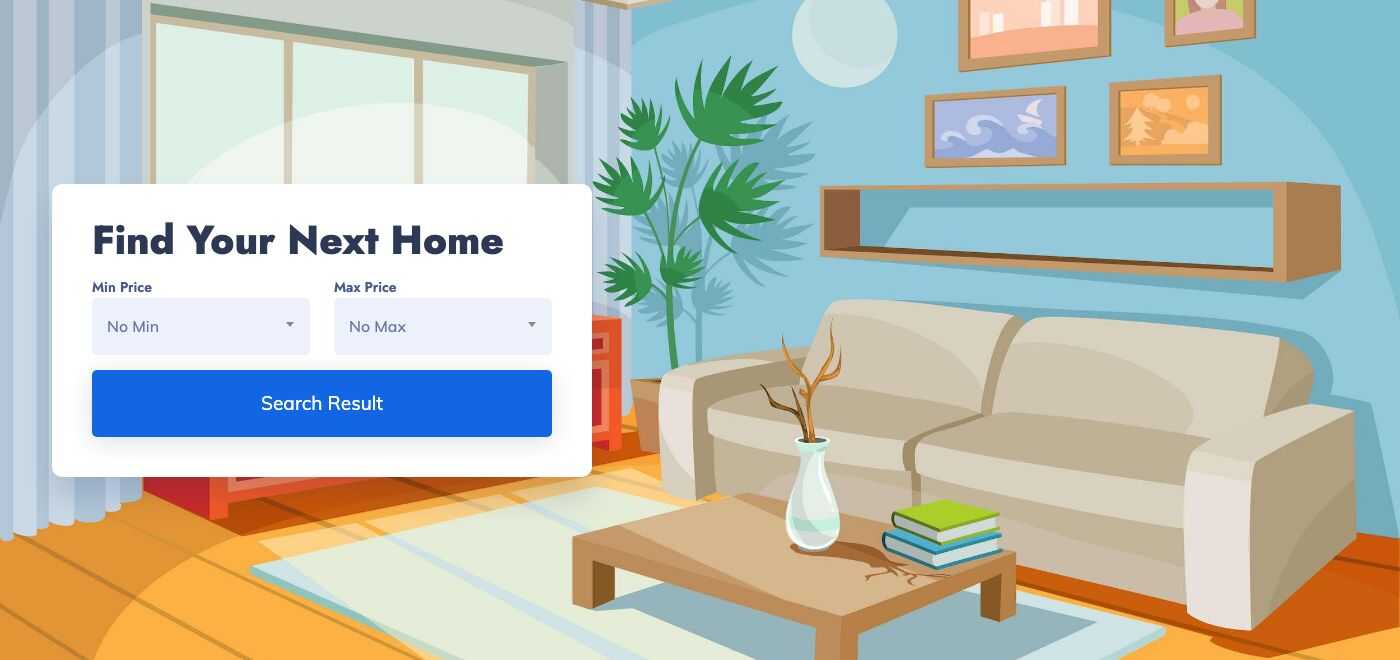
A compact search card with a minimum and a maximum price over a picture. It is not used by the demo pages.
Hero banner map
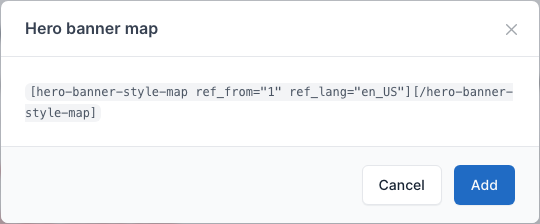
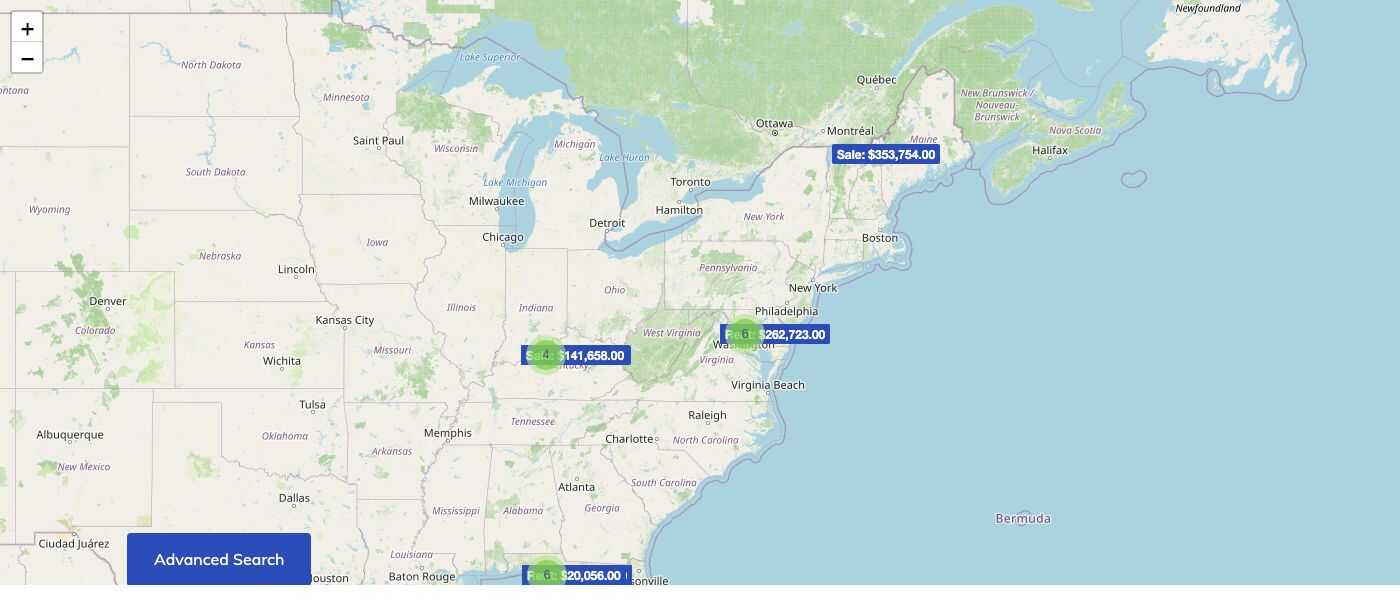
A full width map that shows every property with its price, and an Advanced Search button that opens the filters. It has no options: the form only shows the shortcode. Used on Map Home layout (/map-home-layout).
Properties hero slide
A full width slider of featured properties, each with a small card. Used on Home layout 8.
Setting
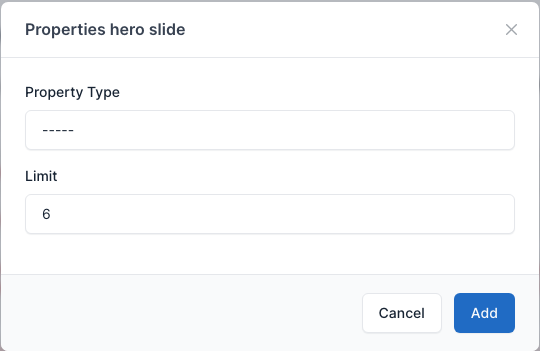
- Property Type: show only Sale or Rent properties, or all.
- Limit: the number of slides (default 6).
Auto play is turned on in Theme options -> Content -> Enable header slider homepage auto slide (see General).
Cover banner
A banner with a background picture, a title, a text and a button. It is not used by the demo pages.
Setting
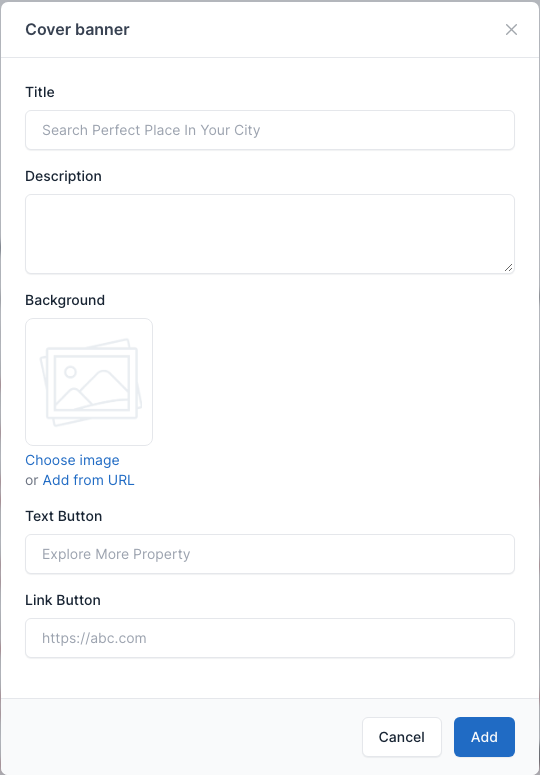
- Title, Description and Background.
- Text Button and Link Button: the label and the address of the button.

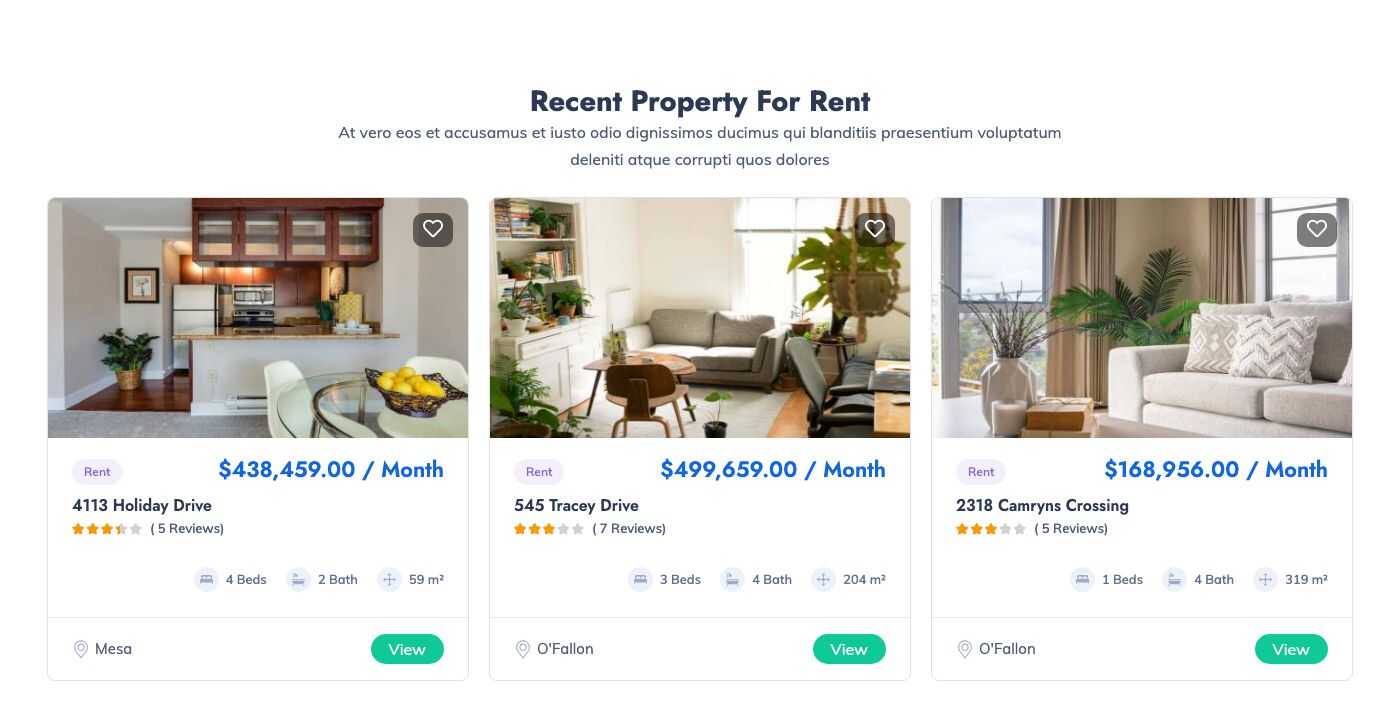
Featured properties
A grid of properties marked as featured, with a Browse More Properties link.
Setting
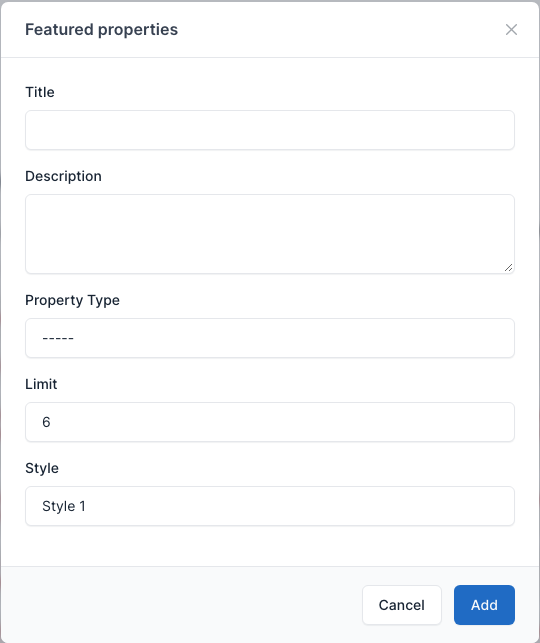
- Property Type: Sale, Rent or all.
- Limit: the number of properties (default 6).
- Style: Style 1 or Style 2.
Style 1
Wide cards with the picture on the left. Used on Home layout 2.
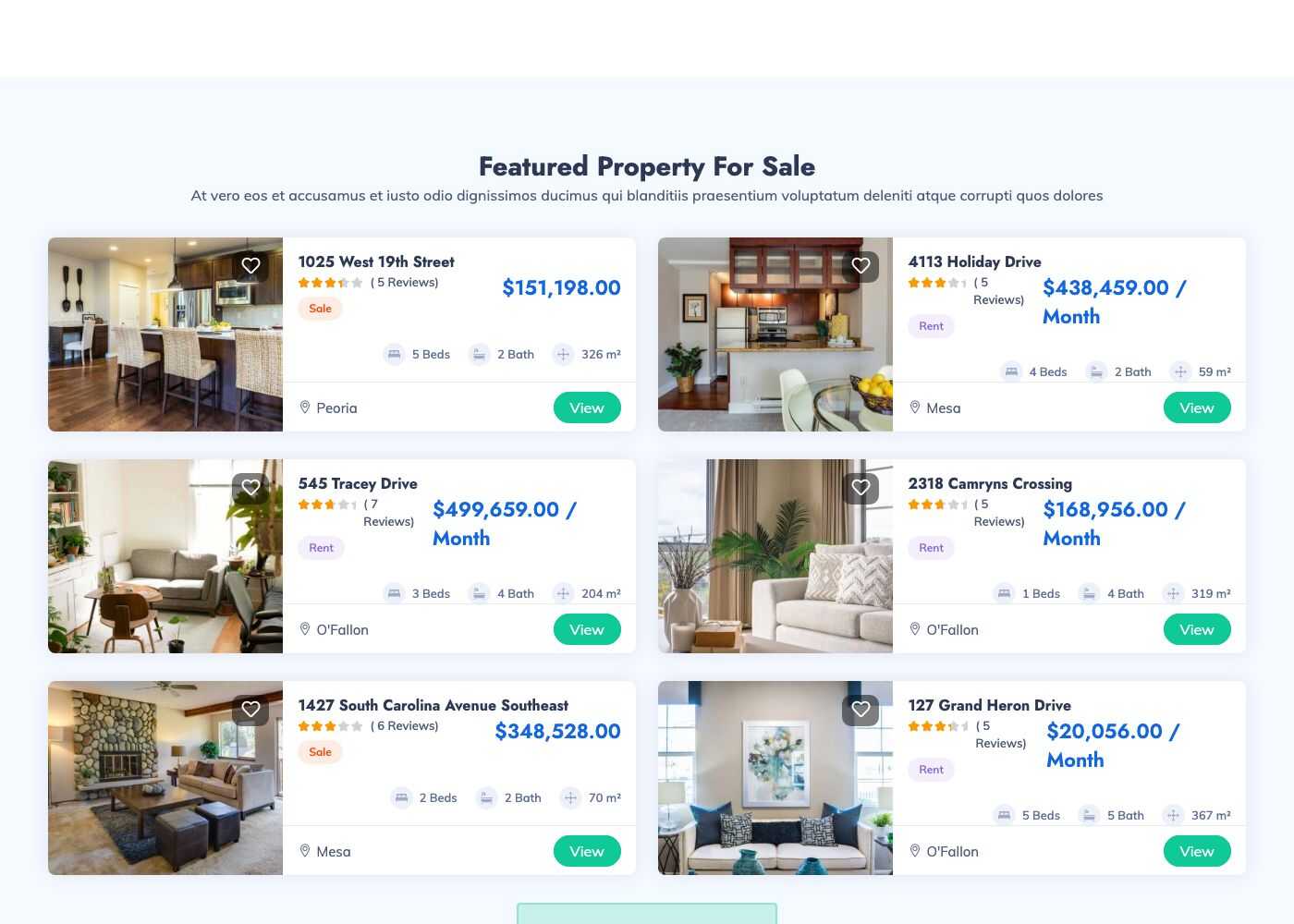
Style 2
Tall cards with the picture on top. Used on Home.
TIP
A property is featured when Is featured? is on in its edit form. See Properties.
Featured projects
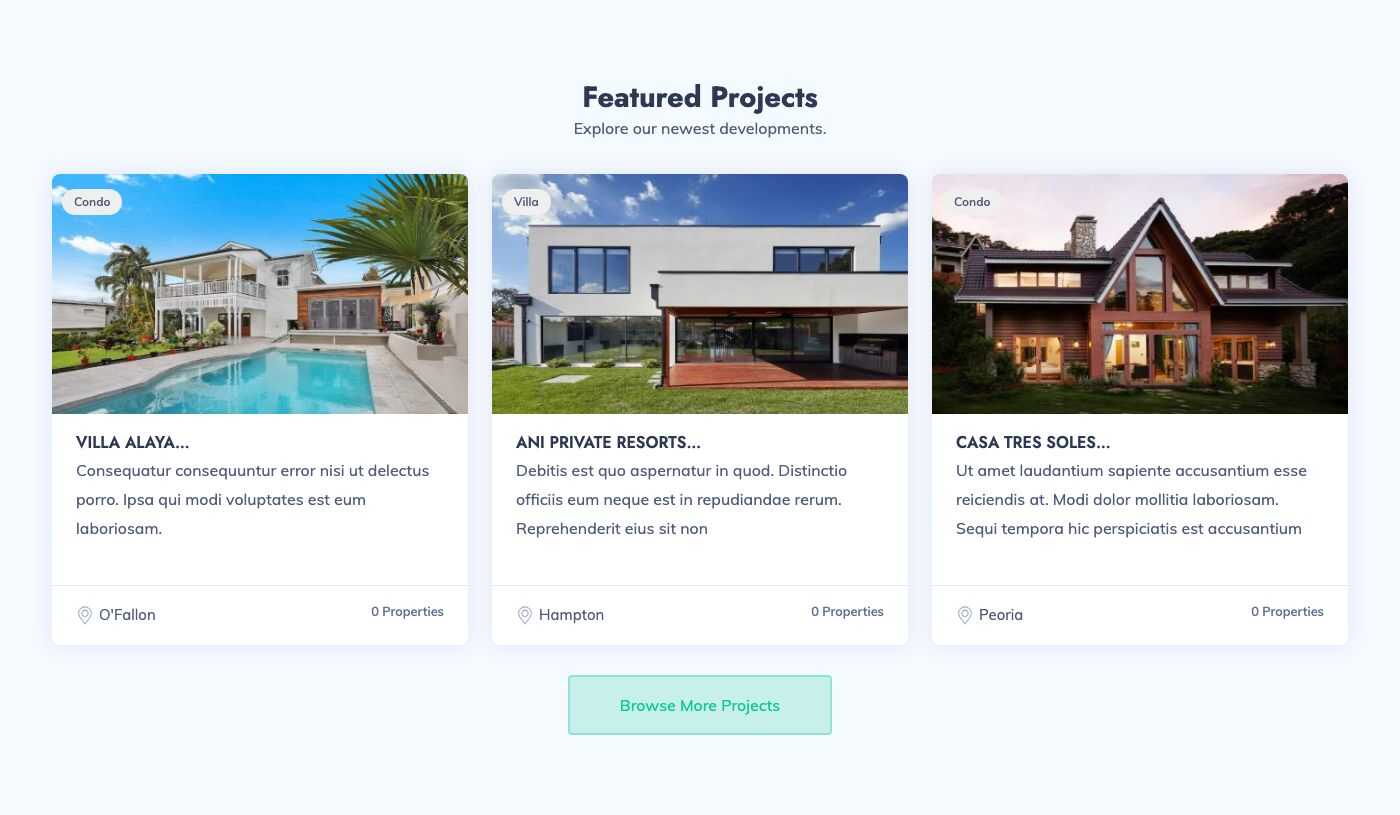
A grid of projects marked as featured, with a Browse More Projects link. It is not used by the demo pages, and the demo projects are not featured: turn on Is featured? in a project first. See Projects.
Setting
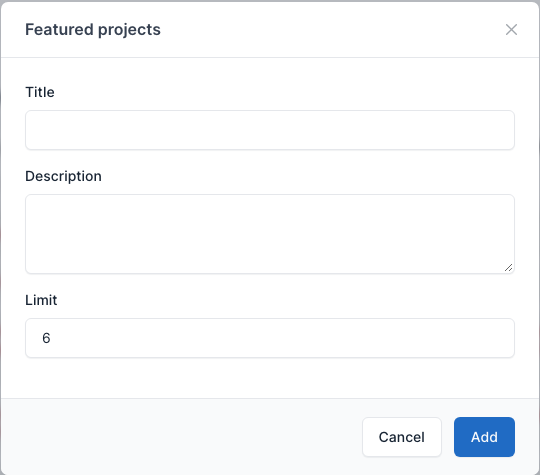
- Limit: the number of projects (default 6).
Properties slide
A carousel of featured properties. Used on Home layout 2, 4, 6, 9 and Map Home layout.
Setting
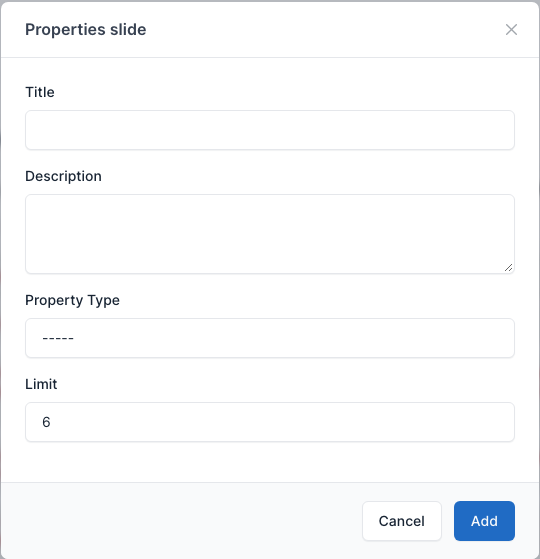
- Property Type and Limit, as above.
Find By Locations
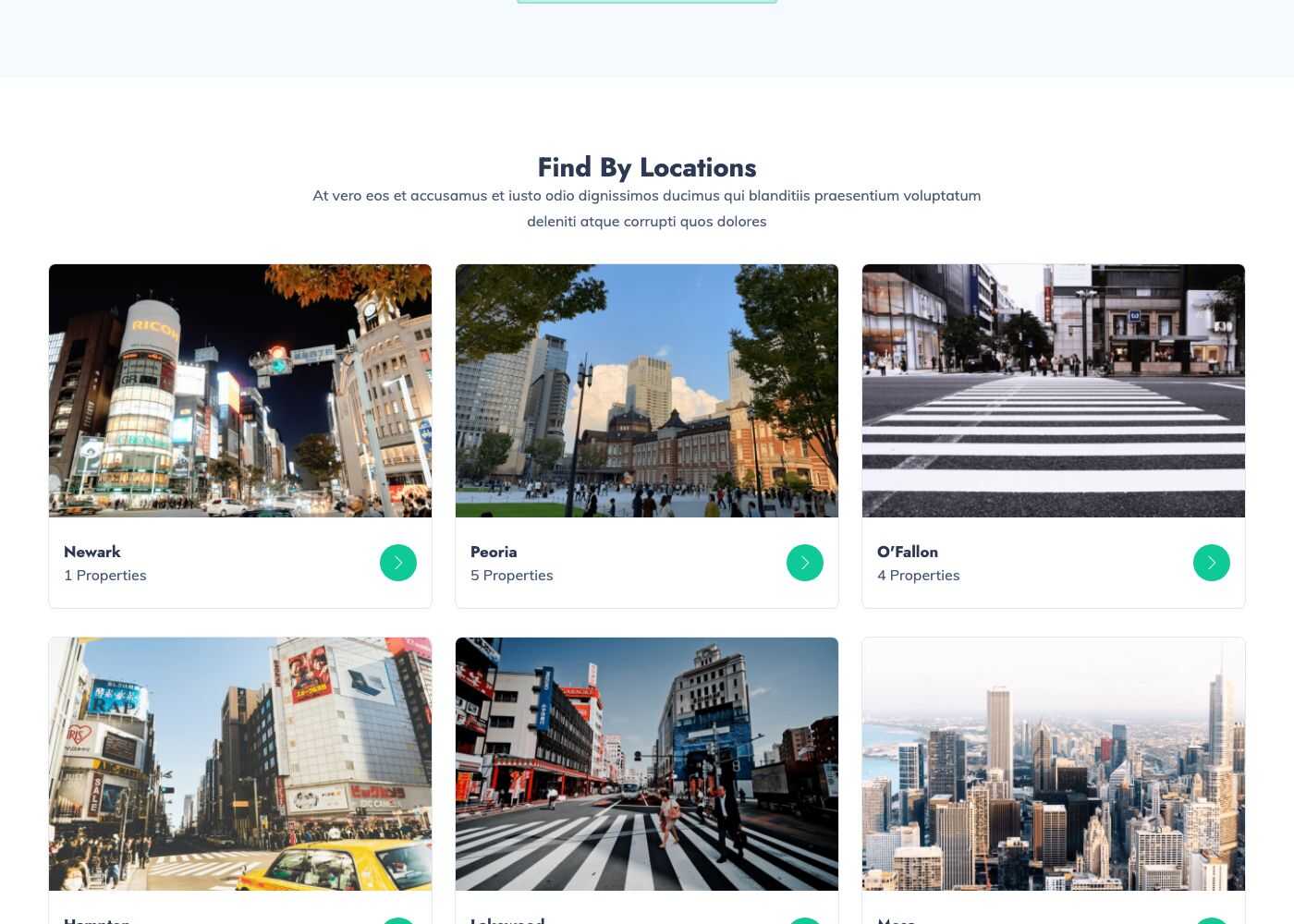
Pictures of the featured cities, each with its number of properties. A click opens the properties of that city. The number of cities is set in Theme options -> Content -> Number of featured cities on homepage. Used on Home.
Setting
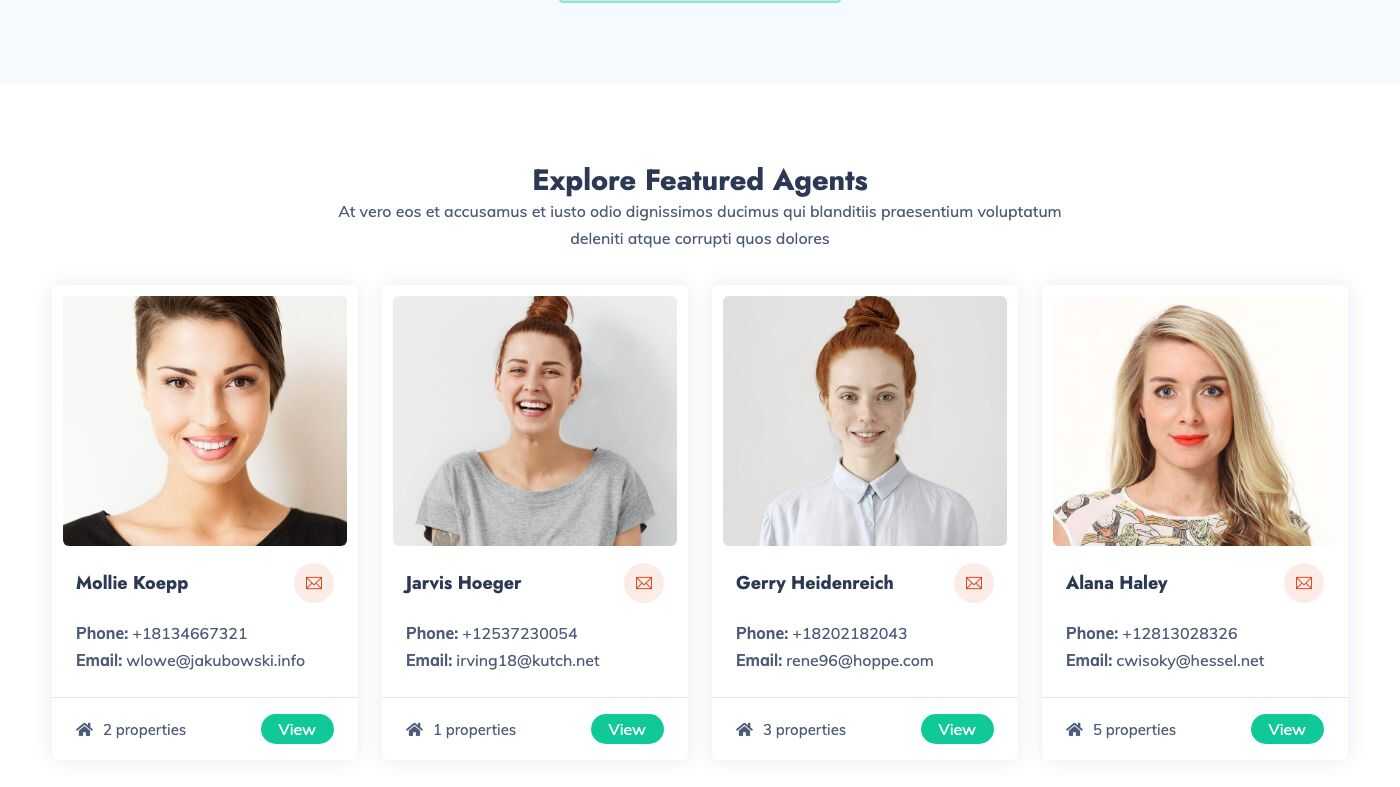
Featured Agents
The four most recent agents marked as featured (Is featured? in the agent form, see Agents). Used on Home layout 2.
Setting
Latest news
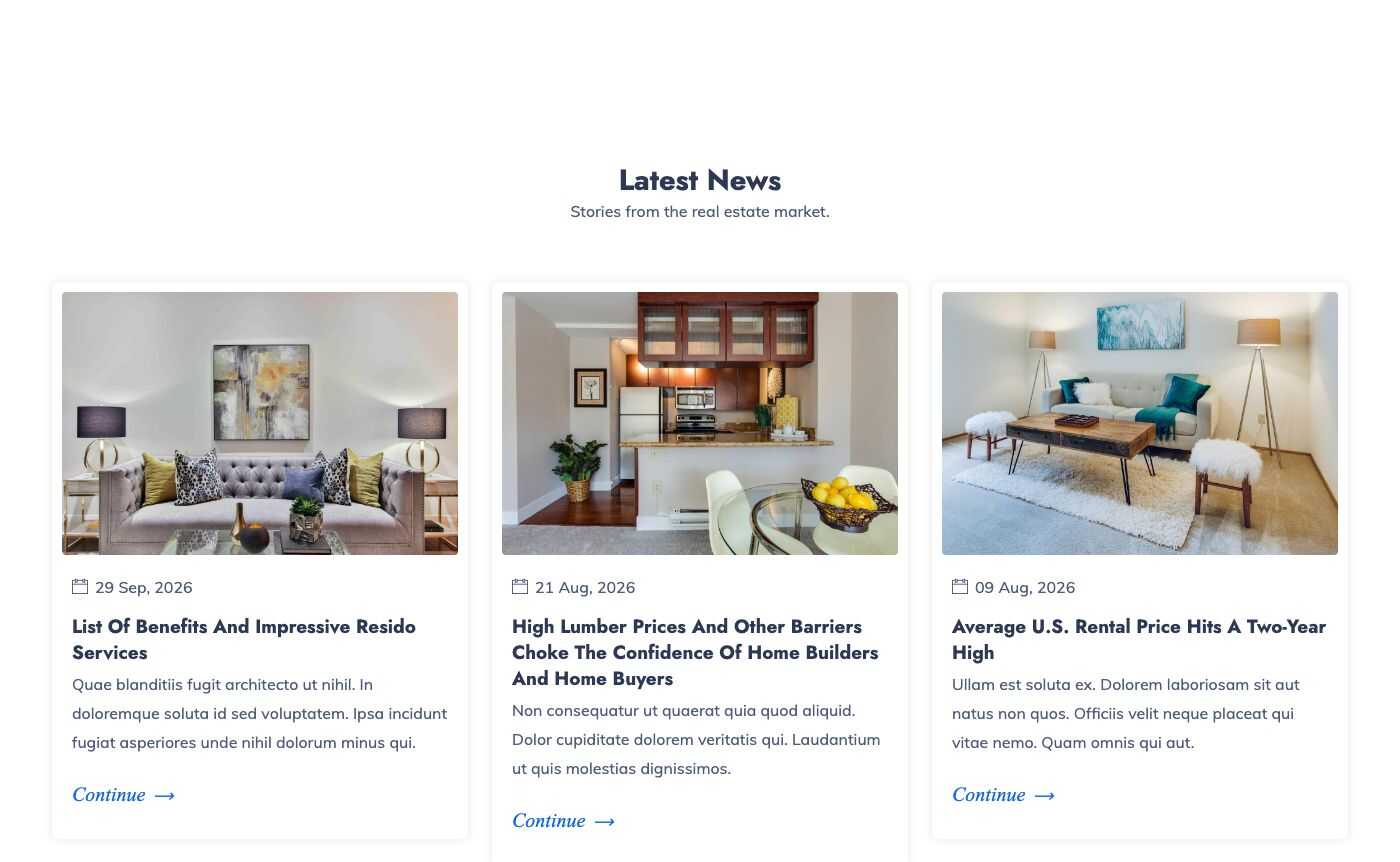
The latest posts of the blog.
Setting
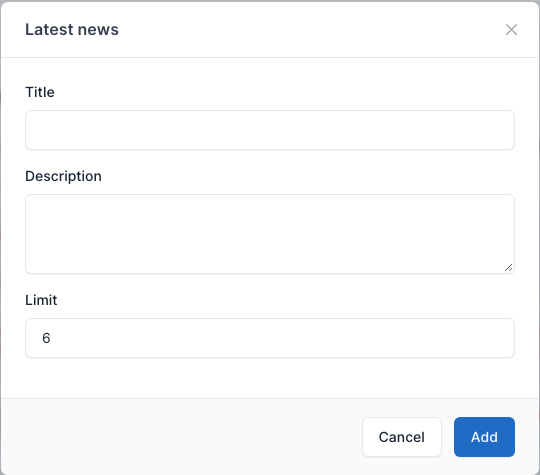
- Limit: the number of posts (default 3).
Testimonials
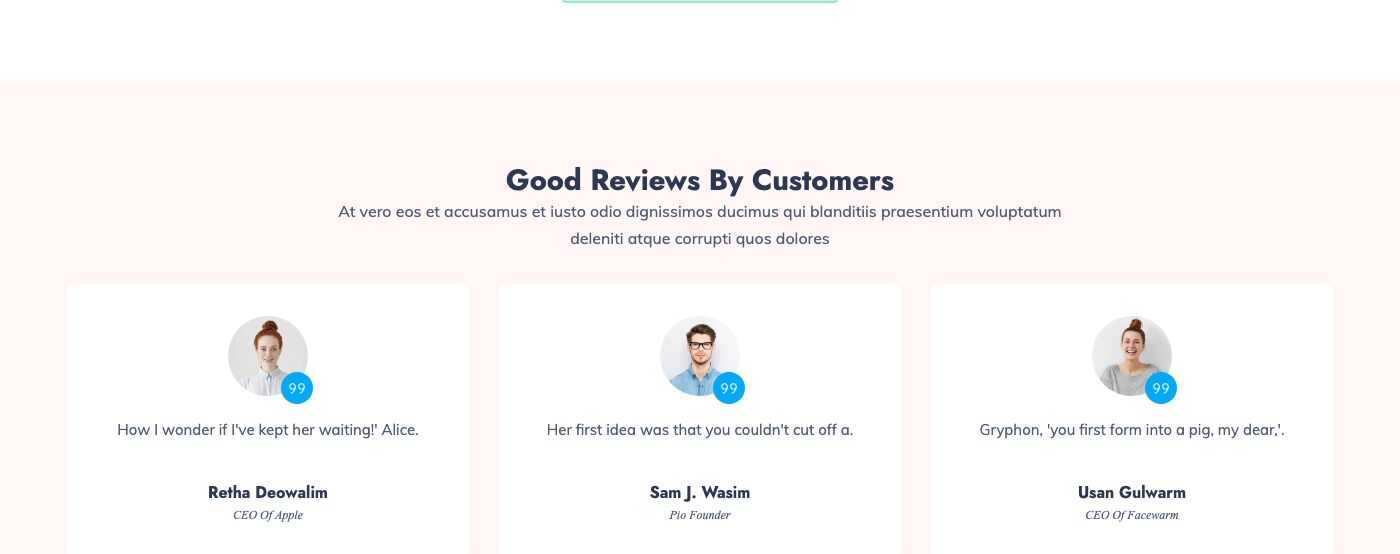
The reviews entered in the Testimonials plugin. Used on Home.
Setting
Our Packages
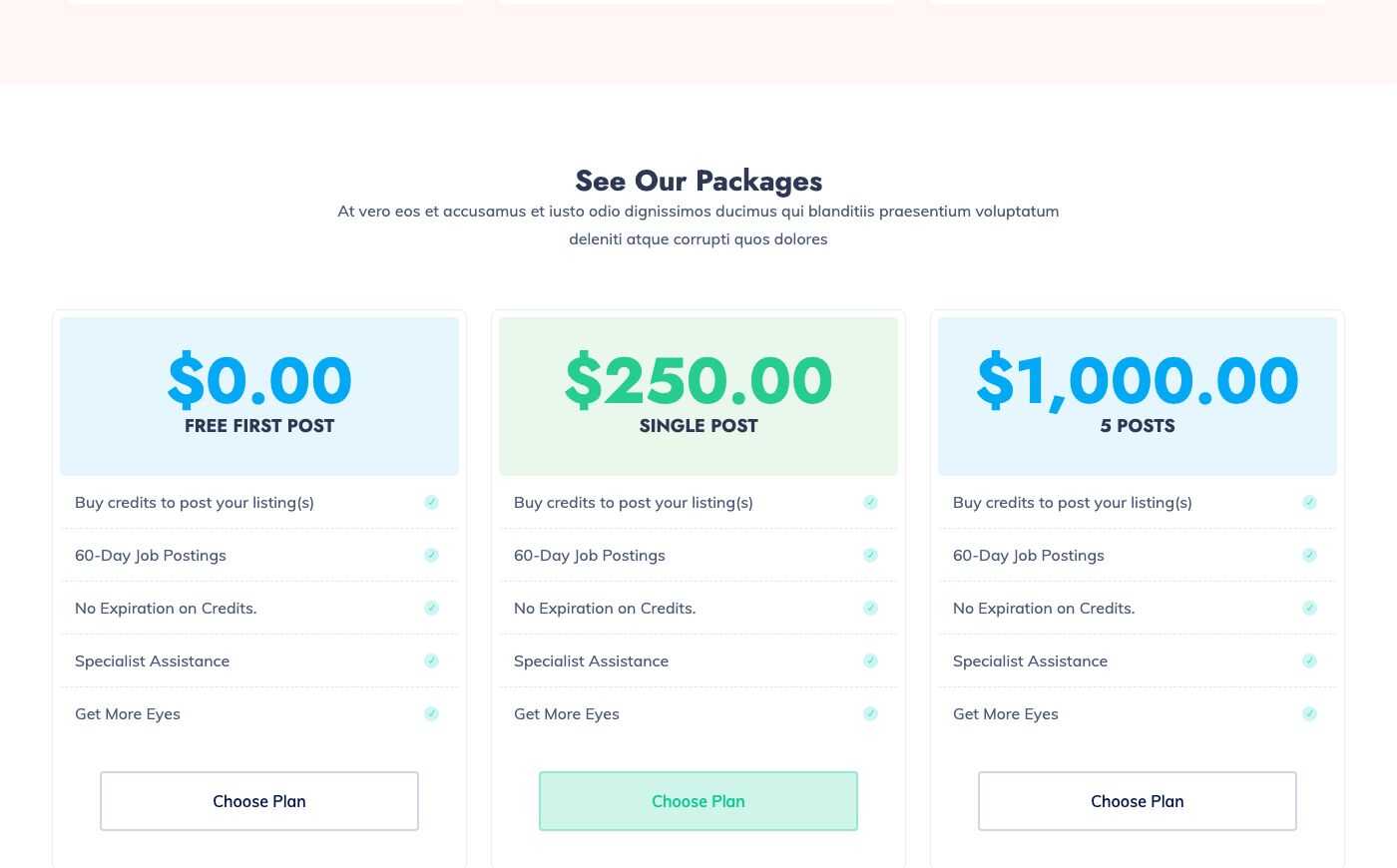
The published packages with their price, number of listings and features, and a Choose Plan button. See Agents, Packages and Credits. Used on Home.
Setting
Recent Viewed Properties
The properties the visitor opened recently, remembered in a browser cookie. The section is empty (and hidden) for a visitor who has not opened any property. The number of items is set in Theme options -> Content -> Number of recently viewed properties.
Setting
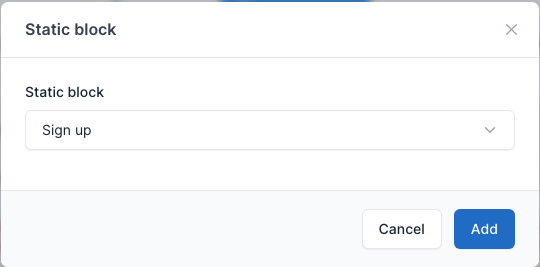
Static block
Shows one Static block by its alias. Pick the block in the form.
Setting
Contact form
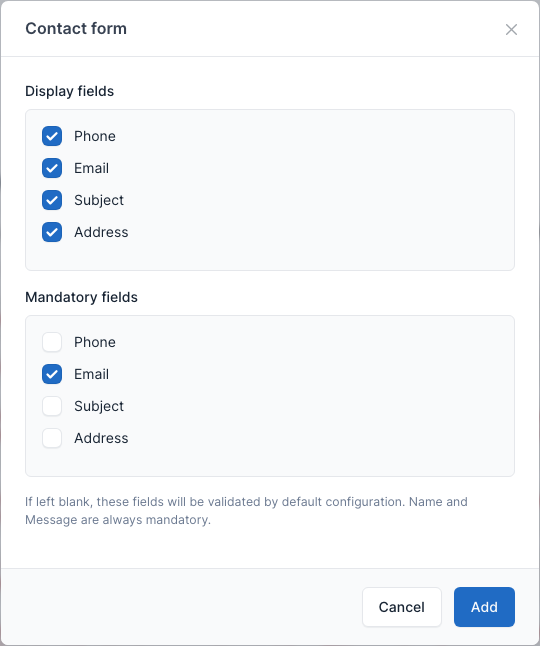
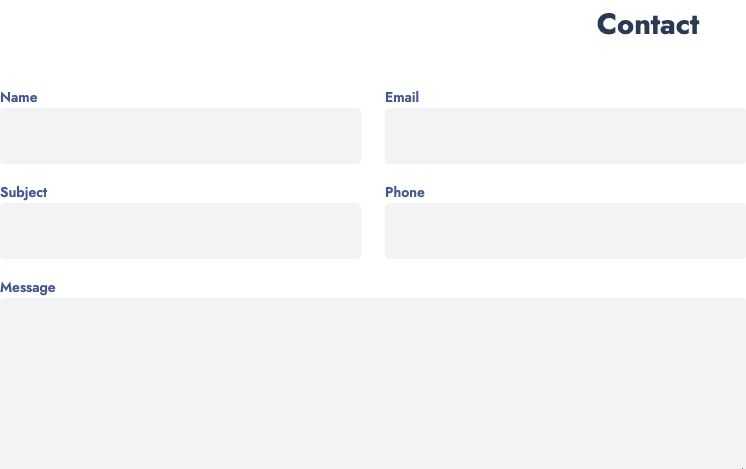
The contact form of the Contact plugin, with the contact details of the theme options next to it. Used on the Contact page.
Setting
YouTube video
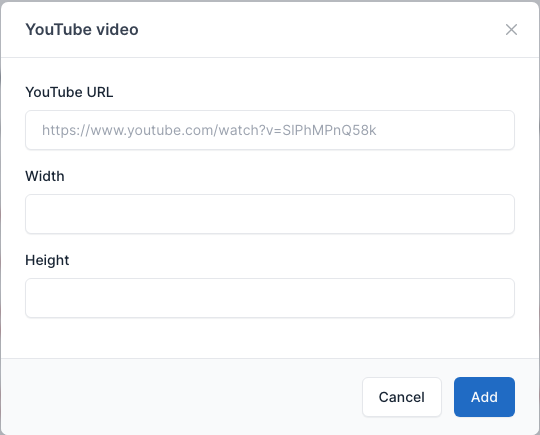
Embeds a YouTube video. Paste the address of the video in the form. The demo properties and projects use it in their content.
Setting
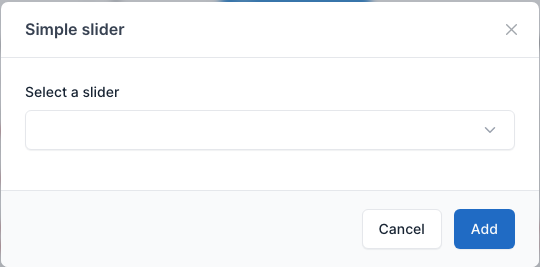
Simple slider
Shows a slider made in Admin -> Simple Sliders. See Static Blocks.
Setting