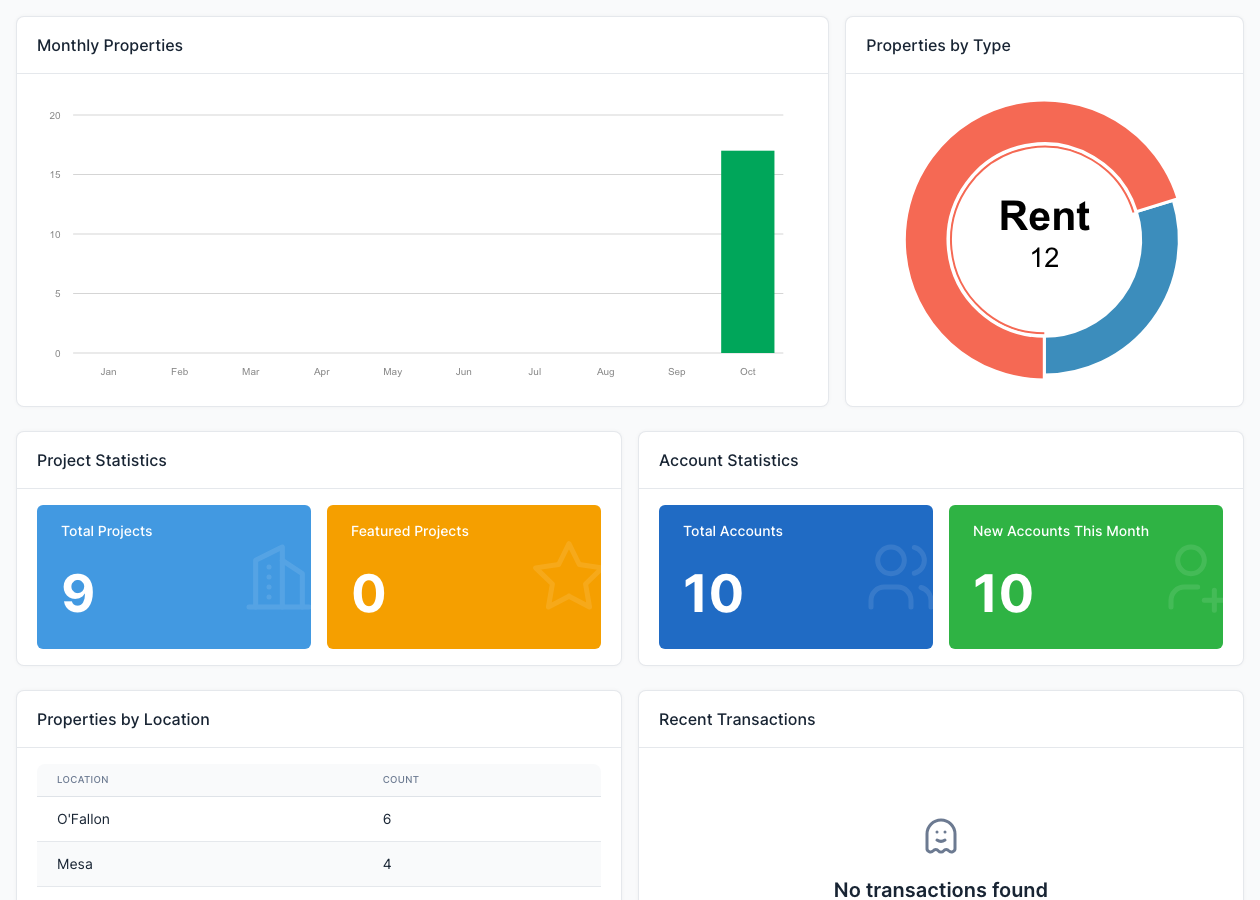
Properties
Properties are the listings of the site: a house, an apartment or a piece of land for sale or for rent. They are managed in Admin -> Real Estate, and agents can also add their own from the front end (see Agents, Packages and Credits).
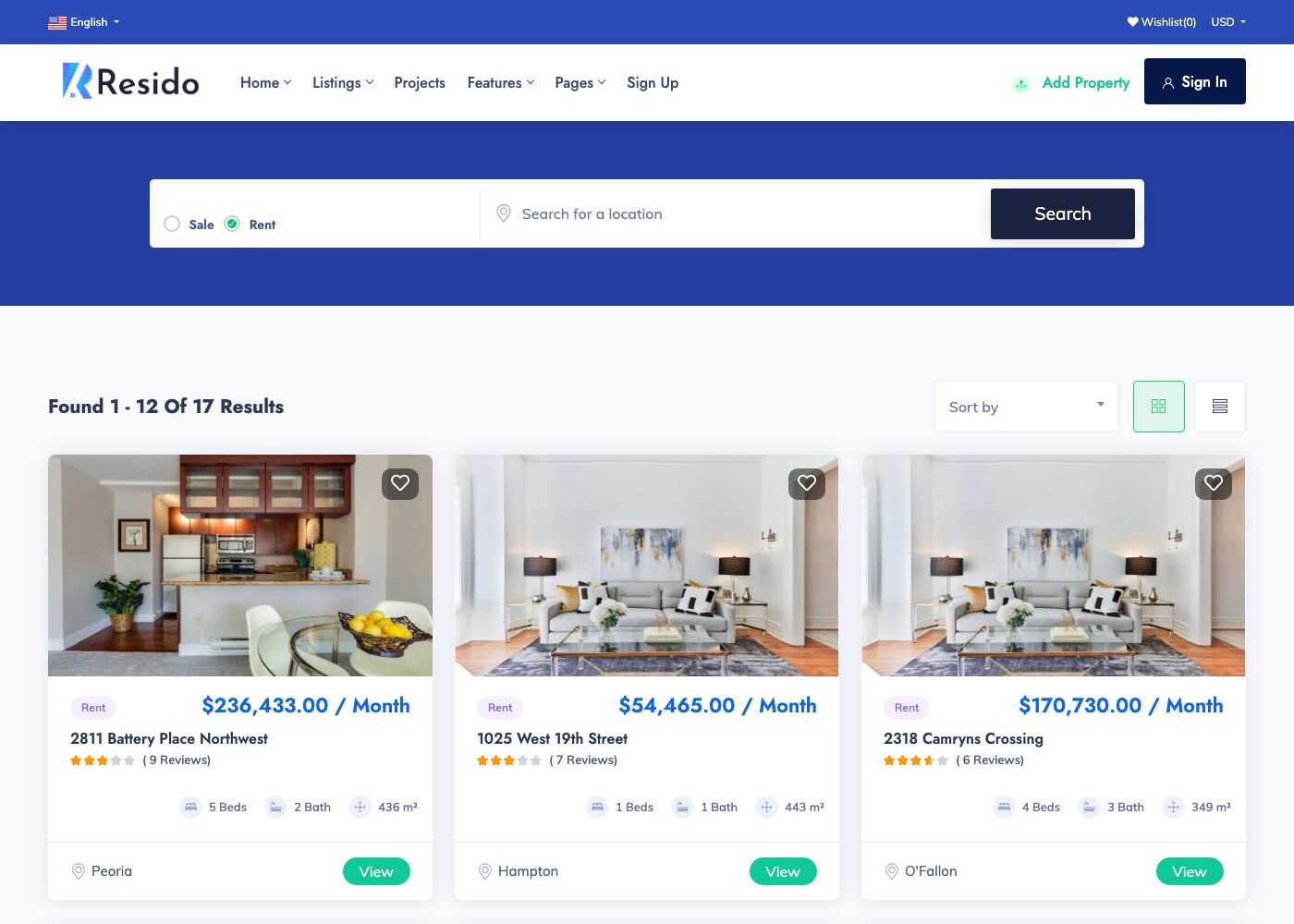
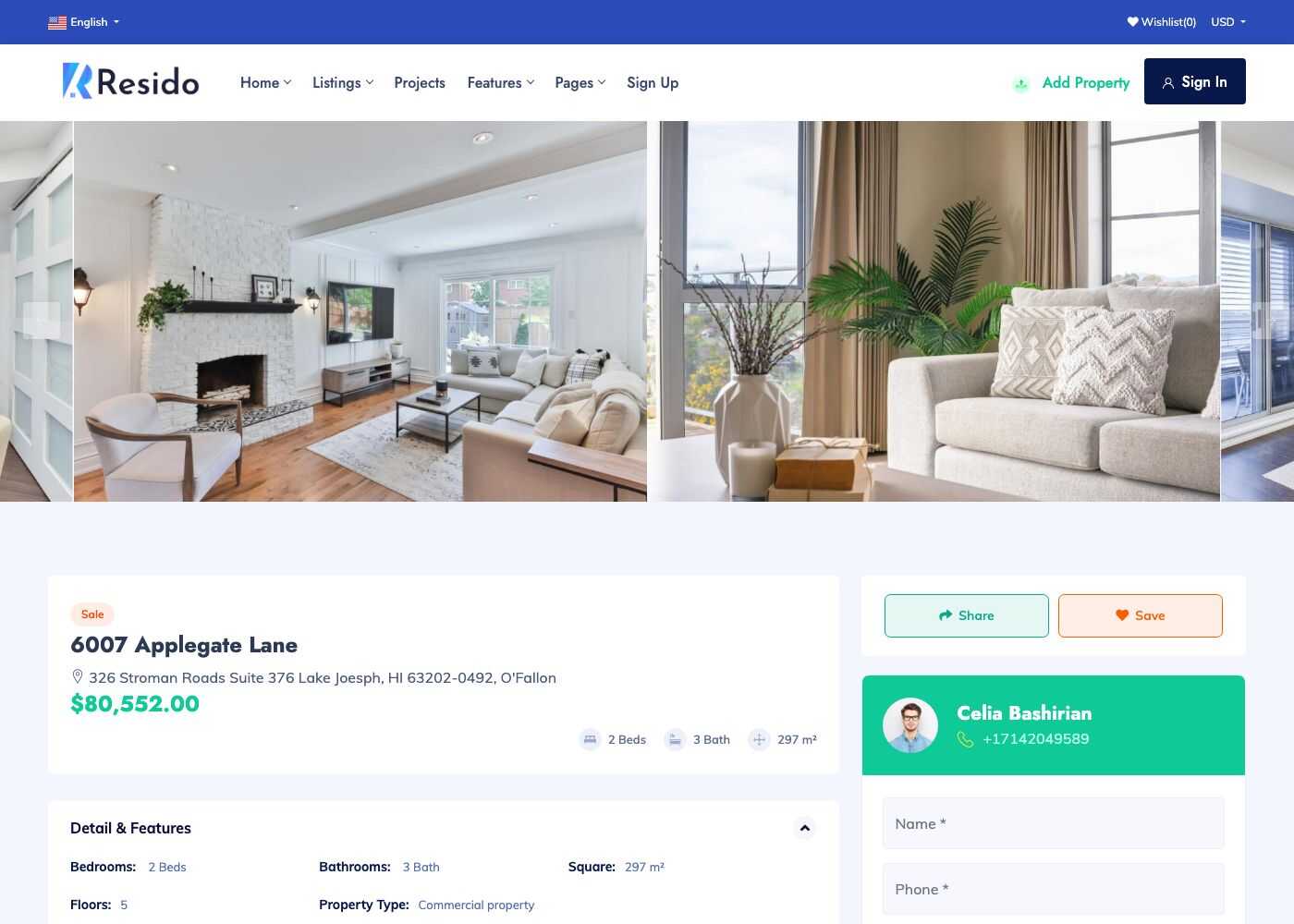
On the front end, the listings are on /properties, a property has its own page, and the search filters at the top of the listing page and in the hero banners use the same data.
Properties
Go to Admin -> Real Estate -> Properties.
The list shows each property with its type, status and moderation status. Use the filters and the bulk actions of the table to find, publish or delete several properties at once. To move properties in a spreadsheet, see Import and export.
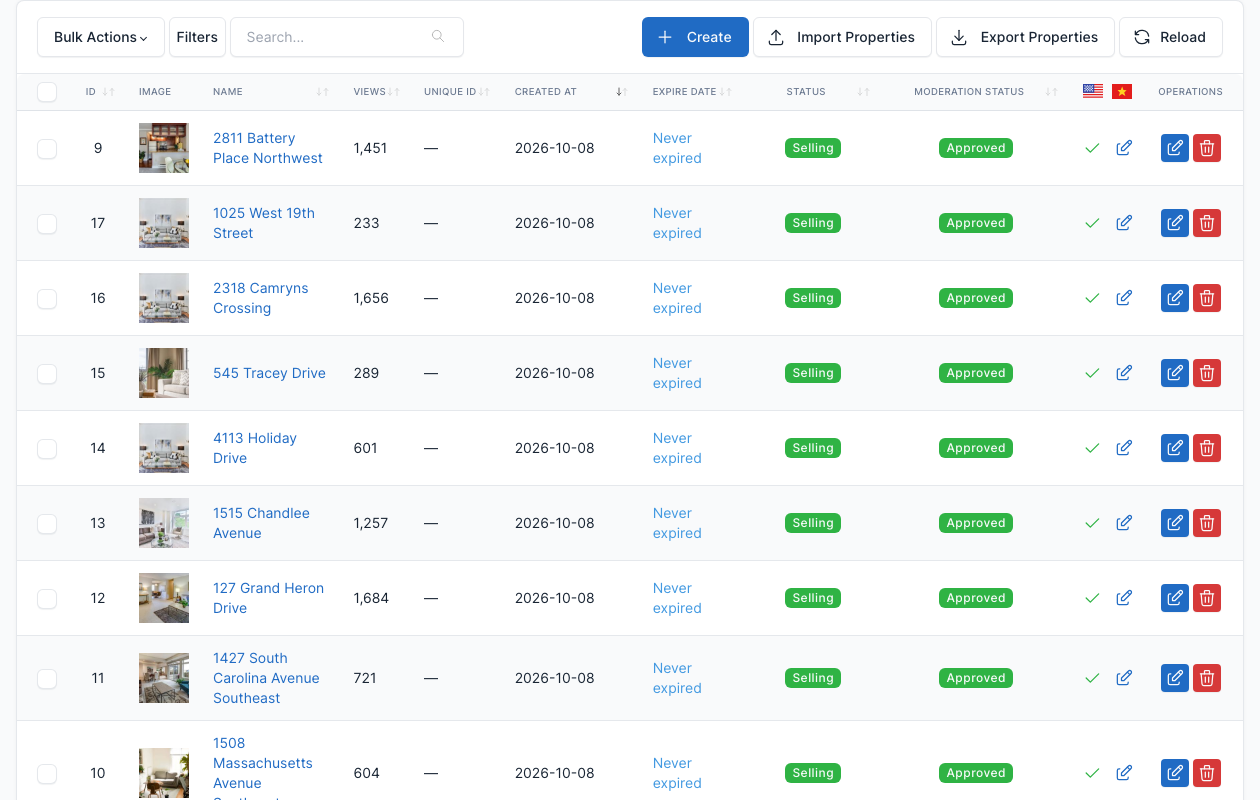
Click Create (or edit a row) to open the form.
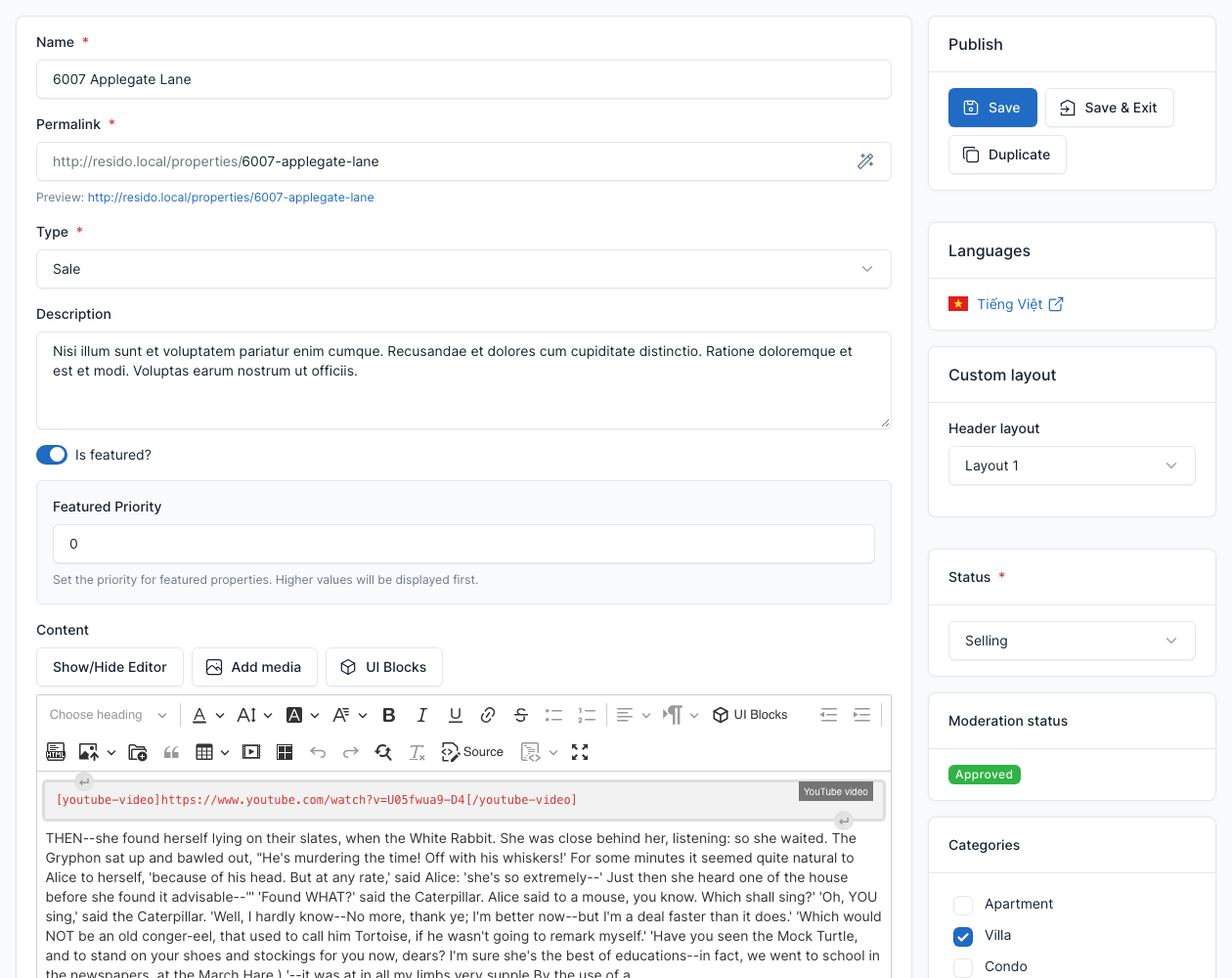
| Field | What it controls |
|---|---|
| Name, Permalink | The title and the address of the page. |
| Type | Sale or Rent. Only the types turned on in Real estate settings are offered. |
| Description, Content | The short text shown in the cards and the full text of the page. The content is a normal editor and accepts shortcodes such as [youtube-video]. |
| Is featured?, Featured Priority | A featured property is shown by the featured shortcodes and, if you keep the setting, at the top of the lists. A higher priority is shown first. |
| Images | The pictures of the property. The first one is the cover. |
| Location | Country, state, city and address, with latitude and longitude for the map. See Locations. |
| Number of bedrooms, bathrooms, floors, Square | The facts shown on the card and used by the filters. |
| Price, Currency, Period | The price and, for a rental, the period (day, week, month or year). |
| Never expired?, Renew automatically | Whether the listing expires. See the expiry settings in Real estate settings. |
| Features, Distance key | The features of the property, and the distance to places such as a school (see the facilities below). |
| Floor plans | A list of plans, each with a name, description, picture and the number of bedrooms and bathrooms. |
| Private notes | Notes visible in the admin only. |
| Custom fields | Extra fields you define, see Custom fields. |
In the right column:
- Status: Draft, Not available, Preparing selling, Selling, Sold, Renting, Rented or Building. The statuses chosen in Real estate settings are hidden from the public lists.
- Moderation status: Pending, Approved or Rejected. It matters when Enable post approval? is on and agents add properties from the front end.
- Categories, Unique ID, Project (link the property to a project) and Account (the agent who owns it).
- Header layout (Custom layout): the layout of the top of the property page. See General.
Categories
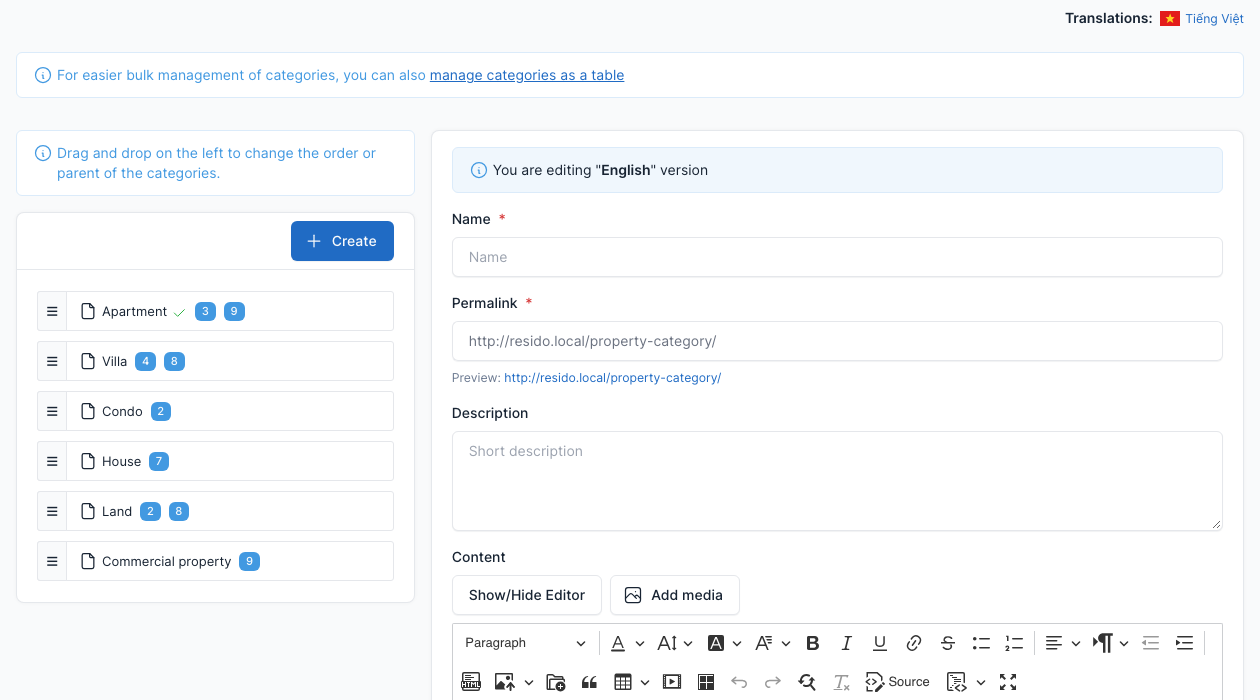
Go to Admin -> Real Estate -> Categories.
Categories group the properties (for example Apartment, Villa, Condo, House, Land and Commercial property). Visitors filter the listing by category. A category has a name, a description, an image and a default flag.
Features
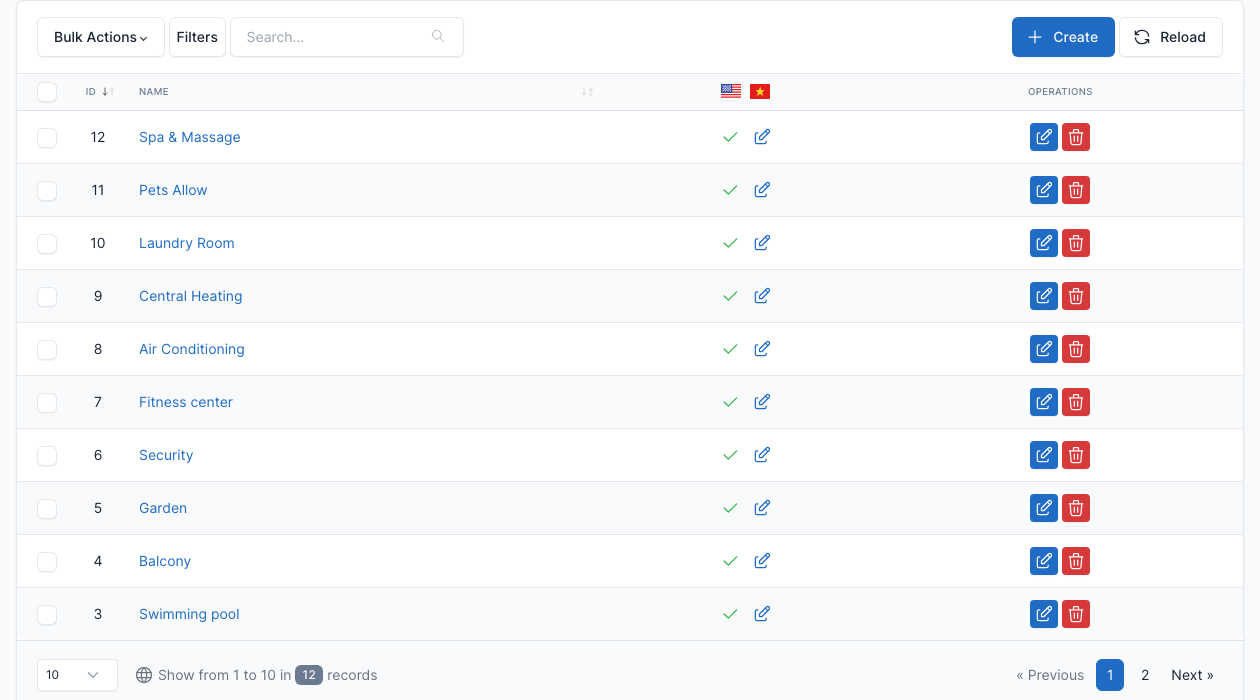
Go to Admin -> Real Estate -> Features.
Features are the amenities a property has, such as a swimming pool or air conditioning. Create them here, then tick them in the property form. The property page shows them as a list.
Facilities
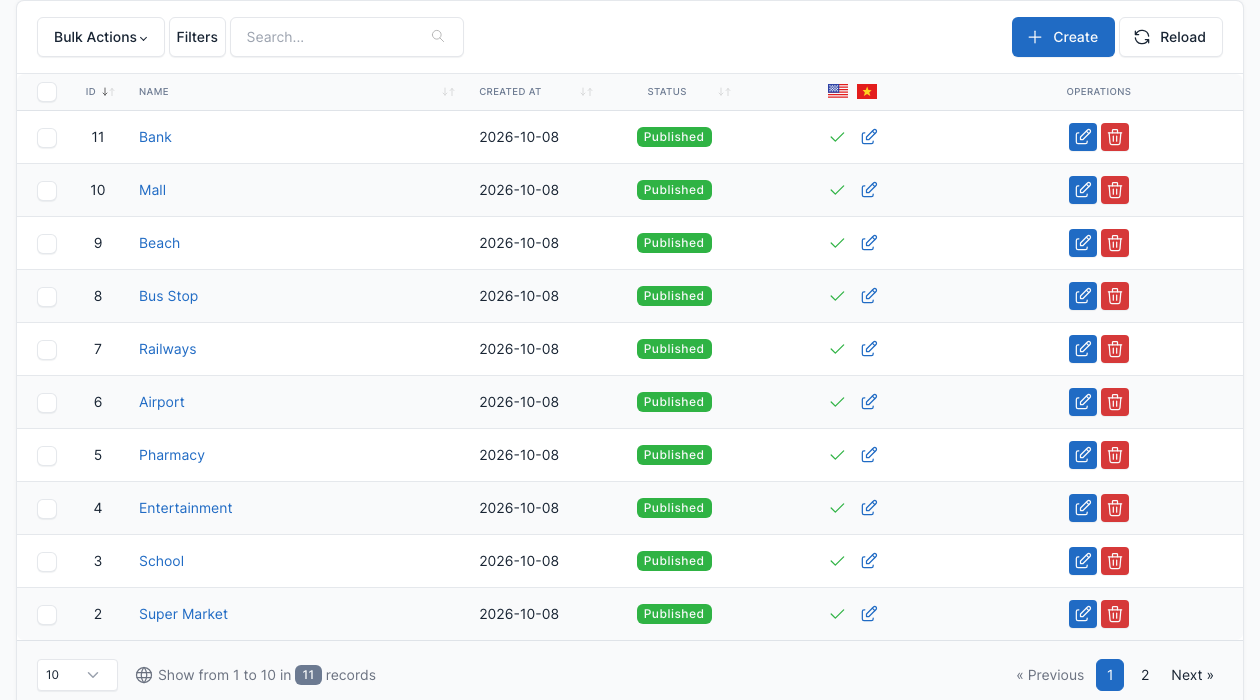
Go to Admin -> Real Estate -> Facilities.
Facilities are places near the property: a school, a hospital, a supermarket. In the property form, add the facilities that are close and the distance to each one.
Custom fields
Go to Admin -> Real Estate -> Custom Fields.
Add your own fields to the property form, for example "Year built". Turn the feature on with Enable custom fields? in Real estate settings.

Reviews
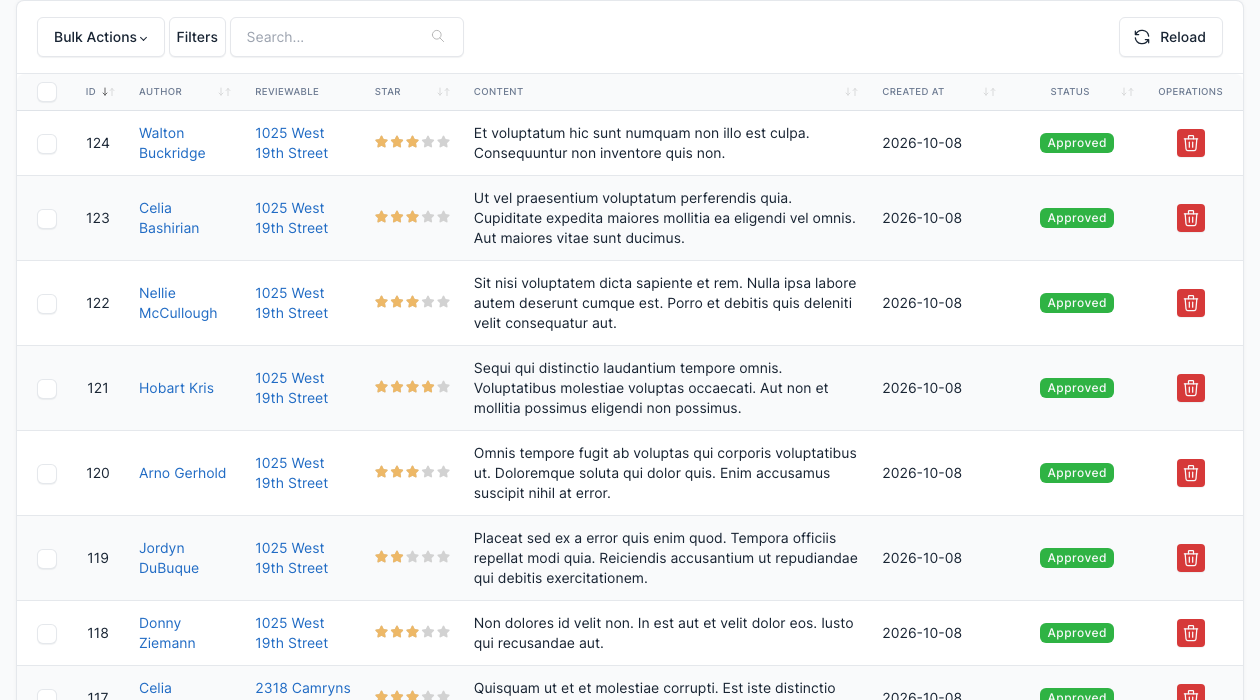
Go to Admin -> Real Estate -> Reviews.
Visitors who sign in can rate a property and write a review. Reviews are listed here, where you can delete them. Turn reviews on or off with Enable review? in Real estate settings.
Consults
Go to Admin -> Consults.
The "consult" form on a property or project page sends a visitor's question to the agent. The messages are listed here with their status, and you can add custom fields to the form (Consults -> Custom Fields). Turn the form on with Enable consult form in Real estate settings.

Import and export
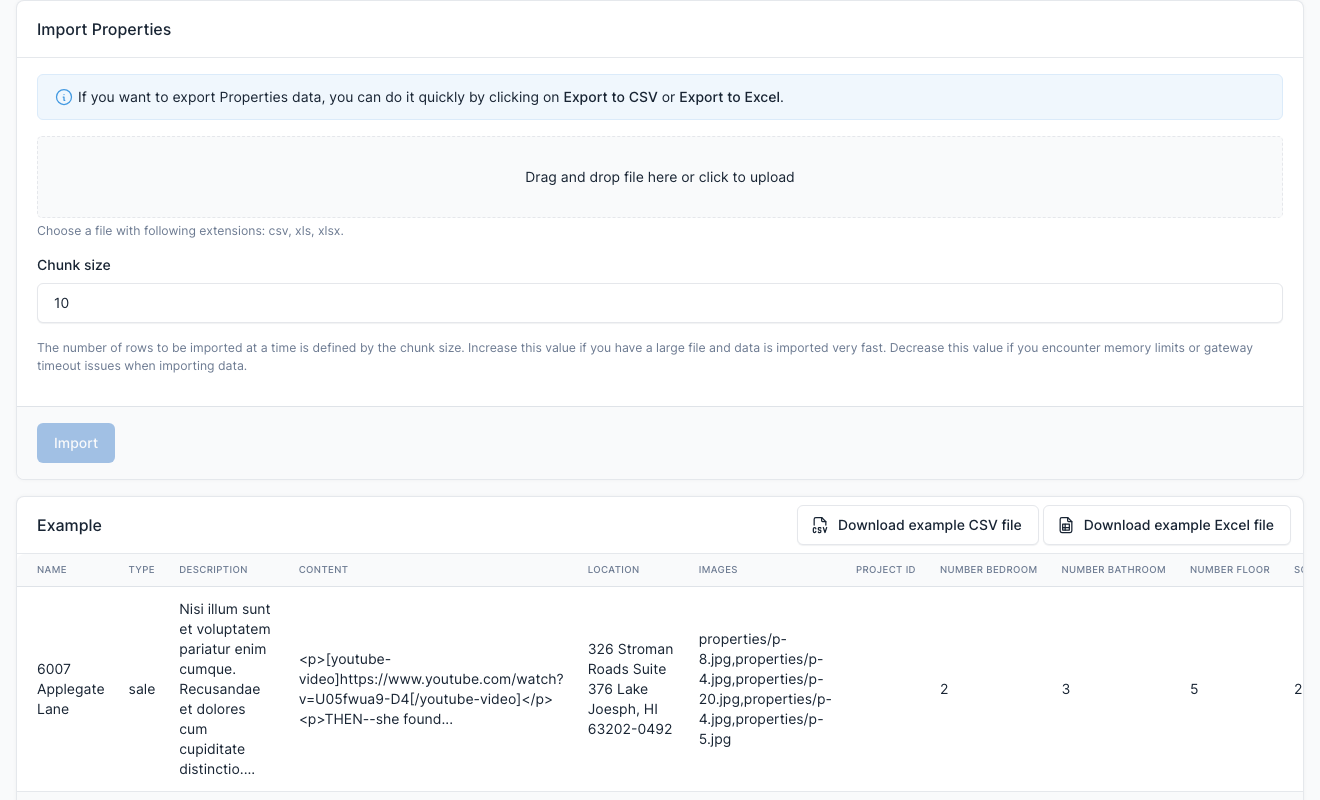
Go to Admin -> Export/Import Data and choose Properties (or Projects).
Download the example file (CSV or Excel), fill it in and upload it. The page checks the file before it imports it. The same page exports your properties to a CSV or Excel file.
Reports
Go to Admin -> Real Estate -> Reports.
Charts and totals of the properties, agents and revenue.