General
Go to Admin -> Appearance -> Theme options.
Theme options are split into tabs on the left. Each tab has its own fields; click Save Changes at the top or the bottom of the page when you are done. Fields can be translated: use the Translations link next to the button to edit the second language (see Translate).
General
Tab General.
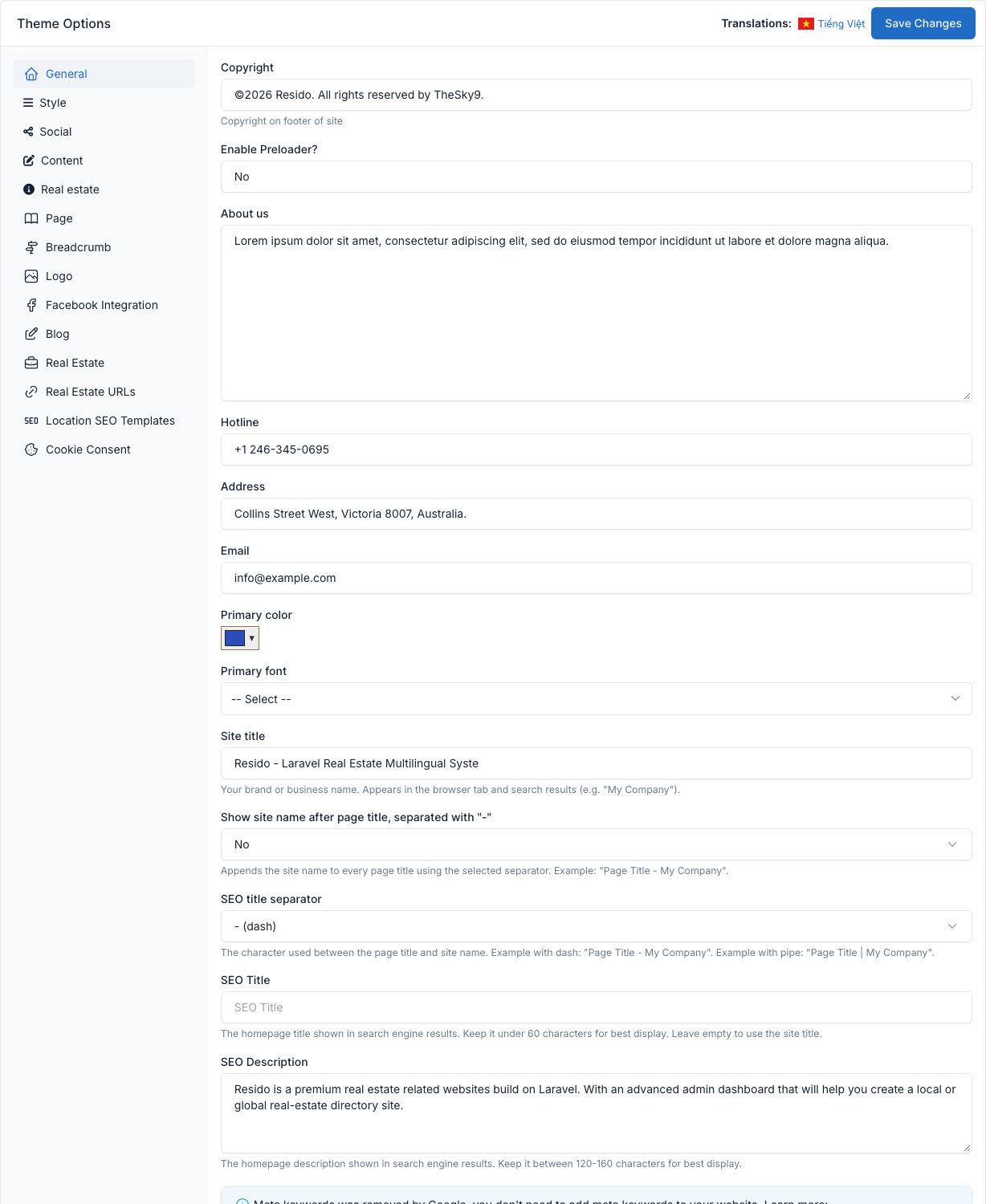
| Field | What it controls |
|---|---|
| Copyright | Copyright text in the footer. |
| Enable Preloader? | Shows a loading animation while a page loads. |
| About us | Text of the "Get in touch" box next to the Contact form. |
| Hotline, Address, Email | Contact details shown in the footer and in the contact box of the Contact form. |
| Primary color | Buttons, links and highlights. |
| Primary font | The Google font of the body text. |
| Site title, Show site name after page title, SEO title separator | The site name and how it is added to the browser title. |
| SEO Title, SEO Description, SEO Index, SEO default Open Graph image | Default meta tags, used when a page or post has no SEO meta of its own. |
Style
Tab Style.
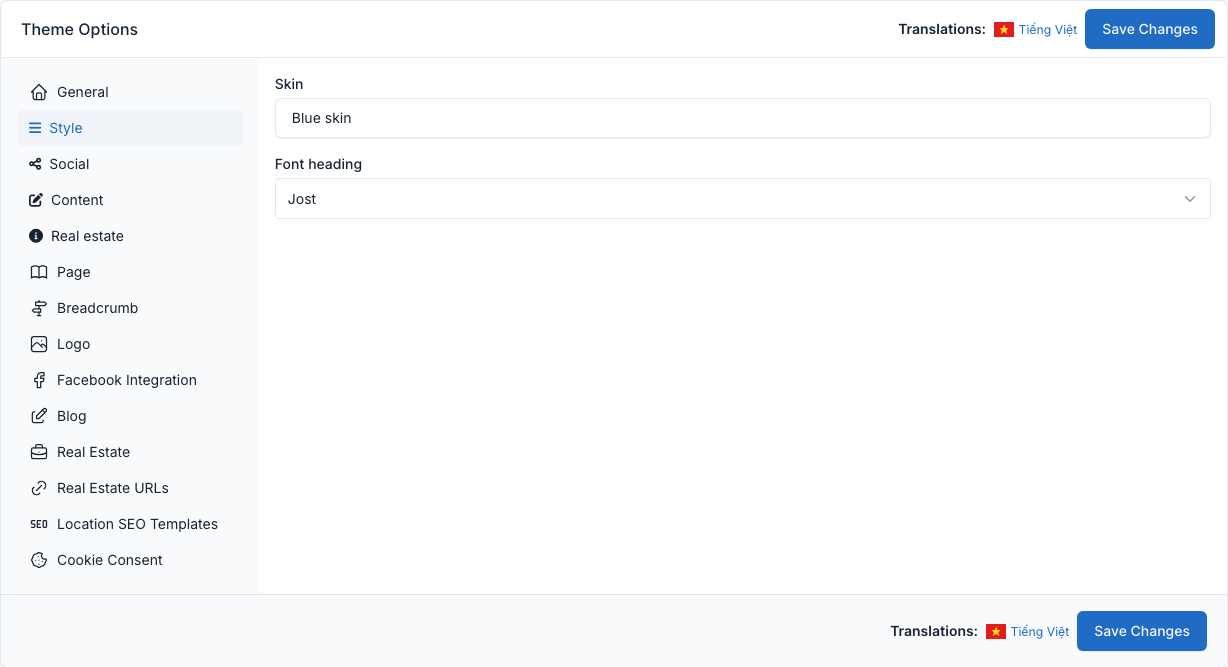
- Skin: one of 10 color skins (Red, Green, Blue, Yellow, Darkblue, Oceangreen, Purple, Goodred, Goodgreen and Blue 2). The skin colors the buttons, badges and highlights.
- Font heading: the Google font of the headings.
Social
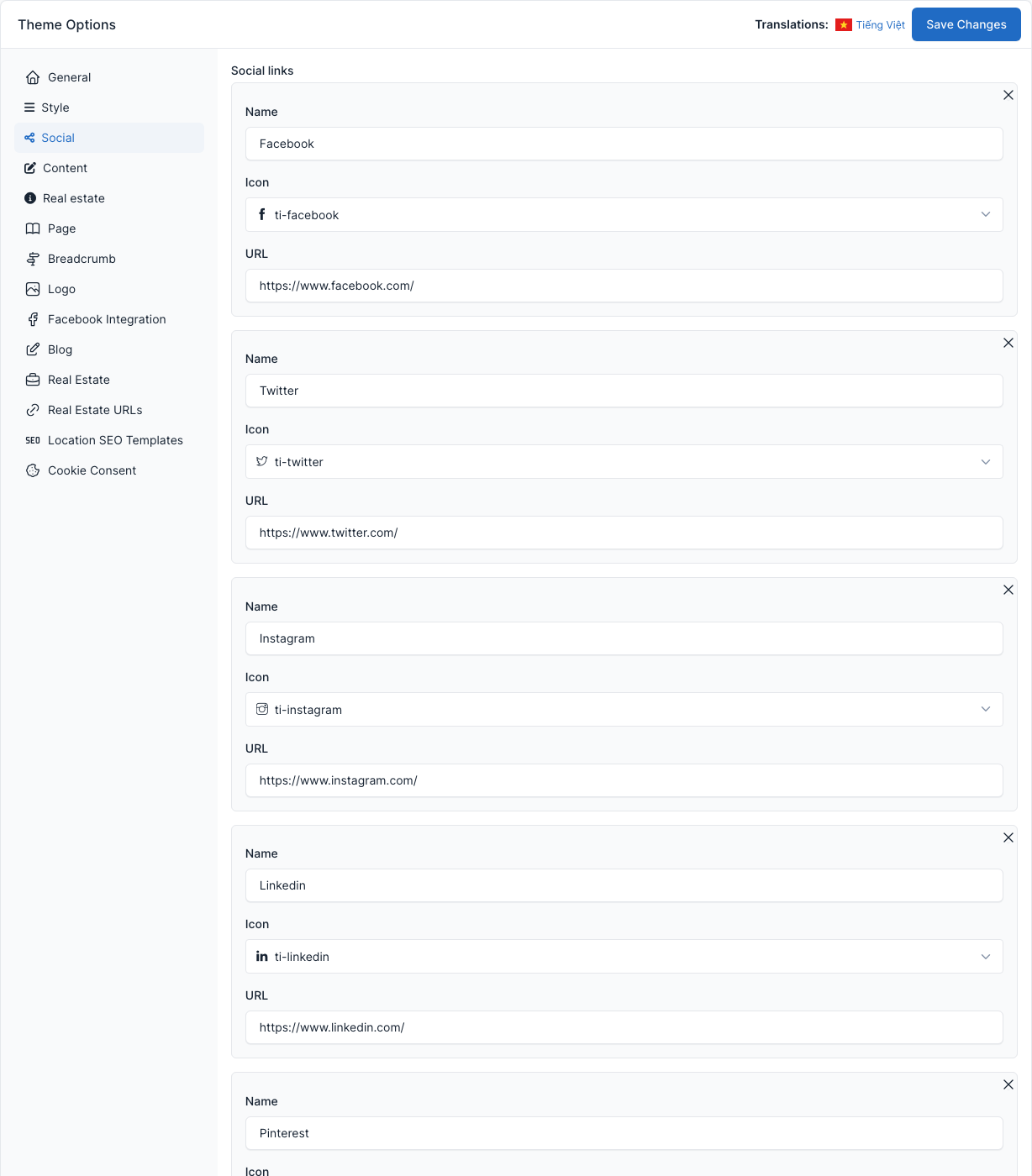
Tab Social.
Add one row per network with three fields: Name, Icon and URL. The links are shown next to the copyright line in the footer. See Footer.
Content
Tab Content.
Numbers that control how many items the theme shows, plus the slider setting.
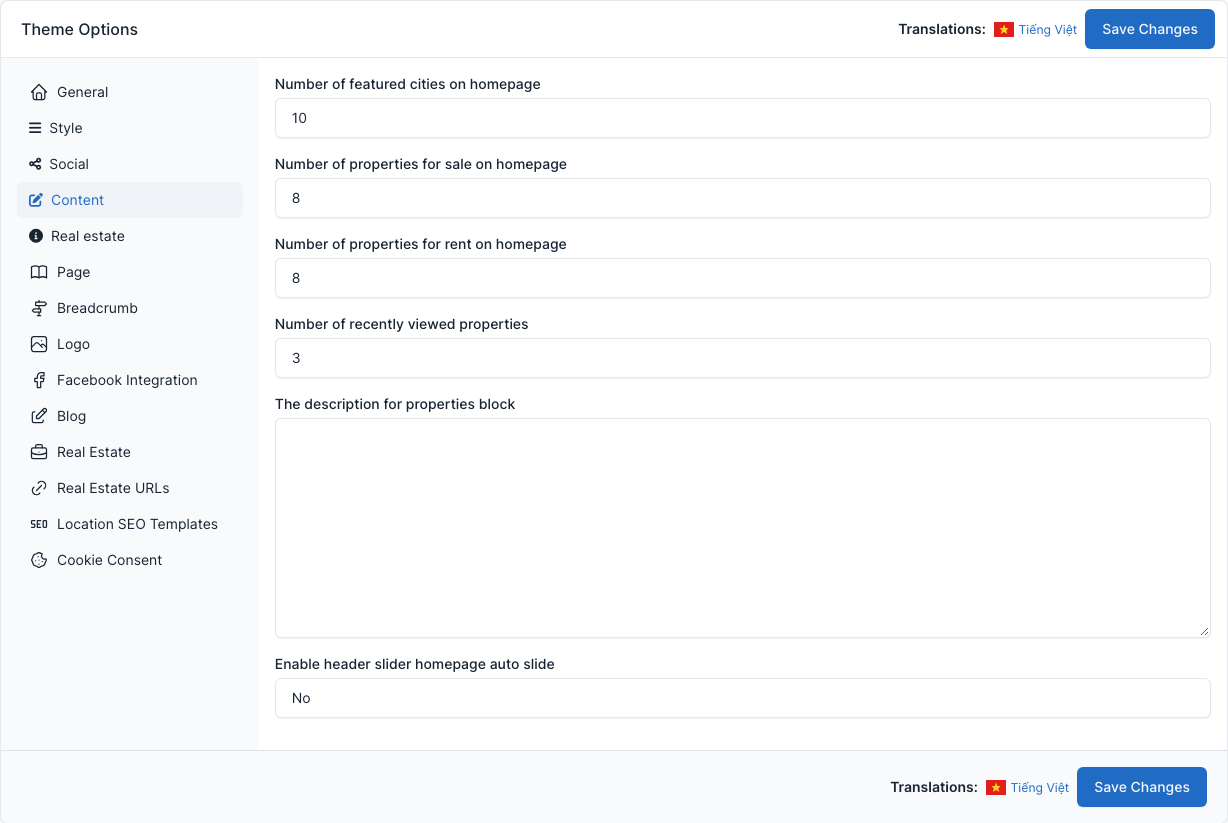
- Number of featured cities on homepage: cities shown by the Find By Locations shortcode.
- Number of properties for sale on homepage and for rent on homepage.
- Number of recently viewed properties.
- The description for properties block: text under the title of the properties page.
- Enable header slider homepage auto slide: auto play for the Properties hero slide shortcode.
Real estate
Tab Real estate (the first one).
Layouts and filters of the property pages.
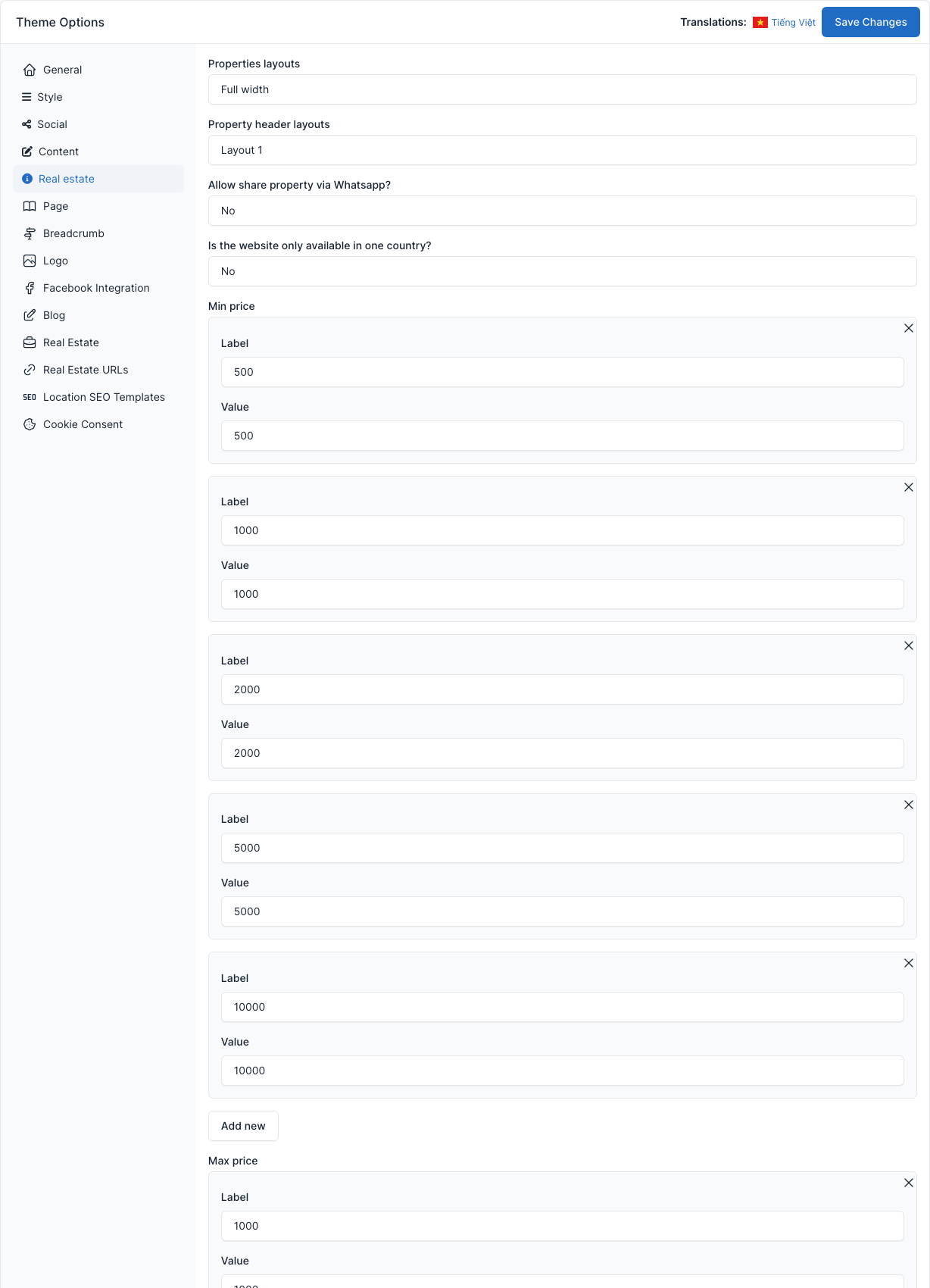
- Properties layouts and Property header layouts: the layout of the listing page and of the header of a property page. Each property can also pick its own header layout in its edit form.
- Allow share property via Whatsapp?: adds a WhatsApp share button on properties and projects.
- Is the website only available in one country?: hides the country filter when all your listings are in one country.
- Min price, Max price, Bed Rooms, Bath Rooms: the choices offered by the search filters. Each row has a Label (shown) and a Value.
Page
Tab Page.
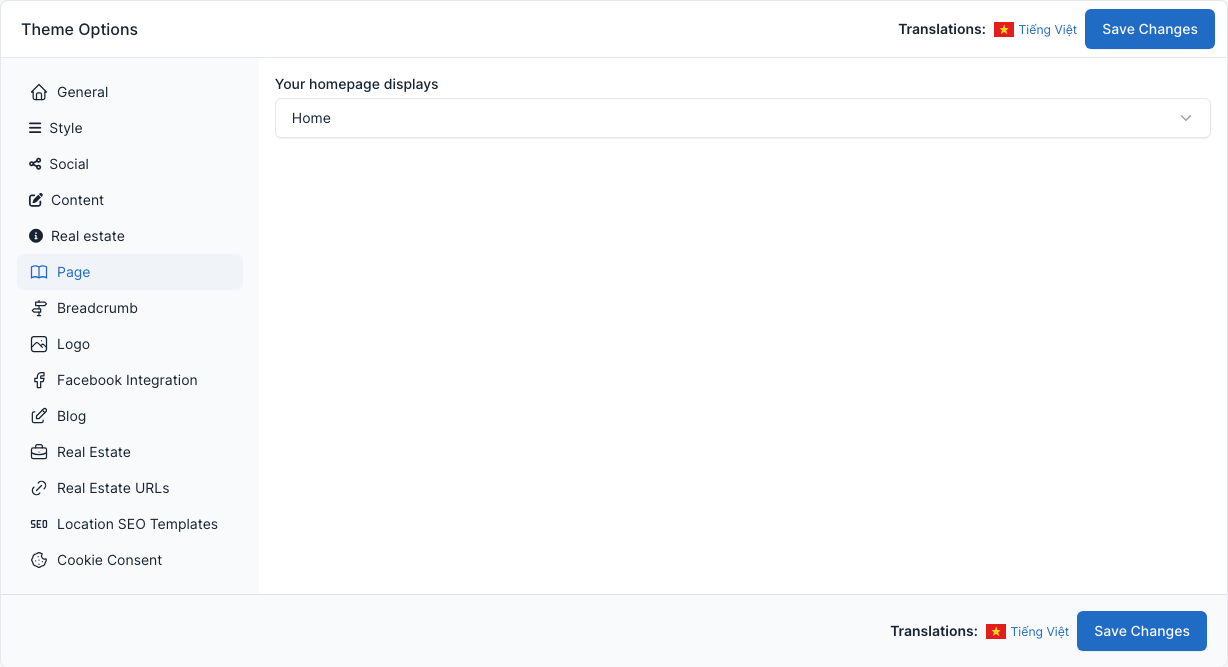
Your homepage displays chooses the page used as the home page.
Breadcrumb
Tab Breadcrumb.
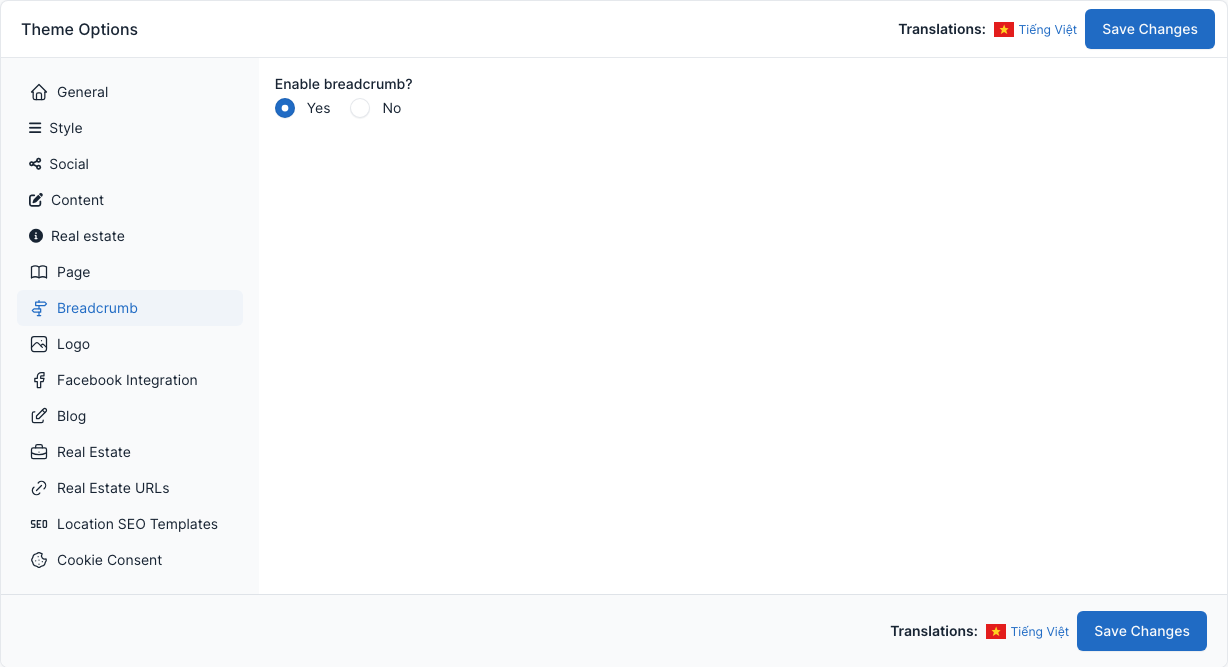
Enable breadcrumb? shows or hides the breadcrumb under the page title.
Logo and favicon
Tab Logo.
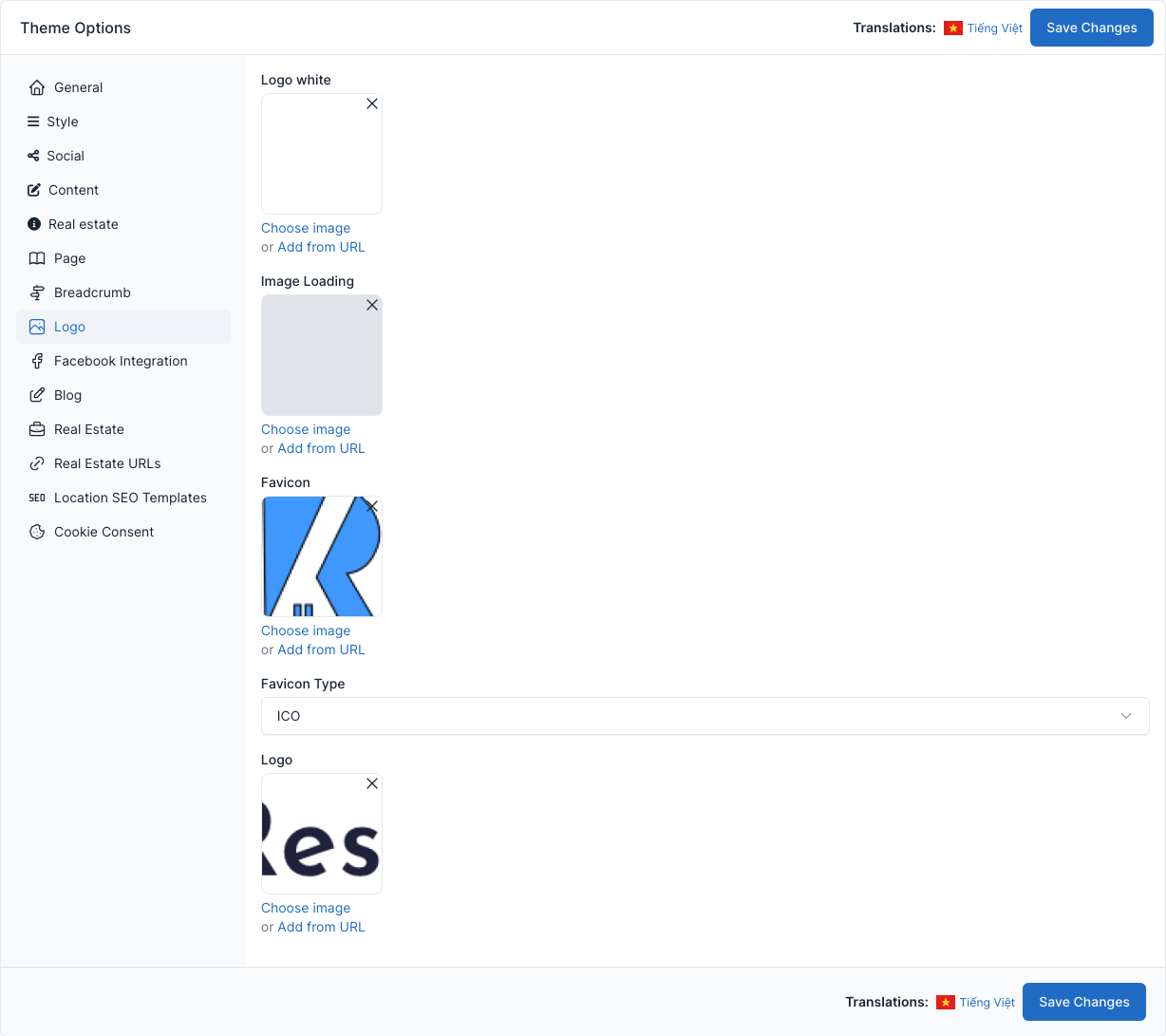
- Logo: the logo of the header.
- Logo white: the white logo of the dark footer. Upload it too: nothing replaces it when the field is empty.
- Image Loading: the placeholder shown while property pictures load.
- Favicon and Favicon Type: the small icon in the browser tab.
Upload your logo from the Media library with Choose image, or paste an address with Add from URL, then click Save Changes.
Facebook Integration
Tab Facebook Integration.
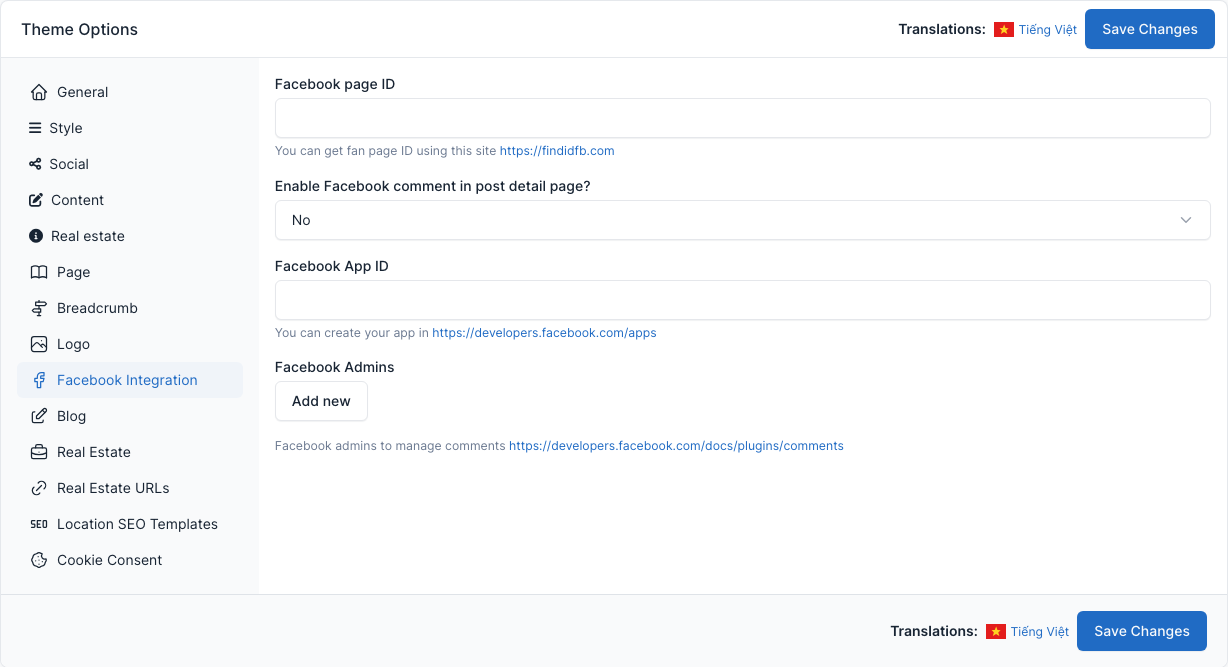
Facebook page ID, Facebook App ID and the admins, plus the option to show Facebook comments on the post detail page.
Blog
Tab Blog.
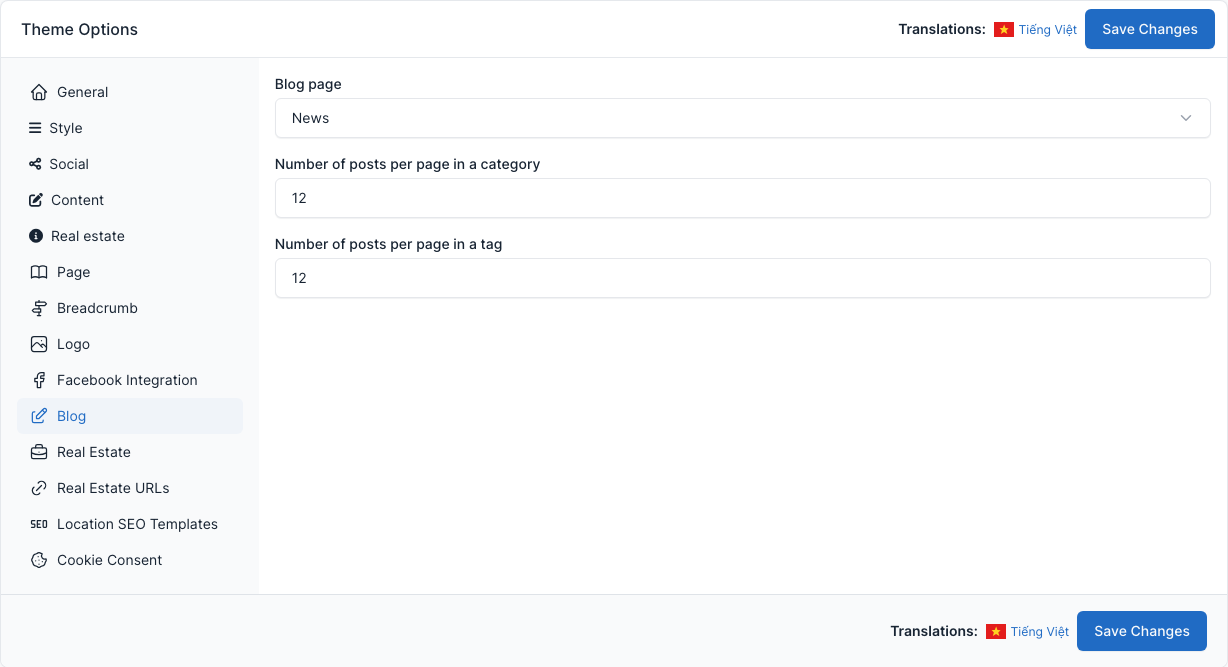
Choose the Blog page (the page that lists the posts) and the number of posts per page in a category and in a tag.
Real Estate
Tab Real Estate (the second one).
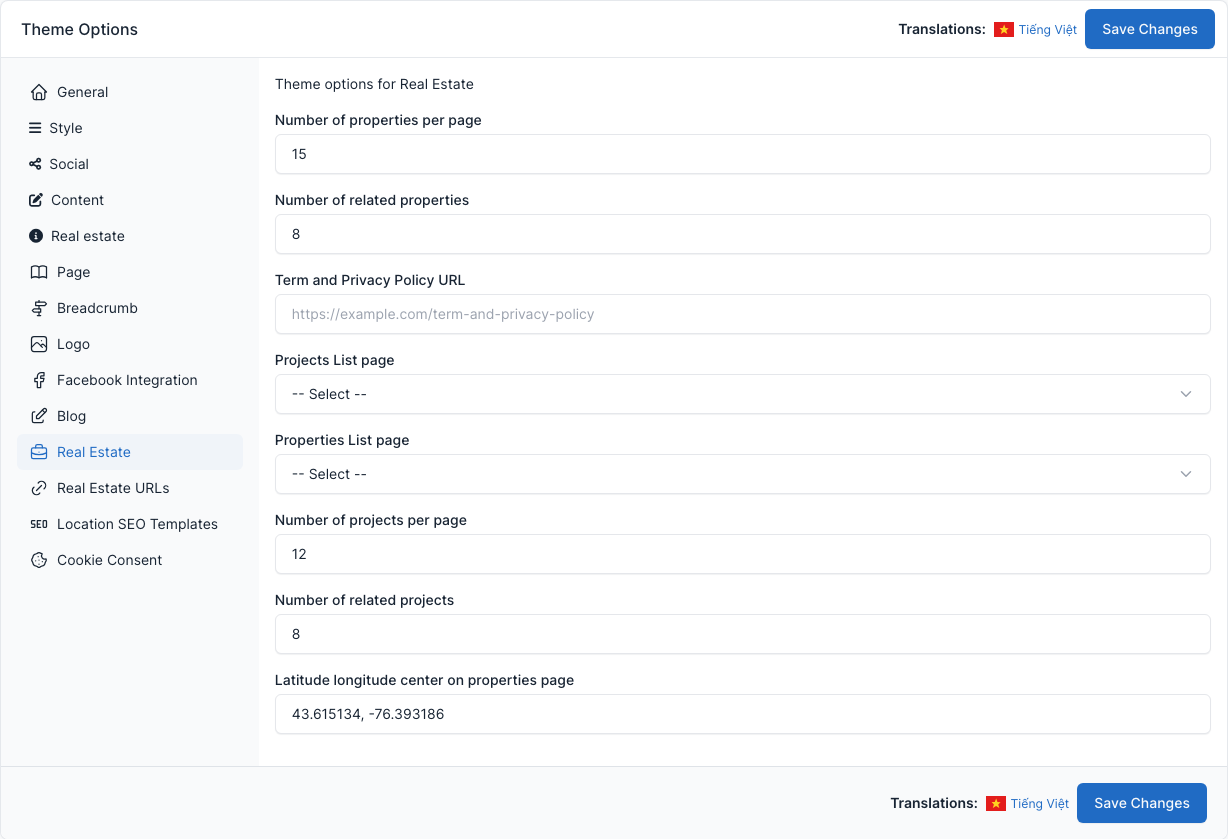
- Number of properties per page, Number of related properties, Number of projects per page and Number of related projects.
- Term and Privacy Policy URL: the link of the "I agree" checkbox of the forms.
- Projects List page and Properties List page: the pages that hold the listings.
- Latitude longitude center on properties page: where the map starts.
Real Estate URLs
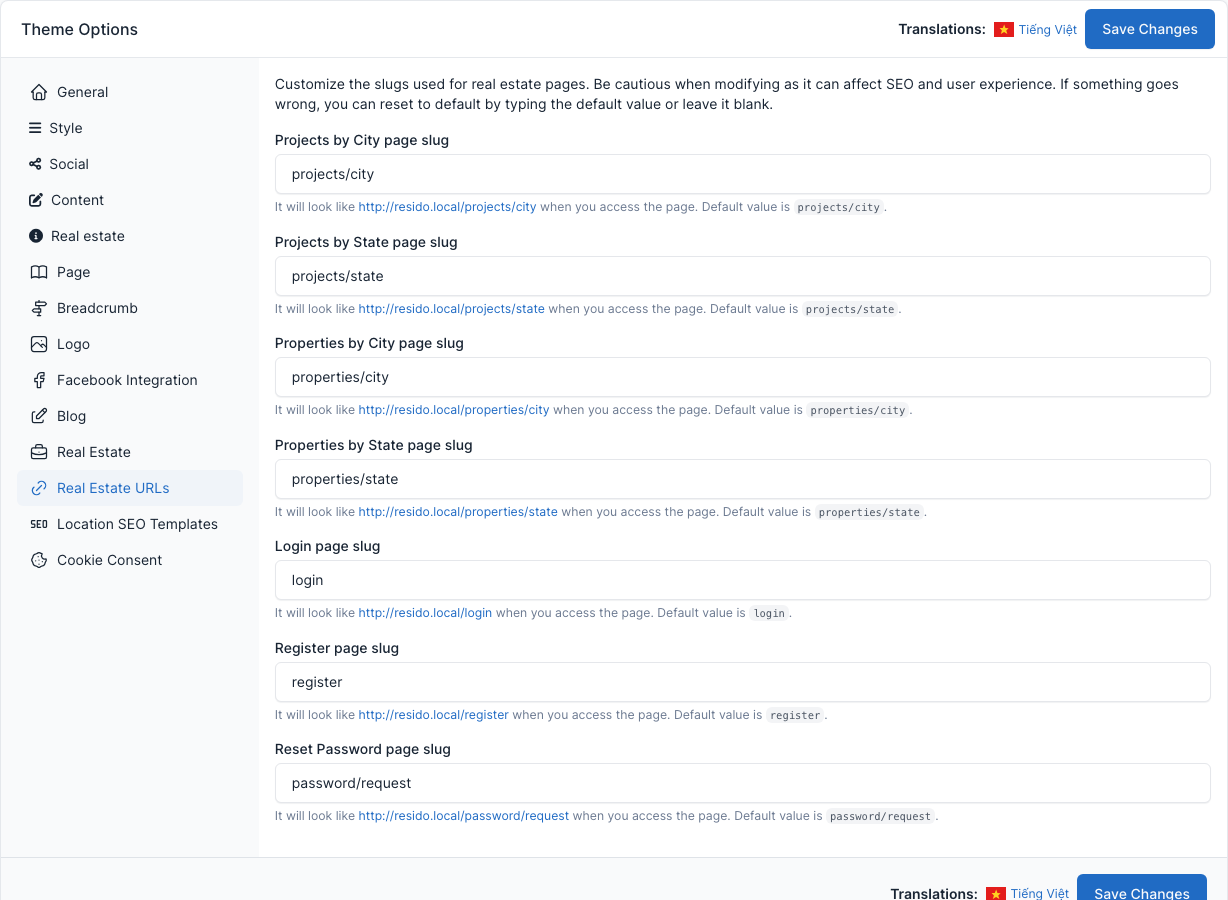
Tab Real Estate URLs.
The address (slug) of the listing-by-city and listing-by-state pages and of the login, register and reset password pages. Change them with care: they affect your SEO and the links already shared. Leave a field empty to return to its default.
Location SEO Templates
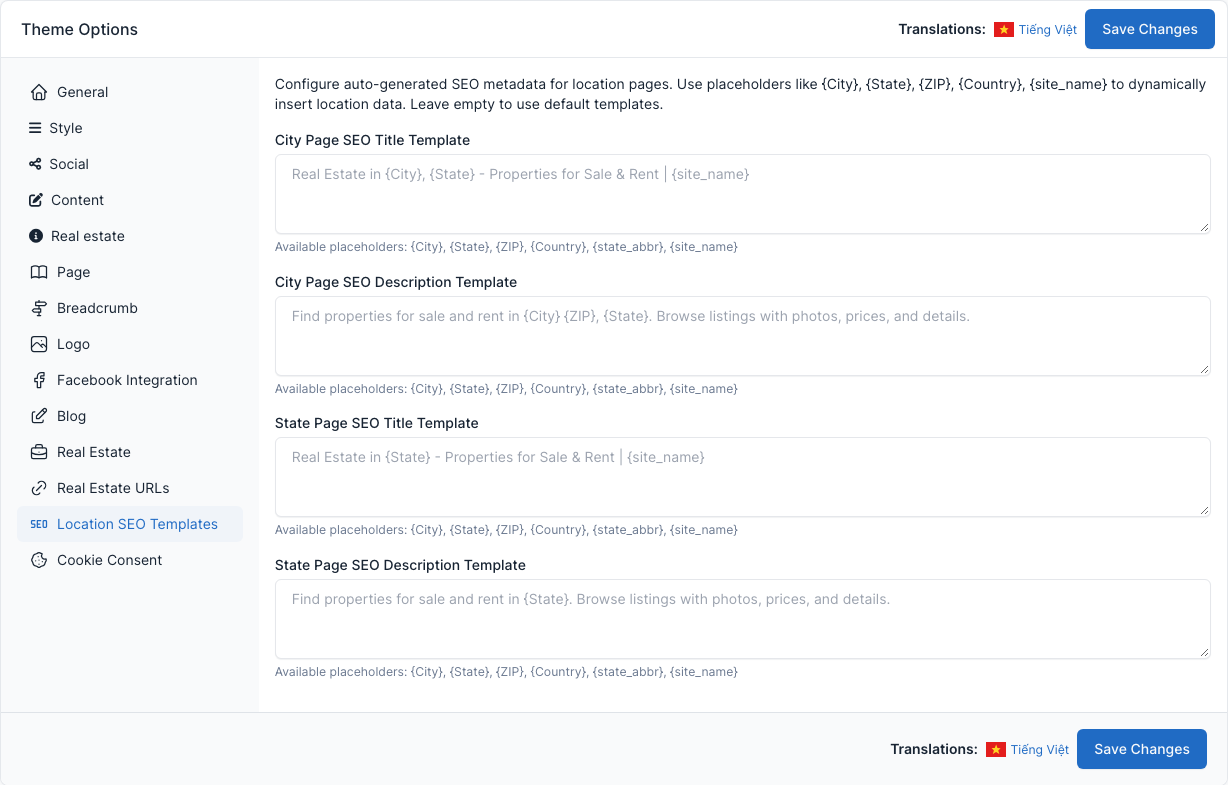
Tab Location SEO Templates.
Titles and descriptions generated for the city and state pages. Use the placeholders {City}, {State}, {ZIP}, {Country}, {state_abbr} and {site_name}. Leave a field empty to use the default text.
Cookie Consent
Tab Cookie Consent.
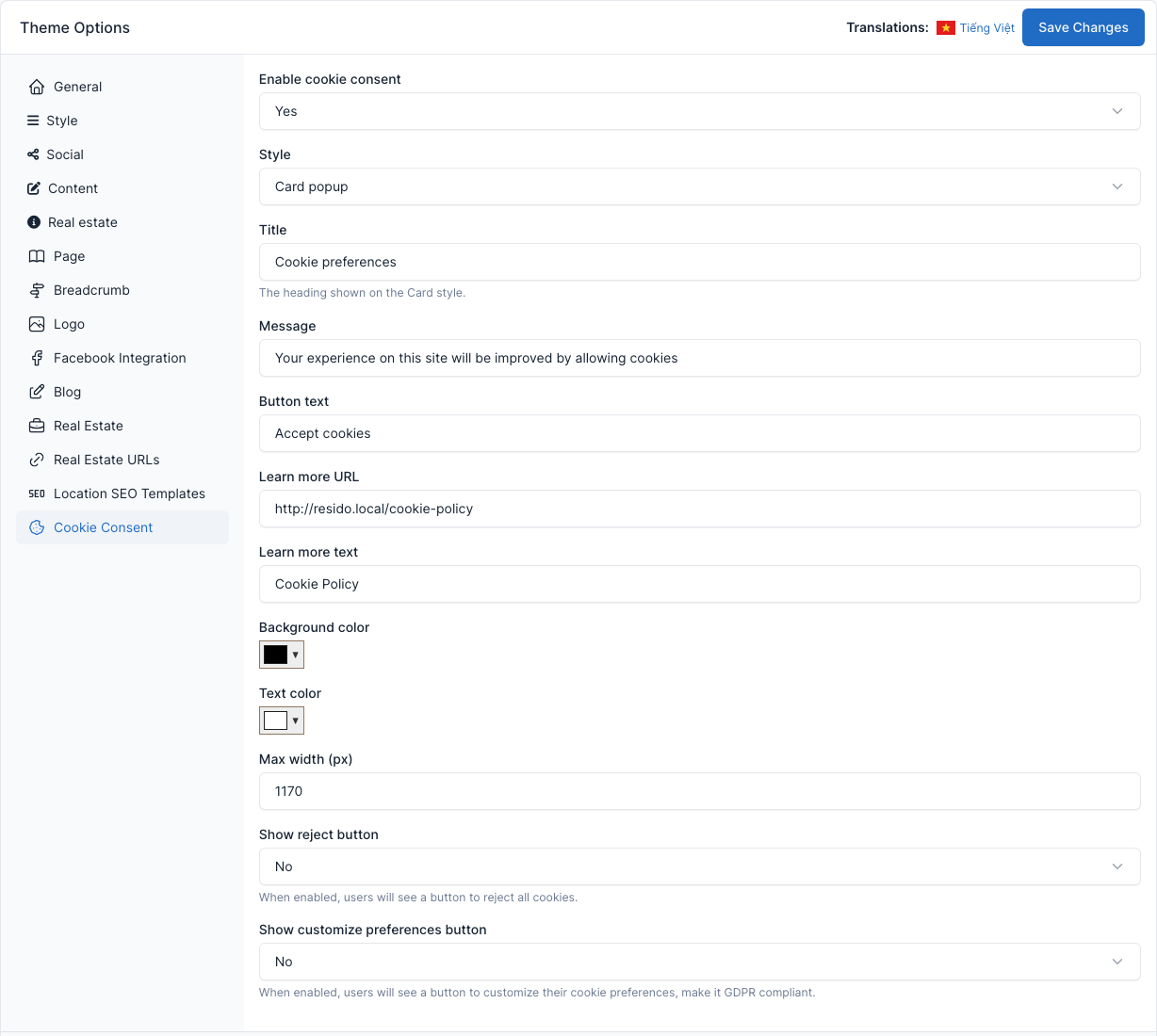
Turn the cookie notice on or off, then set its style, texts, link to the cookie policy page, colors and buttons.