Footer
Overview
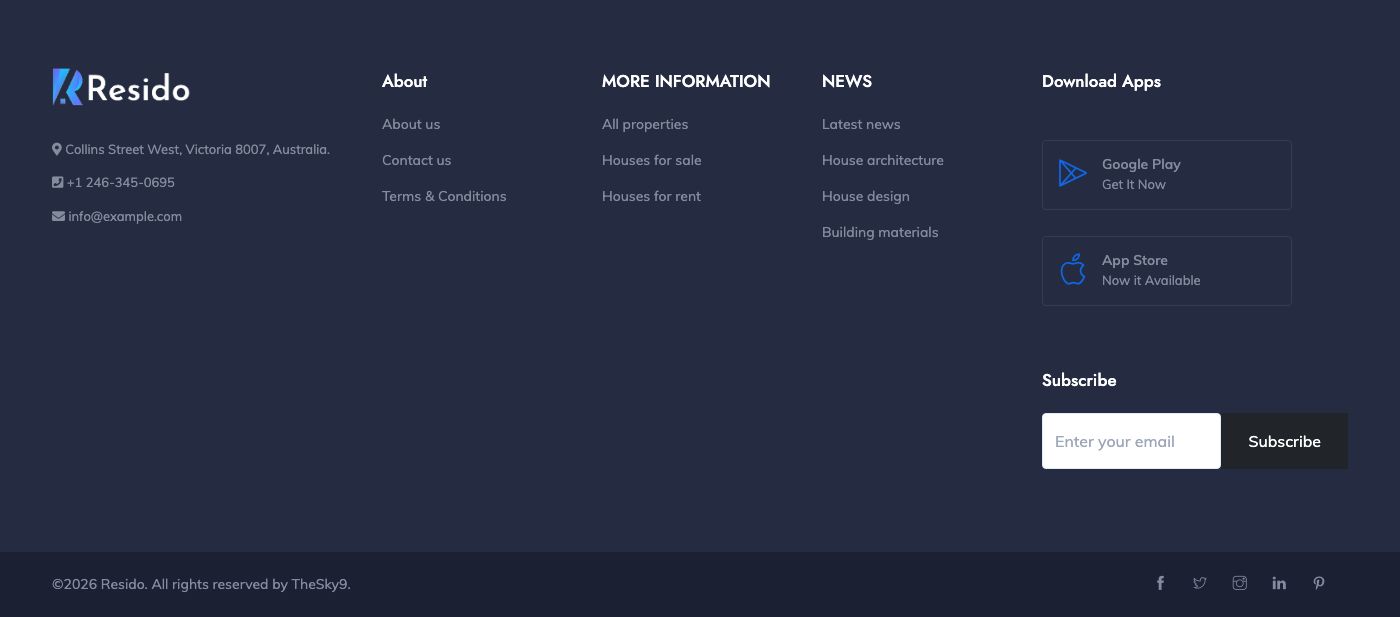
The footer has four parts: a blue call to action, the footer columns, the copyright line and the social links.
Call to action
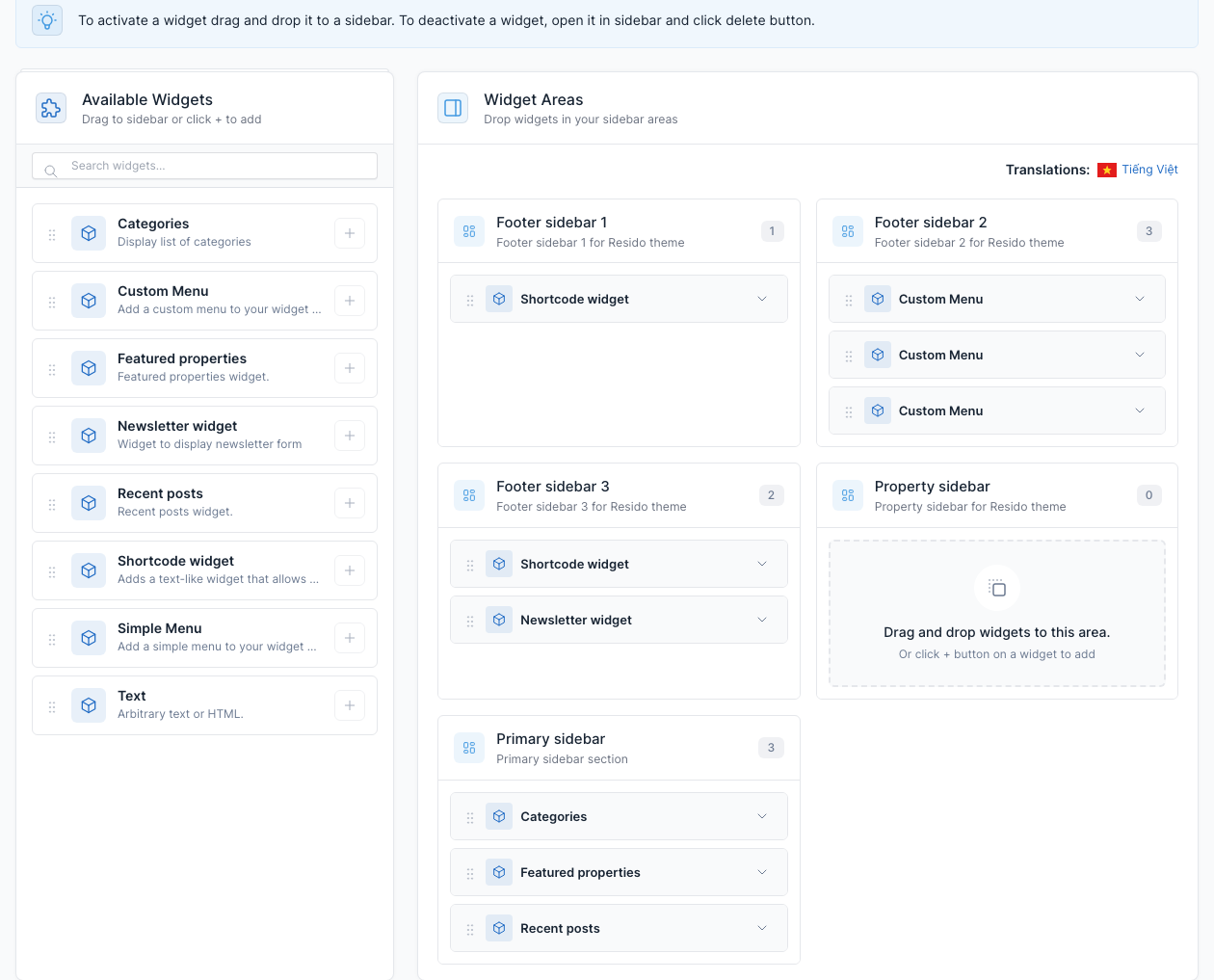
The blue "sign-up" bar above the footer is the Static block Sign up, shown by a Shortcode widget in Footer sidebar 1. Edit the text and the button link in Admin -> Static Blocks.

Footer columns
Go to Admin -> Appearance -> Widgets.
- Footer sidebar 1: the call to action above.
- Footer sidebar 2: the menu columns. Each column is a Custom Menu widget: its title is the column title and it shows one menu (About, More information, News). Drag a widget to reorder the columns, open it to change the title or the menu, and add a new Custom Menu widget for a new column. The menus are edited in Admin -> Appearance -> Menus (see Menu).
- Footer sidebar 3: the "Download Apps" block with the store badges, which is the Static block Download App Footer, and the Newsletter widget (see Newsletter). Put your own App Store and Google Play links in the static block.
Logo, contact details and copyright
Go to Admin -> Appearance -> Theme Options.
- Tab Logo: Logo white is the logo at the top of the first column.
- Tab General: Address, Hotline and Email are listed under the logo, and Copyright is the text of the copyright line.
- Tab Social: one row per network (name, icon, URL). The links appear on the right of the copyright line.
See General for the fields.