Short code
Shortcodes are the building blocks of the Flow home layouts and blog pages. You add them to the content of a page (or a post) and set their options in a form.
Go to Admin -> Pages, open a page, and in the editor click the UI Blocks button. Pick a shortcode in the list and click Use. Fill in the form and click Add.
The editor then shows the shortcode as a gray block. Click it to edit the options again. Save the page to publish the change.
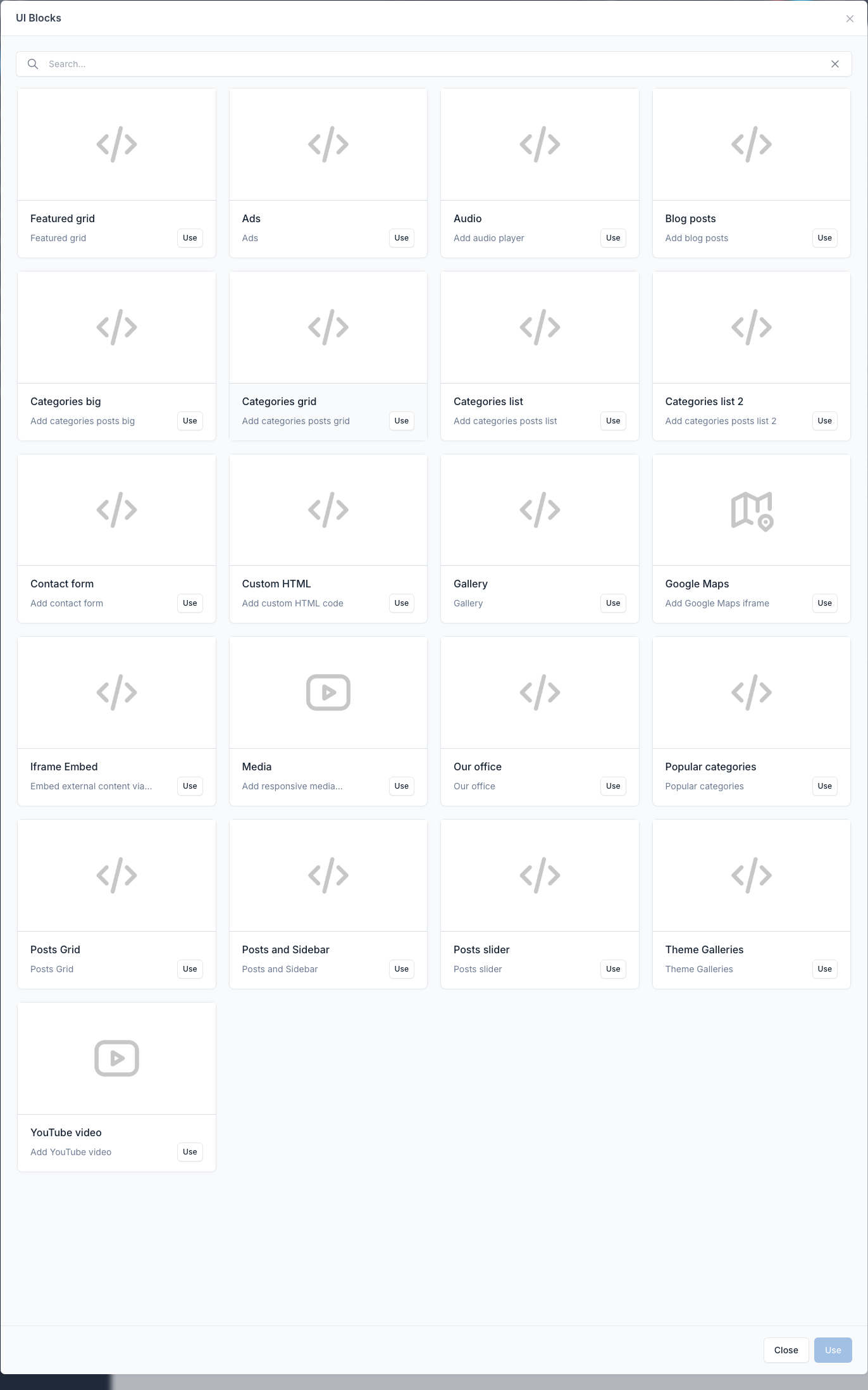
The theme adds these shortcodes:
| Shortcode | What it does |
|---|---|
| Posts slider | Slider of posts, 3 styles |
| Posts Grid | Grid of posts, 2 or 3 columns |
| Featured grid | Grid of the featured posts |
| Posts and Sidebar | List of posts next to the Primary sidebar |
| Popular categories | Row of the most popular categories |
| Categories big, Categories grid, Categories list, Categories list 2 | Four layouts for a paginated list of posts |
| Contact form | Contact form |
| Our office | Contact info boxes |
| Theme Galleries | Grid of galleries |
| Gallery | The pictures of one gallery |
| YouTube video | Embeds a YouTube video |
The list also shows Ads (see Ads), Audio, Blog posts, Custom HTML, Google Maps (fields: Address, Width, Height), Iframe Embed and Media. They come from the CMS core and its plugins.
The demo pages are in Admin -> Pages. Open one to see how its shortcodes are set.
Common options
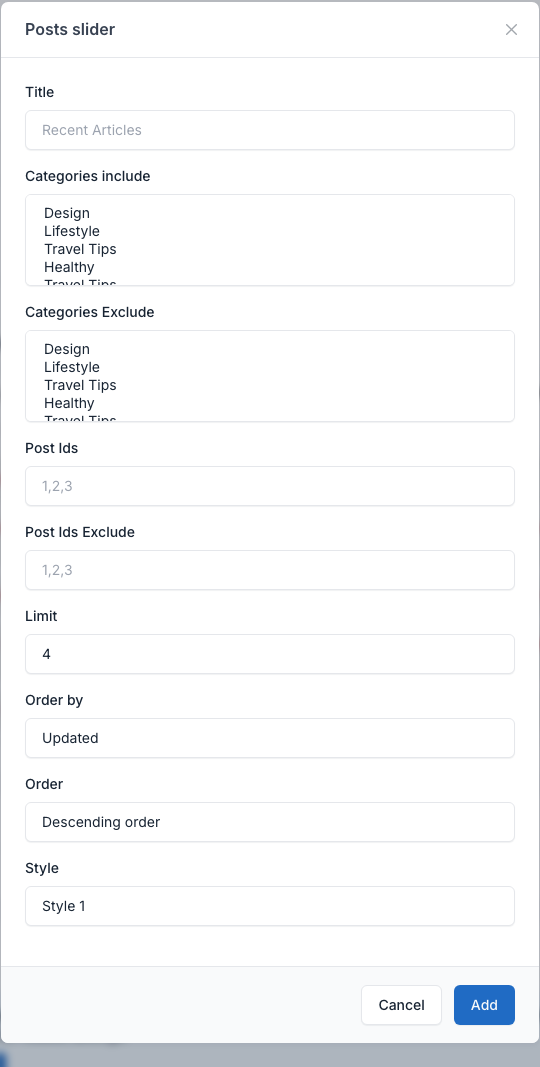
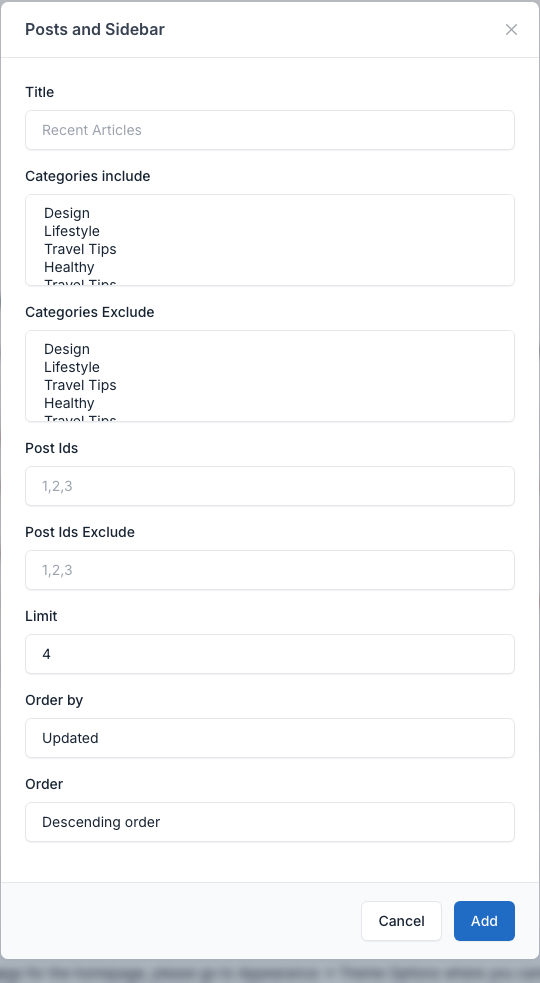
The post shortcodes share these fields:
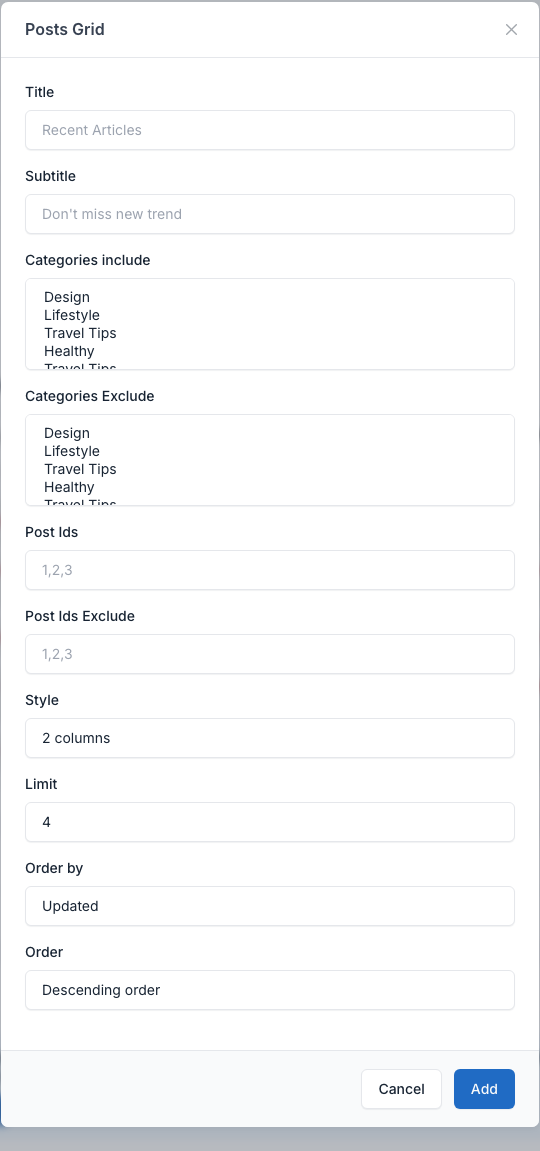
- Title (and Subtitle for Posts Grid): the heading of the section.
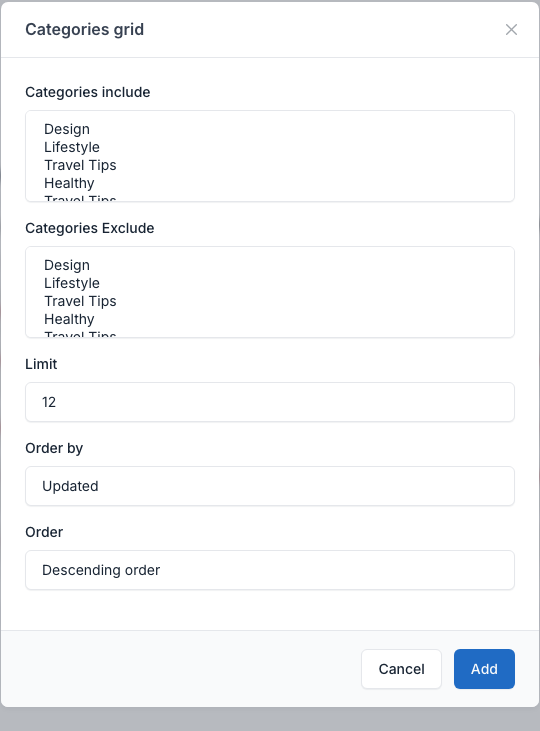
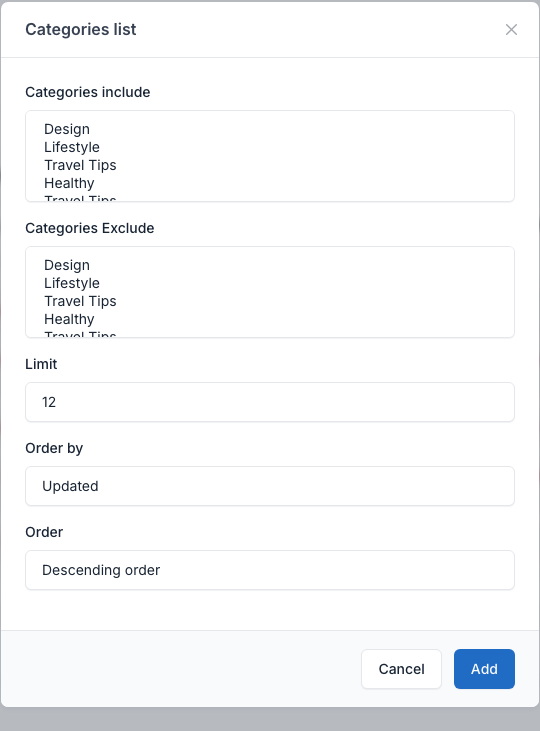
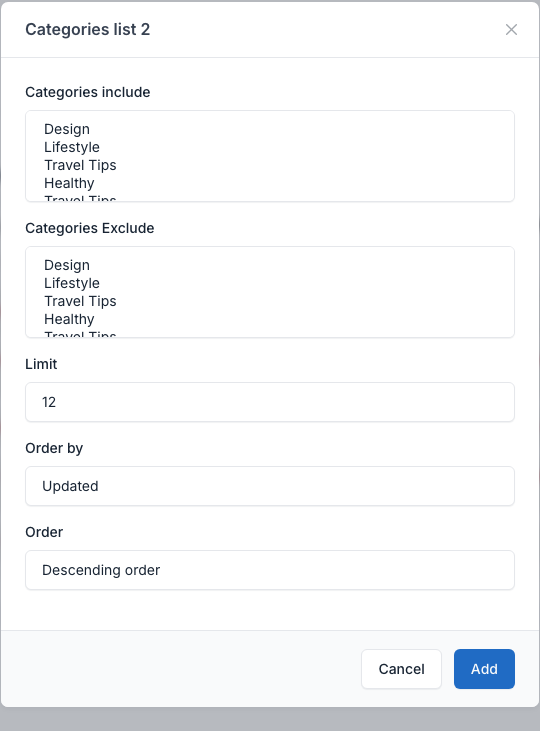
- Categories include: show only the posts of the categories you pick.
- Categories Exclude: leave out the posts of the categories you pick.
- Post Ids: show only the posts with these ids, separated by commas (for example
1,2,3). Find the id of a post in Posts in the admin. - Post Ids Exclude: leave out the posts with these ids.
- Limit: how many posts to show. The four Categories shortcodes show this many posts per page, with page links.
- Order by (Updated or Views) and Order (Descending or Ascending).
Posts slider
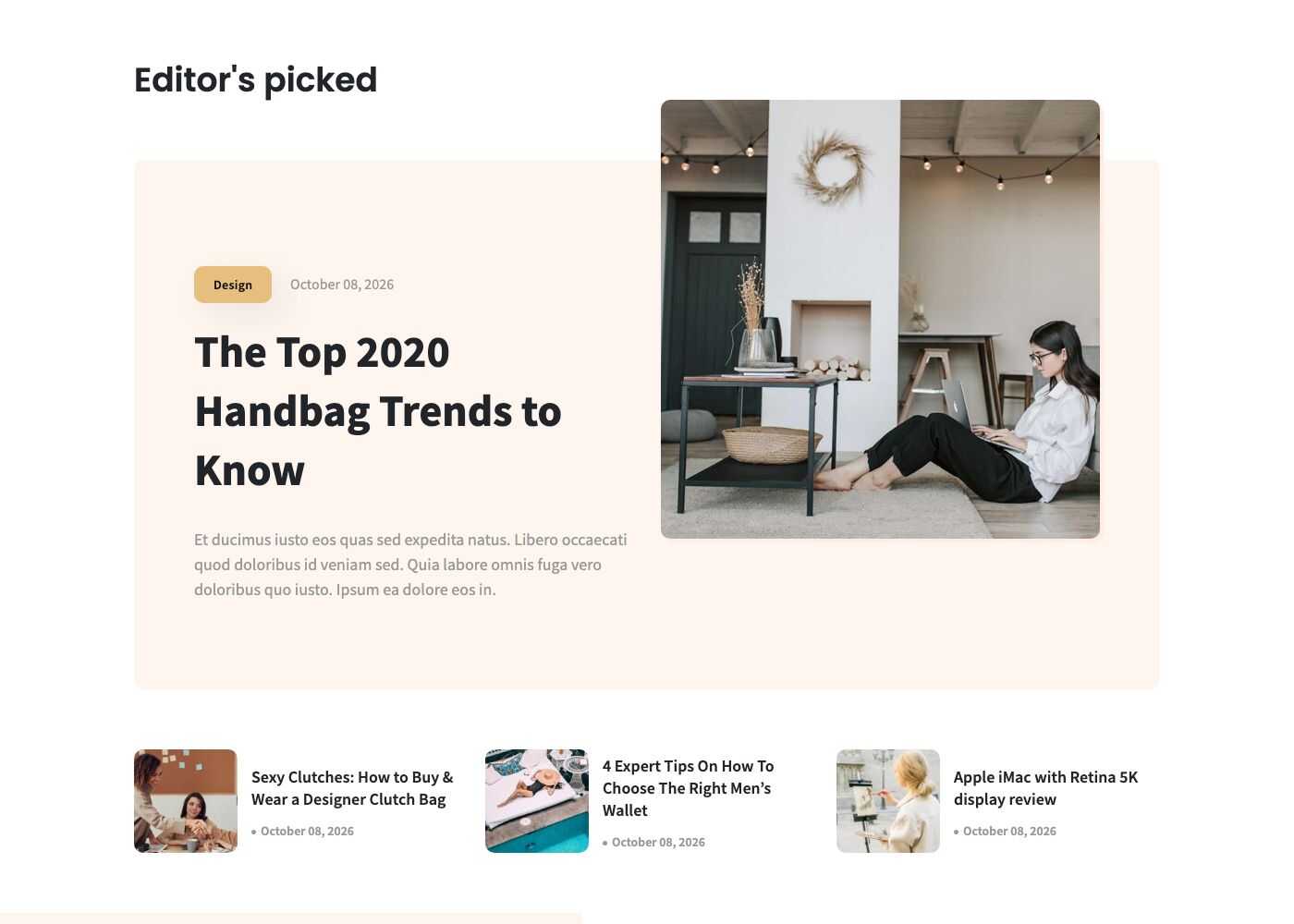
A slider with a title. The Style field has 3 values.
Setting
Style 1
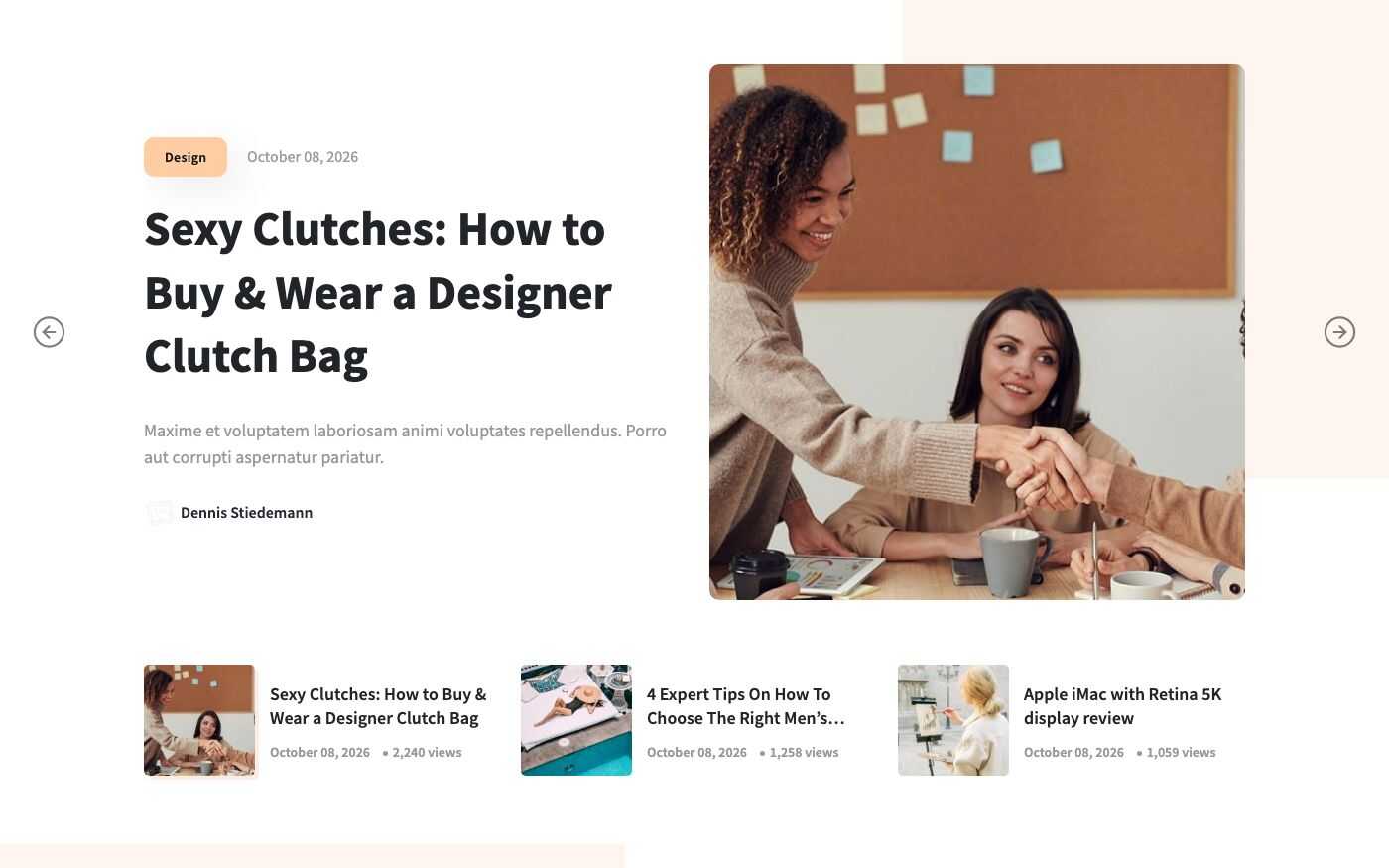
The slider shows one large post with its picture and a strip of the next posts under it.
Style 2
Style 3

Posts Grid
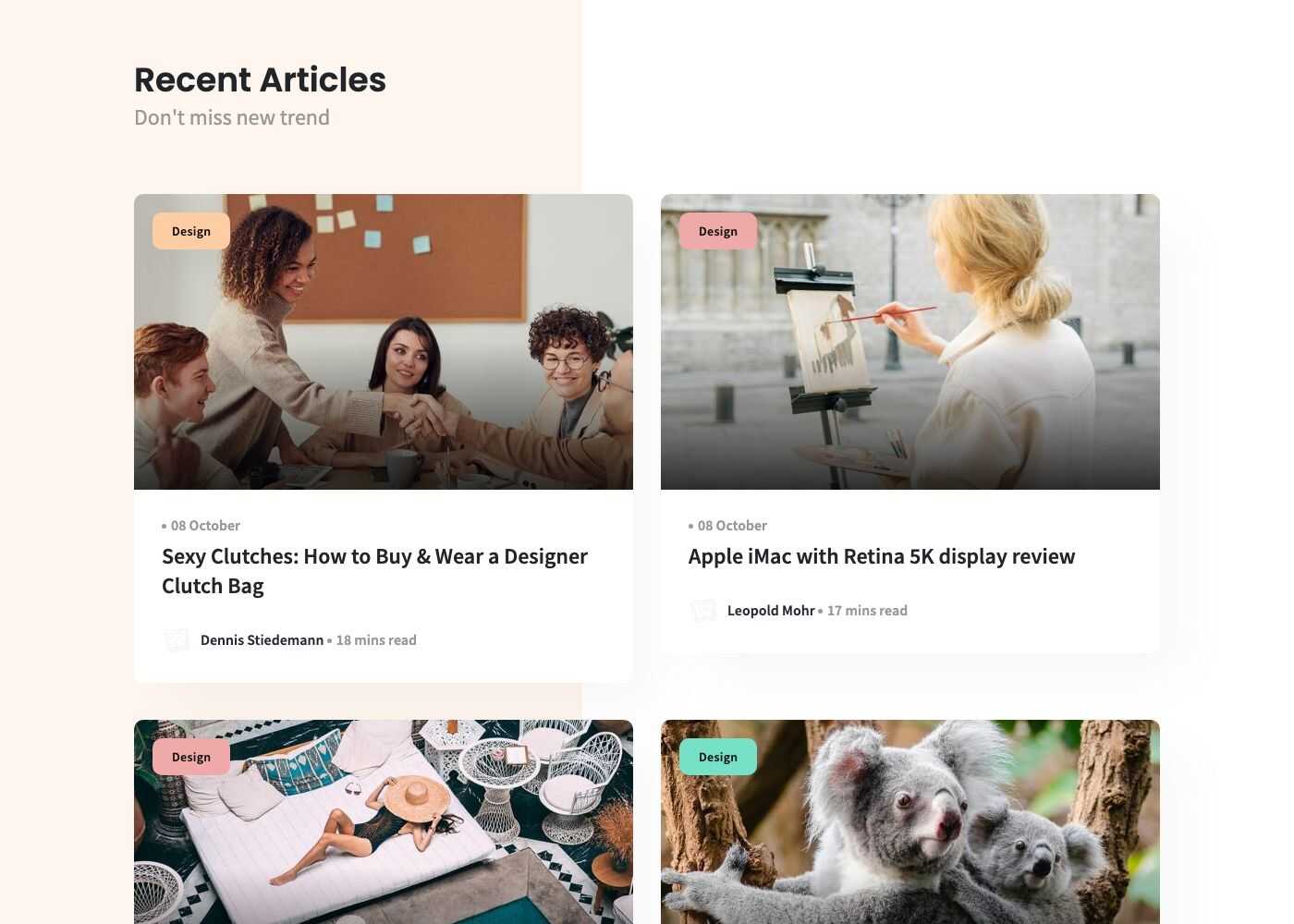
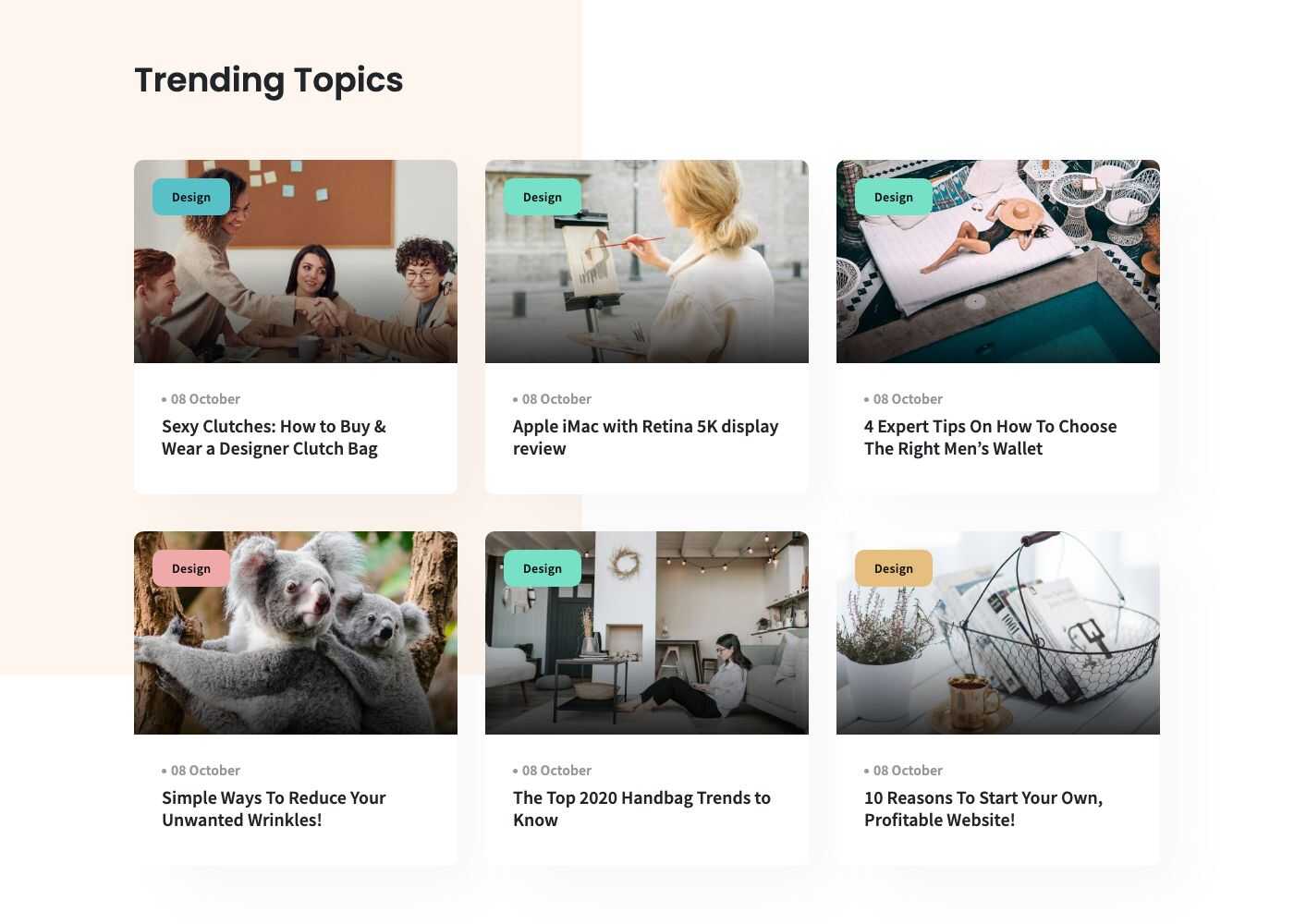
A grid of posts with a title and a subtitle. Choose 2 columns or 3 columns in the Style field.
Overview, 2 columns
Overview, 3 columns
Setting
Featured grid
A grid of the 6 latest featured posts: one large picture and a block of smaller ones. To feature a post, tick Is featured? in the post editor. This shortcode has no options.
Overview
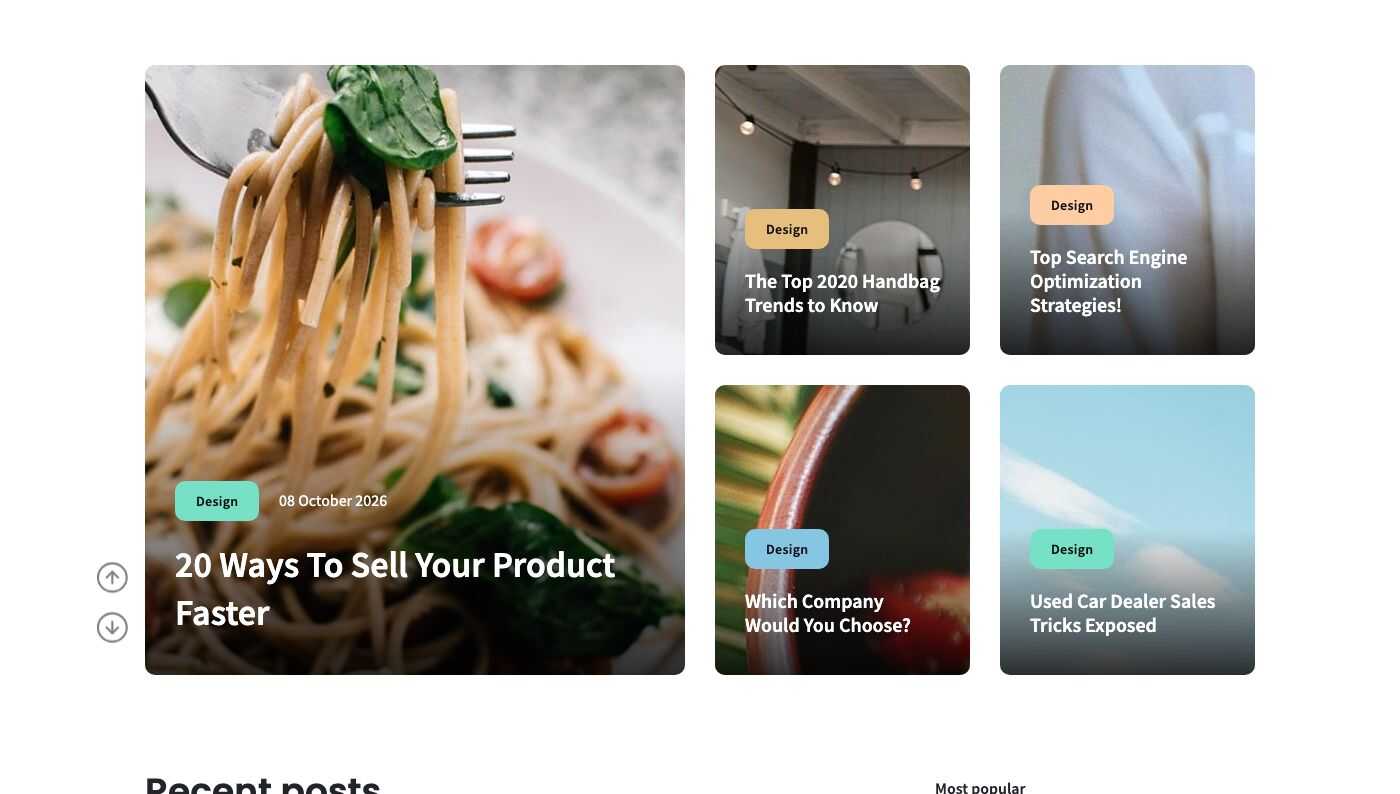
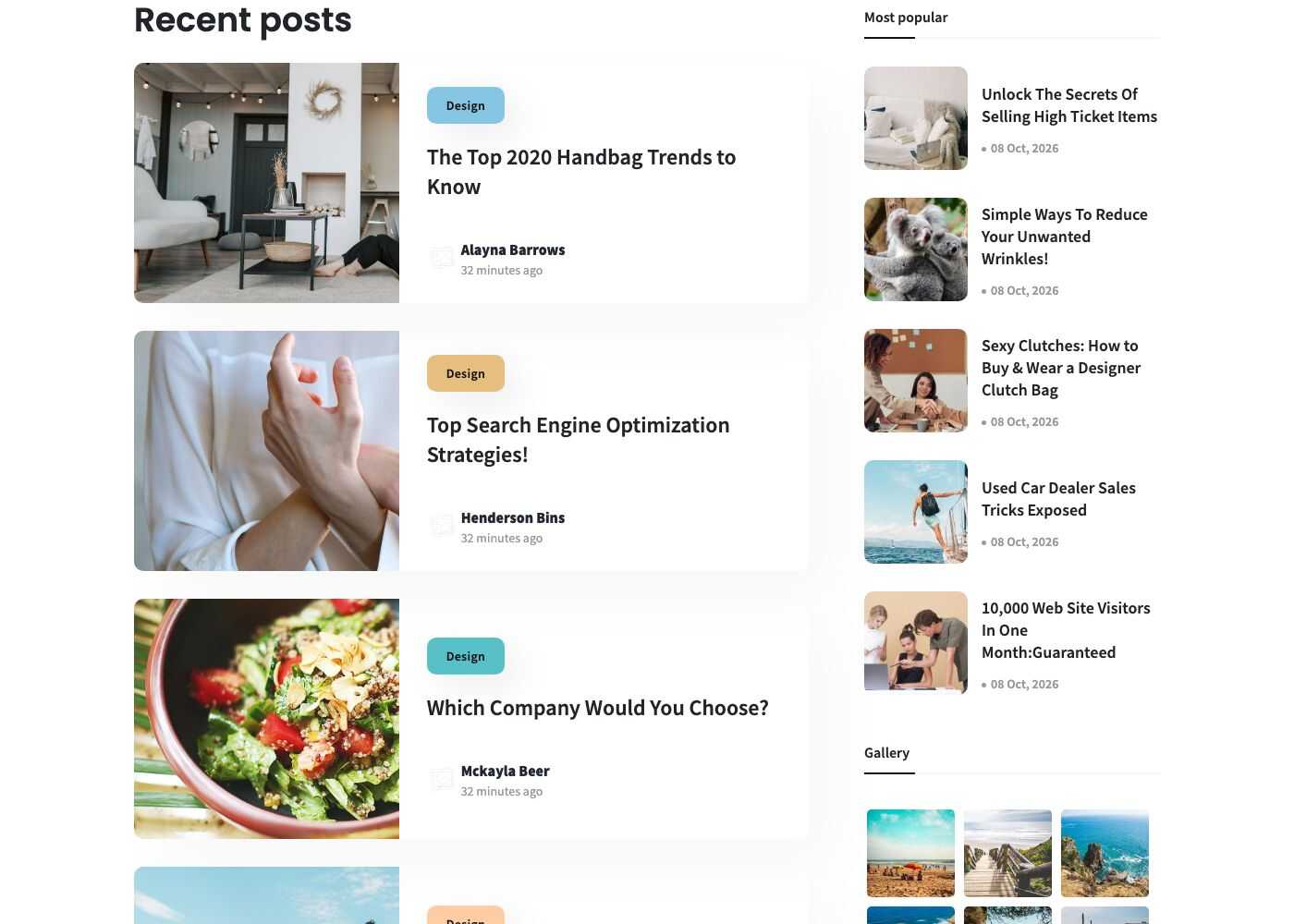
Posts and Sidebar
A list of posts on the left and the widgets of the Primary sidebar on the right (see Widgets). The ads of the locations Top Sidebar Ads and Bottom Sidebar Ads are shown above and below the widgets (see Ads).
Overview
Setting
Popular categories
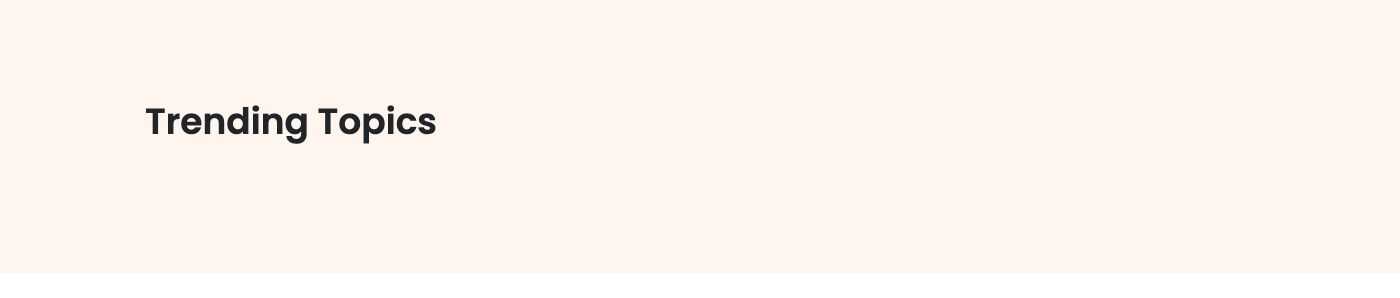
A row of the categories that have the most posts. Fields: Title and Limit (how many categories).
Overview
Setting
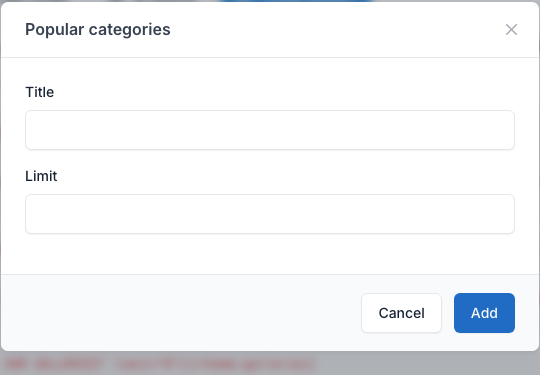
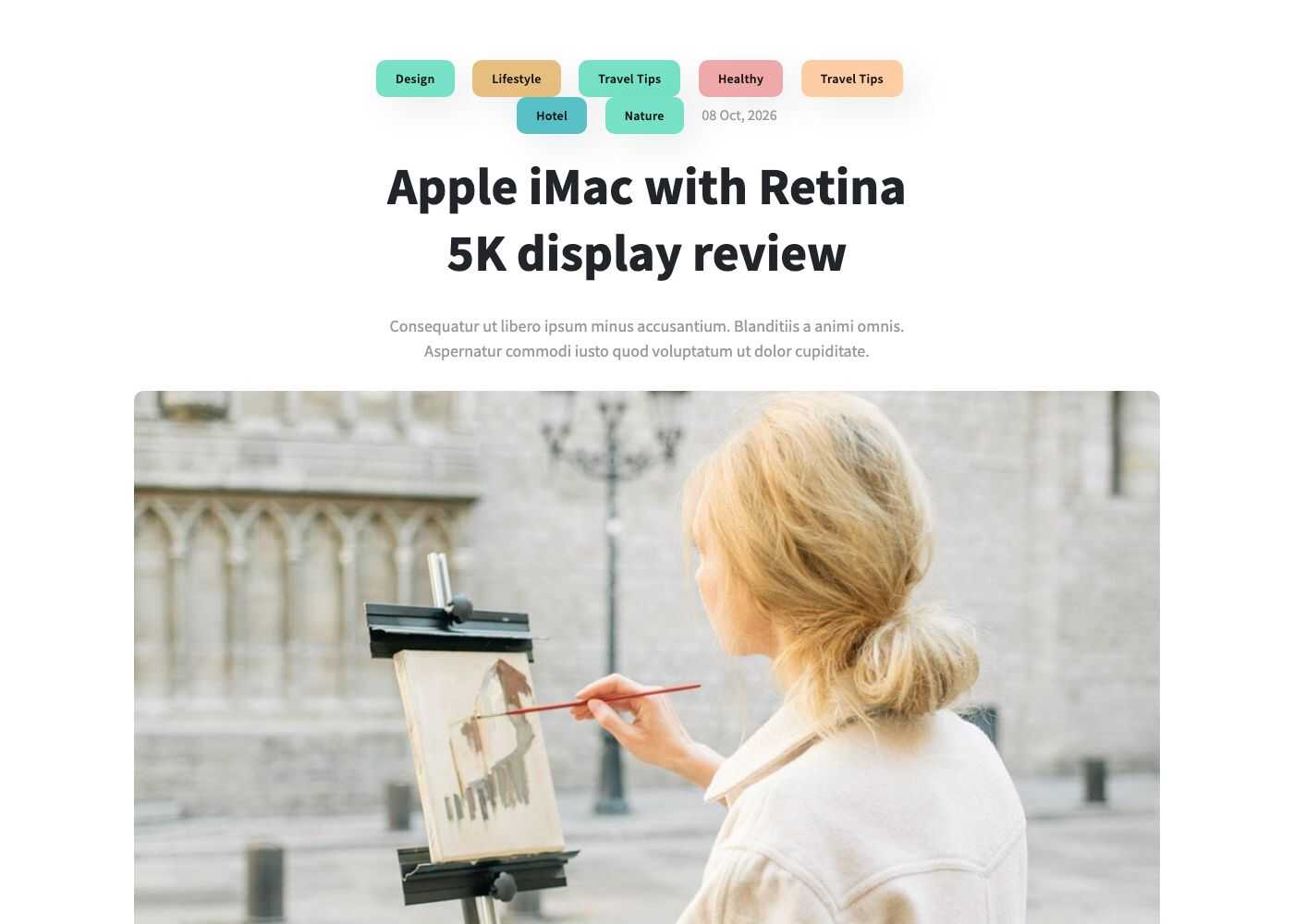
Categories big
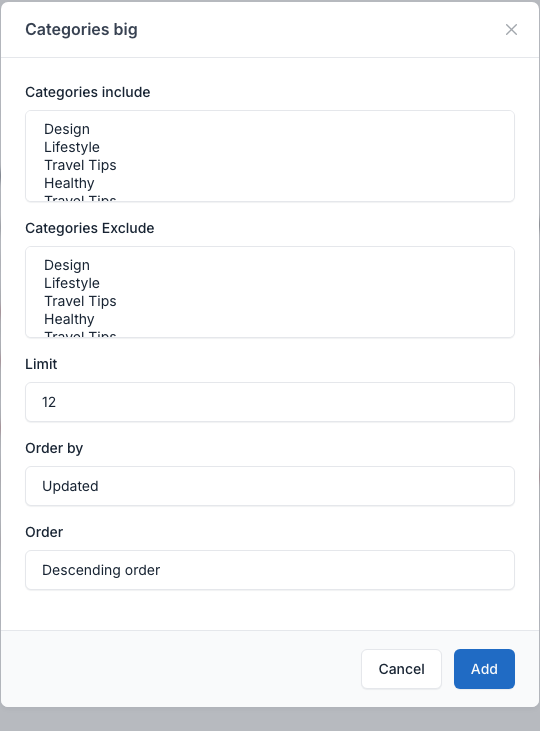
A big picture for the first post and a list of the other posts, with the number of articles in the page heading. Use Categories include, Order by and Order (see the note above about the other fields).
Overview
Setting
Categories grid
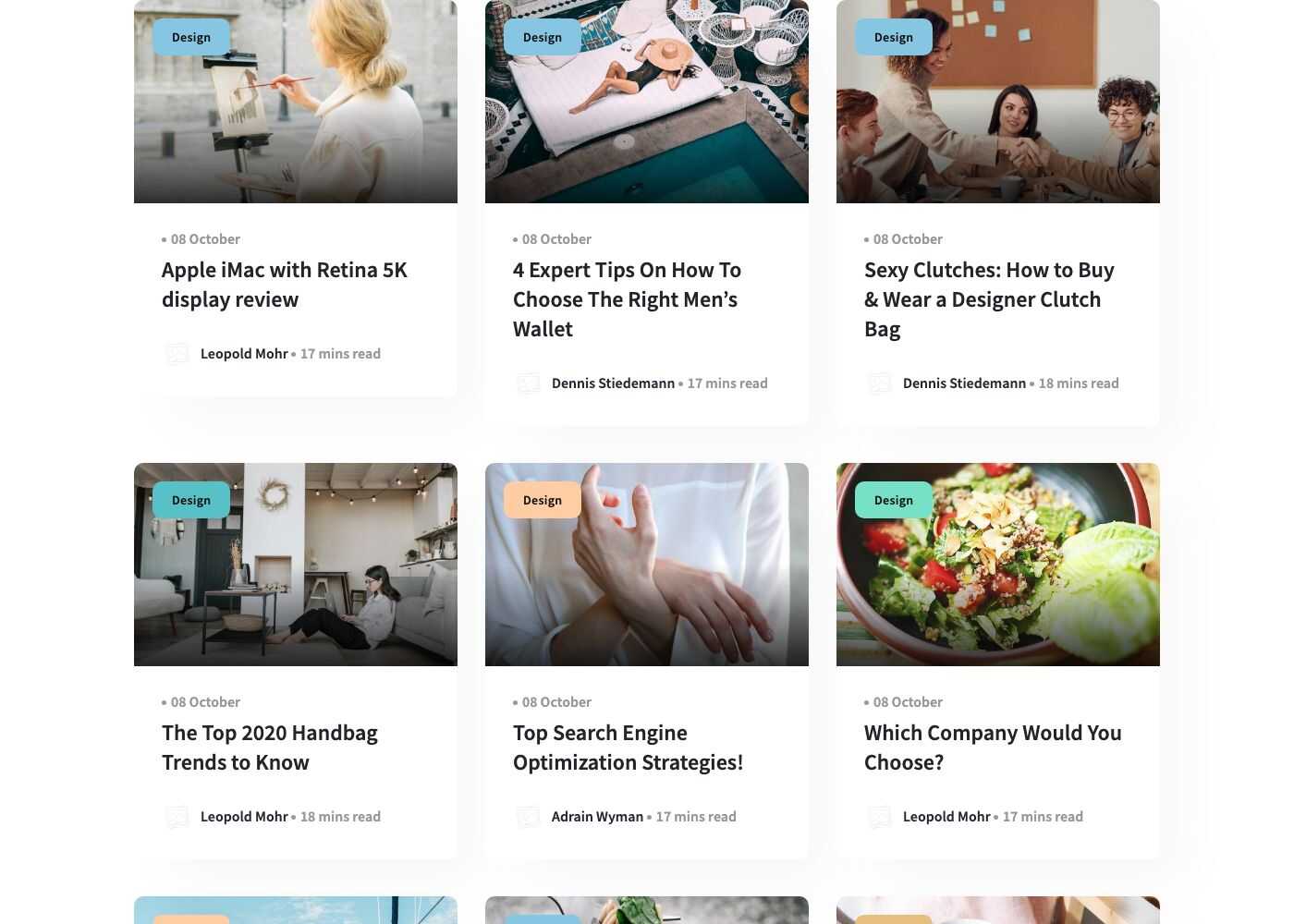
A grid of posts, 12 per page.
Overview
Setting
Categories list
A list of posts with a picture on the left, 12 per page.
Overview

Setting
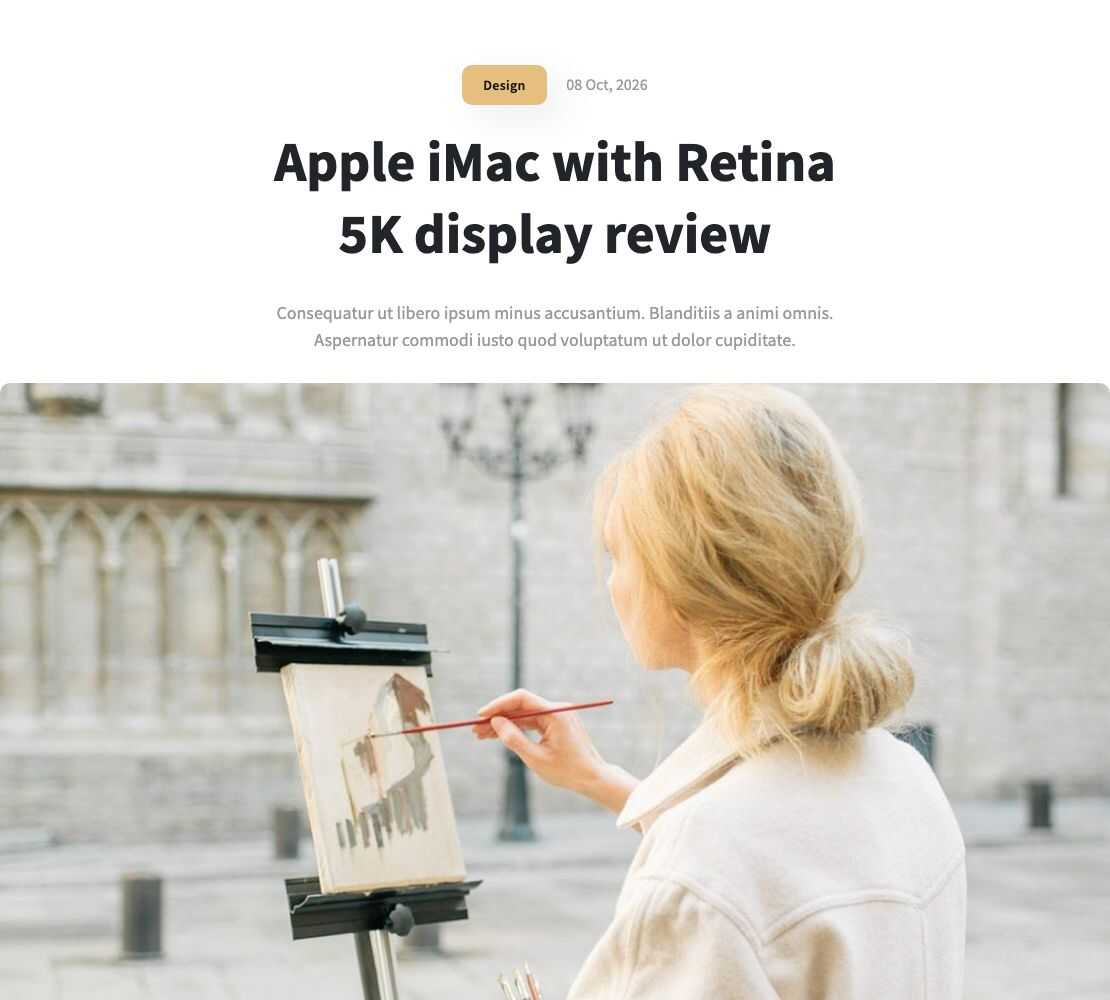
Categories list 2
A second list layout.
Overview
Setting
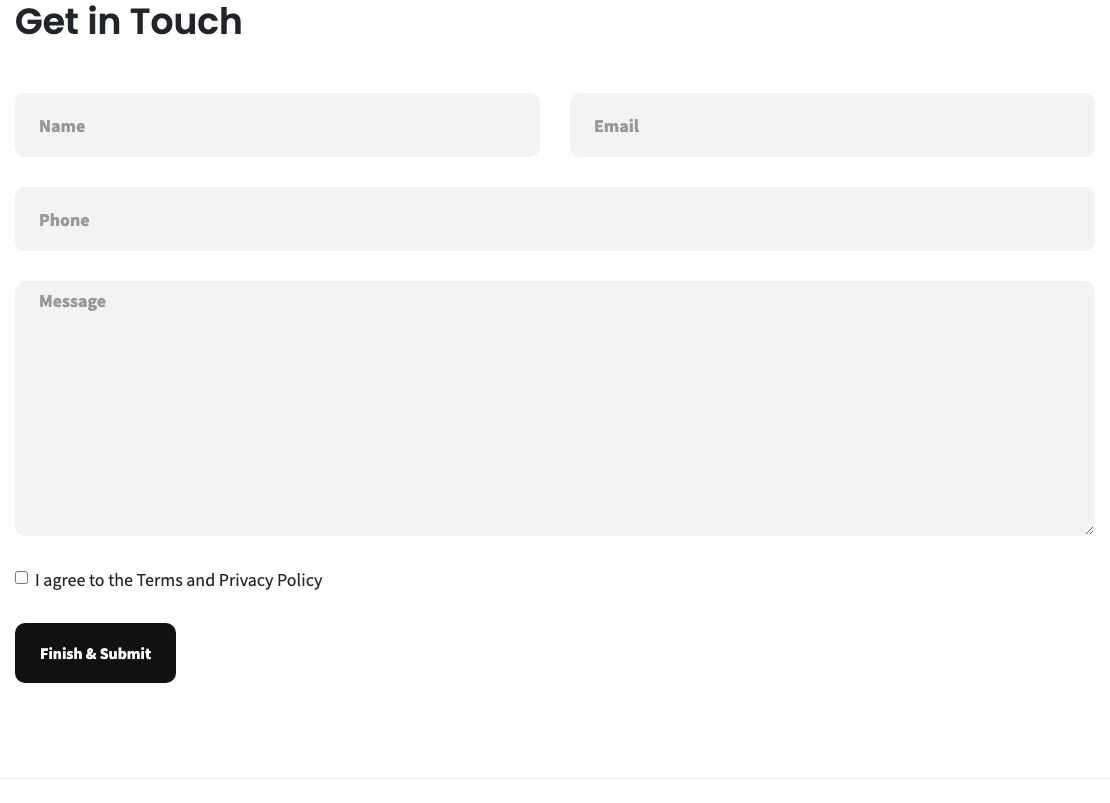
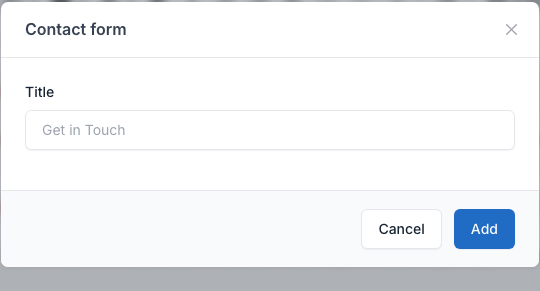
Contact form
The contact form of the theme. The only field is the Title above the form. See Contact form.
Overview
Setting
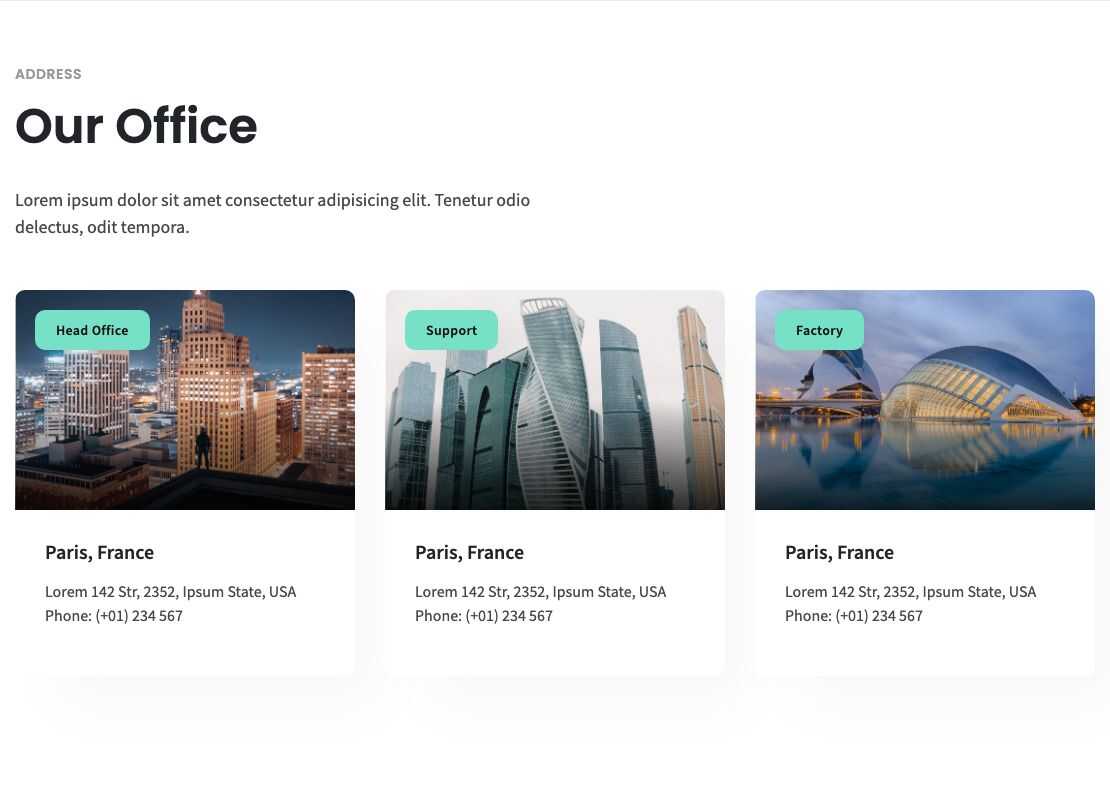
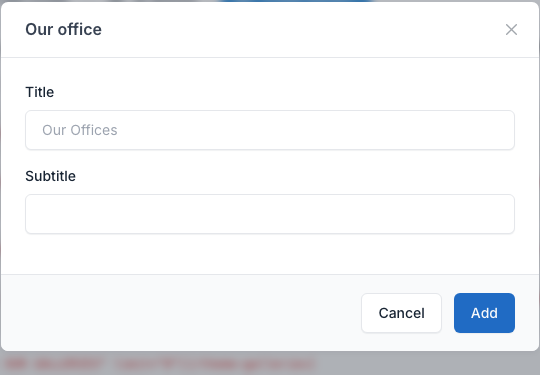
Our office
The contact info boxes: a type, a title, a subtitle and a picture for each box. The fields of the shortcode are the Title and the Subtitle of the section. The boxes themselves are edited in Admin -> Appearance -> Theme options, tab Contact info boxes (see General).
Overview
Setting
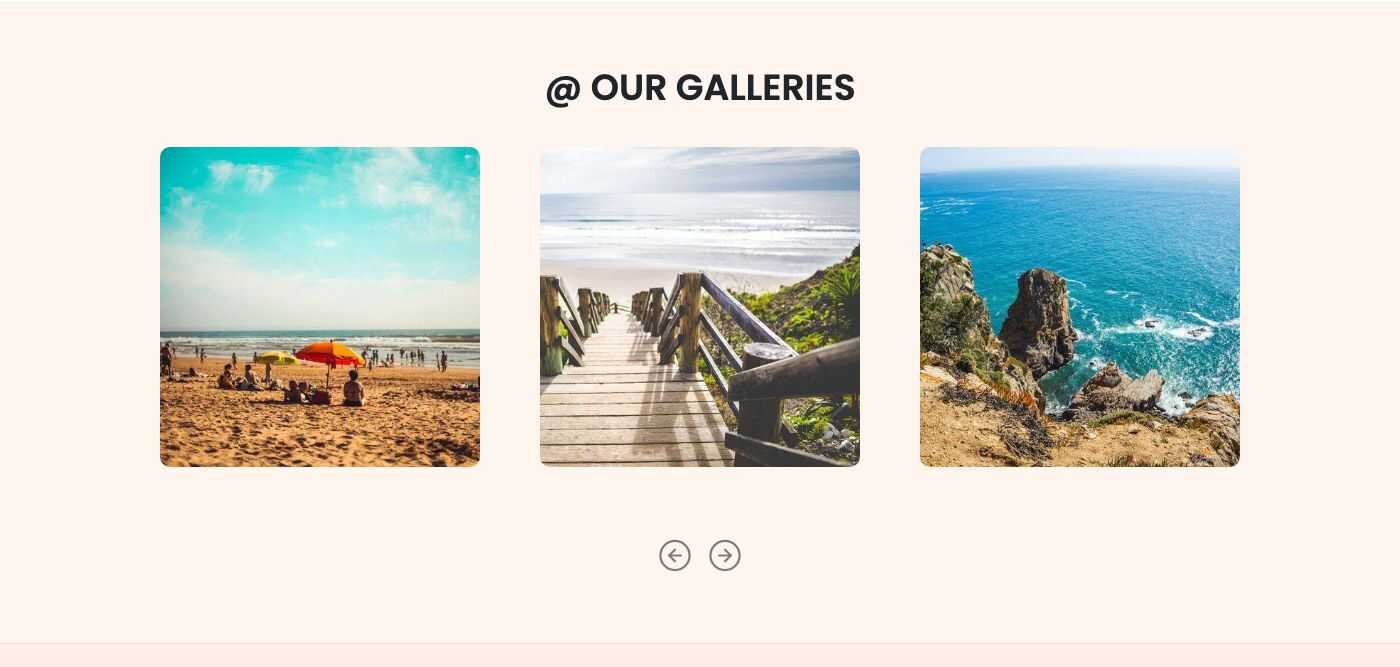
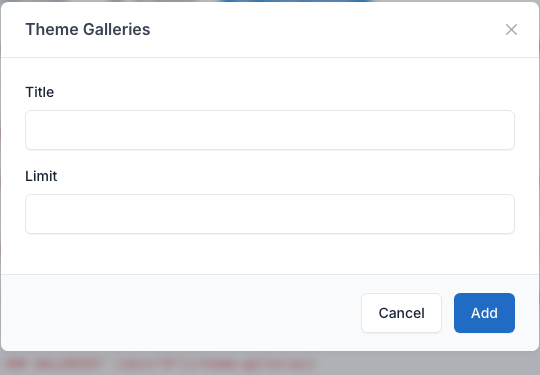
Theme Galleries
A slider of your galleries with a title. Fields: Title and Limit (how many galleries). See Gallery.
Overview
Setting
Gallery
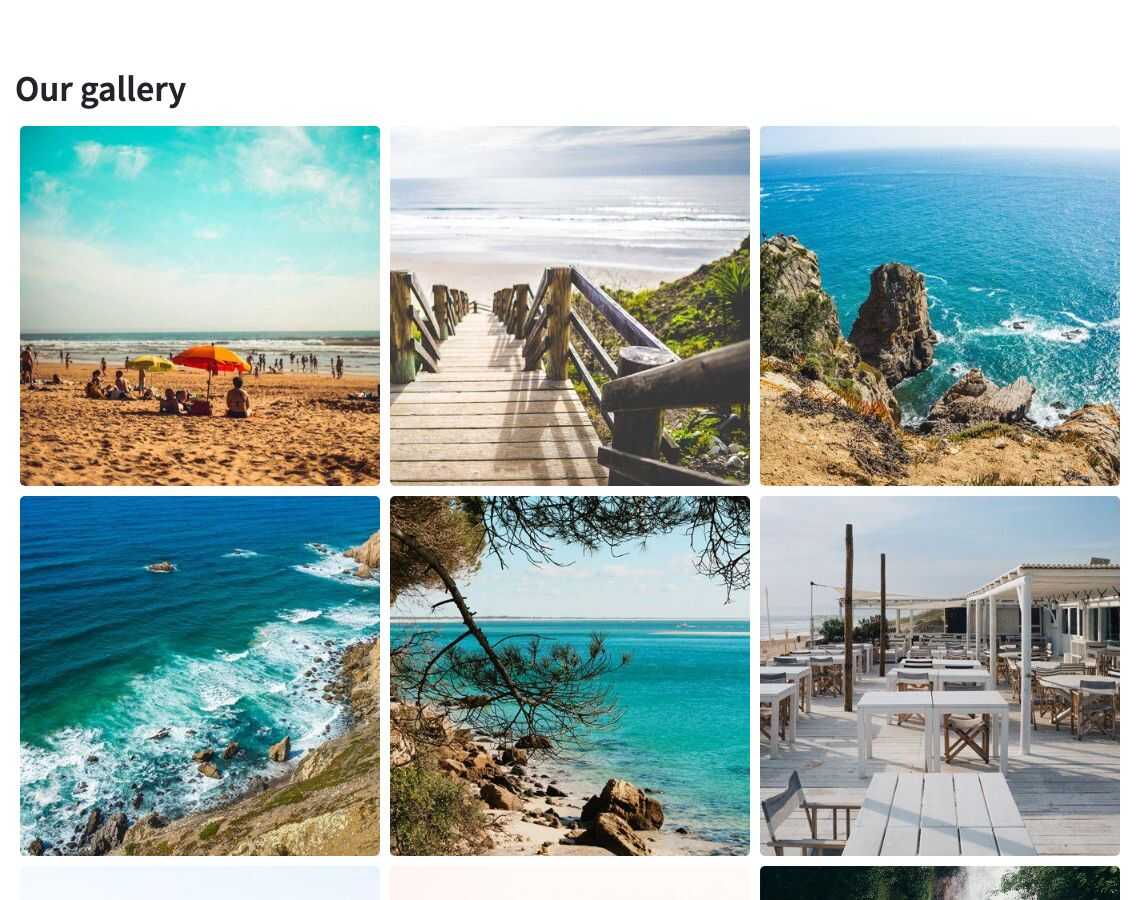
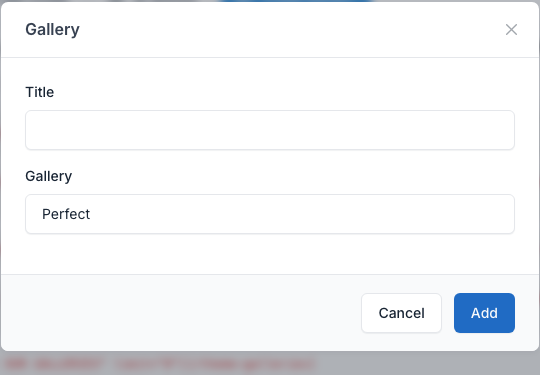
The pictures of one gallery, with an optional title. Pick the gallery in the Gallery field.
Overview
Setting
YouTube video
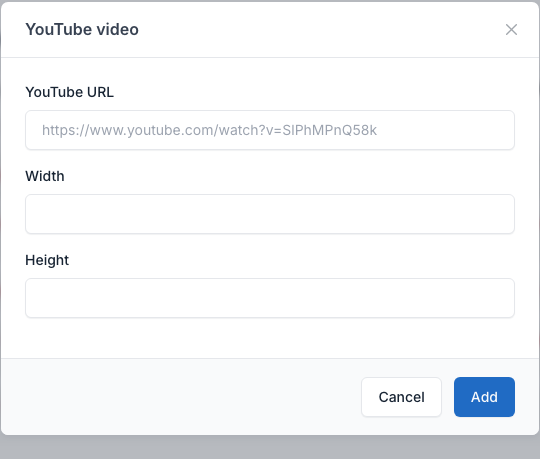
Embeds a YouTube video. Paste the address of the video in the URL field. The Width and Height are optional: without them the video fills the width of the page in 16:9.
Overview

Setting