General
Go to Admin -> Appearance -> Theme options.
Theme options are split into tabs on the left. Each tab has its own fields; click Save Changes at the top or the bottom of the page when you are done. Every field can be translated: use the Translations link next to the button to edit the second language (see Translate).
General
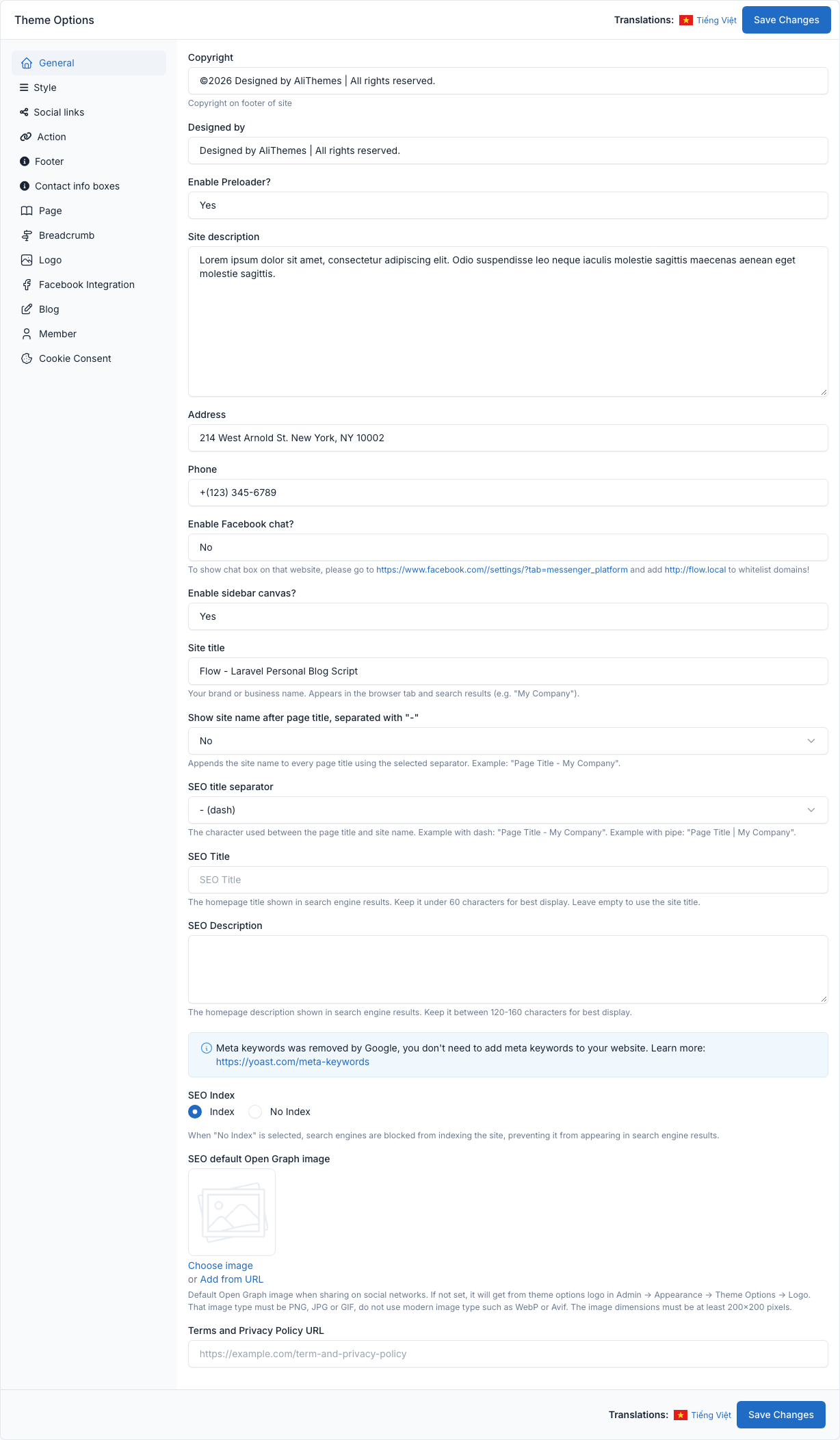
Tab General.
| Field | What it controls |
|---|---|
| Copyright | Copyright text at the bottom of the footer. |
| Designed by | Credit text next to the copyright in the footer. |
| Enable Preloader? | Shows a loading animation while a page loads. |
| Site description | Short text of the About column of the footer (and of the side panel). |
| Address, Phone | Contact details shown in the About column of the footer and in the side panel. |
| Enable Facebook chat? | Adds the Facebook Messenger chat box to every page. It needs the Facebook page ID of the Facebook Integration tab. |
| Enable sidebar canvas? | Turns the side panel (the grid icon at the right of the header) on or off. See Header. |
| Site title, Show site name after page title, SEO title separator | The site name and how it is added to the browser title. |
| SEO Title, SEO Description, SEO Index, SEO default Open Graph image | Default meta tags of the site, used when a page or post has no SEO meta of its own. |
Logo & favicon
Tab Logo.
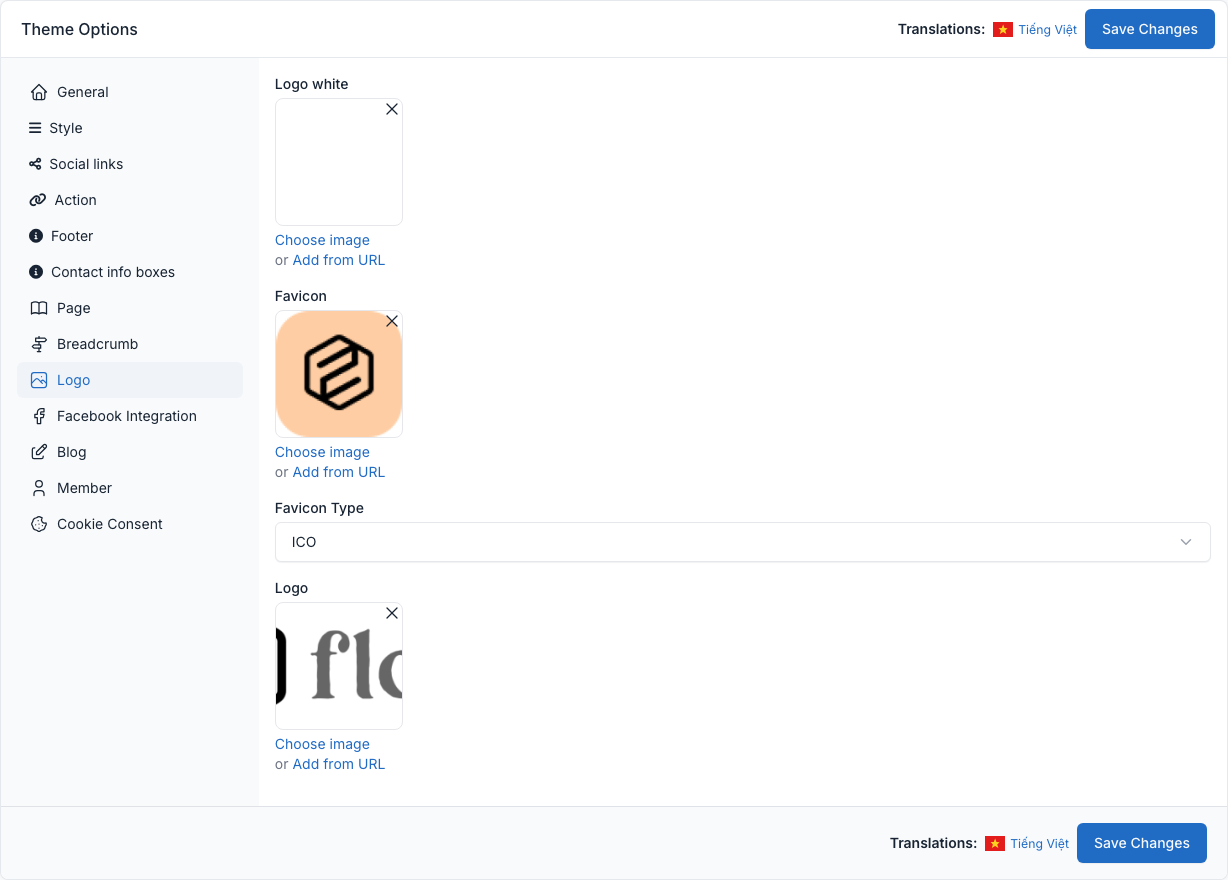
- Logo: the logo of the header and the side panel (dark artwork on a light background).
- Logo white: the logo of the footer. The footer is dark, so upload a white version. It is not replaced by the main logo when the field is empty.
- Favicon and Favicon Type: the small icon in the browser tab.
Upload your logo from the Media library with Choose image, or paste an address with Add from URL, then click Save Changes.
Style
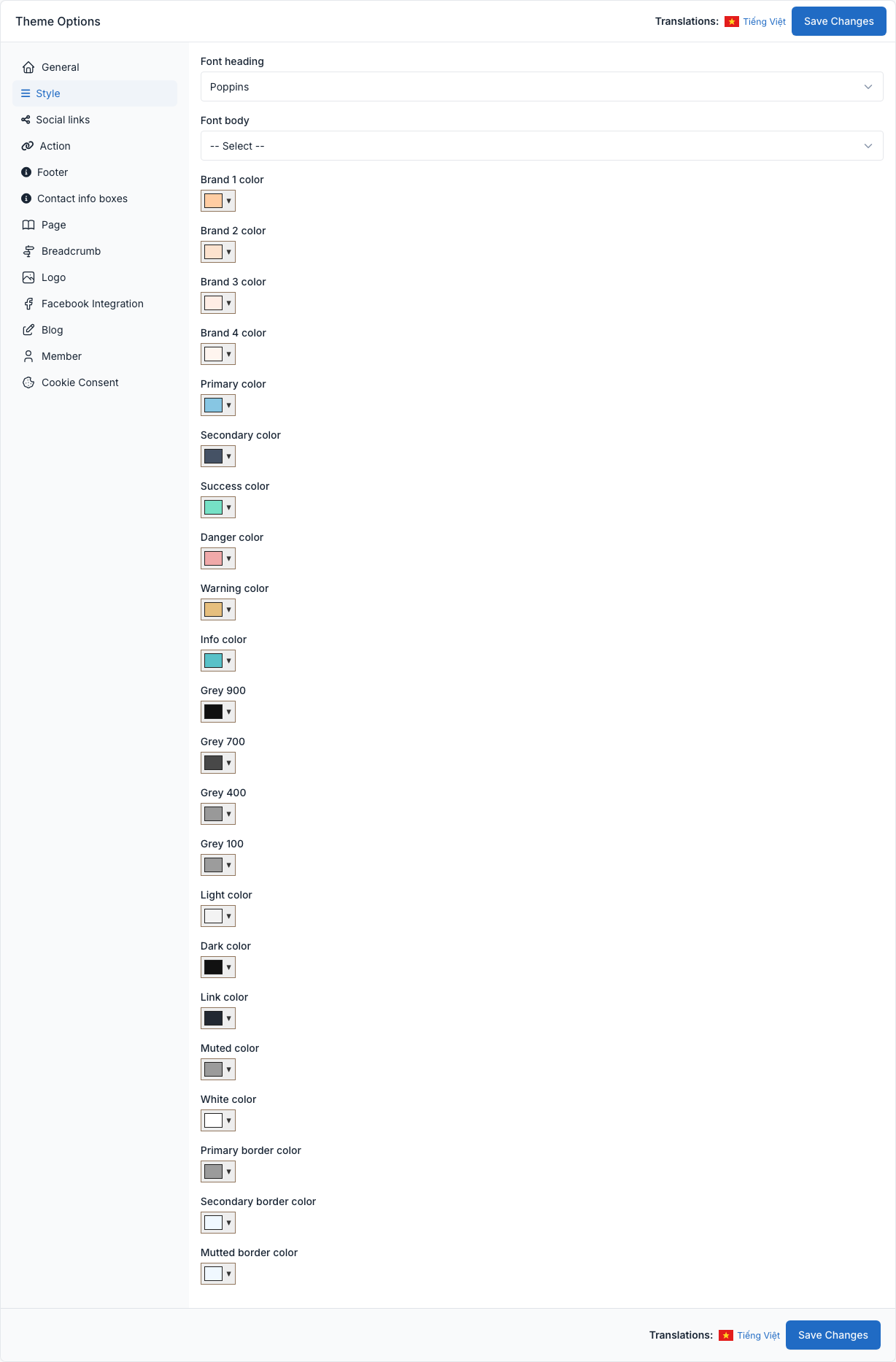
Tab Style.
| Field | What it controls |
|---|---|
| Font heading | The Google font of the headings. The default is Poppins. |
| Font body | The Google font of the body text. The default is Source Sans Pro. |
| Brand 1 to Brand 4 color | The four soft brand colors used for tags, buttons and section backgrounds. |
| Primary, Secondary, Success, Danger, Warning, Info color | The main theme colors. |
| Grey 900, 700, 400 and 100, Light, Dark, Link, Muted, White color | The neutral colors of texts, links and backgrounds. |
| Primary, Secondary and Mutted border color | The colors of the lines and borders. |
The colors and fonts apply to the whole front end as soon as you save. The theme loads the chosen fonts from Google Fonts. For anything else, use Custom CSS.
Social links
Tab Social links.
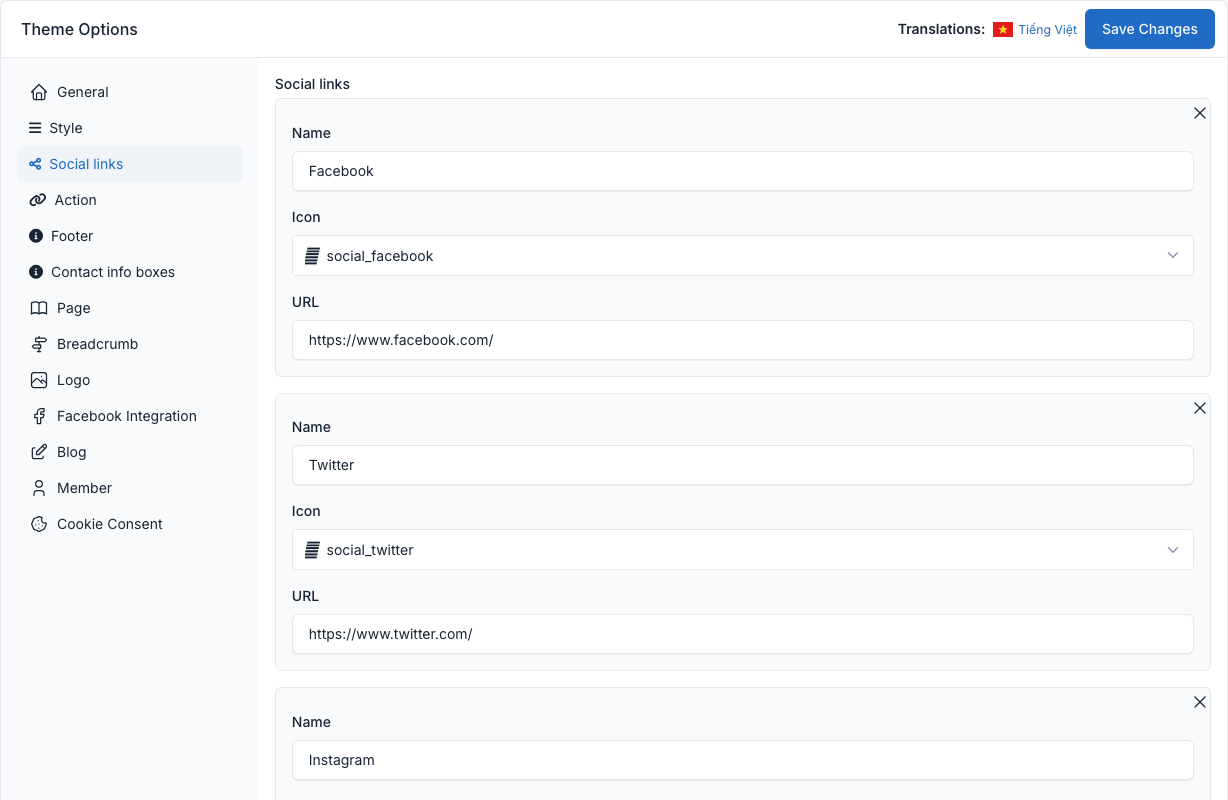
Add one row per network with three fields: Name, Icon and URL. The links are shown in the footer (bottom right) and in the About me widget. Use Add new for another row.
Action
Tab Action.
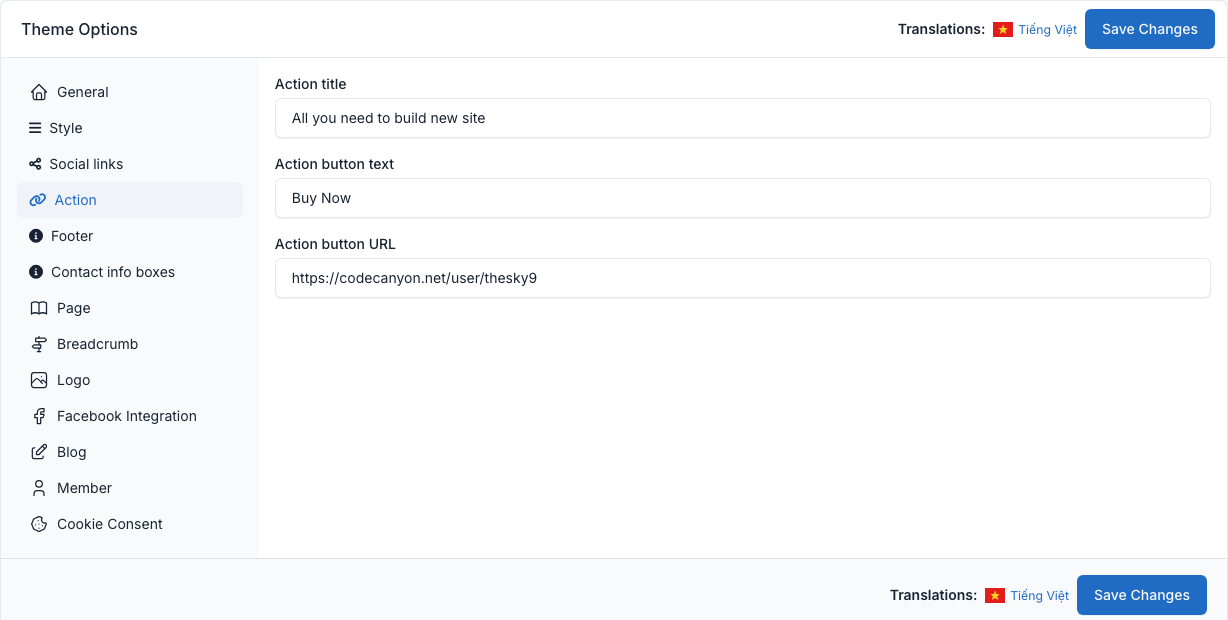
The Action block is the call to action at the top of the footer: a title with a button next to the white logo (see Footer). Fill Action title, Action button text and Action button URL. The button is shown only when both the text and the URL are filled.
Footer
Tab Footer.
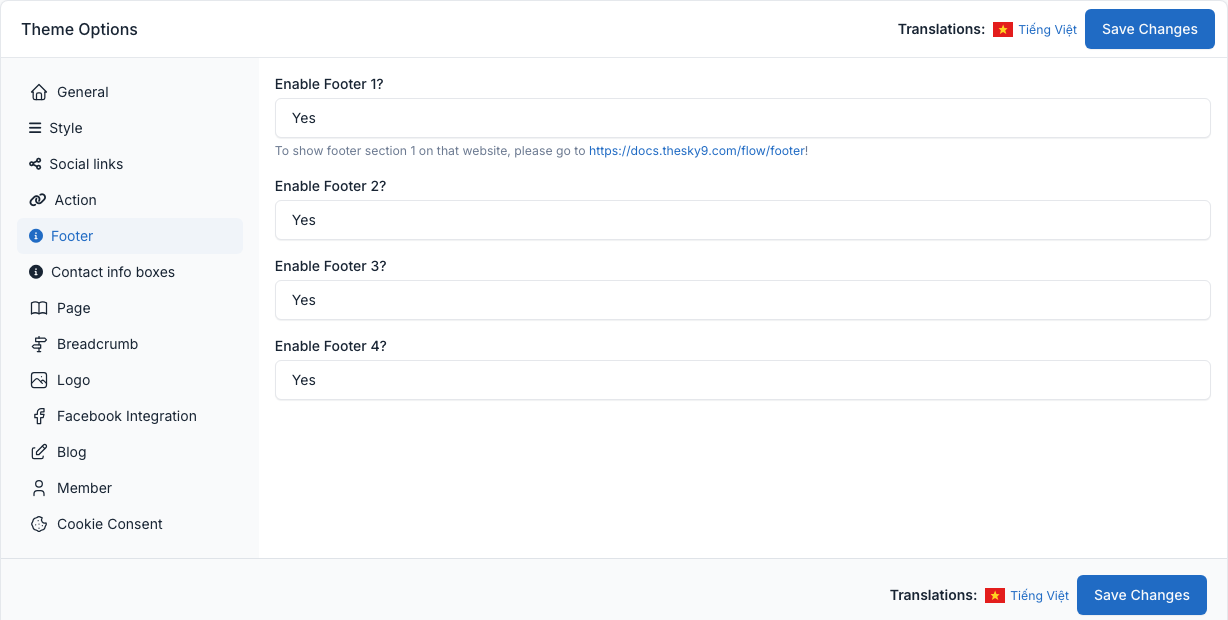
Four switches show or hide the four footer sections. See Footer.
Contact info boxes
Tab Contact info boxes.
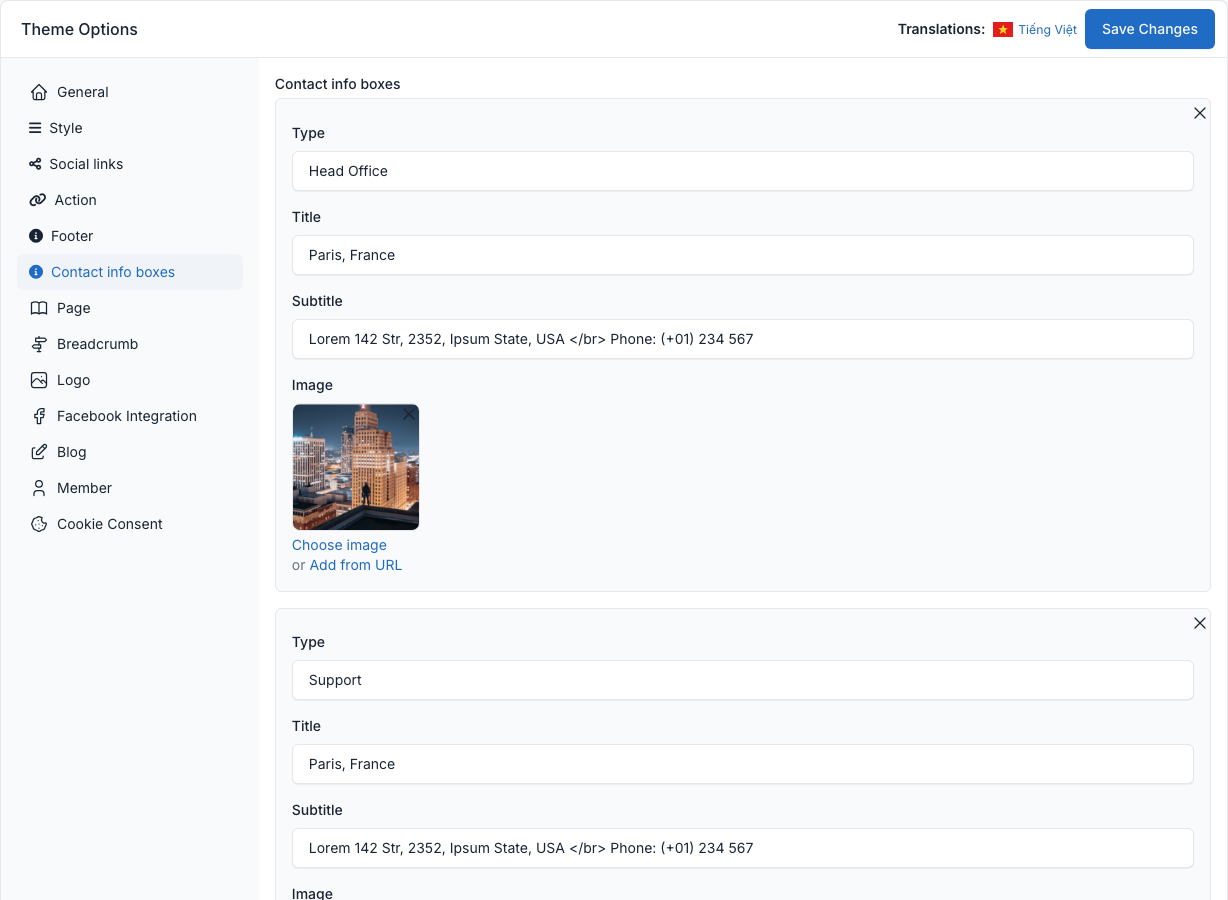
The boxes (a Type shown as a small tag, a Title, a Subtitle and an Image) are shown by the Our office shortcode, for example on the Contact page. Use Add new for another box. See Short code.
Homepage
Tab Page.
Flow has 3 home layouts. Each one is a normal page (Homepage, Home 2 and Home 3) that you can see in Admin -> Pages. To choose the homepage, select the page in Your homepage displays and save. The other layouts stay available at their own address, for example /home-2.
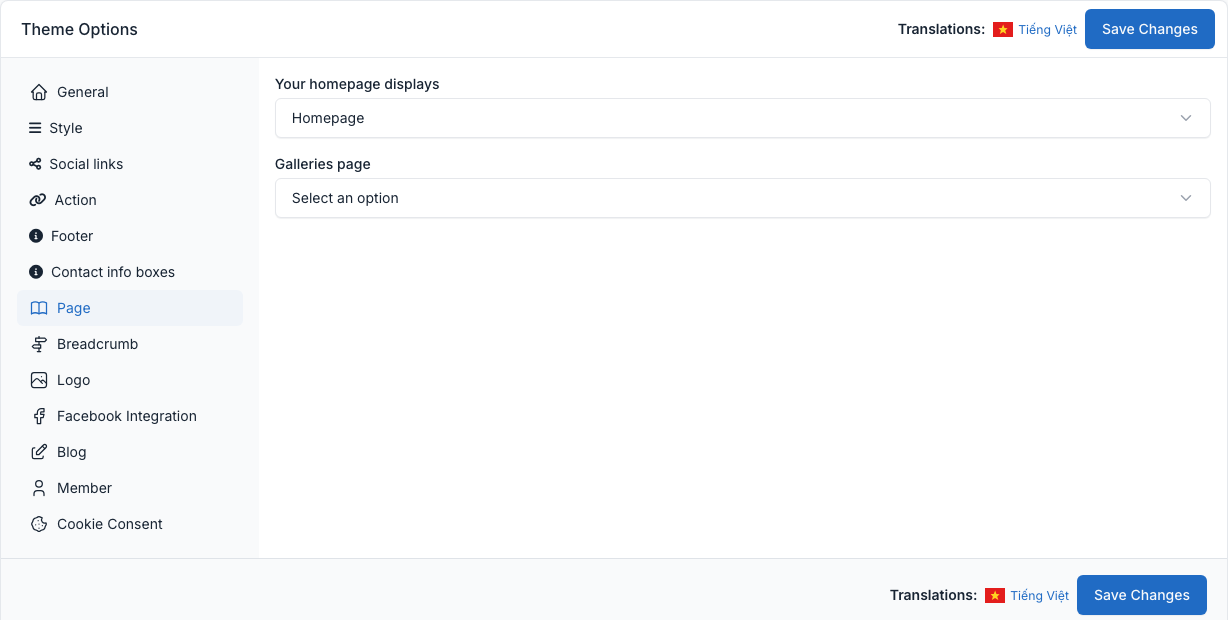
- Galleries page: the page that lists your galleries (the Galleries plugin).
Breadcrumb
Tab Breadcrumb.
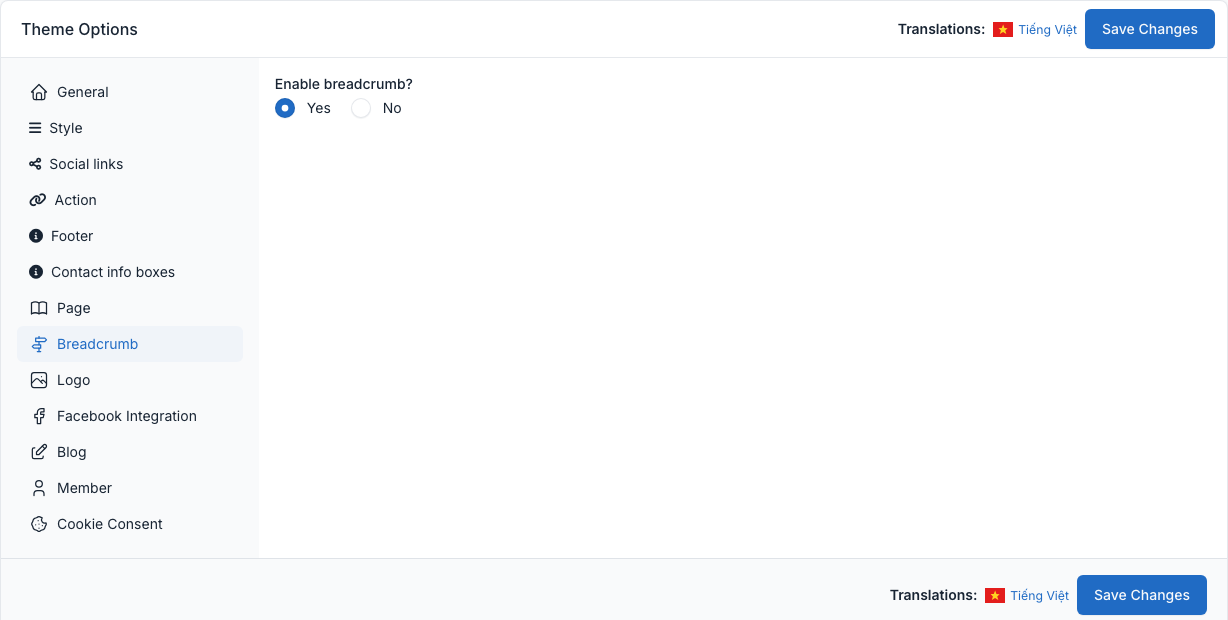
Turn the breadcrumb bar under the page title on or off.
Blog
Tab Blog.
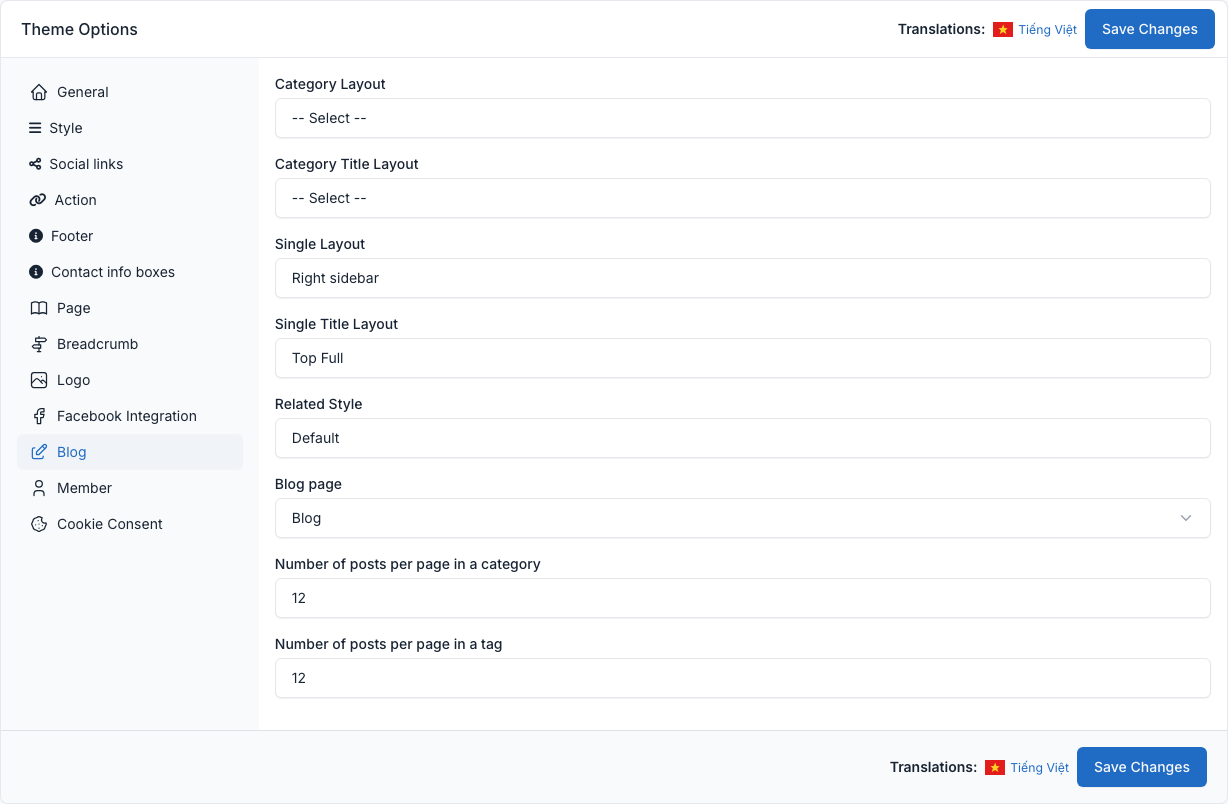
| Field | What it controls |
|---|---|
| Category Layout | Category pages with or without a sidebar: Default, Left sidebar or Right sidebar. |
| Category Title Layout | The heading above the list of posts: Layout 1 or Layout 2. |
| Single Layout | Post pages: Default (full width), Left sidebar or Right sidebar. The sidebar shows the Primary sidebar widgets (see Widgets). |
| Single Title Layout | Where the post title goes: Default, Top Full or Inline. A single post can use another layout with the Title layout field of its editor. |
| Related Style | How the related posts under a post are shown: Default or Popup. |
| Blog page | The page that lists all posts. |
| Number of posts per page in a category / in a tag | How many posts a category or tag page shows before pagination. |
Member
Tab Member.
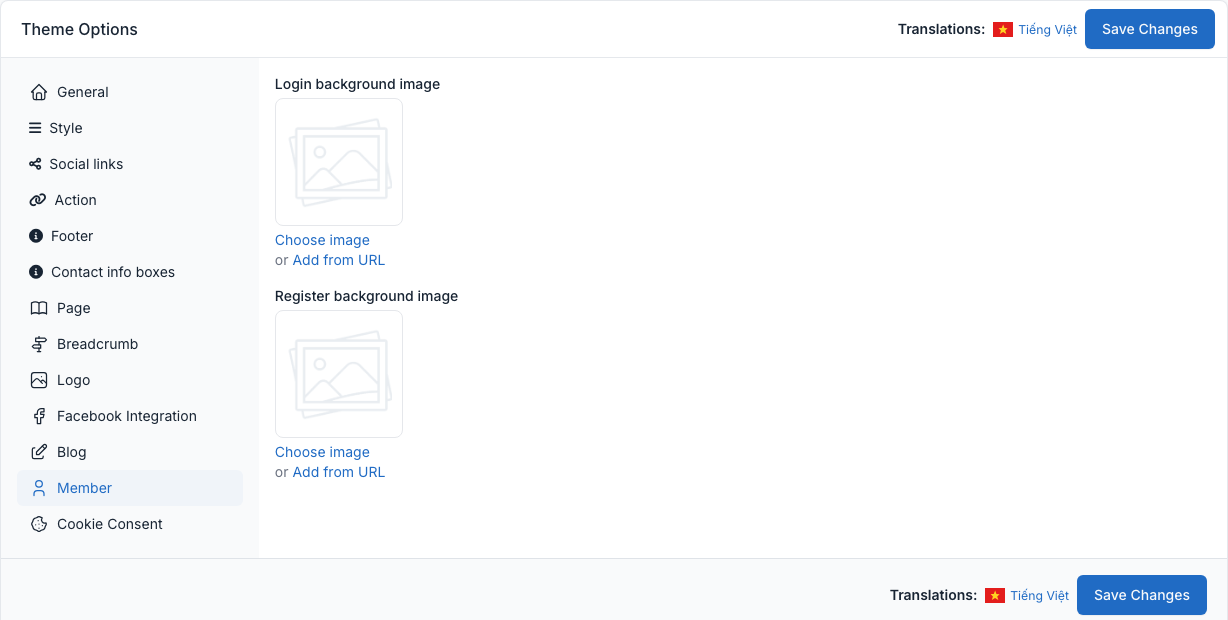
Choose the background pictures of the sign in (/login) and sign up (/register) pages. See Members.
Facebook Integration
Tab Facebook Integration.
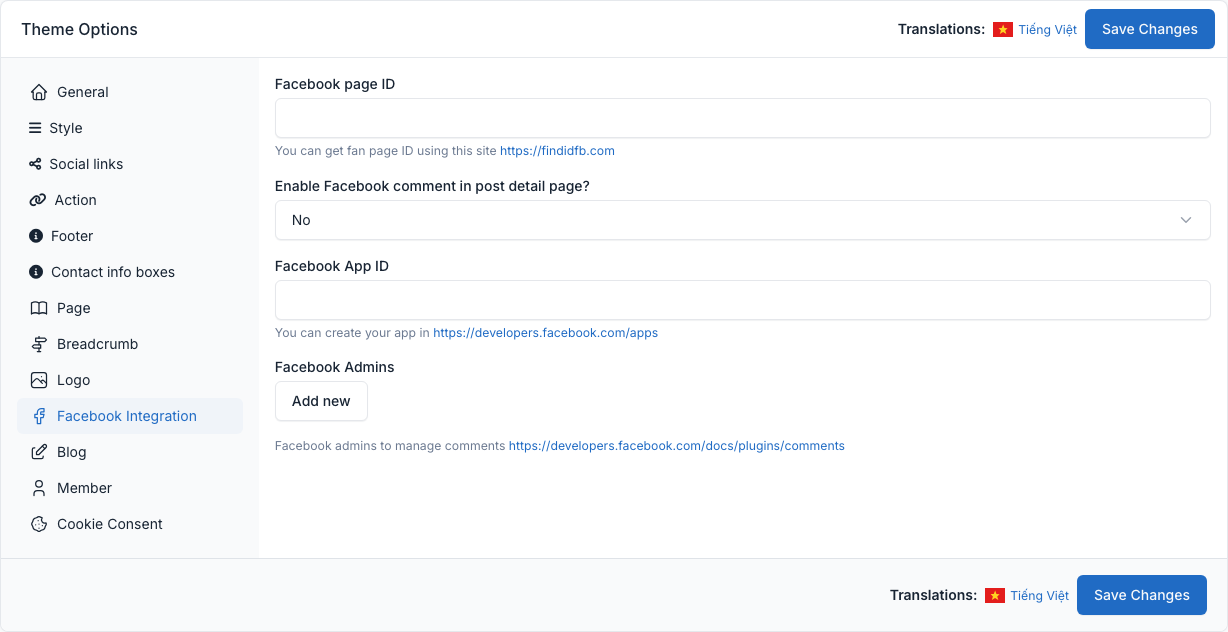
- Facebook page ID: the ID of your Facebook page, used by the Facebook chat of the General tab.
- Enable Facebook comment in post detail page?, Facebook App ID and Facebook Admins: settings for the Facebook comments box of the CMS core, shown under the posts. Flow also has its own comments (see Comments).
Cookie consent
Tab Cookie Consent.
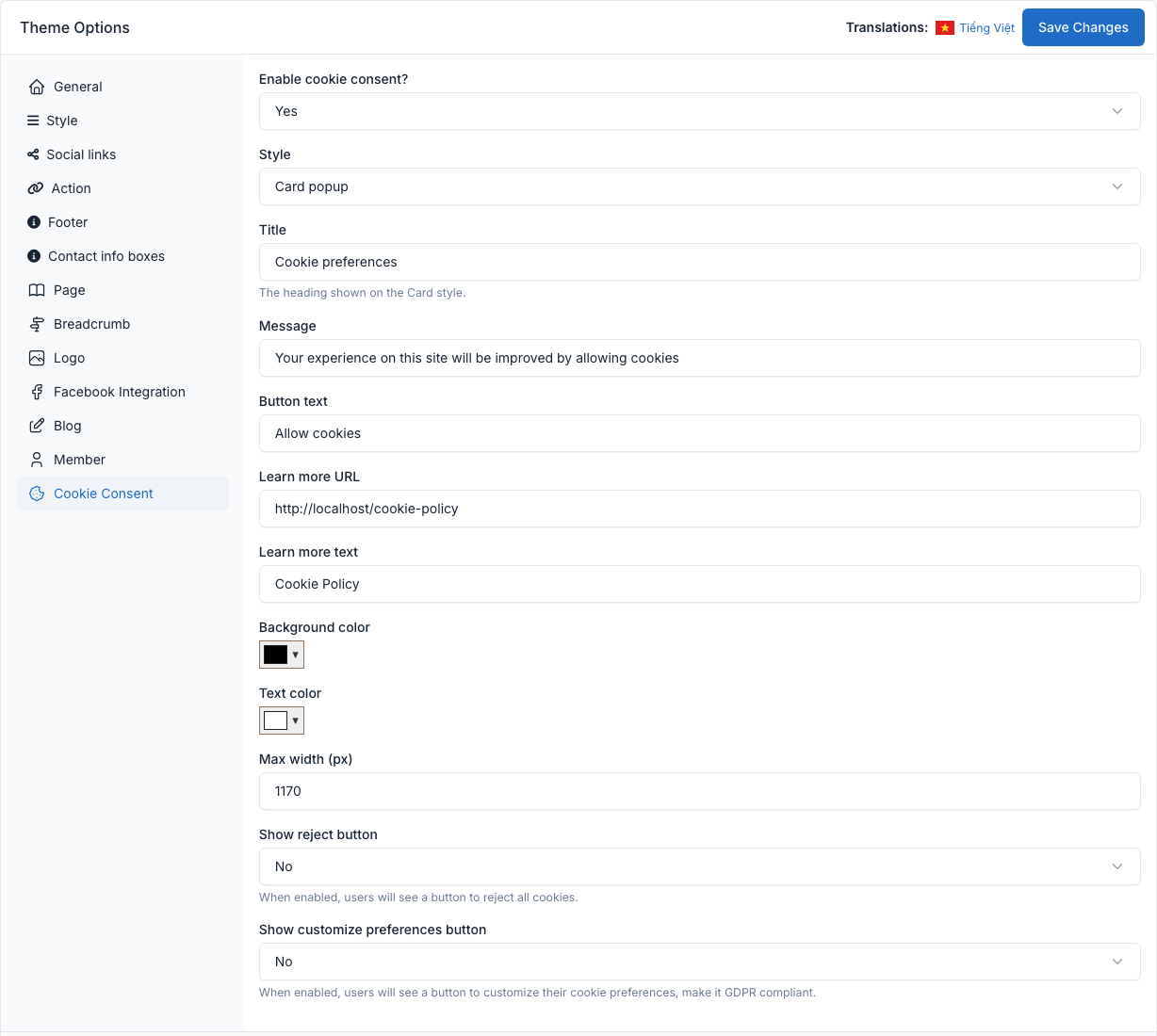
The cookie banner asks visitors to accept cookies. You can turn it on or off, choose its style, edit the title, the message and the buttons, link to the Cookie Policy page, set colors and width, and show a reject button and a customize preferences button.