Ads
Go to Admin -> Ads.
Flow ships with no ad. Create your own, then show it in a location of the theme or with a shortcode.
Create an ad
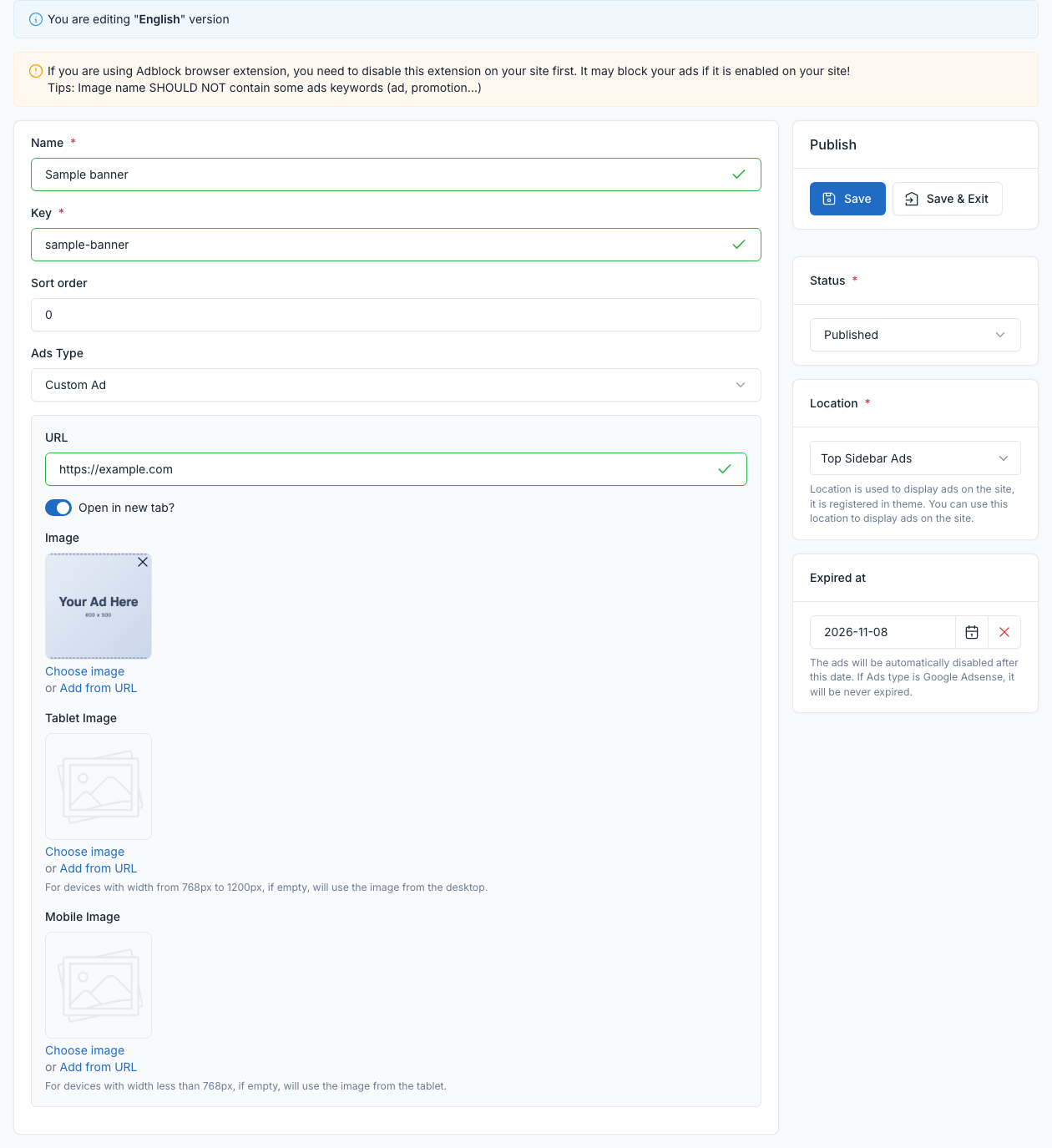
Click Create, then fill the form:
- Name and Key (the key is used by the shortcode), and the Sort order.
- Ads Type: Custom Ad (an image with a link) or Google AdSense.
- For a custom ad: the URL, Open in new tab?, and the Image for desktop. The Tablet Image and Mobile Image are optional; when empty, the image of the larger screen is used.
- Status, Location and Expired at (the ad is disabled automatically after this date).
TIP
Do not use words such as "ad" or "promotion" in the name of the image file: some ad blockers hide such pictures.
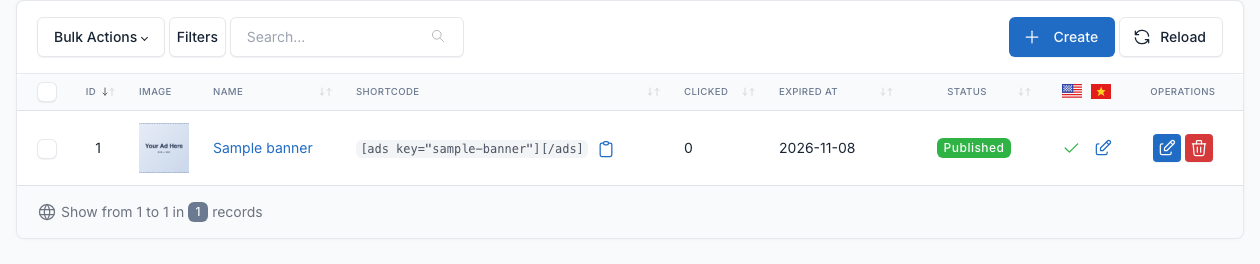
The list shows the shortcode of each ad.
Insert in an article or a page
Copy the shortcode of the list, for example:
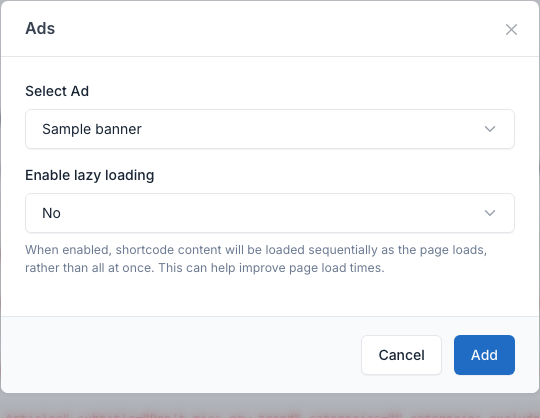
[ads key="sample-banner"][/ads]Paste it anywhere in the content of a page or a post and the ad is displayed there. Or click UI Blocks in the editor, choose Ads, pick the ad in Select Ad and click Add.
Show in a location
An ad can also be tied to a location registered by the theme. In the form of the ad, choose the Location box. The ad then shows wherever the theme displays that location. If several active ads share a location, one of them is picked at random on each page load. An expired ad is never shown.
Flow registers two locations:
| Location | Where it shows |
|---|---|
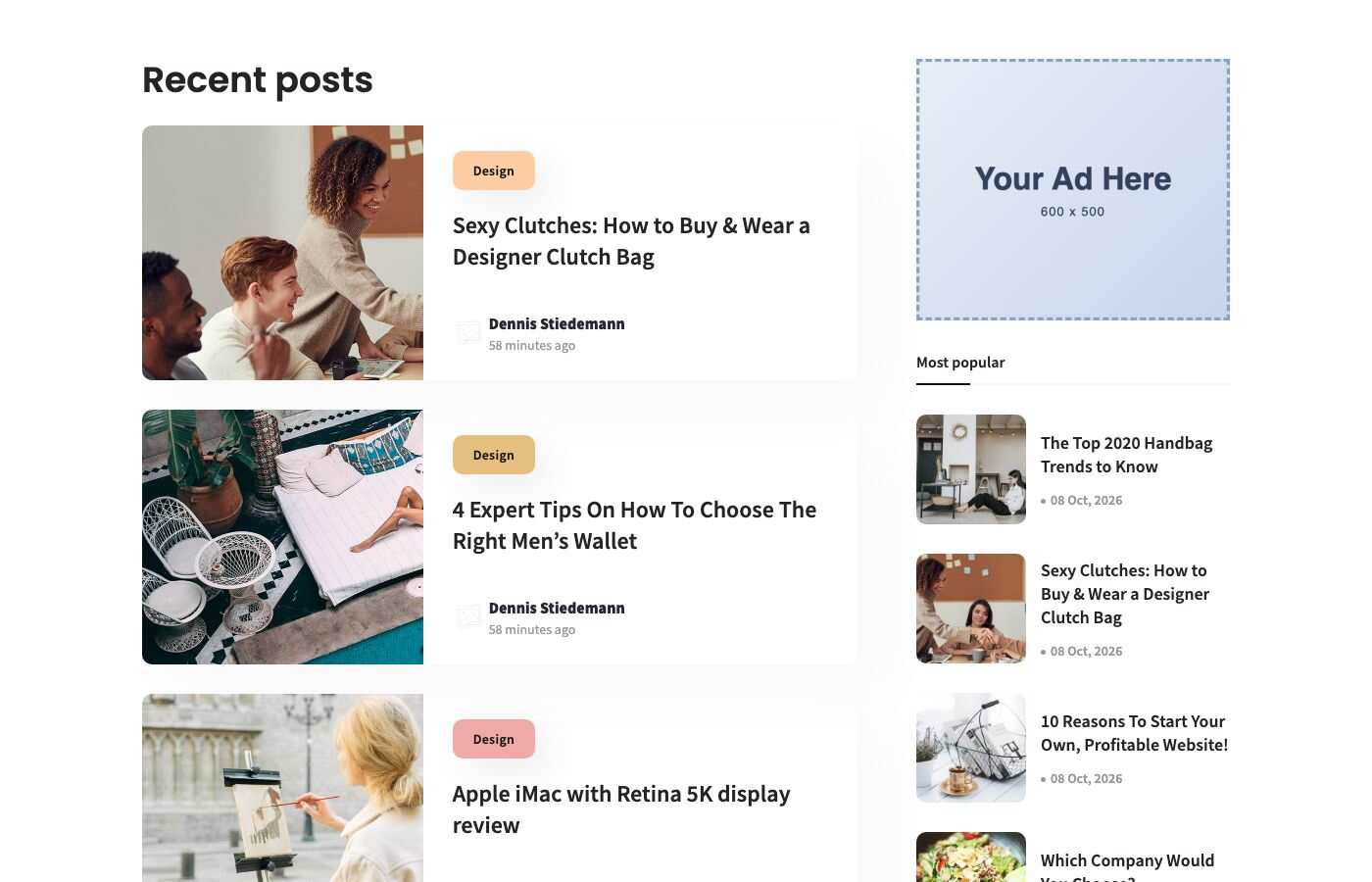
Top Sidebar Ads (top-sidebar-ads) | Above the widgets of the Primary sidebar: in the sidebar of the post pages (when Single Layout has a sidebar) and in the Posts and Sidebar shortcode. |
Bottom Sidebar Ads (bottom-sidebar-ads) | Below the widgets of the same sidebar. |
The ad below uses the location Top Sidebar Ads on the Posts and Sidebar block of the Home 2 page:
Google AdSense
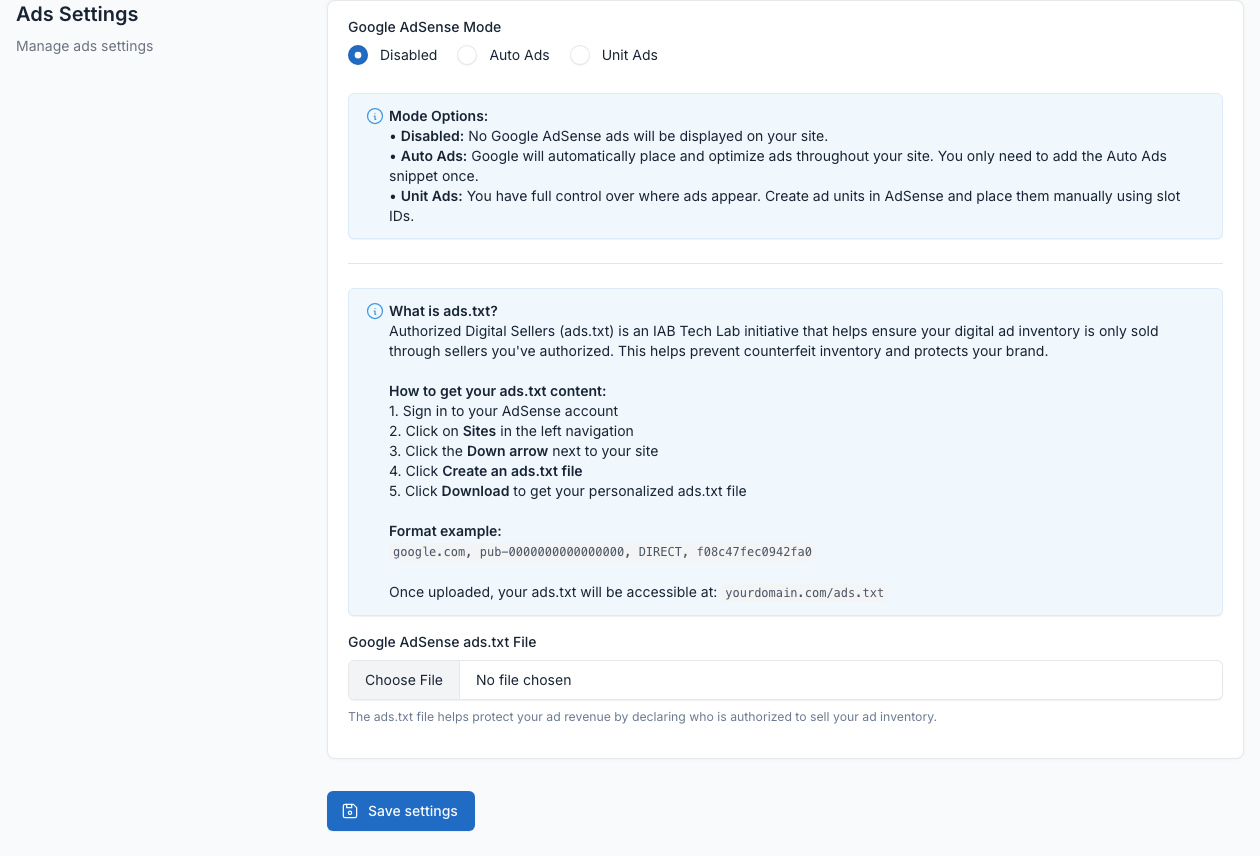
Go to Admin -> Ads -> Ads Settings.
Choose the Google AdSense mode (disabled, Auto Ads or Unit Ads) and paste the content of your ads.txt file.