Contact form
Usage
Using shortcode
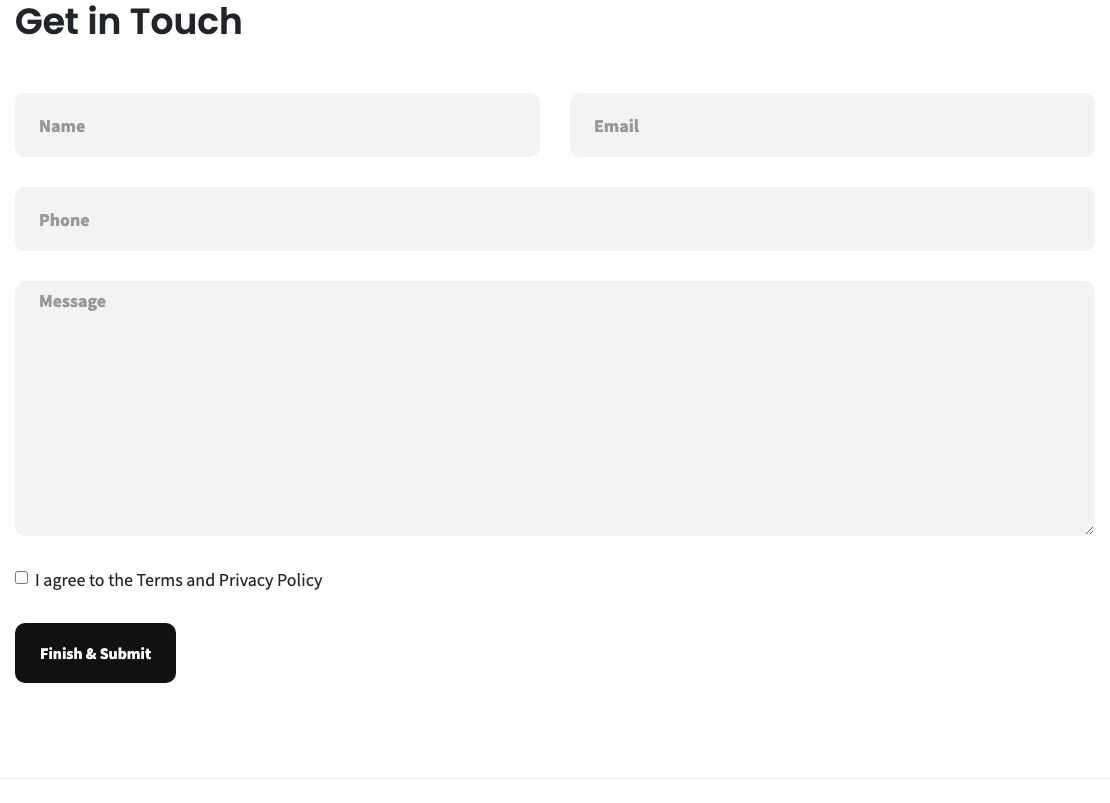
Add the Contact form shortcode to a page (the demo Contact page does this; see Short code). In the content it looks like:
[contact-form title="Get in Touch"][/contact-form]The form has the fields Name, Email, Phone and Message, all required, the Terms and Privacy Policy checkbox (see Settings below), and a Finish & Submit button. When the Captcha plugin is enabled (see Other plugins), the form also shows the captcha. The only option of the shortcode is the Title above the form.
Messages
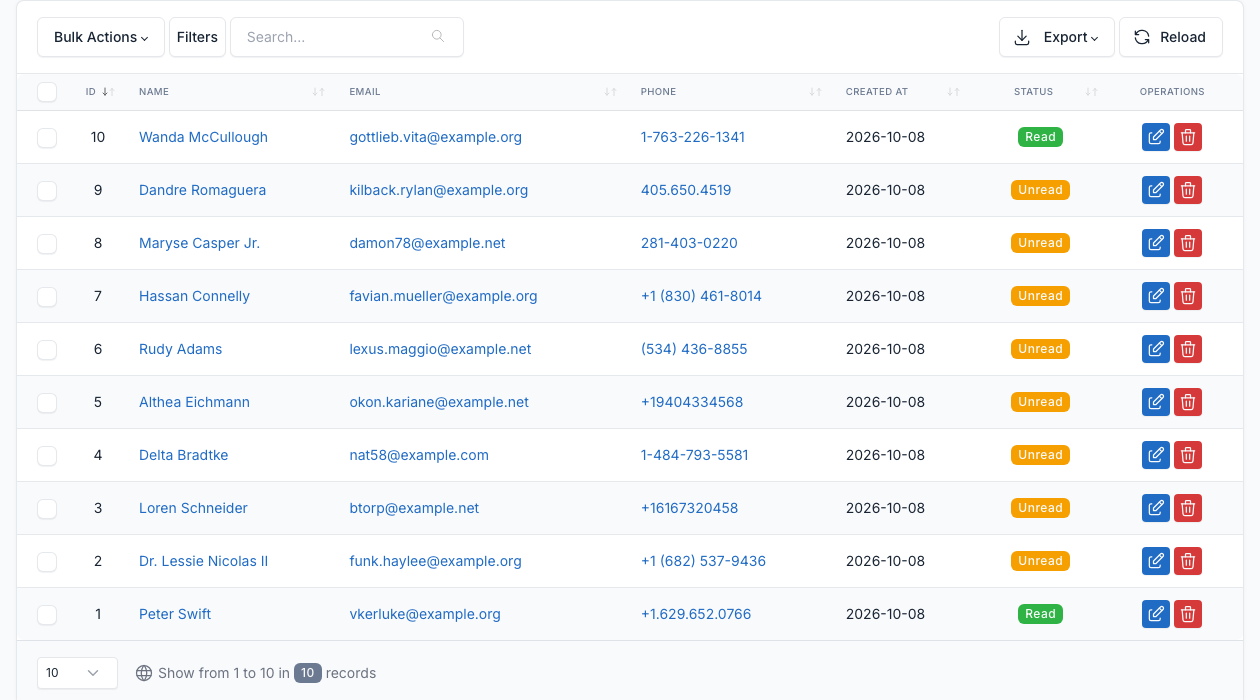
Go to Admin -> Contacts.
Every message sent from the form is saved here. Open a message to read it and to reply to the sender from the admin; the number of unread messages is shown in the admin menu.
Settings
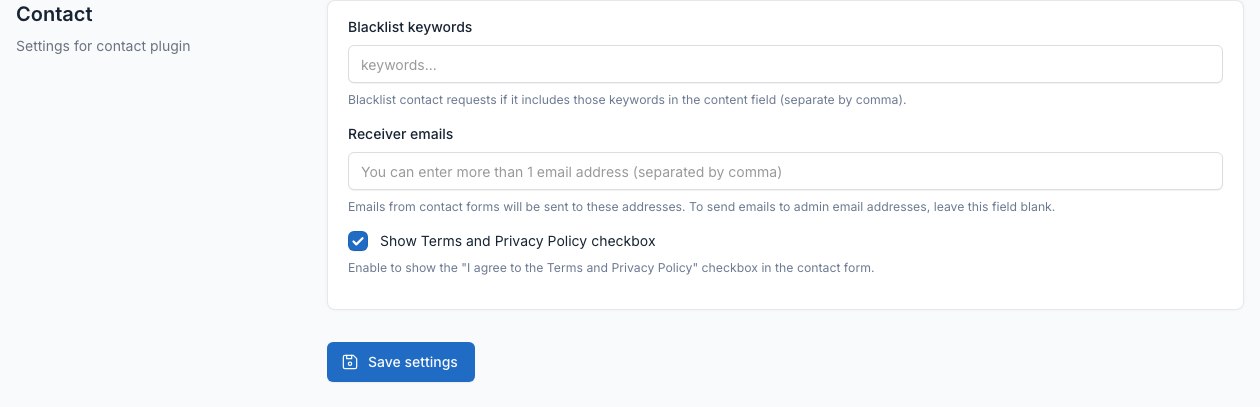
Go to Admin -> Settings -> Contact.
- Blacklist keywords: messages that contain one of these words are rejected.
- Receiver emails: the addresses that receive the messages. Leave it empty to use the admin email.
- Show Terms and Privacy Policy checkbox: shows the "I agree to the Terms and Privacy Policy" checkbox in the contact form. Visitors must tick it to send the message. Untick this option to remove the checkbox.
The emails sent by the form (the notice to you, the confirmation to the sender and your reply) can be edited in Admin -> Settings -> Email templates. See Config.