Widgets
Widgets are small blocks you drop into the widget areas of the site: the sidebar of blog pages, the footer columns and so on.
Go to Admin -> Appearance -> Widgets
On the left are the Available Widgets. On the right are the Widget Areas. Drag a widget into an area (or click the + button of the widget and choose an area), then open it with the arrow to fill in its fields and click Save. To remove a widget, open it and click Delete.
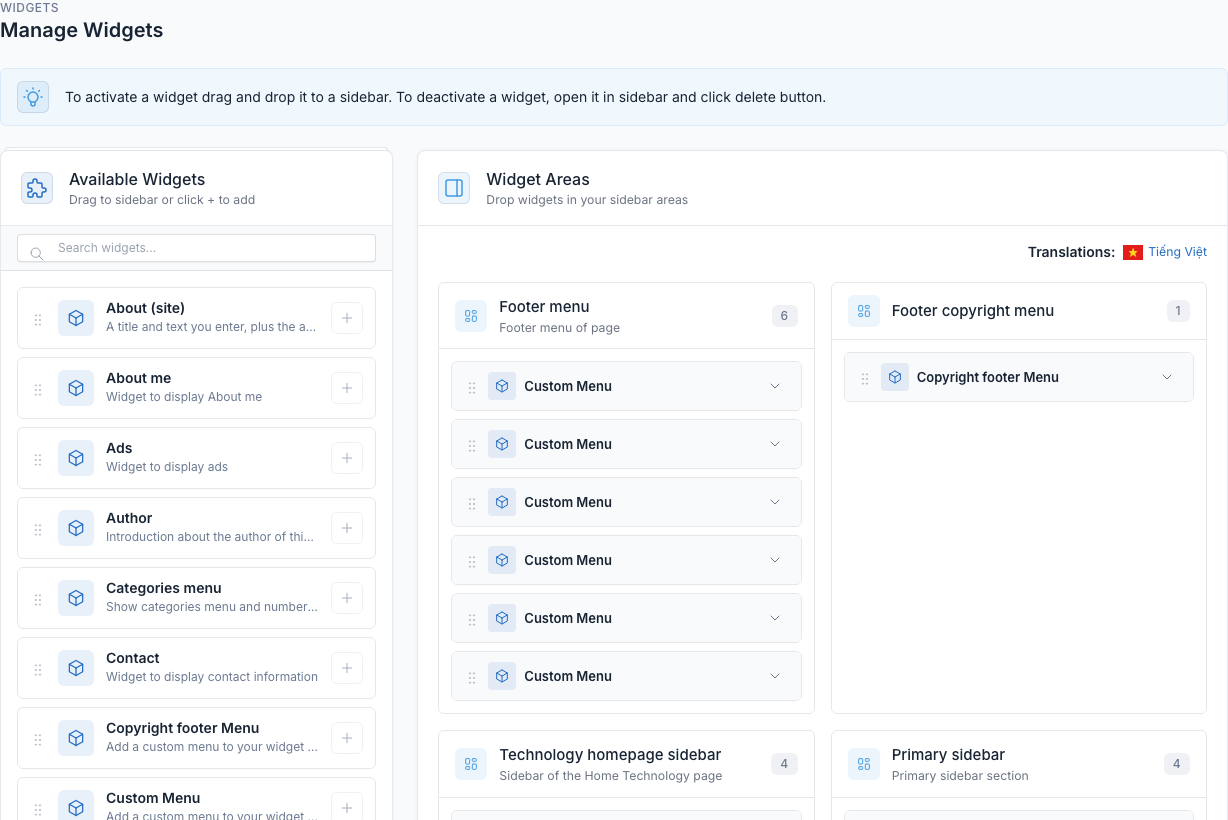
Click a widget in an area to open its settings:
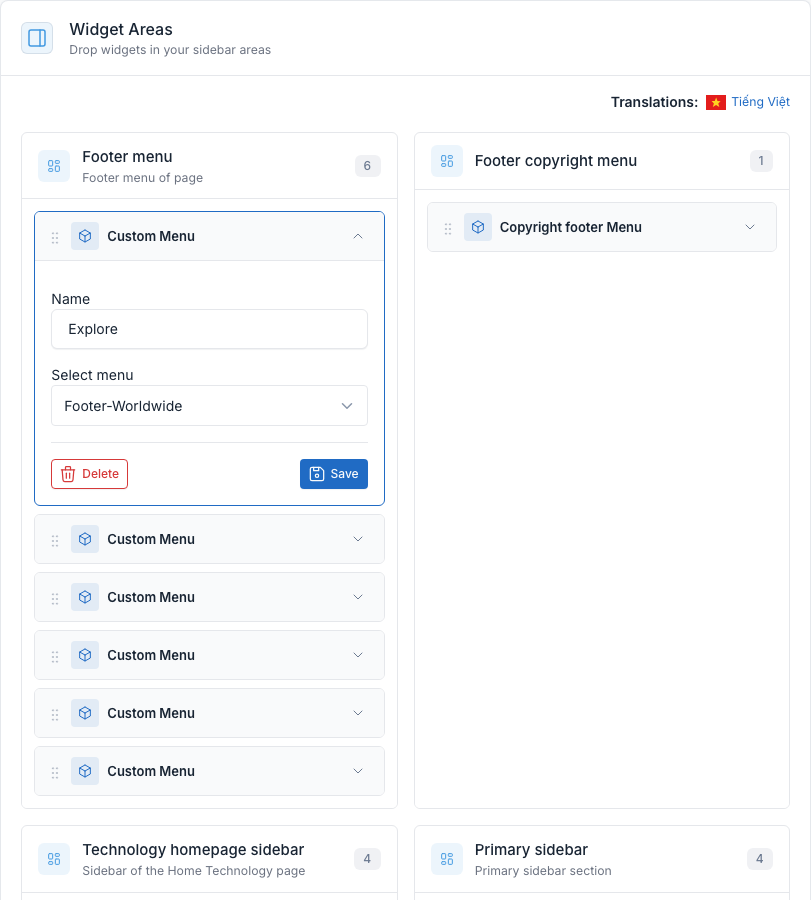
When the site has more than one language, each language has its own widgets. Use the Translations link at the top of the Widget Areas to edit the other language. See Translate.
Widget areas
| Area | Where it shows | Demo content |
|---|---|---|
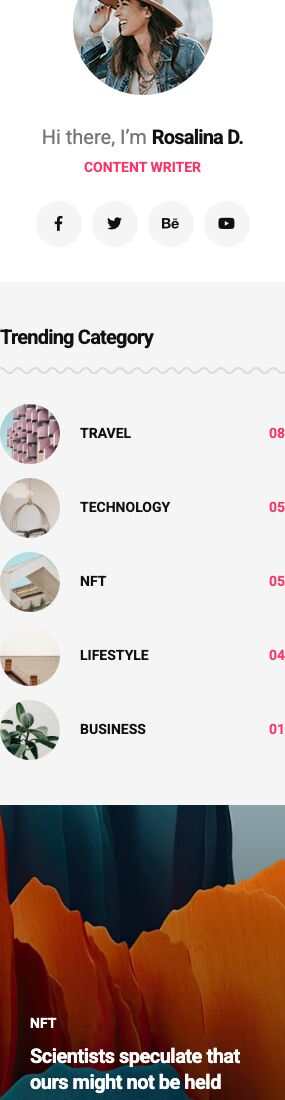
Primary sidebar (primary_sidebar) | The right column of post pages, category and tag pages, author pages and search results. Flex block 7 shows it too, unless its sidebar option names another area. | About me, Categories menu, Slide Posts, Instagram feed |
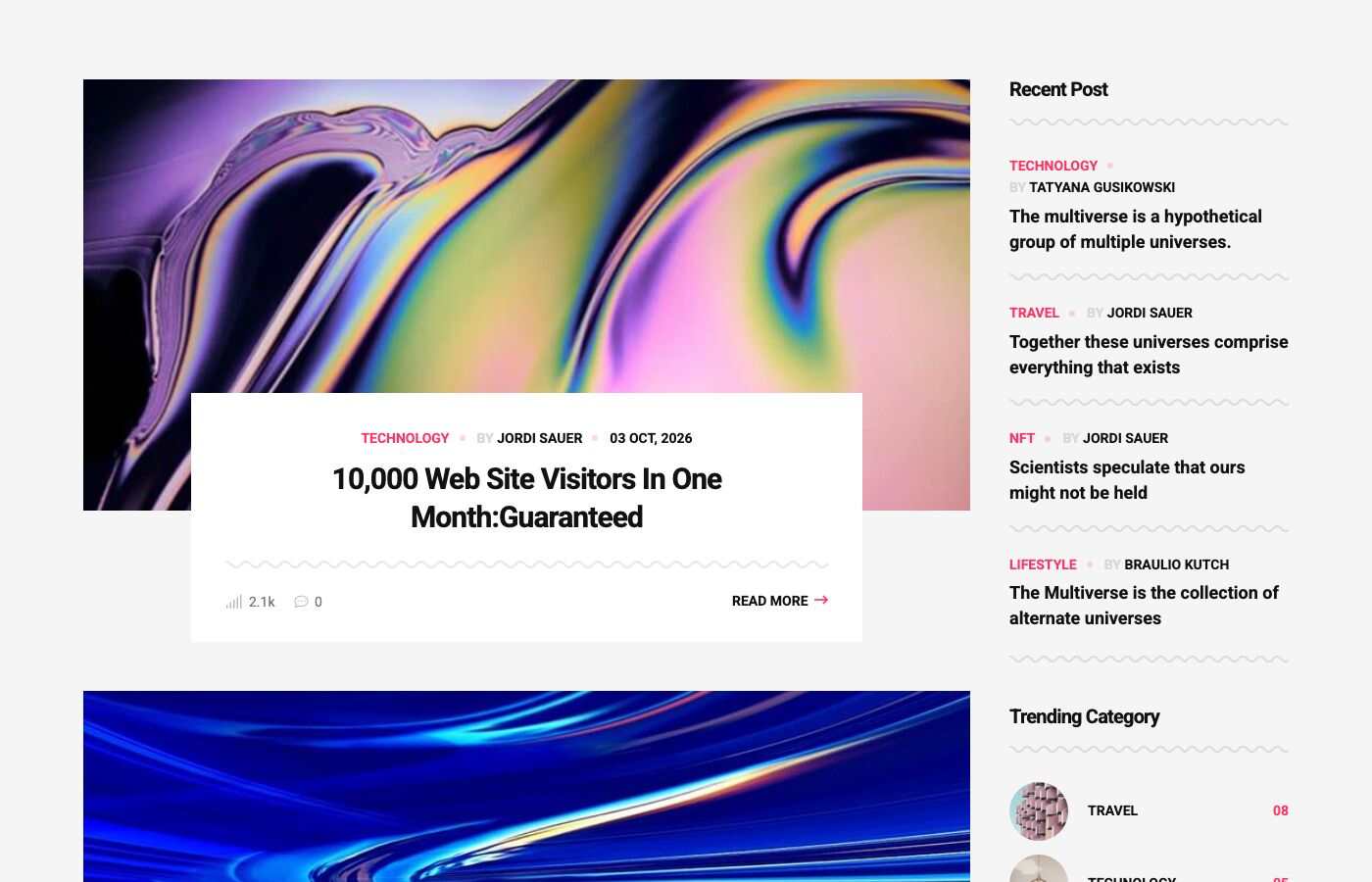
Technology homepage sidebar (technology_sidebar) | The right column of the Home Technology layout (/landing-page-4). | Latest Posts, Categories menu, Slide Posts, Instagram feed |
Footer menu (footer_menu) | The link columns at the top of the footer. | 6 Custom Menu widgets |
Footer copyright menu (footer_copyright_menu) | The links at the bottom right of the footer, next to the copyright line. | 1 Copyright footer Menu widget |
The primary sidebar on a post page:
The Technology homepage sidebar:
The footer menu columns and the copyright menu:
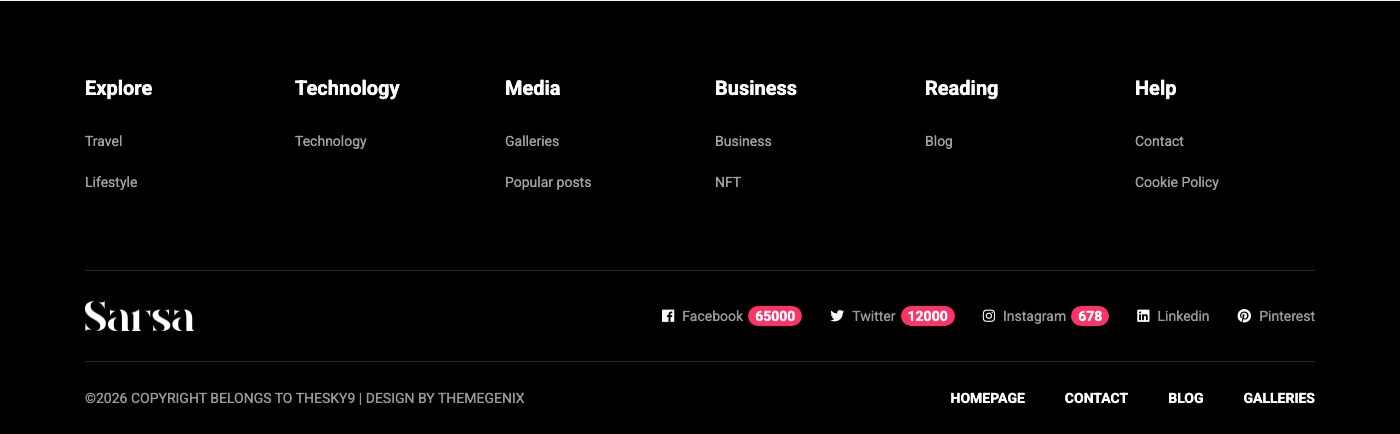
The footer text itself (copyright and designed by) is set in Theme Options -> General. See Footer.
Available widgets
Sarsa adds 16 widgets. The CMS core adds two more: Text (free text or HTML) and Simple Menu.
| Widget | What it shows | Used in the demo |
|---|---|---|
| About (site) | A title and a text you enter, plus the address and phone from Theme Options -> General (shown only when they are filled in). | No |
| About me | Round avatar, an intro line, a designation and links to Facebook, Twitter, Behance and YouTube. | Primary sidebar |
| Ads | An advertisement from the Ads plugin. Pick the Ads location. | No |
| Author | A card for the author of the post being read (name, bio, "Contact me" link). It only shows on a post page. | No |
| Categories menu | The most popular categories with their picture and post count. Set the title and the number of categories. | Primary sidebar and Technology sidebar |
| Contact | The contact email, phone and address from Theme options. | No |
| Copyright footer Menu | A menu shown as the links in the bottom line of the footer. Pick the menu. | Footer copyright menu |
| Custom Menu | A titled column of links from a menu you choose. | Footer menu |
| Galleries | Pictures of the latest galleries. Set the name and the number of galleries. | No |
| Instagram feed | A grid of the pictures in a media folder, with an account name, description and profile link. Pictures come from the folder you set in Media folder. | Primary sidebar and Technology sidebar |
| Latest Posts | The most recent posts, as a list with category, author and date. Set the name and the number of posts. | Technology sidebar |
| Newsletter | A subscribe form that feeds the Newsletter plugin. | No |
| Popular Posts | The most viewed posts. Set the name and the number of posts. | No |
| Slide Posts | A slider of posts with the picture, category and title. Set the name and the number of posts. | Primary sidebar and Technology sidebar |
| Socials | Your social links with a "Follow us" title. | No |
| Tags | The most popular tags. Set the name and the number of tags. | No |
Add a widget to a sidebar
- Open Admin -> Appearance -> Widgets.
- Find the widget in Available Widgets (use the search box if needed).
- Drag it into Primary sidebar, or click the + button and pick the area.
- Open the widget, fill in its fields and click Save.
- Reload the page on the front end to see it.