Short code
Shortcodes are the building blocks of the Sarsa home layouts. You add them to the content of a page (or a post) and set their options in a form.
Go to Admin -> Pages, open a page, and in the editor click the UI Blocks button. Pick a shortcode in the list and click Use. Fill in the form and click Add.
The editor then shows the shortcode as a gray block. Click it to edit the options again. Save the page to publish the change.
The list contains these shortcodes:
| Shortcode | What it does |
|---|---|
| Post slider | Slider or row of posts, 7 types |
| Banner posts | Hero banner of posts |
| Blog posts | Grid of posts |
| Top categories | Row of category pictures |
| Advertisement slider | One advertising picture with a link |
| Flex block posts | Post layouts, 13 types |
| Newsletter | Subscribe form, 5 types |
| Contact form | Contact form of the Contact plugin |
| Gallery images | Galleries of the Gallery plugin |
| YouTube video | Embeds a YouTube video |
| Ads | An ad of the Ads plugin |
The list also shows Audio, Custom HTML, Google Maps, Iframe Embed, Media and Static block (from the CMS core and its plugins) and AI writer (see AI Writer).
Common options
Most Sarsa shortcodes share these fields:
- Title, Subtitle, Link and Link text: the heading of the section and its "more" link.
- Width: Container or Full width.
- Class: an extra CSS class.
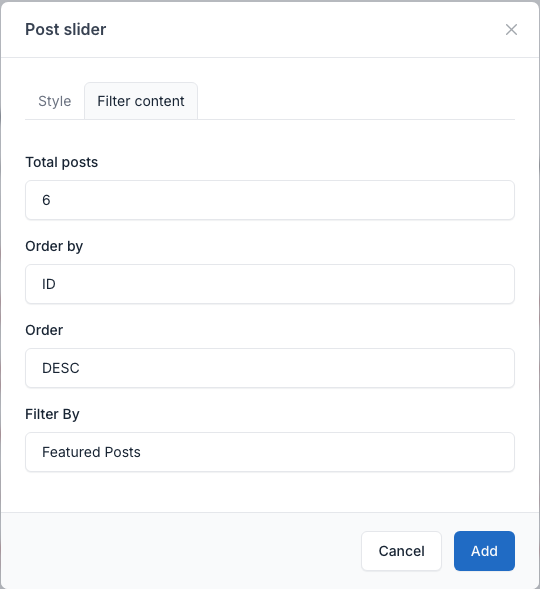
- Filter content tab: which posts to show.
- Total posts, Order by and Order.
- Filter By: Featured Posts, Recent Posts, Popular Posts, Custom Posts (pick the posts one by one) or Categories (pick the categories).
The demo pages are in Admin -> Pages. Open one to see how its shortcodes are set.
Post slider
A slider or row of posts with a title. The Type field has 7 values.
Setting
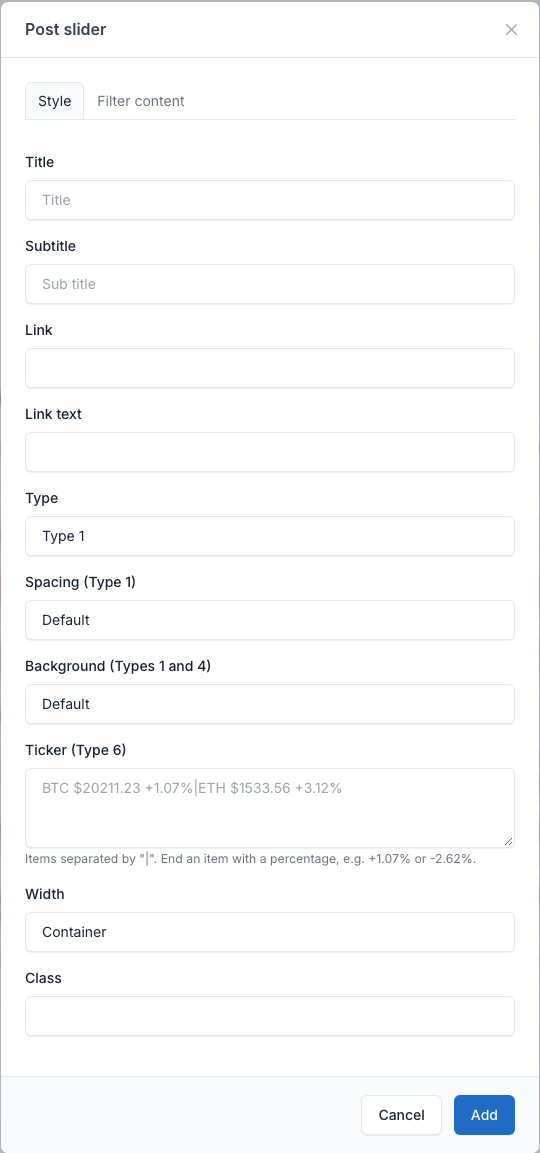
 Extra fields: Spacing (Type 1), Background (Types 1 and 4) and Ticker (Type 6, items separated by
 |, for example BTC $20211.23 +1.07%|ETH $1533.56 +3.12%).
Type 1
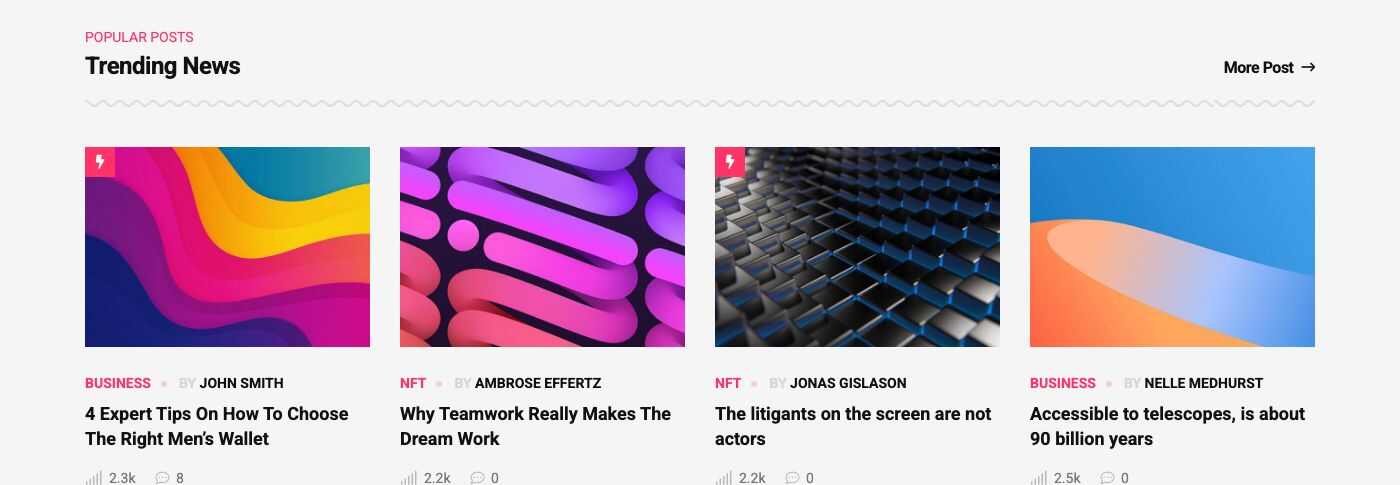
Row of four posts with a title. Used on Home Default (/), Home Interior, Home Travel and Home NFT.
Type 2
Dark carousel of posts. Used on Home Default (/).
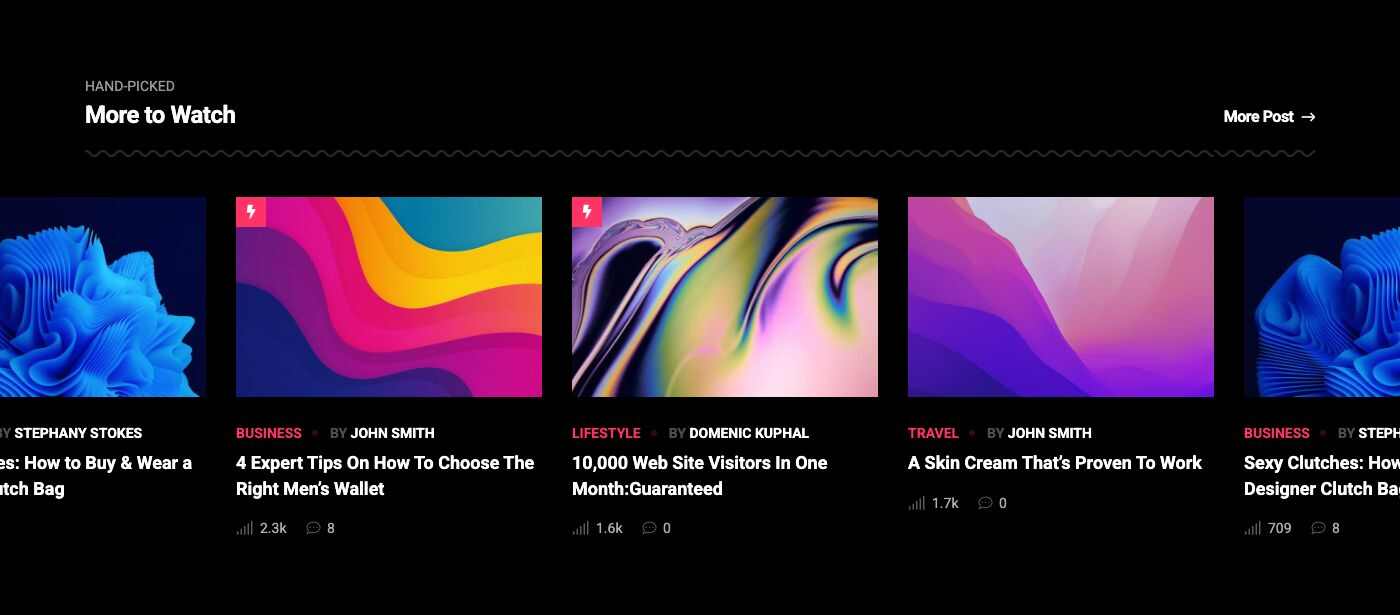
Type 3
Large slider with one big post at a time. Used on Home Interior (/homepage-interior).
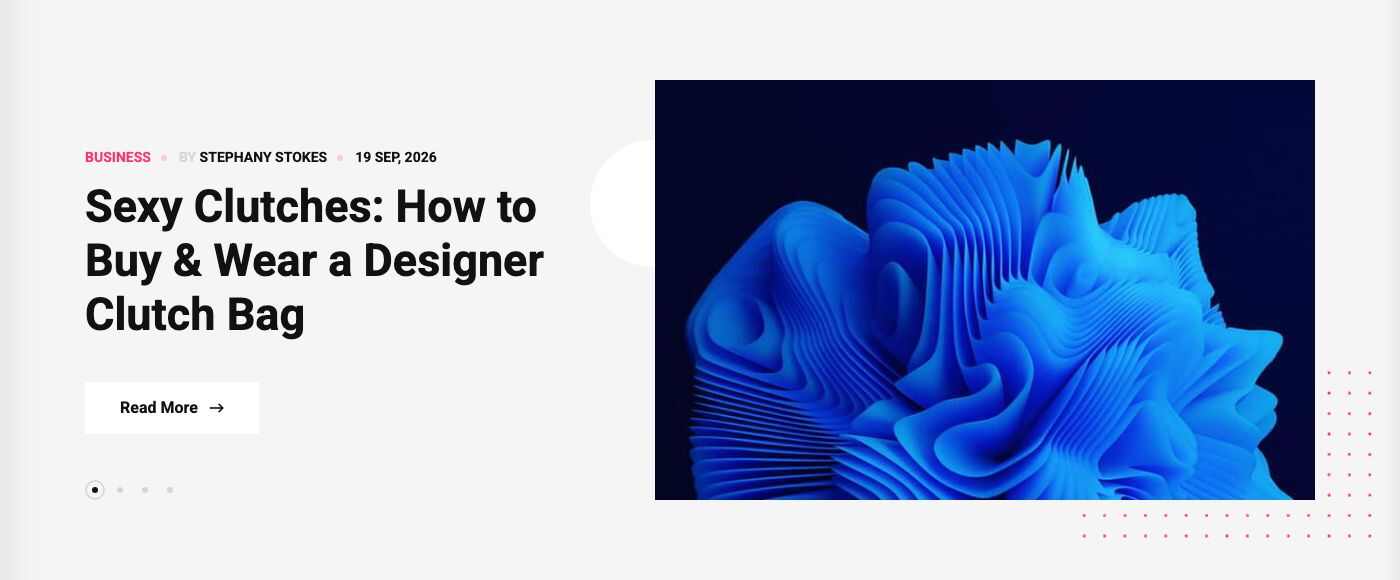
Type 4
Three posts with category labels. Used on Home Interior and Home NFT.
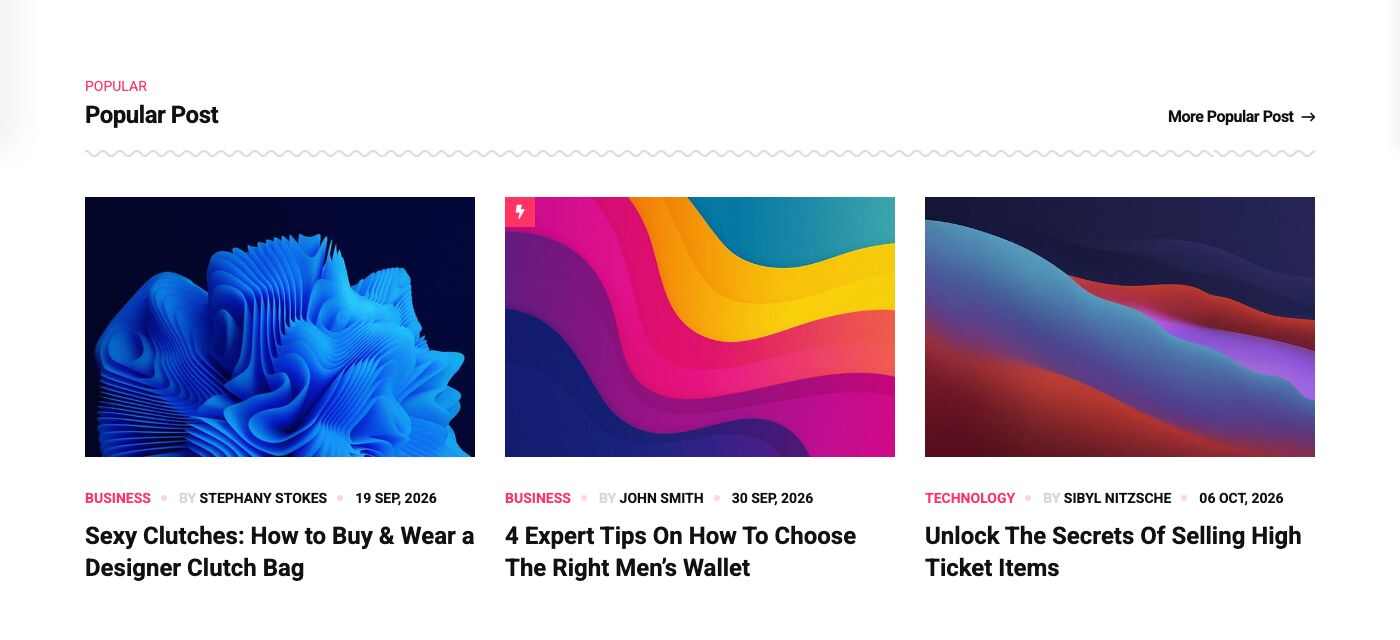
Type 5
Trending ticker bar above a wide slider. Used on Home Technology (/landing-page-4).
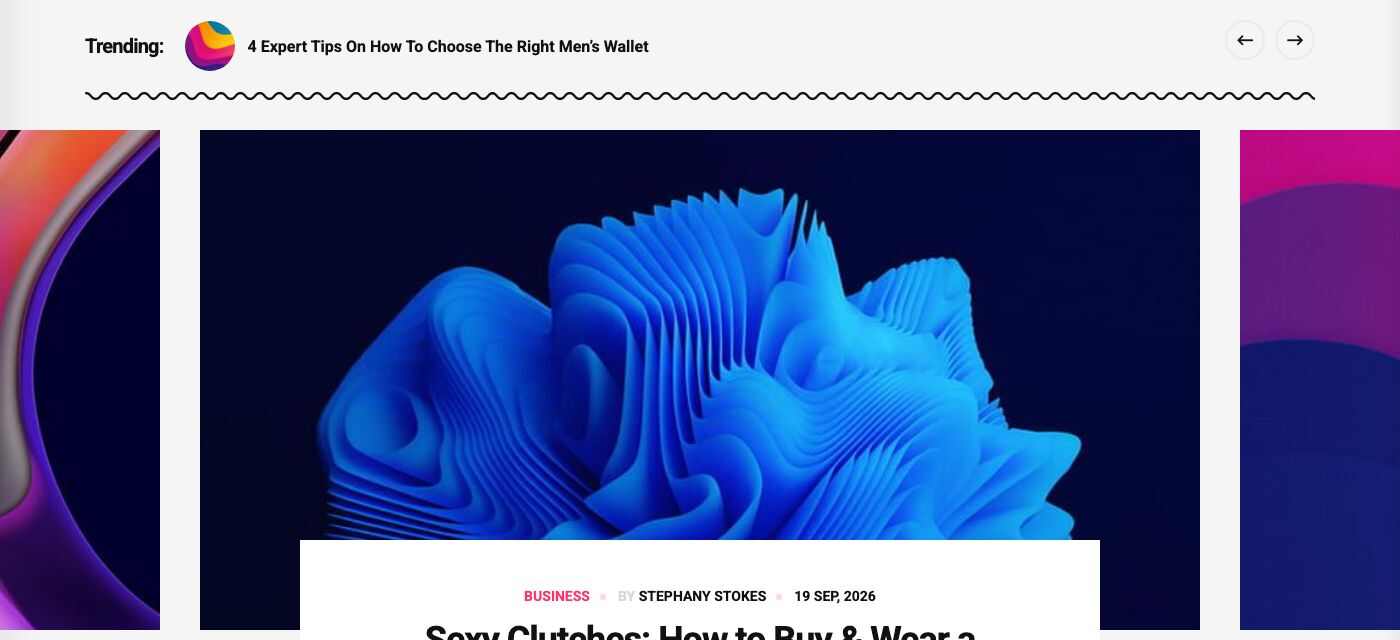
Type 6
Hero slider on a gradient background, with the optional ticker. Used on Home NFT (/landing-page-5).
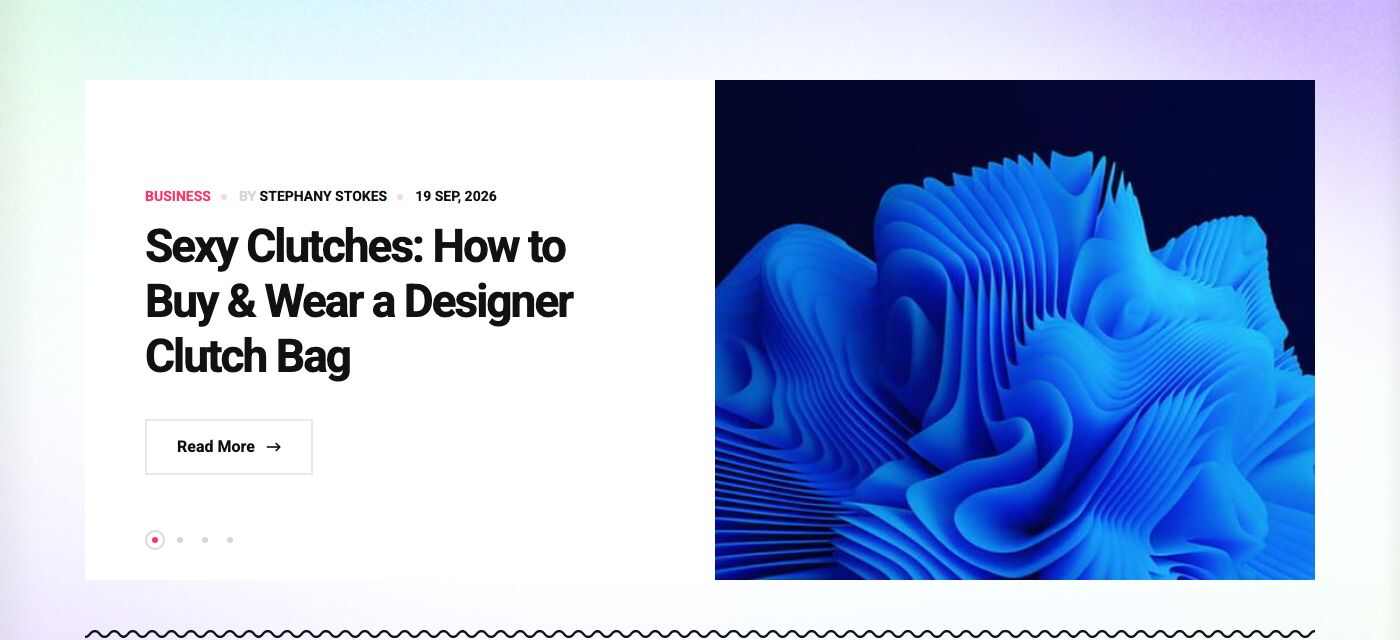
Type 7
Three numbered posts (01, 02, 03). Used on Home Fashion (/landing-page-6).
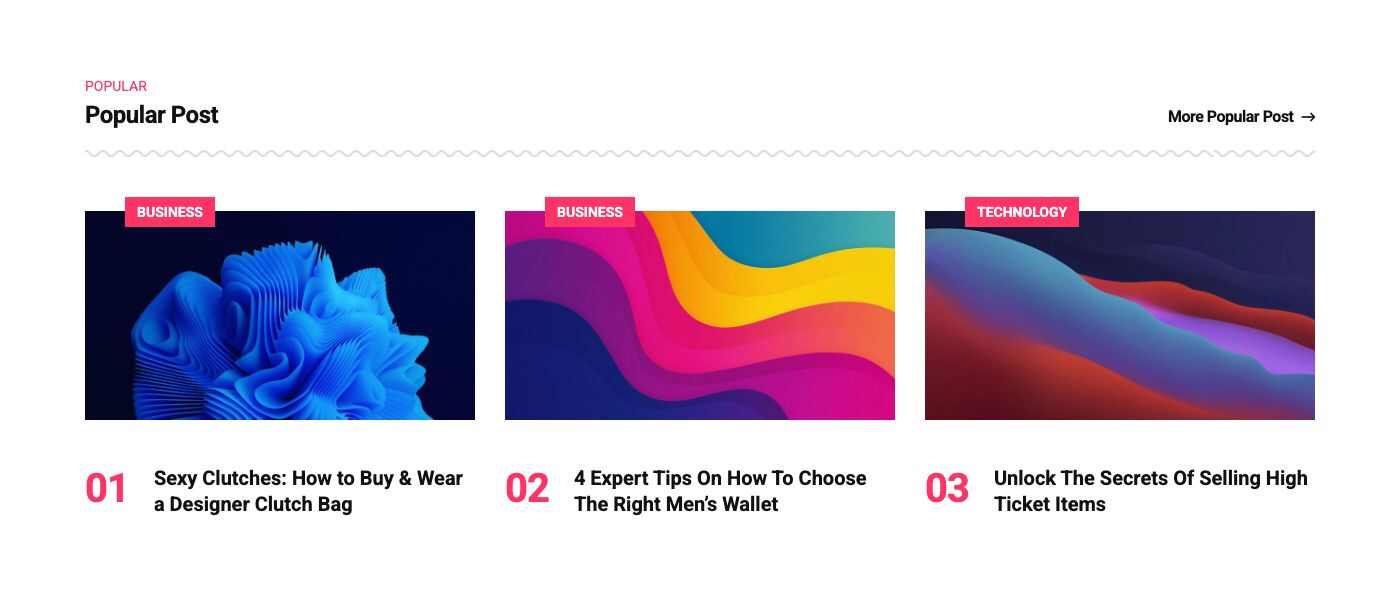
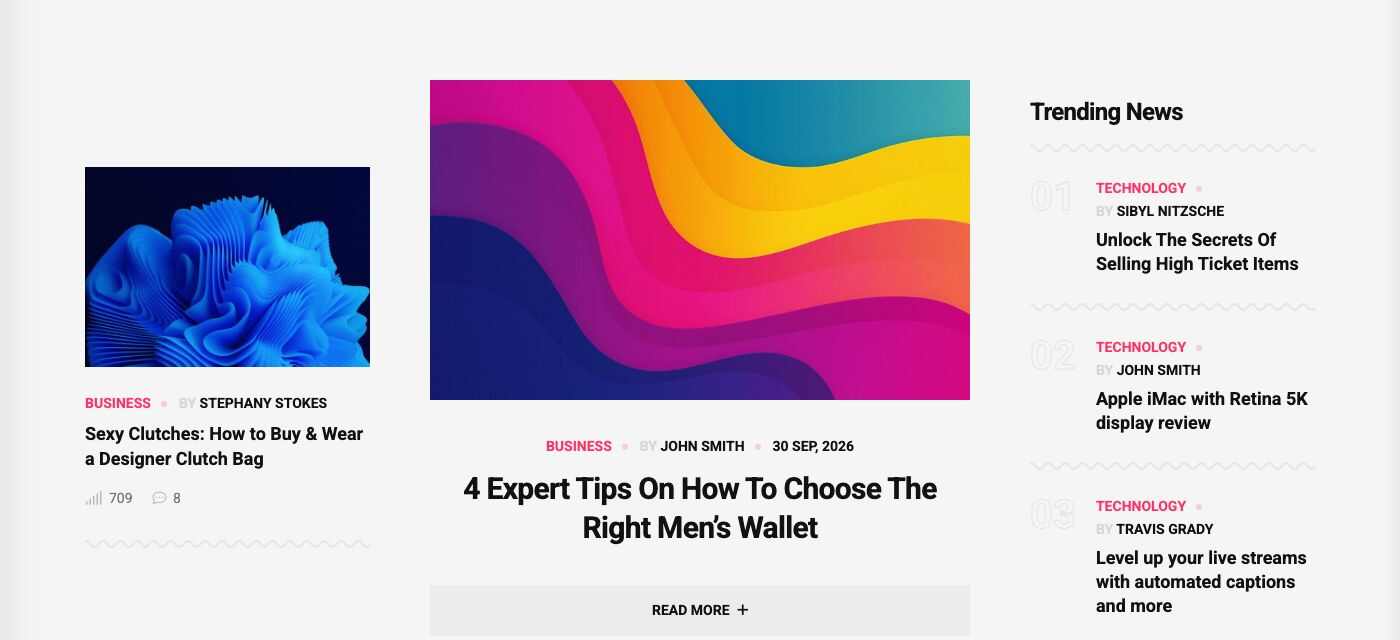
Banner posts
A hero block with a featured post, side posts and a list. Used on Home Travel (/landing-page-3).
Overview
Setting
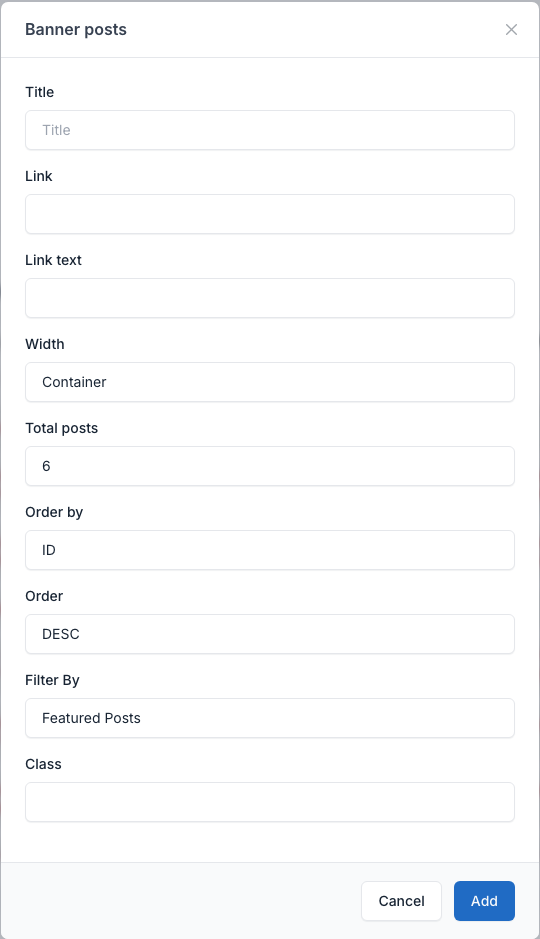
Fields: Title, Link, Link text, Width, Class and the Filter content tab.
Blog posts
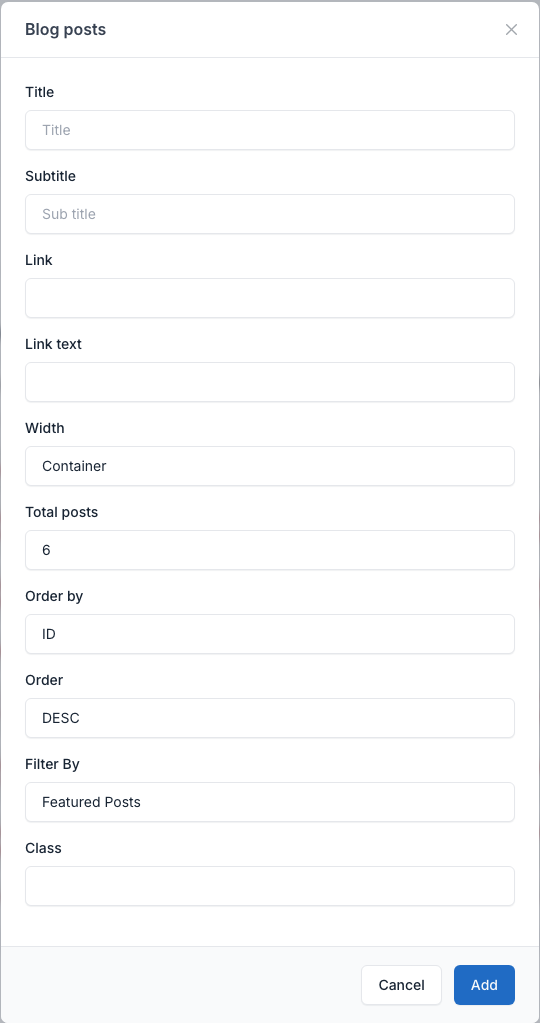
Posts in three columns, each with a numbered round thumbnail (the same look as Flex block 11). No demo page uses it.
Setting
Top categories
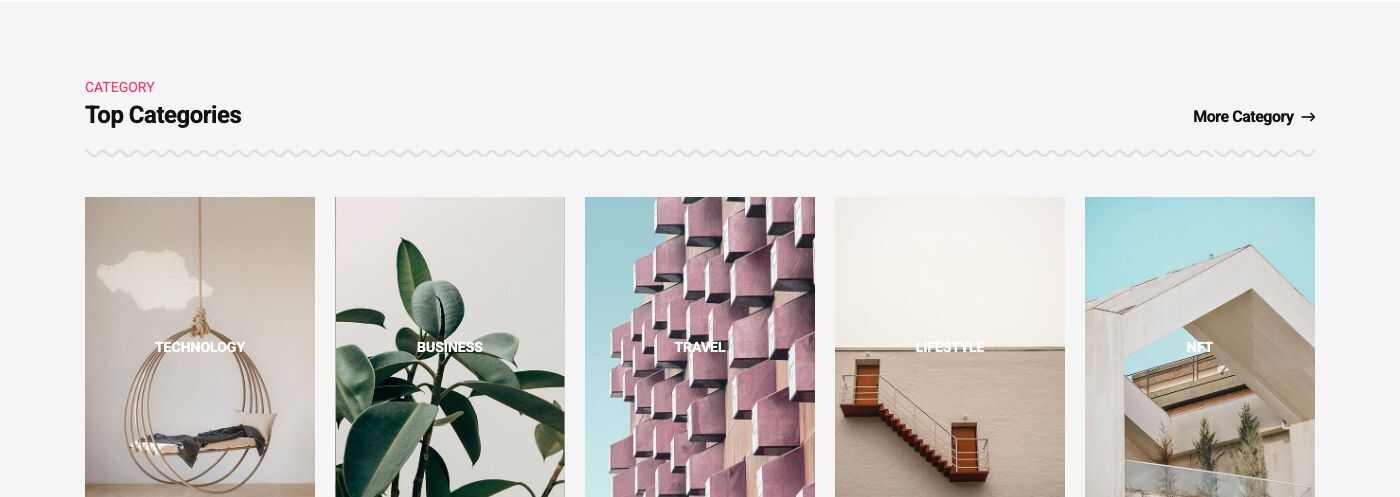
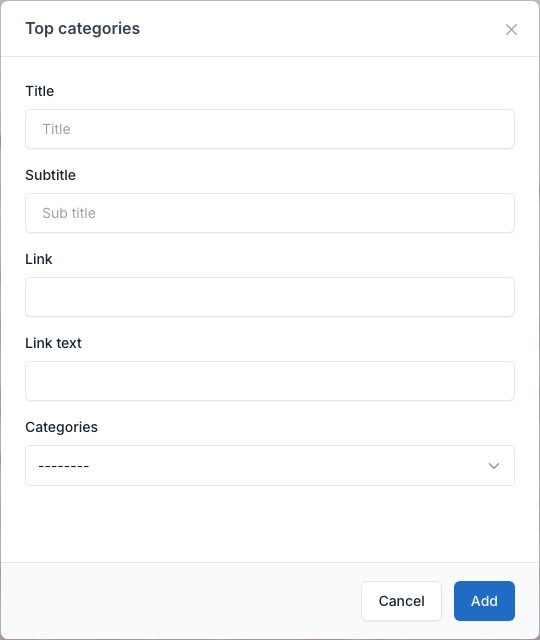
A row of category pictures with the category name on each. Pick the categories in the form. Used on Home Interior (/homepage-interior).
Overview
Setting
Advertisement slider
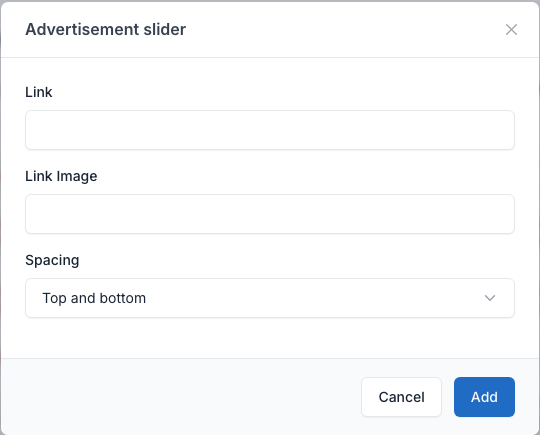
One advertising picture with a link. Set Link (where it goes), Link Image (the picture) and Spacing. When no picture is set, a neutral "Your Ad Here 728 × 90" placeholder banner of the theme shows. Used on Home Default, Home Interior and Home Travel.
Overview

Setting
Flex block posts
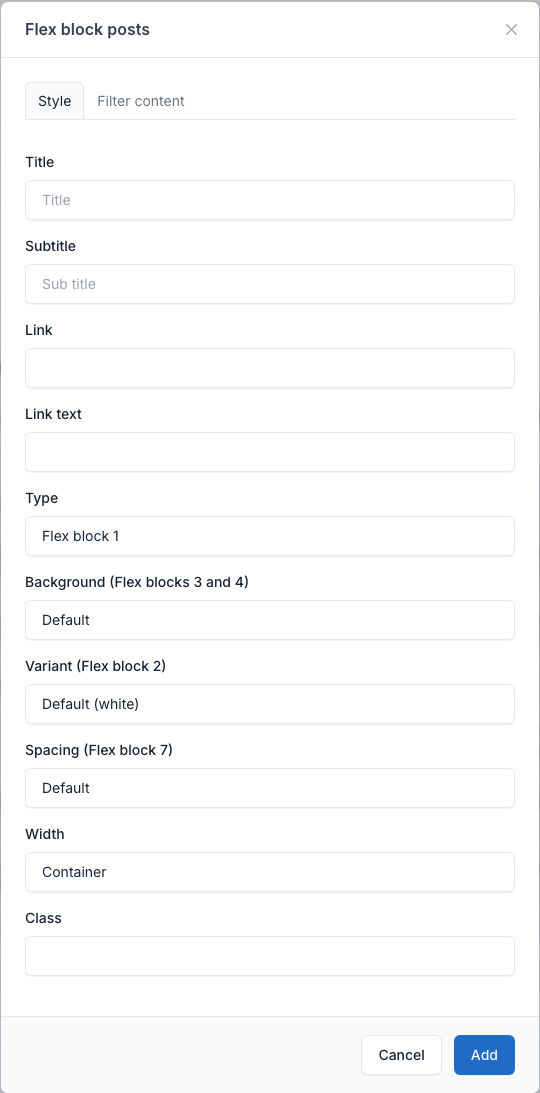
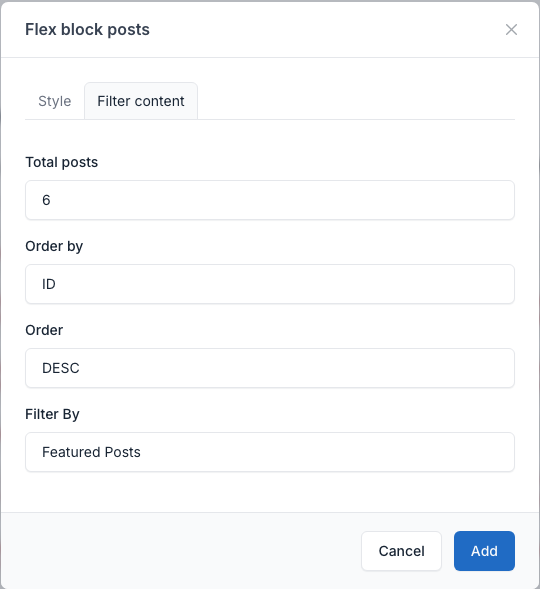
The main layout block. The Type field has 13 values (Flex block 1 to 13). The Style tab also has Background (Flex blocks 3 and 4), Variant (Flex block 2) and Spacing (Flex block 7). The Filter content tab picks the posts.
Setting
Flex block 1
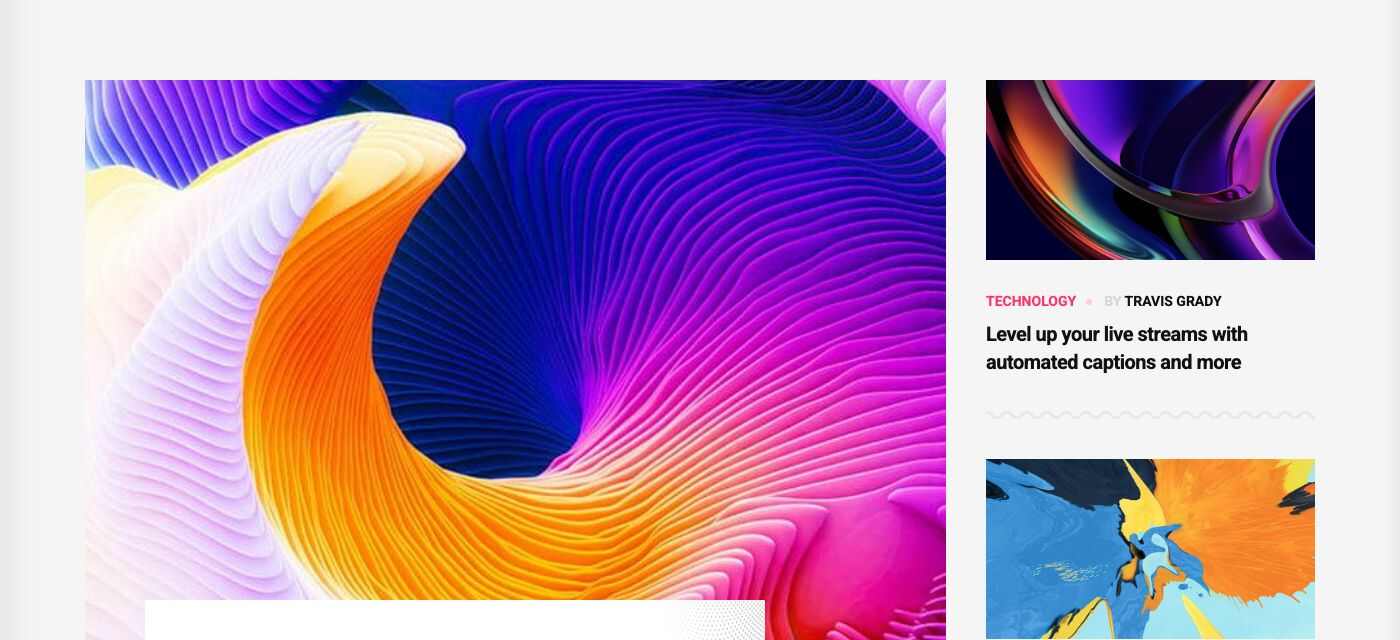
One large post with two smaller posts beside it. Home Default (/).
Flex block 2
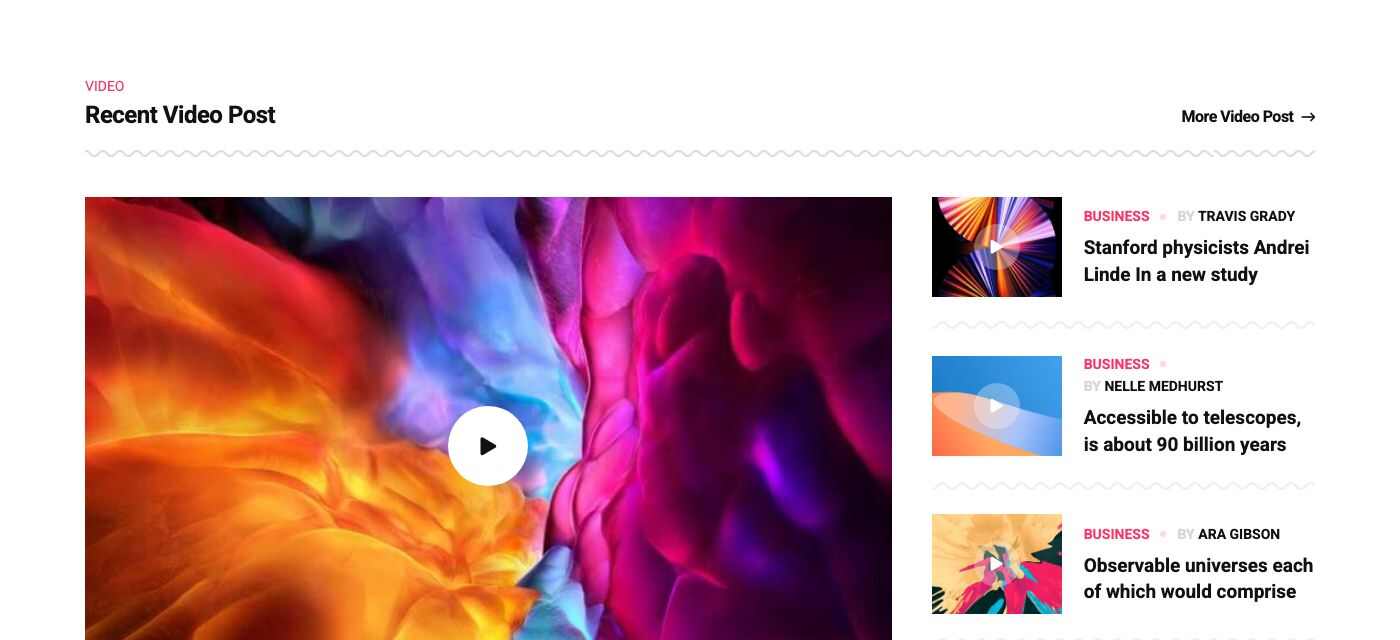
One large video post with a list of video posts beside it. Home Default, Home Interior and Home NFT (Variant: Grey (NFT)).
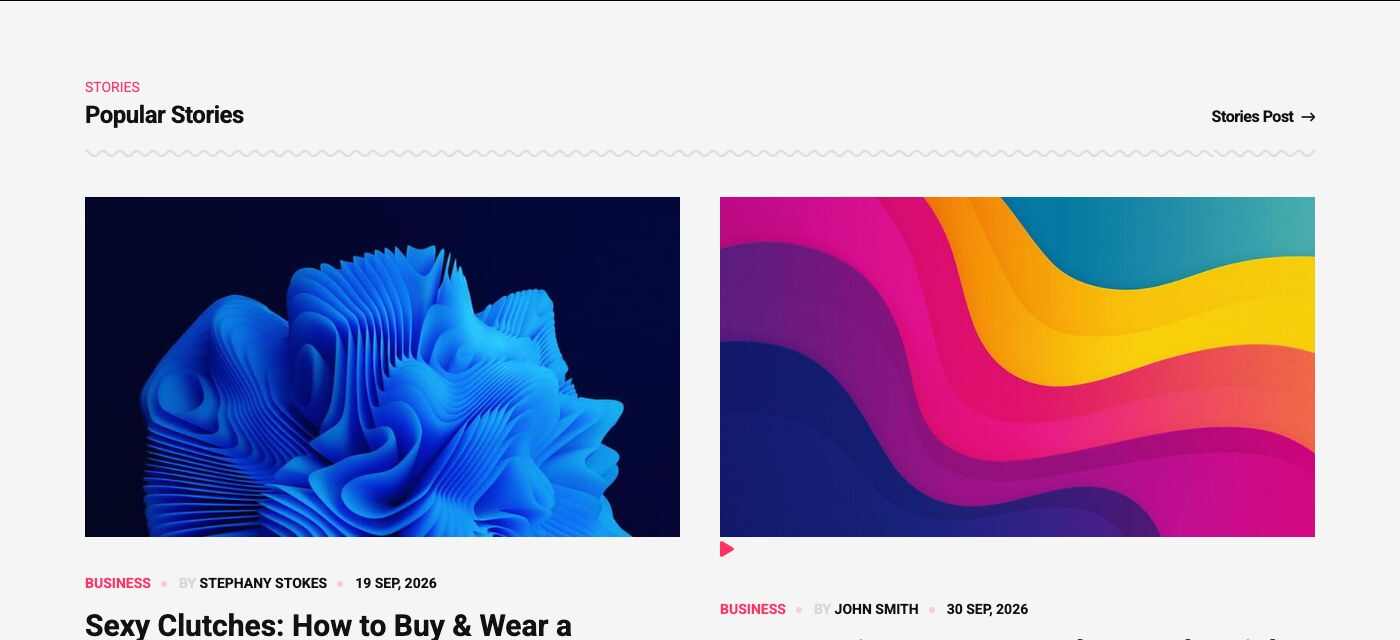
Flex block 3
Two large posts side by side. Home Default and Home NFT.
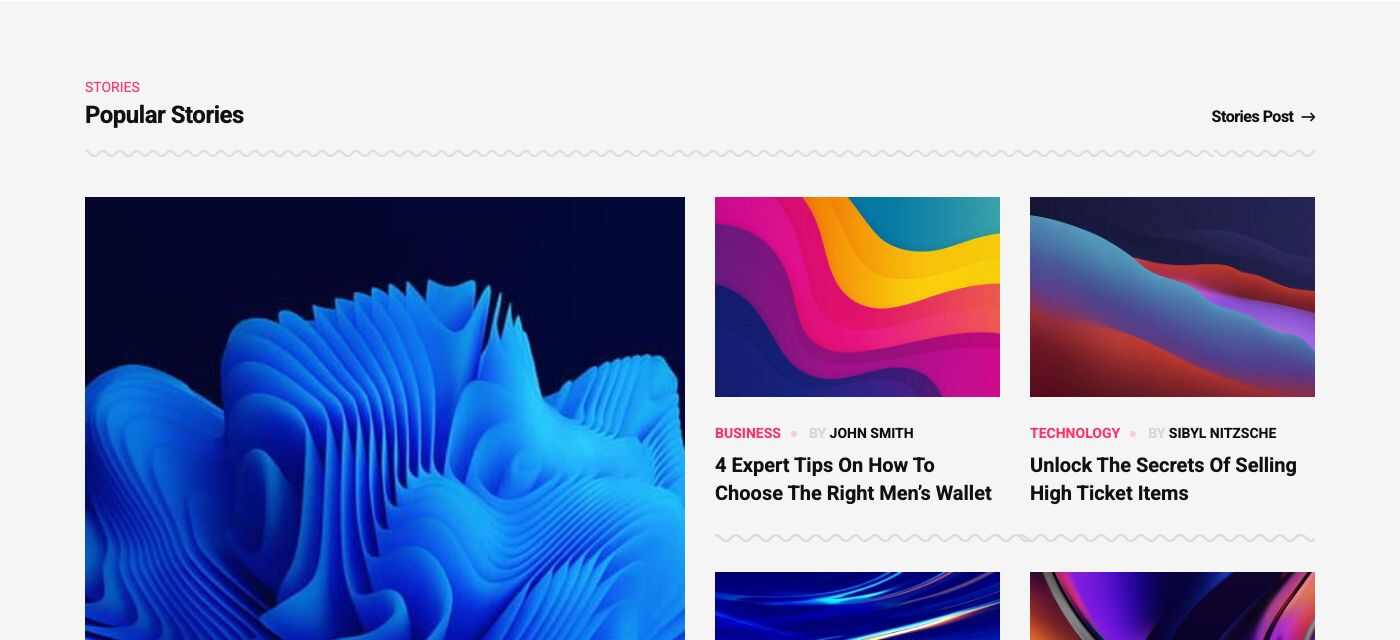
Flex block 4
One large post and a grid of smaller posts. Home Interior and Home Fashion.
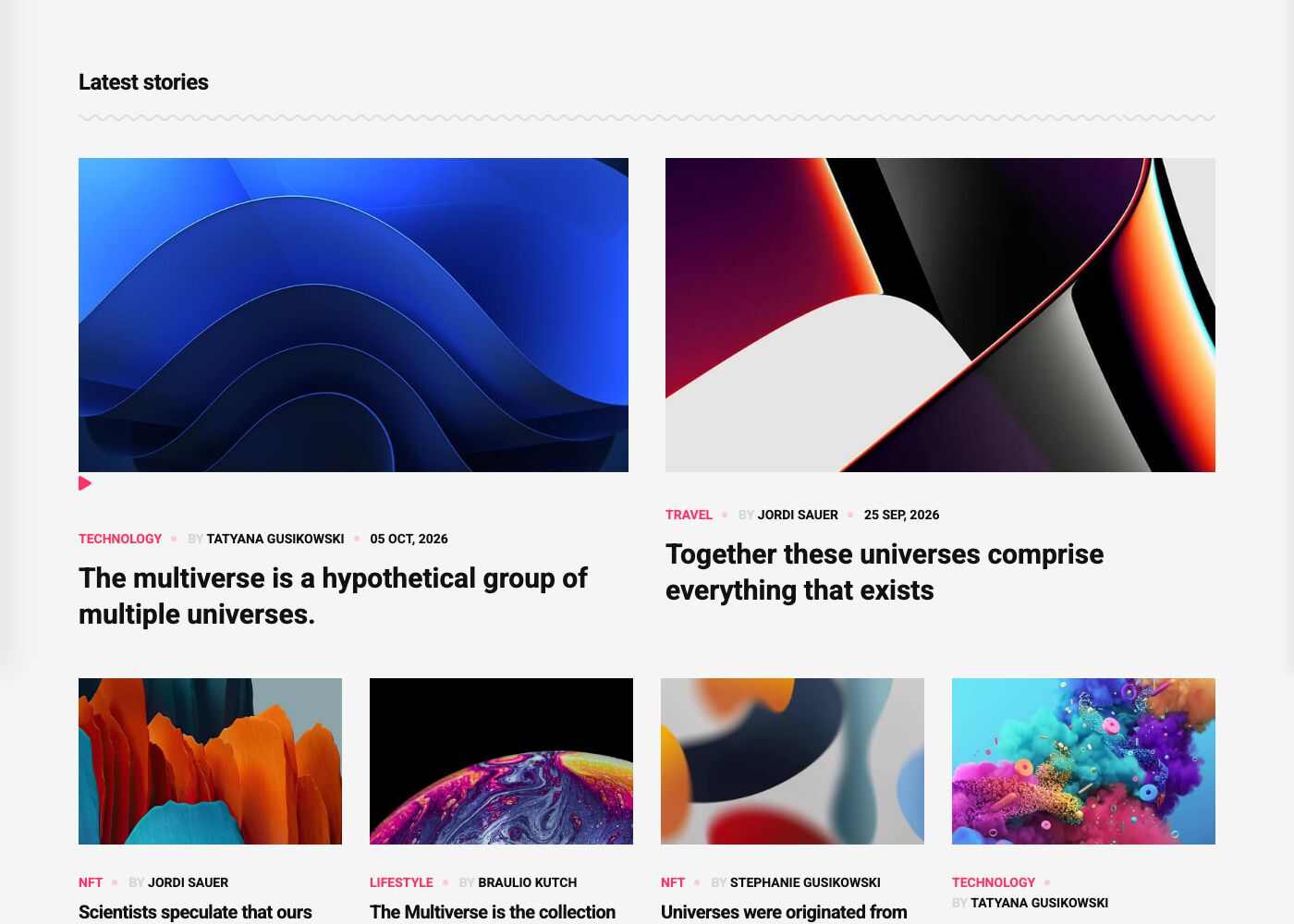
Flex block 5
Two large posts side by side, then a row of small posts under them. No demo page uses this type, so the overview below is the shortcode rendered with demo posts.
Overview
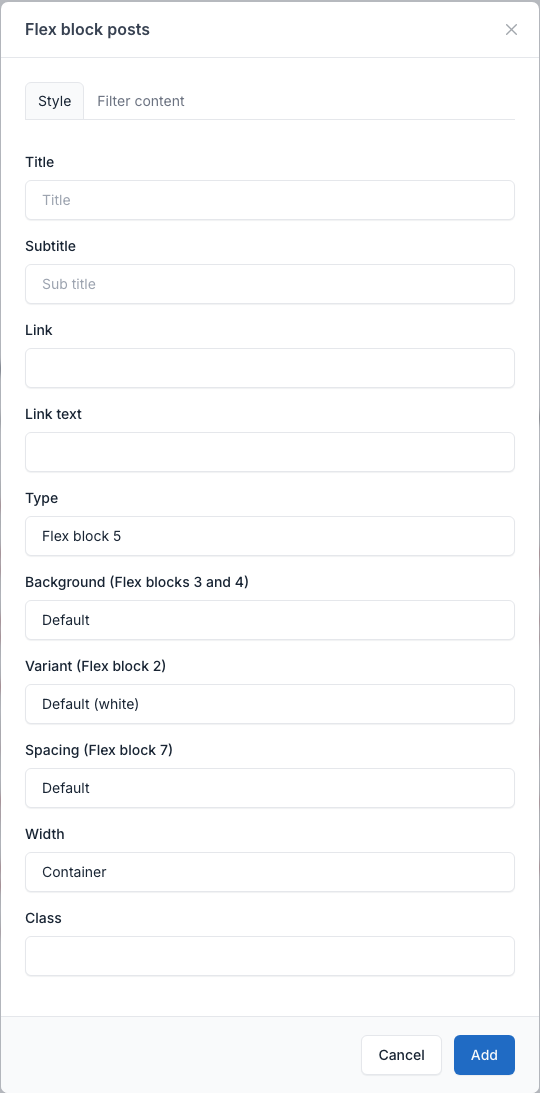
Setting
The Type field of the Style tab set to Flex block 5:
Flex block 6
Two video posts side by side. Home Travel (/landing-page-3).
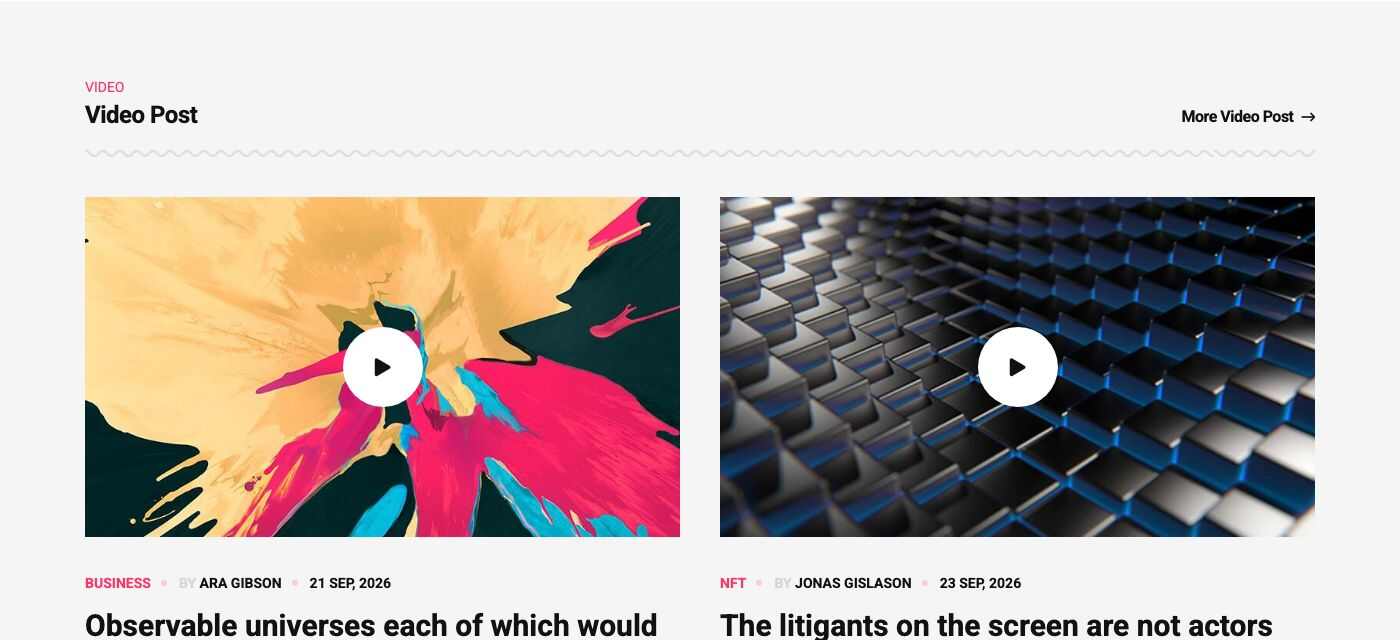
Flex block 7
List of posts with excerpts and the primary sidebar on the right. Home Travel and Home Fashion.
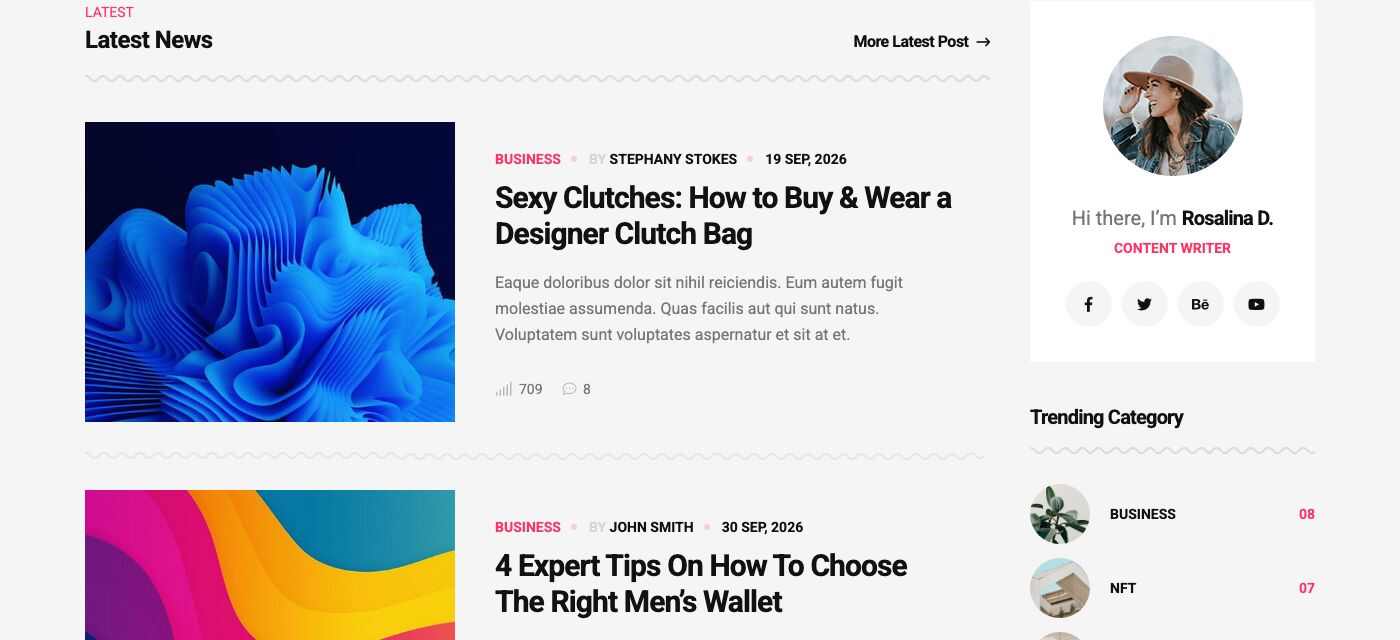
Flex block 8
One large post with two overlay posts beside it. Home Fashion (/landing-page-6).
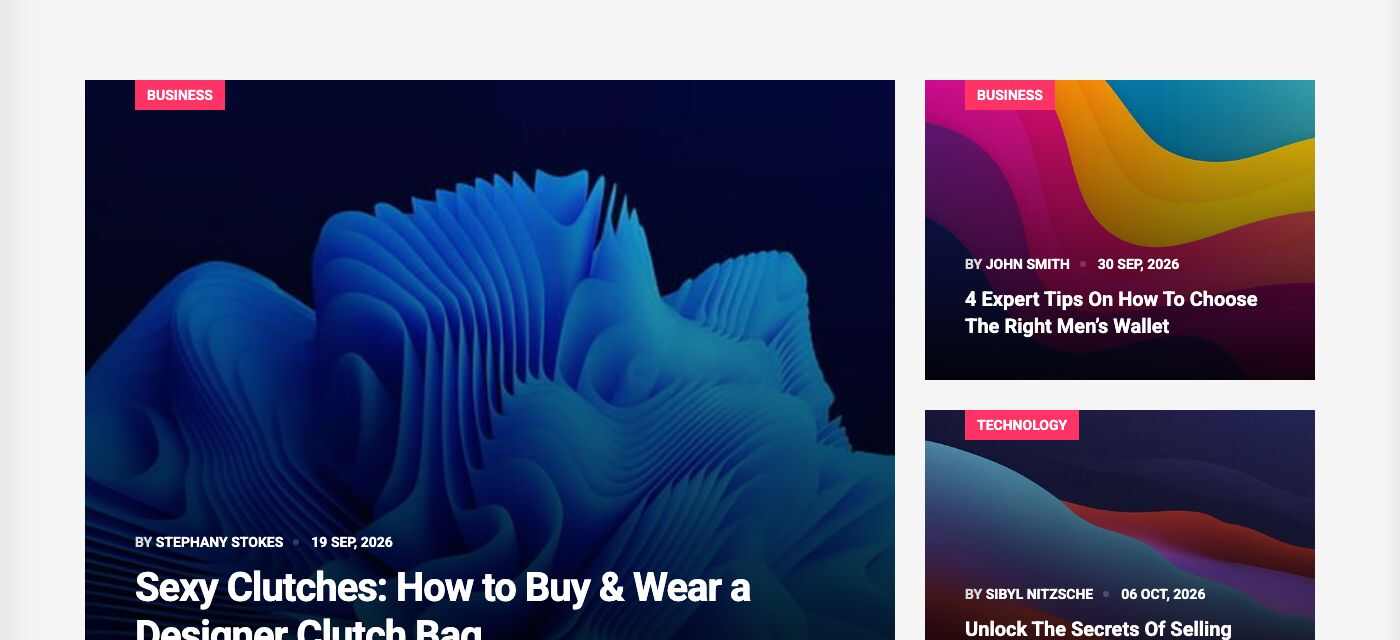
Flex block 9
Picture grid of posts. Home Adventure (/landing-page-7). It also switches the footer to the compact style.
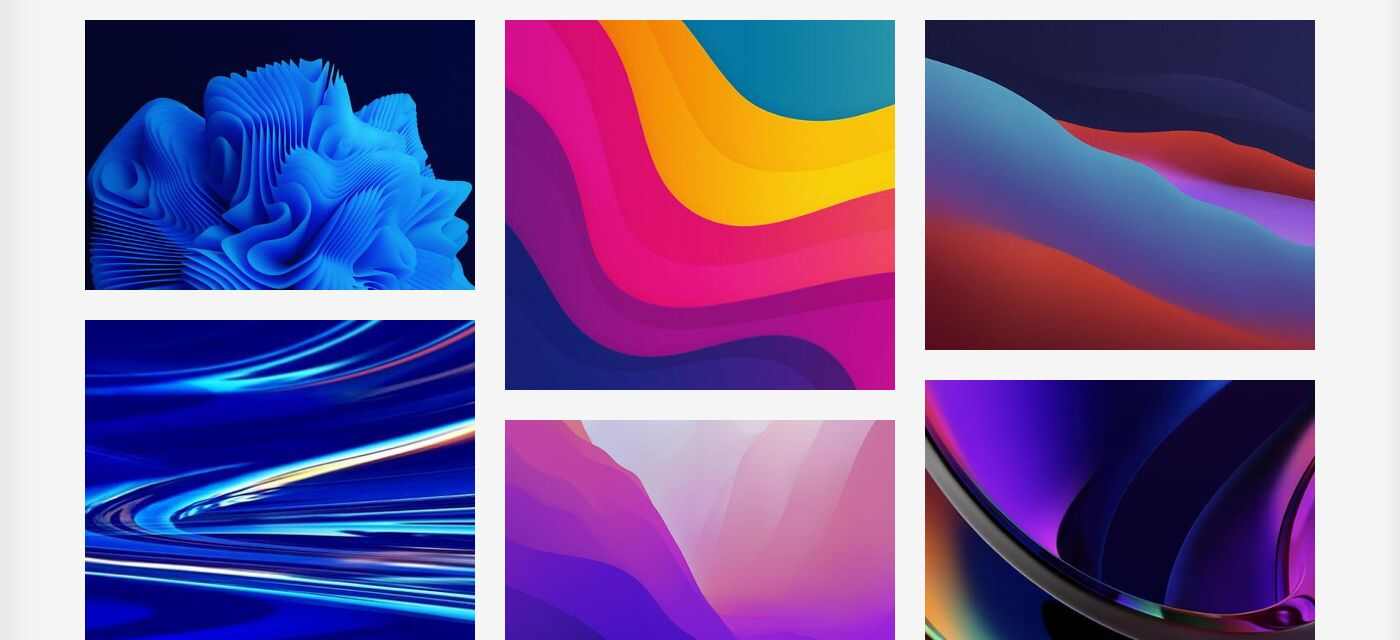
Flex block 10
Three-column cards with category labels. Home Minimal (/landing-page-8) and Popular posts (/popular-posts). It also switches the footer to the compact style.
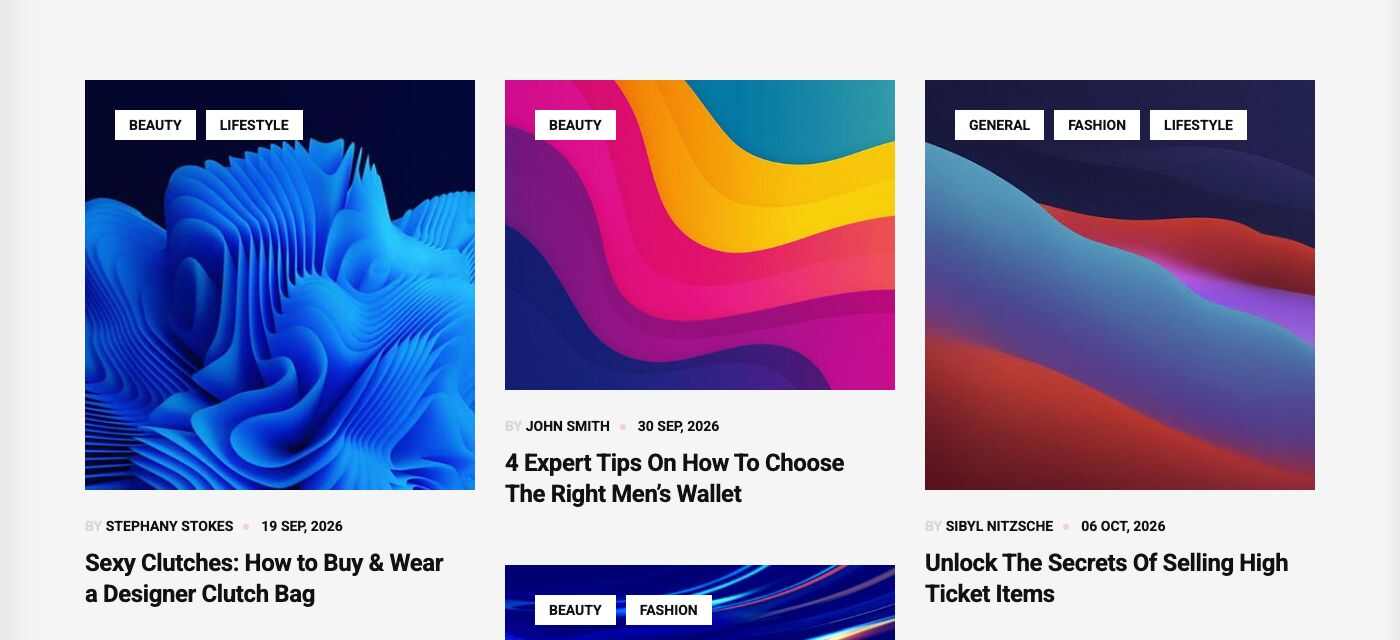
Flex block 11
Numbered list with round thumbnails. Home Default.
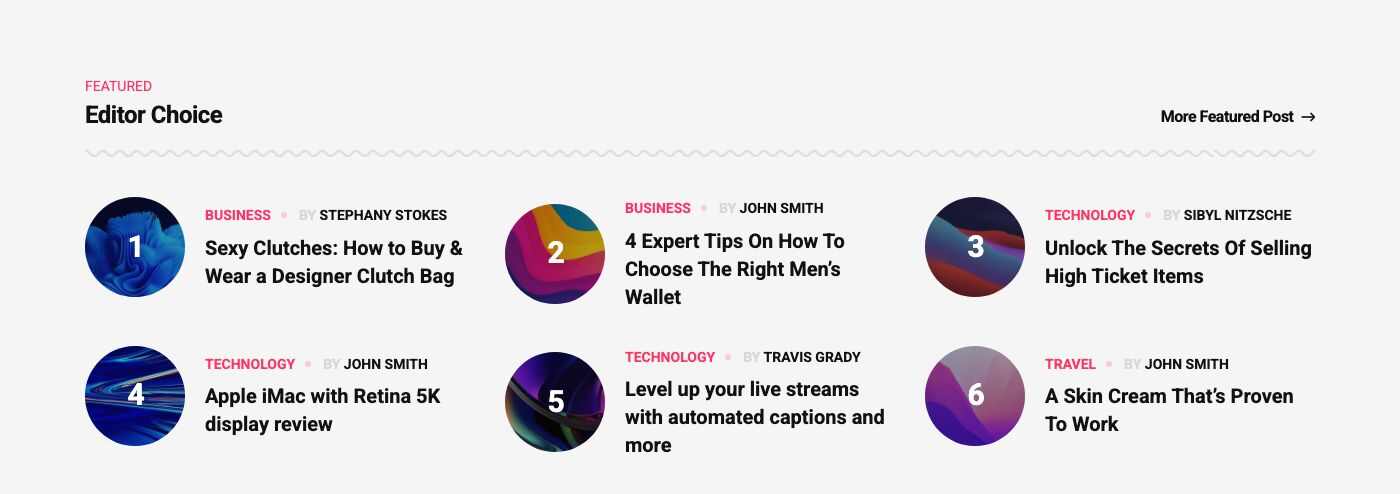
Flex block 12
Compact list with small thumbnails in three columns. Home Travel.
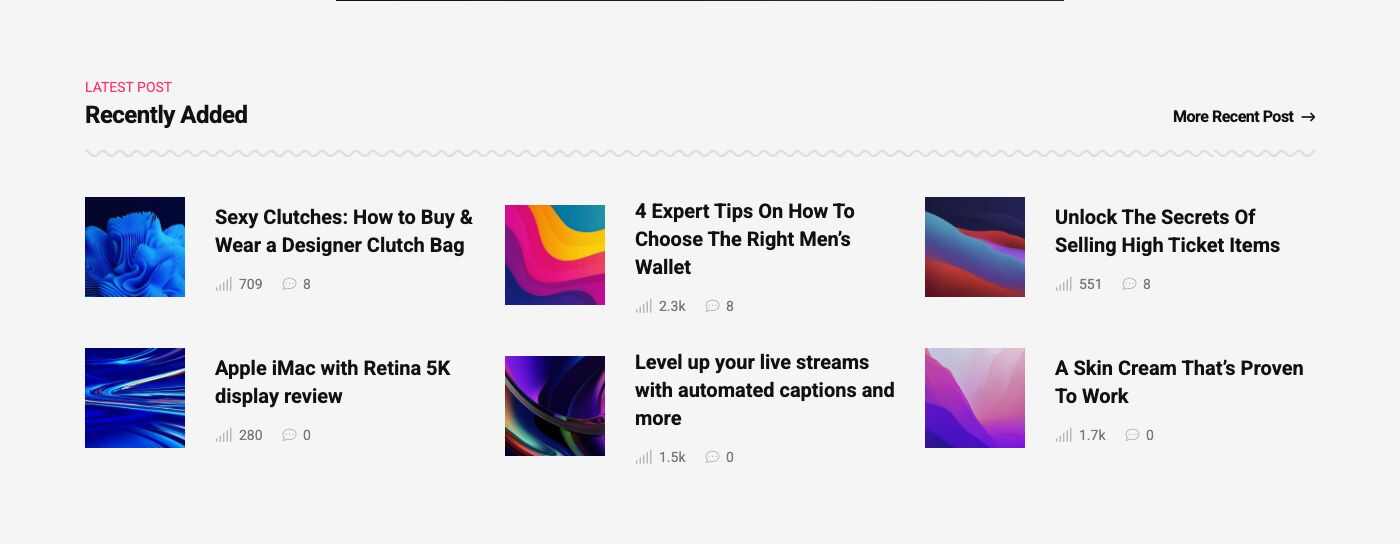
Flex block 13
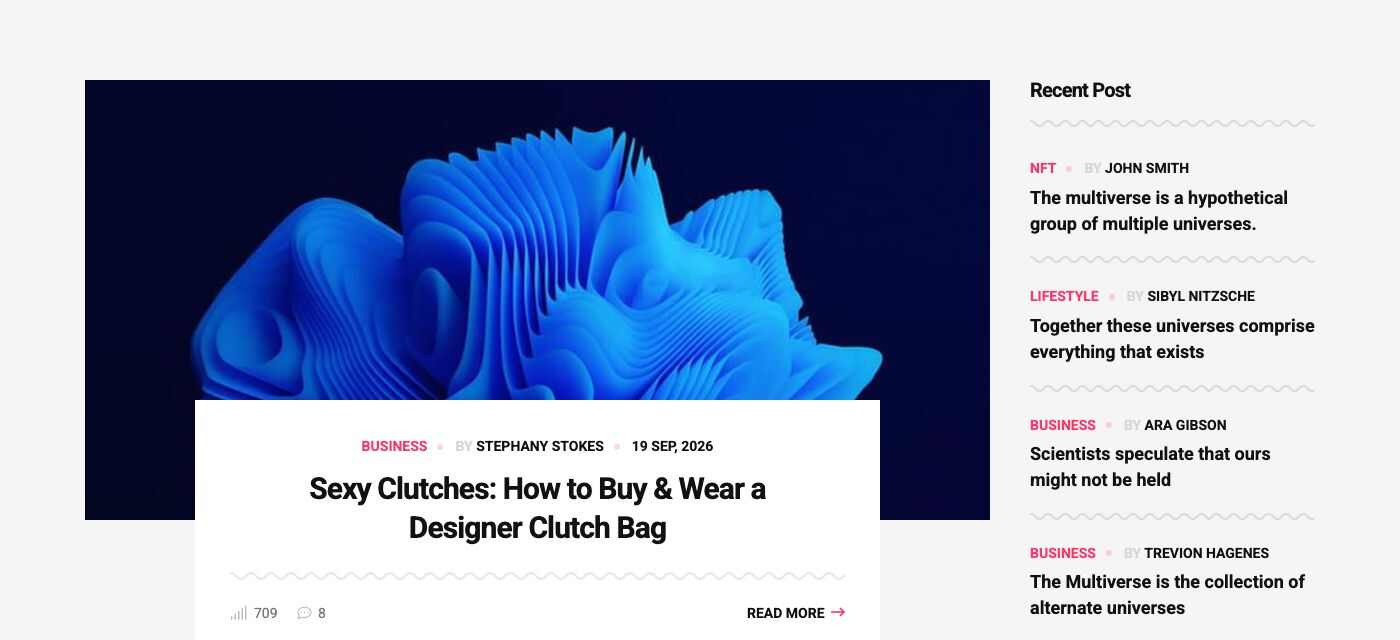
Featured post with a sidebar, a Load More button and a newsletter bar. Home Technology (/landing-page-4). The sidebar option names the widget area to show (here technology_sidebar); the default is the primary sidebar.
Newsletter
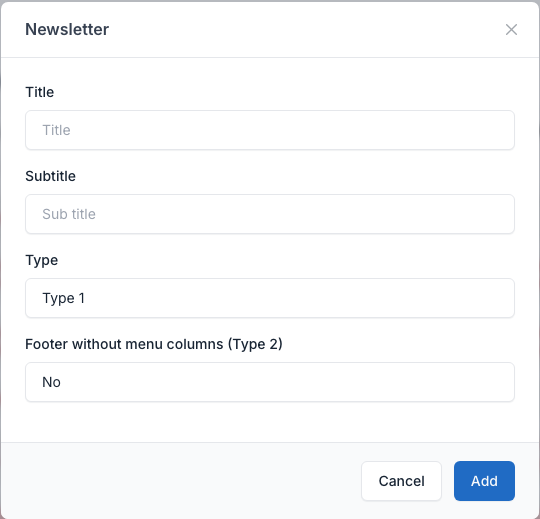
A subscribe form that feeds the Newsletter plugin (Admin -> Newsletters). Fields: Title, Subtitle and Type (5 values). Type 2 also has Footer without menu columns, which hides the footer menu columns on that page.
Setting
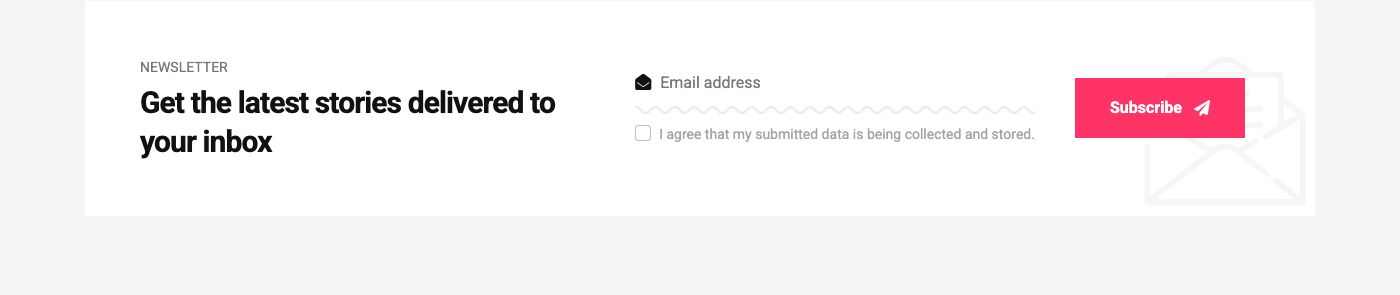
Type 1
White card. Home Default.
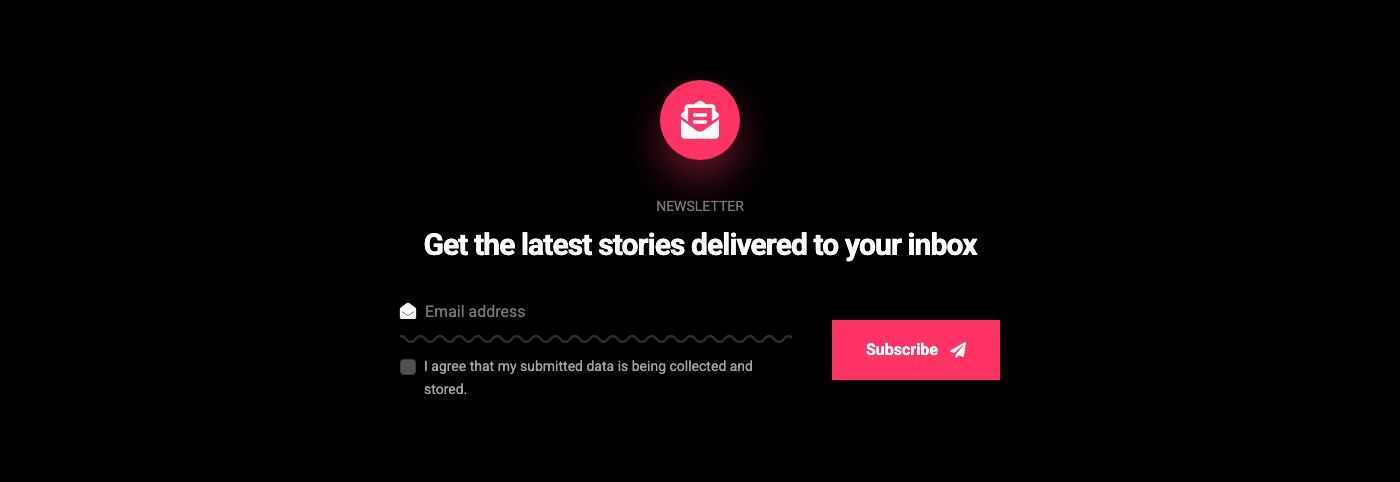
Type 2
Black full-width block. Home Interior and Home Fashion.
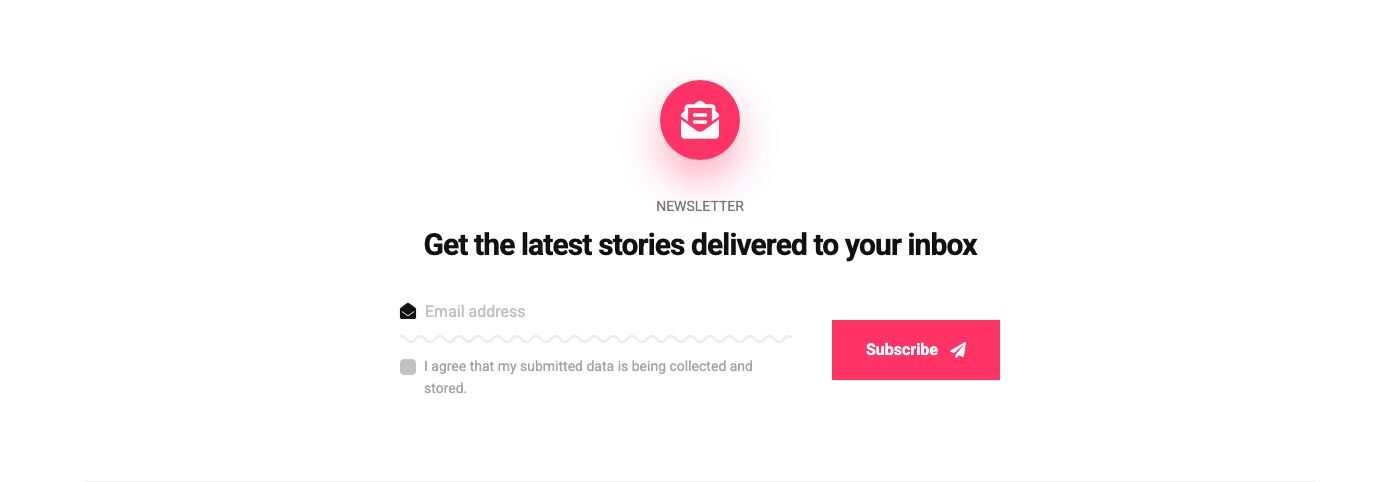
Type 3
Light block that continues into the light footer. Home Travel.
Type 4
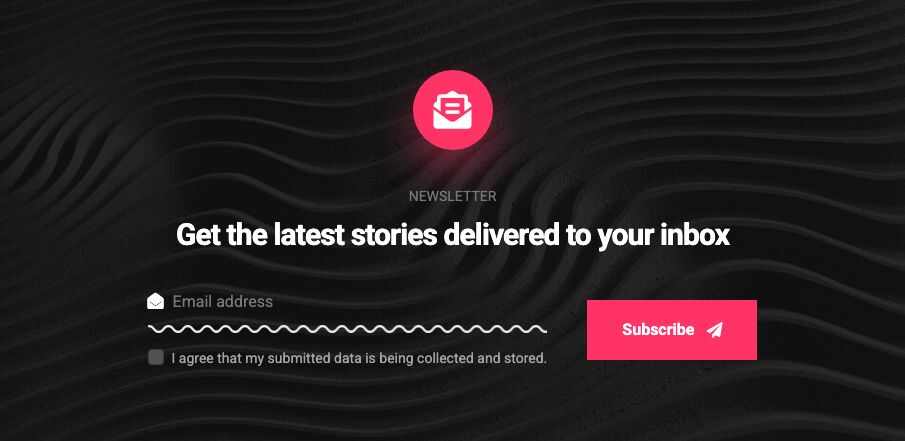
Dark textured block used inside Flex block 13 (set with the newsletter_title option). Home Technology.
Type 5
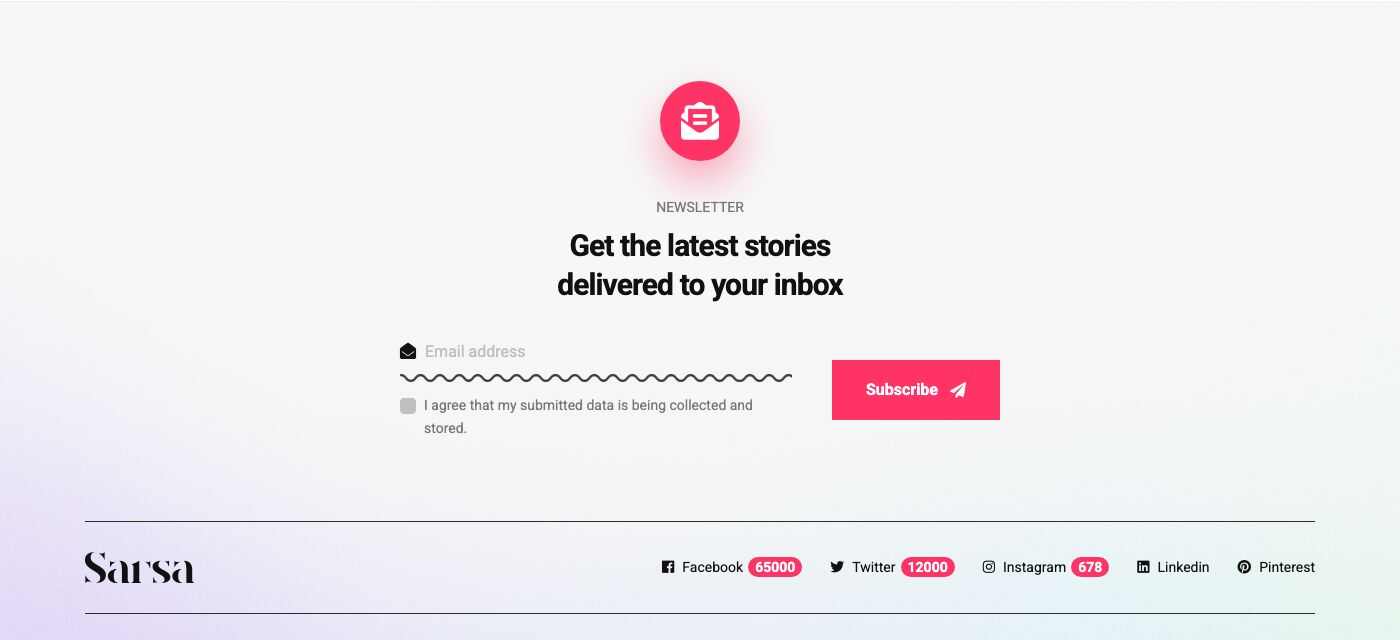
Light block inside the footer. Home NFT.
Contact form
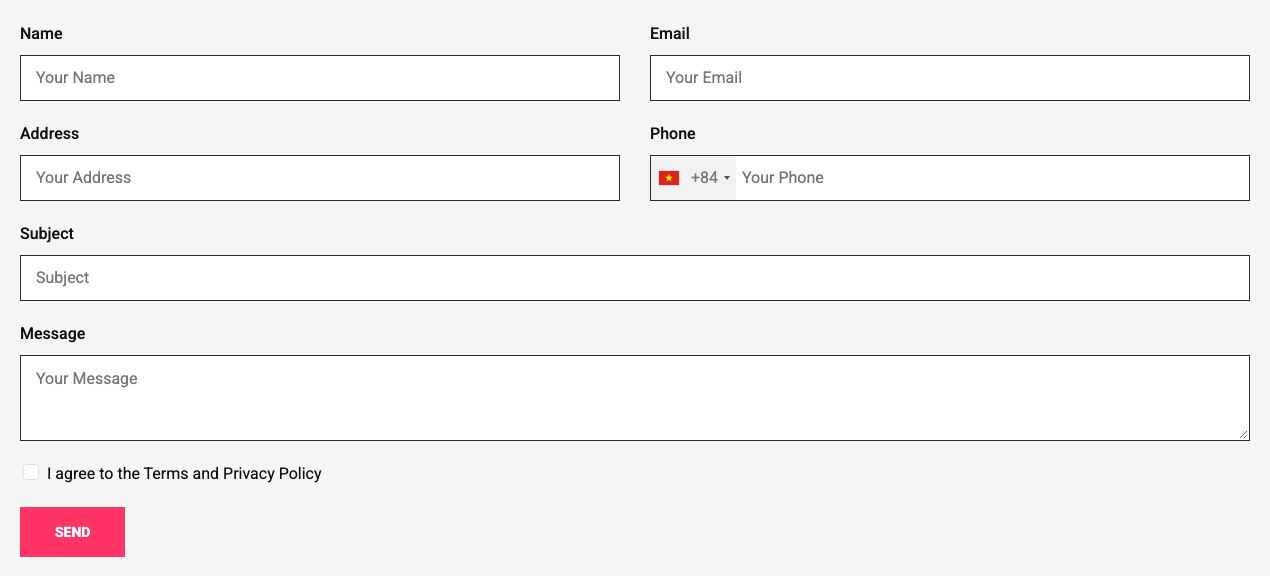
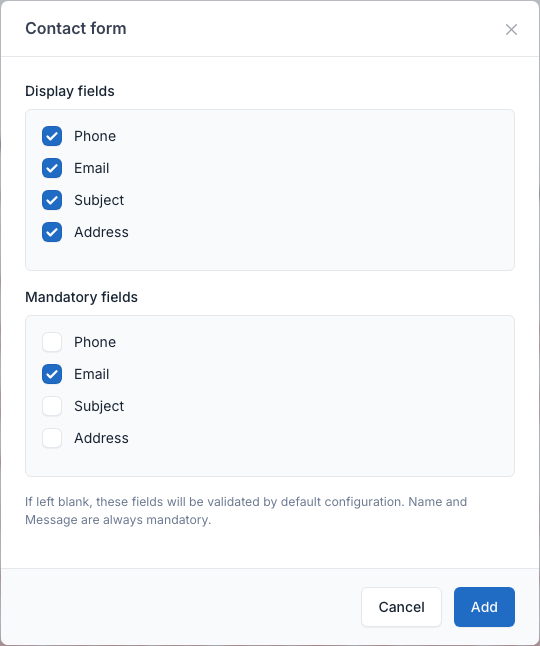
Shows the form of the Contact plugin. Choose which fields are shown (Phone, Email, Subject, Address) and which are mandatory. Name and Message are always mandatory. Messages arrive in Admin -> Contact. Used on the Contact page (/contact).
Overview
Setting
YouTube video
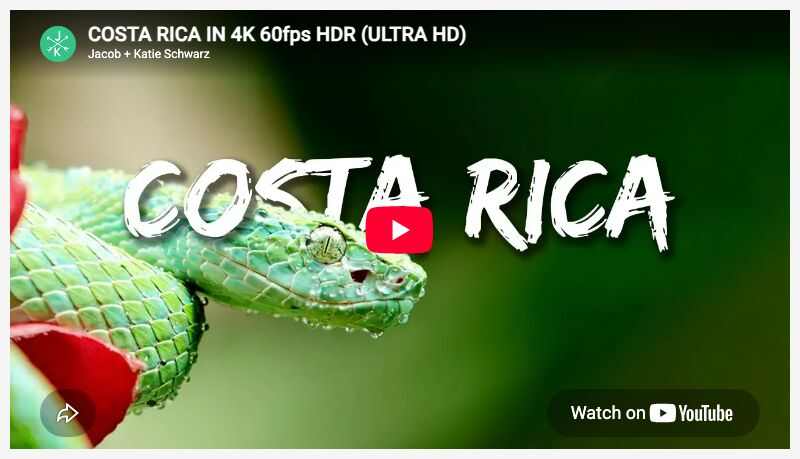
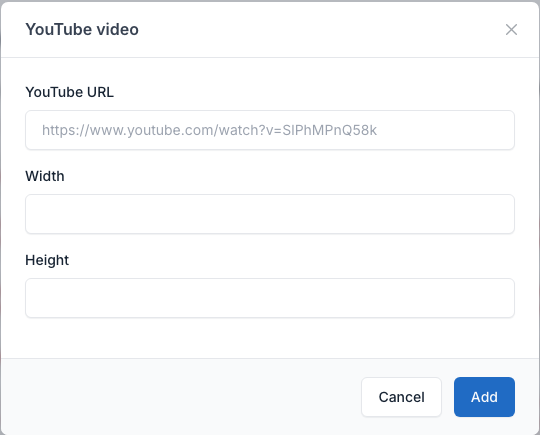
Embeds a video inside a post or page. Paste the YouTube URL and, if you want, a width and height. The demo uses it in the first post: /the-multiverse-is-a-hypothetical-group-of-multiple-universes.
Overview
Setting
See also Insert video.
Gallery images
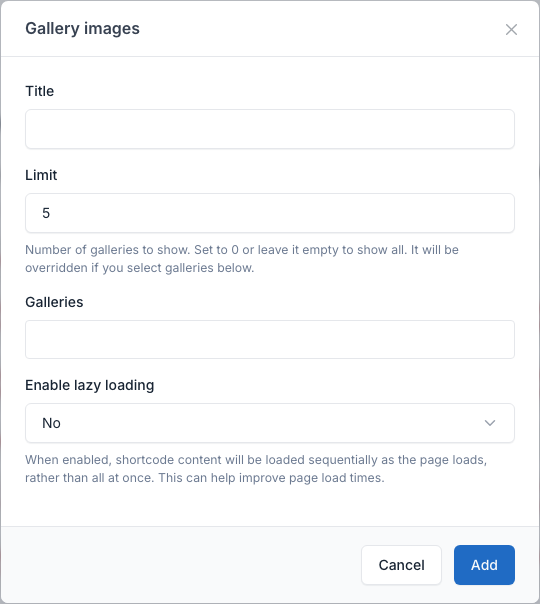
Shows galleries of the Gallery plugin (Admin -> Galleries). Set a title, the number of galleries (Limit) or pick the galleries yourself. No demo page uses it; the galleries have their own page at /galleries.
Setting
Ads
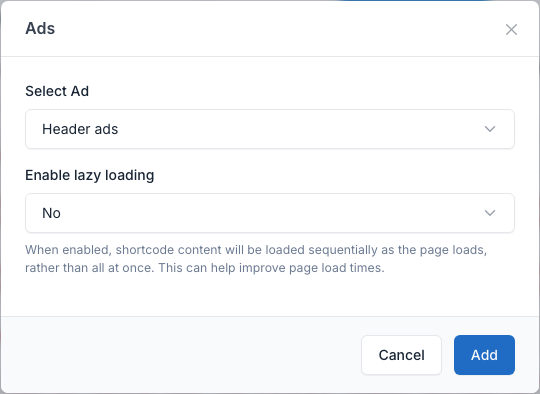
Shows one ad of the Ads plugin (Admin -> Ads). Pick it in Select Ad. No demo page uses it.
Setting