Header
Sarsa has 7 header styles. You choose the style for the whole site in Theme options, and you can preview or force another style on a single page with a link parameter.
Choose the header style
Go to Admin -> Appearance -> Theme Options, tab General
Select Header style (Style 1 to Style 7), then click Save Changes.

The same tab has two more header settings:
- Show the account (sign in) link: show or hide the member sign-in icon.
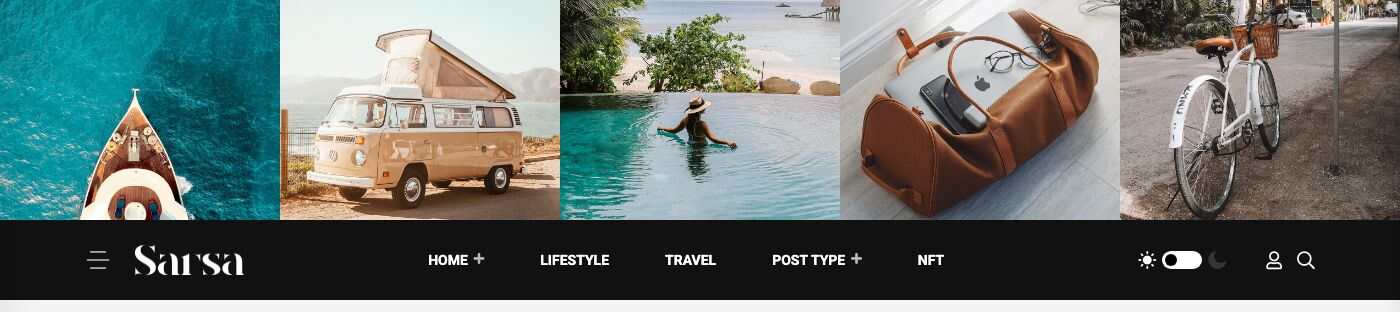
- Instagram media folder: the media folder whose pictures fill the photo strip of Style 3 and the side panel of the other styles.
Preview a style with a link
Add ?header=type-N to any page address to show that page with another header, for example /homepage-interior?header=type-2. Only type-1 to type-7 are accepted; any other value is ignored and the style from Theme options is used.
The demo menu uses this to show each home layout with a different header. You can do the same in your own menu: in Admin -> Appearance -> Menus, add ?header=type-3 to the end of a menu link URL.
The 7 header styles
Style 1
Search box on the left, logo in the center, Subscribe button and language switcher on the right. The menu row below carries the side panel button, the main menu, the dark mode toggle and the account icon.

Style 2
Logo with the side panel button on the left and your social links (name and icon) on the right. The menu row below has the main menu, dark mode toggle, account icon and search.

Style 3
A strip of pictures from the Instagram media folder above a dark menu bar with the logo, main menu, dark mode toggle, account icon and search.
Style 4
A black top bar (language switcher, top bar menu, social icons and sign-in link), then the logo with a banner ad, then the main menu row. The banner is an ad of the Ads plugin assigned to the Header Ads location (see Ads). When several ads share the location, one of them is picked at random on each page load, and expired ads are skipped. When no active ad is assigned, the header shows a neutral placeholder banner instead.

Style 5
The same top bar as Style 4, with a single gradient bar below it that holds the logo, main menu, dark mode toggle, account icon and search.

Style 6
The layout of Style 1 with a grey menu bar.

Style 7
A compact header with the side panel button, logo, search box, Subscribe button and language switcher. There is no menu row: the main menu lives in the side panel.

Top bar menu
Styles 4 and 5 show a top bar. Its links come from the menu assigned to the Top bar menu location.
Go to Admin -> Appearance -> Menus, create or open a menu and tick the location Top bar menu. The main row uses the Main menu location.
See Menu for the menu editor.
Side panel
The button with three lines opens the side panel (off-canvas). It shows your logo, the site description, a grid of Instagram pictures, your contact details and your social links. Style 7 adds the main menu to it. On phones the menu button opens the main menu instead.
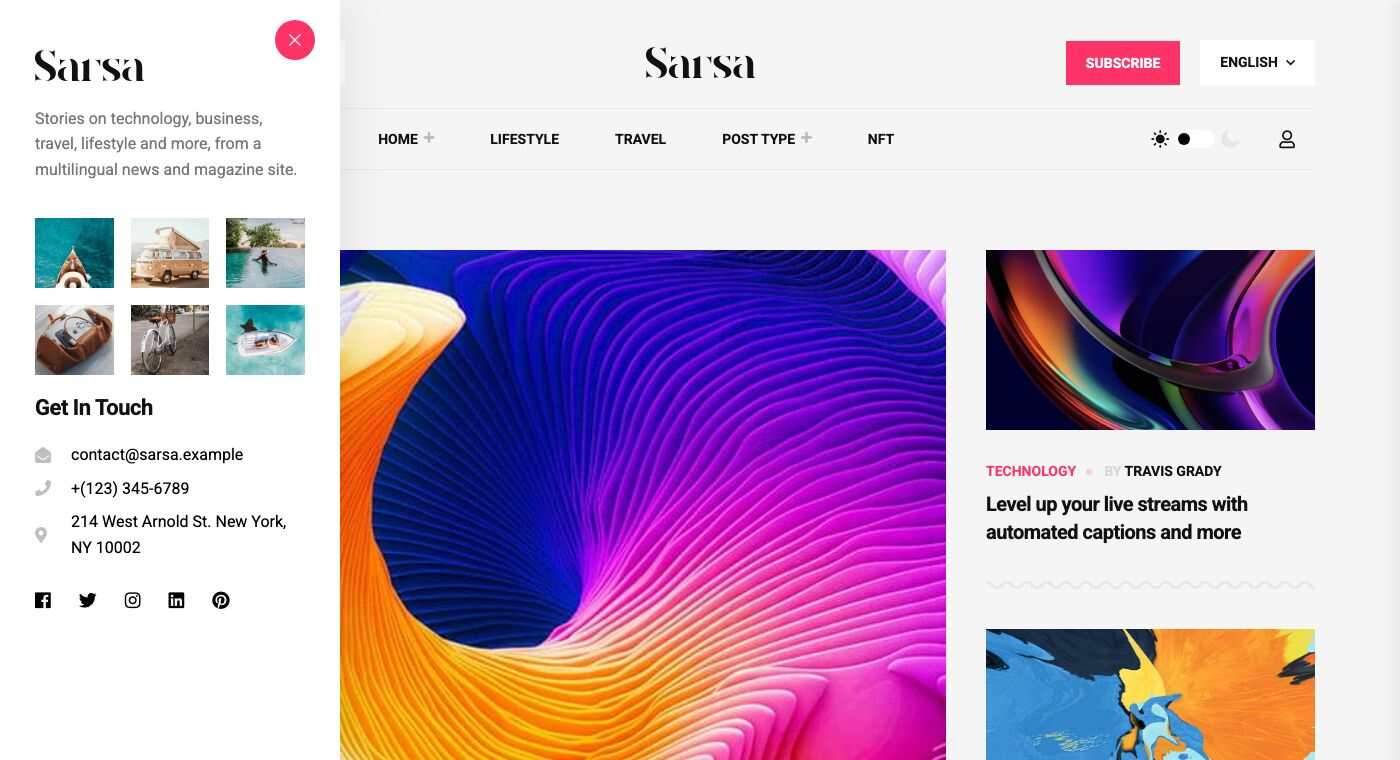
The site description, address, phone and contact email are edited in Theme Options -> General. The social links are in Theme Options -> Social links.
Search and Subscribe
- The search box searches posts. Styles 1, 6 and 7 show the box in the header; Styles 2, 3, 4 and 5 show a magnifier icon that opens it.
- The Subscribe button scrolls to the newsletter block of the current page. Add a Newsletter shortcode to the page for it to work.
- The language switcher shows only when more than one language is active. See Translate.
Dark mode
The sun and moon toggle in the header switches the whole site between light and dark. The choice is remembered in the visitor's browser.
