Ads
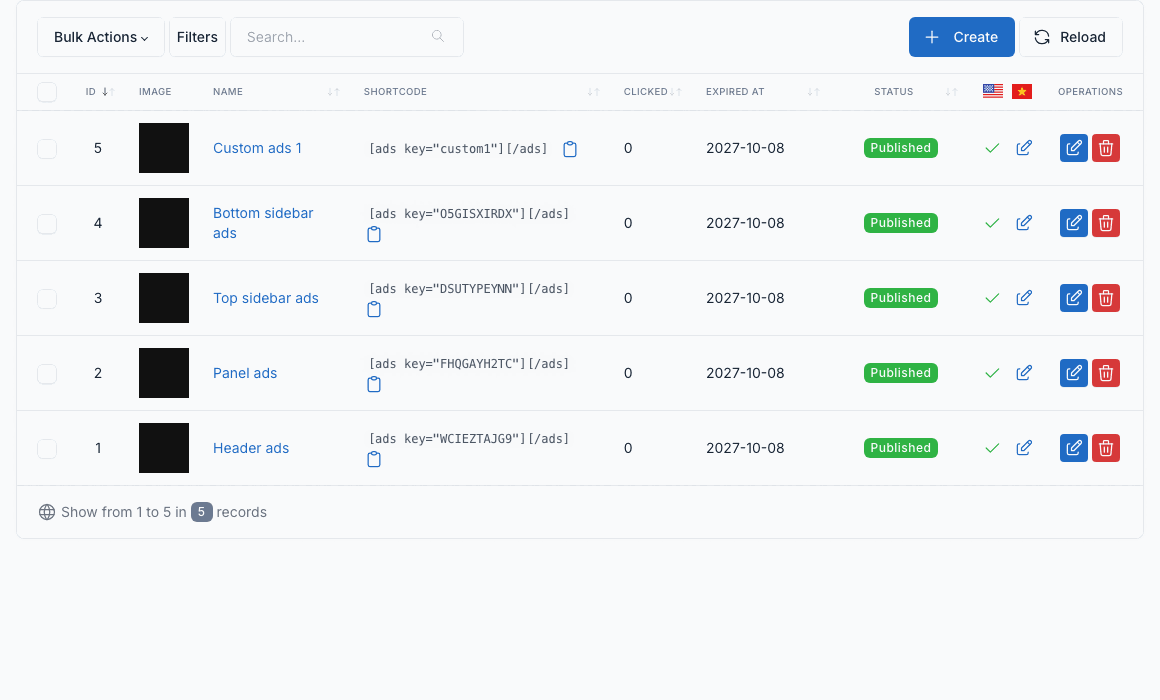
Go to Admin -> Ads.
Create an ad
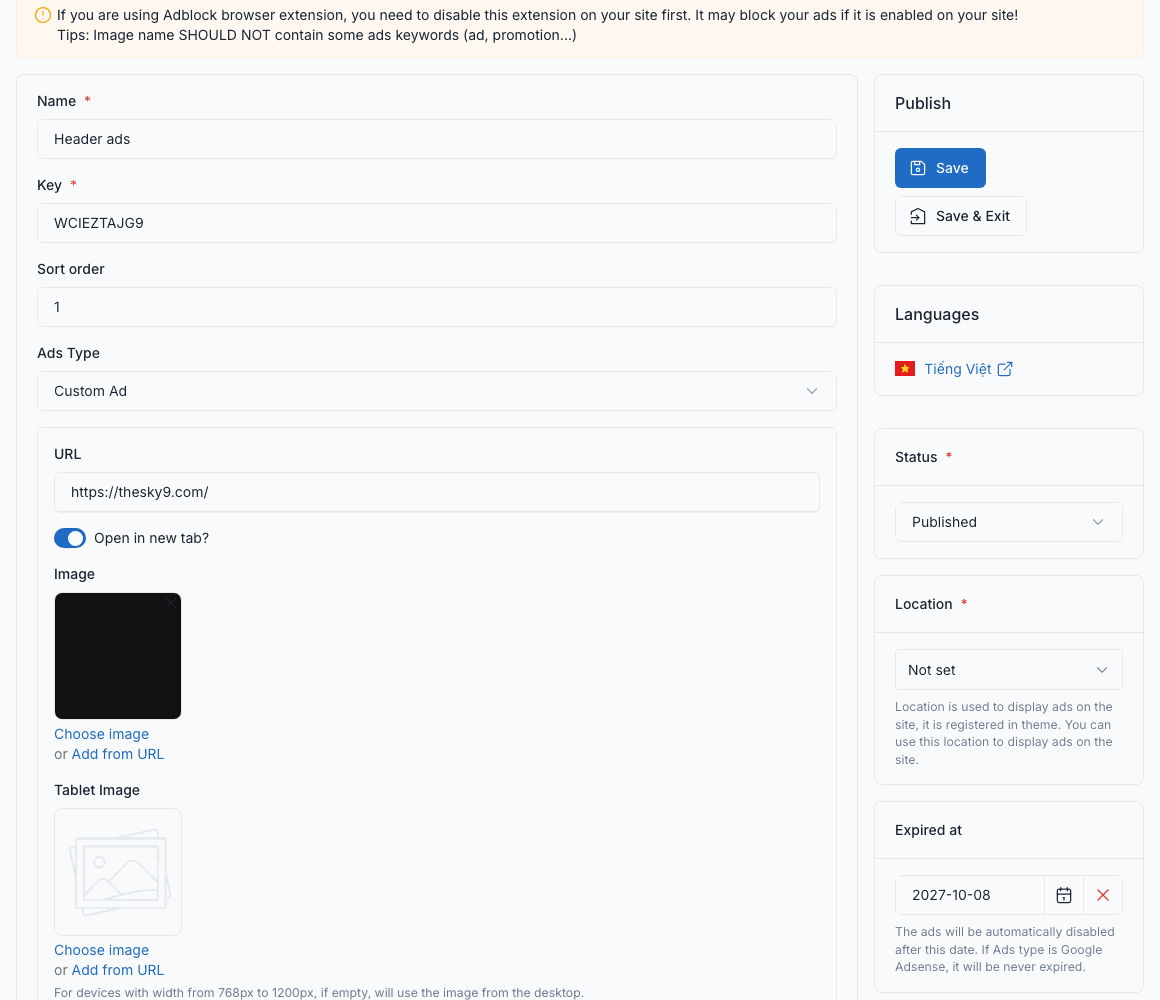
Click Create, then fill the form: a name, a key (used by the shortcode), the sort order, the ad type (a custom ad with an image and a link, or Google AdSense), the status and an expiry date. A custom ad has a desktop image, and optional tablet and mobile images.
Insert in an article or a page
The list shows the shortcode of each ad. Copy it, for example:
[ads key="custom1"][/ads]Paste it anywhere in the content of a page or a post and the ad is displayed there.
Show in a location
An ad can also be tied to a location registered by the theme. In the form of the ad, choose the location in the Location box. The ad then shows wherever the theme displays that location. If several active ads share a location, one of them is picked at random on each page load. An expired ad is never shown.
Sarsa registers four locations:
| Location | Where it shows |
|---|---|
Header Ads (header-ads) | The banner next to the logo in Header style 4. When no active ad uses this location, the header shows a neutral placeholder banner. |
Panel Ads (panel-ads) | Nowhere by default. Show it by adding an Ads widget to a widget area and choosing this location. |
Top Sidebar Ads (top-sidebar-ads) | Nowhere by default. Same as above: use an Ads widget. |
Bottom Sidebar Ads (bottom-sidebar-ads) | Nowhere by default. Same as above: use an Ads widget. |
To show a location in a widget area, open Admin -> Appearance -> Widgets, drag the Ads widget into an area (for example Primary sidebar) and pick the Ads location. See Widgets.
Header style 4 with the ad of the Header Ads location, as in the demo:

Google AdSense
Go to Admin -> Ads -> Ads Settings.
Choose the Google AdSense mode (disabled, Auto Ads or Unit Ads) and paste the content of your ads.txt file.